Dodeca Workbook Script Reference Guide
Workbook Scripting Overview
The Dodeca Spreadsheet Management System features a robust low-code development environment known as Workbook Scripting. Workbook Scripts enables customers to automate tailoring of the data contained on a view worksheet, the formatting of the worksheet, and/or the behavior of a view generated in Dodeca. Workbook Scripts are composed of five components:
-
Definition;
-
Properties;
-
Events;
-
Methods; and
-
Functions.
Four of these components are displayed in the Workbook Script Metadata Editor. Workbook Script Functions are primarily used in conjunction with Methods and, as such, will be discussed with Methods:
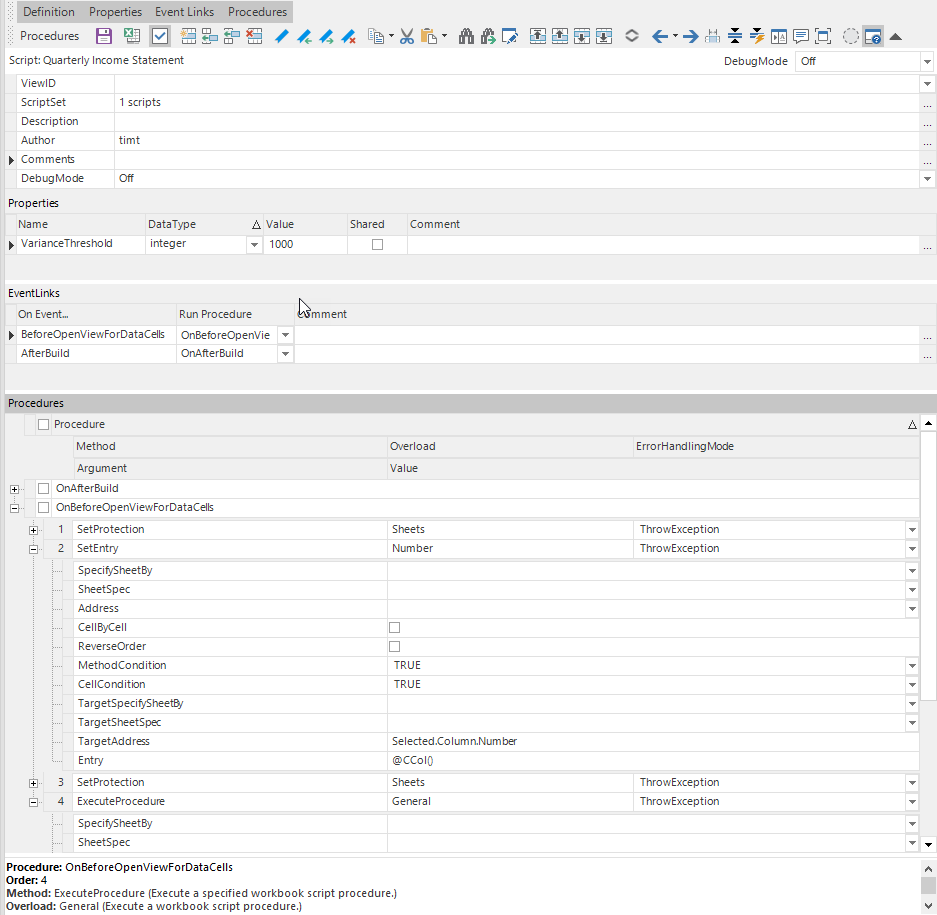
The top of the Workbook Script Metadata Editor contains a context-sensitive toolbar that will change based on the section selected. It contains tools relevant to the given section. The top strip of the toolbar contains buttons which filter the sections displayed to the user and can be used to maximize screen space.

The Workbook Script Definitions section provides a section for storing descriptive information about the given script.

The ViewID property is used to provide the workbook script arguments access to the Excel file used by the view to enable range name lists to be used for various Workbook Script method arguments. The ScriptSet property allows a developer to automatically integrate the logic of other workbook scripts into the given workbook script providing the ability to create reusable utility workbook scripts. The Comments property gives a developer the ability to document the workbook script. The DebugMode property provides the ability for a developer to specify how they can step through the logic of the Workbook Script.
Workbook Script Properties are similar in concept to variables in any other programming language.

Workbook Script Properties store values for use within the script. The value types include:
-
Bool
-
Byte
-
Char
-
Color
-
Date
-
Decimal
-
Double
-
Float
-
Font
-
Integer
-
Long
-
Short
-
String
Properties may be shared between scripts. Properties may be set by the developer at design time or programmatically at runtime using the workbook script @PVal() Workbook Script Function.
Workbook Script EventLinks capture actions that occur within the environment and provide a hook onto which a developer may tailor the application.

There are currently over 110 events in the Dodeca Spreadsheet Management System for which EventLinks are available. Frequently used events include and event which occurs after a workbook opens and which allows a developer to modify a spreadsheet template dynamically and programmatically when the view is generated. Another frequently used event, the AfterBuild event, occurs after most of the view processing is complete and just before it is displayed. This event is often used to perform finalization tasks, such as locking cells and protecting the worksheet contents, just before the workbook is displayed to the user.
The default naming convention for Procedures wired to a given EventLink is the word “On” joined together with the event name. Though this naming convention is not mandatory, it makes the code easier to maintain in the future if the naming convention is used.
Workbook Script Procedures are the code actions that are taken in response to events, or in certain cases, in response to tool button clicks. Procedures, in turn, are composed of one or more Workbook Script Methods.
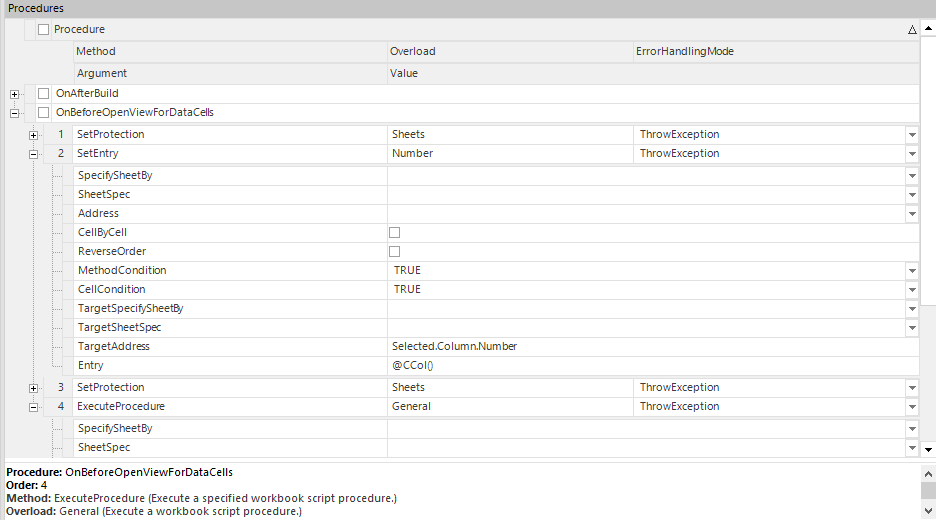
Methods are pre-written code modules that accept arguments to determine their actions. Methods dynamically change the Dodeca view instance by changing behaviors of the worksheet, cell formatting, data, or virtually any other aspect of the view worksheet or workbook.
Method arguments are the variables that control how the methods work. Each workbook script method has seven standard workbook script arguments common to all workbook script methods and may contain additional method arguments to provide instructions for how the method may be performed. The seven standard arguments are in the following table.
| Argument | Description |
|---|---|
SpecifySheetBy |
Select how to specify which worksheet to select while the method is being executed. |
SheetSpec |
Specify the sheet-name or sheet-number, depending on SpecifySheetBy. If SpecifySheetBy is AllSheets then SheetSpec can be left empty. |
Address |
The address of a range to select for the execution of the method. |
CellByCell |
Whether to execute the method on a cell-by-cell basis, or on the range specified by the address. |
ReverseOrder |
Whether to loop through the rows and columns from highest to lowest. Only applies when CellByCell is true. |
MethodCondition |
If the result of method-condition expression resolves to FALSE, then the method is not executed. |
CellCondition |
If the result of the condition expression resolves to FALSE, then the current cell is skipped. |
Most methods have additional arguments to control how the actions of the method are executed. In addition, methods may have multiple overloads where both the behavior of the method actions and the method arguments differ between the different overloads. For example, the SetEntry method, which is used to place data into a cell or a range of cells, has separate overloads for placing text into a cell, placing a number into a cell, placing a formula into a cell, and clearing the cell, among others.
In addition to Properties, EventLinks, Procedures, and Methods, another common workbook script component is the workbook script function. A workbook script function is a workbook script component that returns information not available via workbook script functions. There are workbook script functions that return information about workbook cells, the desktop environment, the file system, Essbase data points, and Essbase members, among other things. For example, there is a workbook script function that returns whether a given range is contained within a second range. There is another workbook book function that returns an Essbase member name based on the Essbase member alias. Here is the argument value editor showing how to select a workbook script function in the editor.
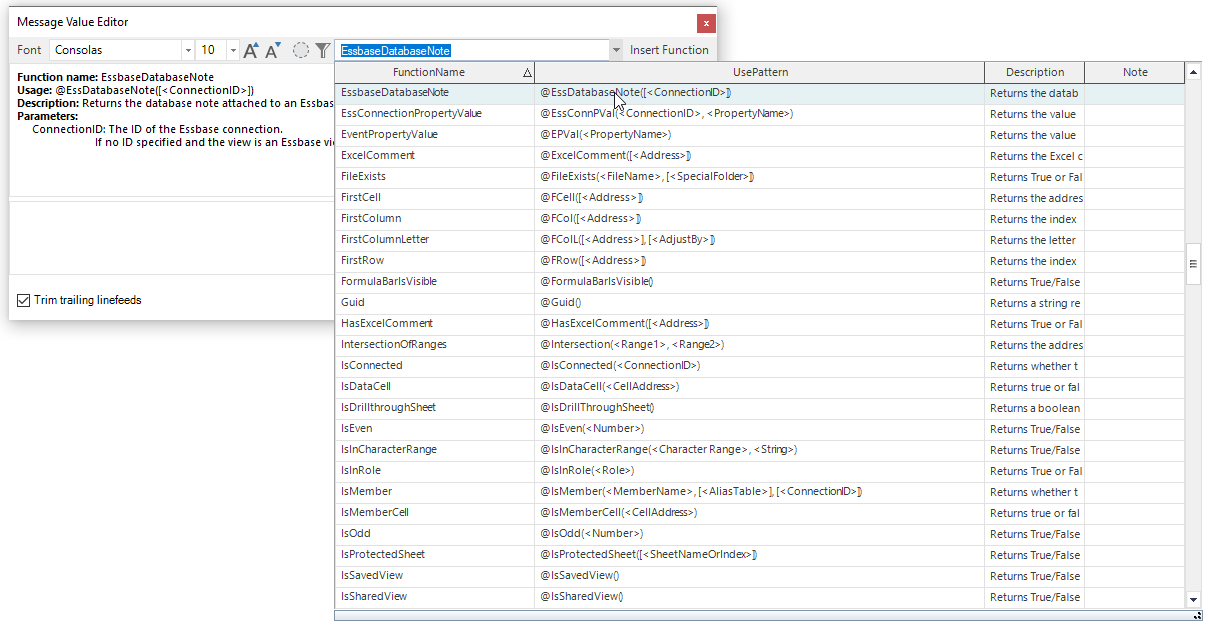
One of the most powerful features of workbook script methods is that most method arguments may contain calculated values. Depending on the argument, argument values may be hard-coded, selected from a picklist, calculated using Excel functions within the context of the view workbook, specified using a workbook script function, or by a combination of these ways.
In summary, Dodeca workbook scripts enable powerful tailored applications to be built in a low-code environment.
Reference
This reference is generated from the shipped Workbook Script metadata. Modules are documented separately because optional modules may define names that also exist in another scope.
Dodeca
Methods
Standard method arguments
These arguments apply to every method overload in this module.
-
SpecifySheetBy - Select how to specify which worksheet to select while the method is being executed. Type: System.String. Values:
SheetName,SheetNumber,AllSheets. -
SheetSpec - Specify the sheet-name or sheet-number, depending on SpecifySheetBy. If SpecifySheetBy is AllSheets then SheetSpec can be left empty. Type: System.String.
-
Address - The address of a range to select for the execution of the method. Type: System.String.
-
CellByCell - Whether to execute the method on a cell-by-cell basis, or on the range specified by the address. Type: System.Boolean. Default:
FALSE. -
CellByCellExitCondition - If the result of the condition expression resolves to TRUE, cell-by-cell processing is exited before the current cell is processed, and the method completes normally. The condition is evaluated before each cell and only applies when CellByCell is TRUE. Analogous to the ForEach method’s ExitLoopCondition argument. Type: System.Boolean. Values:
FALSE,TRUE. -
ReverseOrder - Whether to loop through the rows and columns from highest to lowest. Only applies when CellByCell is true. Type: System.Boolean. Default:
FALSE. -
MethodCondition - If the result of method-condition expression resolves to FALSE, then the method is not executed. Type: System.Boolean. Default:
TRUE. Values:FALSE,TRUE. -
CellCondition - If the result of the condition expression resolves to FALSE, then the current cell is skipped. Type: System.Boolean. Default:
TRUE. Values:FALSE,TRUE.
AddDataCache
Build a DataCache.
CartesianList
Build a DataCache based on the cartesian product of values from two or more delimited string lists.
-
DataCacheName - The name of the table will be used to lookup values from it. Type: System.String.
-
Initialize - Whether to initiaze the DataCache. Type: System.Boolean. Values:
FALSE,TRUE. -
AllowDuplicates - Whether the value of the first column in each row must be unique. Defaults to FALSE. Type: System.Boolean. Values:
FALSE,TRUE. -
TrimLeft - Whether to trim whitespace from the left of all values. Defaults to TRUE. Type: System.Boolean. Values:
FALSE,TRUE. -
TrimRight - Whether to trim whitespace from the right of all values. Defaults to TRUE. Type: System.Boolean. Values:
FALSE,TRUE. -
ScriptText - The text of the script that will be run. The script will receive token replacement before being run. Type: System.String.
-
Shared - Whether to carry the DataCache forward when opening one view from another. Type: System.Boolean. Values:
FALSE,TRUE. -
ListDelimiter - The delimiter to use to define the end of each List. The default is ",". Type: System.String.
-
Delimiter - The delimiter to use to define the end of each value. The default is ";". Type: System.String.
-
ScriptResultColumnCount - The number of columns that will be in each row of the script result. Type: System.String.
DataSet
Build a DataCache from a Dodeca DataSet.
-
DataCacheName - The name of the table will be used to lookup values from it. Type: System.String.
-
DataSetID - The ID of the DataSet. Type: System.String.
-
Initialize - Whether to initiaze the DataCache. Type: System.Boolean. Values:
FALSE,TRUE. -
Shared - Whether to carry the DataCache forward when opening one view from another. Type: System.Boolean. Values:
FALSE,TRUE.
DelimitedString (default)
Build a DataCache from a list of values specified by a delimited string.
-
DataCacheName - The name of the table will be used to lookup values from it. Type: System.String.
-
Initialize - Whether to initiaze the DataCache. Type: System.Boolean. Values:
FALSE,TRUE. -
AllowDuplicates - Whether the value of the first column in each row must be unique. Defaults to FALSE. Type: System.Boolean. Values:
FALSE,TRUE. -
TrimLeft - Whether to trim whitespace from the left of all values. Defaults to TRUE. Type: System.Boolean. Values:
FALSE,TRUE. -
TrimRight - Whether to trim whitespace from the right of all values. Defaults to TRUE. Type: System.Boolean. Values:
FALSE,TRUE. -
Shared - Whether to carry the DataCache forward when opening one view from another. Type: System.Boolean. Values:
FALSE,TRUE. -
ScriptText - The text of the script that will be run. The script will receive token replacement before being run. Type: System.String.
-
Delimiter - The delimiter to use to define the end of each value. The default is ";". Type: System.String.
-
RowDelimiter - The delimiter to use to determine the end of each row of data. The default is "|". Type: System.String.
SQLPassthroughDataSet
Build a DataCache from a Dodeca SQLPassthroughDataSet.
-
DataCacheName - The name of the table will be used to lookup values from it. Type: System.String.
-
Initialize - Whether to initiaze the DataCache. Type: System.Boolean. Values:
FALSE,TRUE. -
AllowDuplicates - Whether the value of the first column in each row must be unique. Defaults to FALSE. Type: System.Boolean. Values:
FALSE,TRUE. -
TrimLeft - Whether to trim whitespace from the left of all values. Defaults to FALSE. Type: System.Boolean. Values:
FALSE,TRUE. -
TrimRight - Whether to trim whitespace from the right of all values. Defaults to FALSE. Type: System.Boolean. Values:
FALSE,TRUE. -
Shared - Whether to carry the DataCache forward when opening one view from another. Type: System.Boolean. Values:
FALSE,TRUE. -
DataSetID - The QueryName of the SQLPassthroughDataSet to run. Type: System.String.
Tokens
Build a DataCache from the Dodeca tokens table. The DataCache has three columns: Token; TokenValue; TokenType
-
DataCacheName - The name of the table will be used to lookup values from it. Type: System.String.
-
Initialize - Whether to initiaze the DataCache. Type: System.Boolean. Values:
FALSE,TRUE. -
Shared - Whether to carry the DataCache forward when opening one view from another. Type: System.Boolean. Values:
FALSE,TRUE. -
ApplicationTokens - Whether to include application tokens. Defaults to FALSE. Type: System.Boolean. Values:
FALSE,TRUE. -
SelectorTokens - Whether to include selector tokens. Defaults to FALSE. Type: System.Boolean. Values:
FALSE,TRUE. -
ViewTokens - Whether to include view tokens. Defaults to FALSE. Type: System.Boolean. Values:
FALSE,TRUE.
URL
Build a DataCache from the values returned in XML format from a URL. Specify the URL in the ScriptText argument. The list values will be taken from any nodes named "value" like Single-column: <root><value>Value 1</value><value>Value 2</value><value>Value 3</value></root> Multi-column: <root><value><value>Value 1</value><value>Value 2</value><value>Value 3</value><value>Value 4</value><value>Value 5</value><value>Value 6</value><value>Value 7</value></value><value><value>Value 1</value><value>Value 2</value><value>Value 3</value><value>Value 4</value><value>Value 5</value><value>Value 6</value><value>Value 7</value></value></root>
-
DataCacheName - The name of the table will be used to lookup values from it. Type: System.String.
-
Initialize - Whether to initiaze the DataCache. Type: System.Boolean. Values:
FALSE,TRUE. -
AllowDuplicates - Whether the value of the first column in each row must be unique. Defaults to FALSE. Type: System.Boolean. Values:
FALSE,TRUE. -
TrimLeft - Whether to trim whitespace from the left of all values. Defaults to FALSE. Type: System.Boolean. Values:
FALSE,TRUE. -
TrimRight - Whether to trim whitespace from the right of all values. Defaults to FALSE. Type: System.Boolean. Values:
FALSE,TRUE. -
Shared - Whether to carry the DataCache forward when opening one view from another. Type: System.Boolean. Values:
FALSE,TRUE. -
ScriptText - The text of the script that will be run. The script will receive token replacement before being run. Type: System.String.
AddDataTableRangeRows
Adds rows to a DataTableRange’s sheet range.
RangeAddress (default)
Adds rows to a DataTableRange’s sheet range. The rows are added to the DataTableRange’s sheet range that contains the specified range’s row and column.
-
DataTableRangeAddress - The address that is used to identify the DataTableRange whose sheet range the rows are added to. For example, the address of the active cell can be used to identify the selected DataTableRange. Type: System.String.
-
RowCount - The number of rows to add. Type: System.String. Default:
1.
RangeName
Adds rows to a DataTableRange’s sheet range.
-
DataSetRangeName - The name of the view’s SQLPassthroughDataSetRange that contains the DataTableRange definition. Type: System.String.
-
DataTableRangeName - The name of the DataTableRange whose sheet range the rows are added to. Type: System.String.
-
GroupSheetRangeName - For a DataTableRange that is configured to sort and/or group the DataTable rows, the name of the group’s sheet range to which the rows are added. Type: System.String.
-
RowCount - The number of rows to add. Type: System.String. Default:
1.
AddDefinedName
Add a defined name.
WorkbookRange
Add a defined name to the workbook for a literal (specified string).
-
DefinedName - The new defined name. Type: System.String.
-
RangeAddress - The range to associate with the defined name. Type: System.String.
WorkbookValue
Add a defined name to the workbook for a value.
-
DefinedName - The new defined name. Type: System.String.
-
Value - This option allows for a defined name for a value, as opposed to a defined name for a range. Type: System.String.
WorksheetRange (default)
Add a defined name for a range.
-
DefinedName - The new defined name. Type: System.String.
-
RangeAddress - The range to associate with the defined name. Type: System.String.
WorksheetValue
Add a defined name for a value.
-
DefinedName - The new defined name. Type: System.String.
-
Value - This option allows for a defined name for a value, as opposed to a defined name for a range. Type: System.String.
AddProperty
Add a property to the workbook script.
Boolean
Add a boolean property to the workbook script.
-
Initialize - Whether to initialize the property. If Initialize is not specified TRUE will be used. If the Property already exists, an Initialize value of TRUE will cause the value of the property to be set to an empty string before the method is executed. Type: System.Boolean. Default:
TRUE. Values:FALSE,TRUE. -
PropertyName - The name of the new property. Type: System.String.
-
Value - The value of the new property. Type: System.String.
-
Shared - Whether to carry the property forward when opening one view from another. Type: System.Boolean. Values:
FALSE,TRUE.
Double
Add a double property to the workbook script.
-
Initialize - Whether to initialize the property. If Initialize is not specified TRUE will be used. If the Property already exists, an Initialize value of TRUE will cause the value of the property to be set to an empty string before the method is executed. Type: System.Boolean. Default:
TRUE. Values:FALSE,TRUE. -
PropertyName - The name of the new property. Type: System.String.
-
Value - The value of the new property. Type: System.String.
-
Shared - Whether to carry the property forward when opening one view from another. Type: System.Boolean. Values:
FALSE,TRUE.
Integer
Add a integer property to the workbook script.
-
Initialize - Whether to initialize the property. If Initialize is not specified TRUE will be used. If the Property already exists, an Initialize value of TRUE will cause the value of the property to be set to an empty string before the method is executed. Type: System.Boolean. Default:
TRUE. Values:FALSE,TRUE. -
PropertyName - The name of the new property. Type: System.String.
-
Value - The value of the new property. Type: System.String.
-
Shared - Whether to carry the property forward when opening one view from another. Type: System.Boolean. Values:
FALSE,TRUE.
SpecifyDataType
Add a property of specified data-type to the workbook script.
-
Initialize - Whether to initialize the property. If Initialize is not specified TRUE will be used. If the Property already exists, an Initialize value of TRUE will cause the value of the property to be set to an empty string before the method is executed. Type: System.Boolean. Default:
TRUE. Values:FALSE,TRUE. -
PropertyName - The name of the new property. Type: System.String.
-
DataType - The data-type of the new property. Type: System.String. Default:
string. Values:bool,byte,char,color,date,decimal,double,float,font,integer,long,short,string. -
Value - The value of the new property. Type: System.String.
-
AppendToValue - For a string property, controls whether to append the Value to the existing property value. Type: System.Boolean. Values:
FALSE,TRUE. -
Shared - Whether to carry the property forward when opening one view from another. Type: System.Boolean. Values:
FALSE,TRUE.
String (default)
Add a string property to the workbook script.
-
Initialize - Whether to initialize the property. If Initialize is not specified TRUE will be used. If the Property already exists, an Initialize value of TRUE will cause the value of the property to be set to an empty string before the method is executed. Type: System.Boolean. Default:
TRUE. Values:FALSE,TRUE. -
PropertyName - The name of the new property. Type: System.String.
-
Value - The value of the new property. Type: System.String.
-
AppendToValue - For a string property, controls whether to append the Value to the existing property value. Type: System.Boolean. Values:
FALSE,TRUE. -
Delimiter - When AppendToValue is True, an optional delimiter to use to delimit each appended value. Type: System.String.
-
Shared - Whether to carry the property forward when opening one view from another. Type: System.Boolean. Values:
FALSE,TRUE.
AddToken
Add a token to the workbook script.
Application
Add an application token to the Dodeca application.
-
TokenName - The name of the new token. Type: System.String.
-
Value - The value of the new token. Type: System.String.
-
SyncTokens - Whether to sync the token table after adding the token. If not specified TRUE will be used. Type: System.Boolean. Values:
FALSE,TRUE.
General (default)
Add a temporary token to the Dodeca view.
-
TokenName - The name of the new token. Type: System.String.
-
Value - The value of the new token. Type: System.String.
TargetView
Add a view token to the target view.
-
TokenName - The name of the new token. Type: System.String.
-
Value - The value of the new token. Type: System.String.
-
SyncTokens - Whether to sync the token table after adding the token. If not specified TRUE will be used. Type: System.Boolean. Values:
FALSE,TRUE.
View
Add a view token to the Dodeca view.
-
TokenName - The name of the new token. Type: System.String.
-
Value - The value of the new token. Type: System.String.
-
SyncTokens - Whether to sync the token table after adding the token. If not specified TRUE will be used. Type: System.Boolean. Values:
FALSE,TRUE.
AddWorksheet
Add a worksheet to the workbook.
InPositionByName
Insert a new worksheet at a position specified by sheet name.
-
NewSheetName - The new name of the new sheet. Type: System.String.
-
SheetName - The name of the sheet that is in the position to insert the sheet at. Type: System.String.
InPositionByNumber
Insert a new worksheet at a position specified by sheet number.
-
NewSheetName - The new name of the new sheet. Type: System.String.
-
SheetNumber - The number position to insert the sheet at. Type: System.Int32.
ToBeginning
Insert a new worksheet in the position of first sheet.
-
NewSheetName - The new name of the new sheet. Type: System.String.
ToEnd (default)
Add a new worksheet as the last sheet.
-
NewSheetName - The new name of the new sheet. Type: System.String.
AIOperations
Operations related to AI content generation.
GenerateContent (default)
Generate Content.
-
Caption - Caption. Type: System.String.
-
ConnectionID - The ID of the Generative AI connection to use. Type: System.String.
-
Model - AI Model to use, if supported. Type: System.String.
-
ToolSource - The ID of the tool source to use. Type: System.String.
-
Prompt - Prompt. Type: System.String.
-
Session - Session ID. Type: System.String.
-
ShouldAllowEditPrompt - Should Allow Edit Prompt. Type: System.Bool. Values:
FALSE,TRUE. -
ShouldAllowEditResult - Should Allow Edit Result. Type: System.Bool. Values:
FALSE,TRUE. -
ShouldExecuteUponPresent - Should Execute Upon Present. Type: System.Bool. Values:
FALSE,TRUE. -
ShouldPresent - Should Present. Type: System.Bool. Values:
FALSE,TRUE. -
ShouldShowPrompt - Should Present. Type: System.Bool. Values:
FALSE,TRUE. -
ShouldShowResult - Should Show prompt. Type: System.Bool. Values:
FALSE,TRUE. -
ContentPropertyName - (Optional) The name of the workbook script property that receives the returned content. Type: System.String.
-
ContentAcceptedPropertyName - (Optional) Returns true if content was accepted. Type: System.String.
AttachmentOperations
Operations related to Dodeca Attachments.
AttachFile (default)
Attaches the specified file.
-
IsViewAttachment - Whether the attachment is a view attachment. Defaults to FALSE. Type: System.Boolean. Values:
FALSE,TRUE. -
Filename - The name of the file to attach. Type: System.String.
-
Folder - The path to the folder that contains the specified file. Type: System.String.
-
Description - The description of the new attachment. Type: System.String.
-
IncrementName - Whether to add a subscript, such as (2), to the name of the attachment if the comment being attached to already has an attachment with the same name. Defaults to TRUE. If FALSE attachments with the same name will be overwritten. Type: System.Boolean. Values:
FALSE,TRUE. -
KeyItems - A semicolon delimited list of key-value pairs such as "Year=Jan;Market=East;Scenario=Budget". Each key item must be expressed as <key>=<value>, where neither <key> nor <value> are blank. The @KeyItems(<Address>) function can be used to specify the KeyItems of a specific cell. If KeyItems is blank the KeyItems of the active cell (if any) will be used. Type: System.String.
-
AllowedFileTypes - A semicolon delimited string of file types. ex: ".xlsx;.txt;.docx". Only attachments of the file types specified will be allowed to be attached. If not specified then all types are allowed except for restricted types. Type: System.String.
-
MaximumFileSize - The maximum allowed file size of attachments in KB. If left blank the MaximumFileSize property of the associated CommentRange will be used. Type: System.String. Default:
1024. -
MaximumAttachments - The maximum number of files that can be attached to a comment. If left blank the MaximumAttachments property of the associated CommentRange will be used. Type: System.String. Default:
1. -
UseDialog - Whether to use a file dialog to specify the file. Defaults to FALSE. Type: System.Boolean. Values:
FALSE,TRUE. -
DialogTitle - A caption to use at the title of the file dialog. Type: System.String.
-
DialogResultPropertyName - If specified a script property with the specified name will be created with result of the file dialog. The @PVal(<property-name>) function can be used to get the value. Type: System.String.
-
IdPropertyName - If specified a script property with the specified name will be created with new attachment’s ID. The @PVal(<property-name>) function can be used to get the value. Type: System.String.
-
FullFilePathPropertyName - If specified a script property with the specified name will be created with full path of the attached file. The @PVal(<property-name>) function can be used to get the value. Type: System.String.
AttachFileShortcut
Creates a shortcut to the specified file and attaches the shortcut. This would typically be a file on a network drive.
-
IsViewAttachment - Whether the attachment is a view attachment. Defaults to FALSE. Type: System.Boolean. Values:
FALSE,TRUE. -
Filename - The name of the file to attach. Type: System.String.
-
Folder - The path to the folder that contains the specified file. Type: System.String.
-
Description - The description of the new attachment. Type: System.String.
-
IncrementName - Whether to add a subscript, such as (2), to the name of the attachment if the comment being attached to already has an attachment with the same name. Defaults to TRUE. If FALSE attachments with the same name will be overwritten. Type: System.Boolean. Values:
FALSE,TRUE. -
KeyItems - A semicolon delimited list of key-value pairs such as "Year=Jan;Market=East;Scenario=Budget". Each key item must be expressed as <key>=<value>, where neither <key> nor <value> are blank. The @KeyItems(<Address>) function can be used to specify the KeyItems of a specific cell. If KeyItems is blank the KeyItems of the active cell (if any) will be used. Type: System.String.
-
AllowedFileTypes - A semicolon delimited string of file types. ex: ".xlsx;.txt;.docx". Only attachments of the file types specified will be allowed to be attached. If not specified then all types are allowed except for restricted types. Type: System.String.
-
MaximumAttachments - The maximum number of files that can be attached to a comment. If left blank the MaximumAttachments property of the associated CommentRange will be used. Type: System.String. Default:
1. -
UseDialog - Whether to use a file dialog to specify the file. Defaults to FALSE. Type: System.Boolean. Values:
FALSE,TRUE. -
DialogTitle - A caption to use at the title of the file dialog. Type: System.String.
-
DialogResultPropertyName - If specified a script property with the specified name will be created with result of the file dialog. The @PVal(<property-name>) function can be used to get the value. Type: System.String.
-
IdPropertyName - If specified a script property with the specified name will be created with new attachment’s ID. The @PVal(<property-name>) function can be used to get the value. Type: System.String.
-
FullFilePathPropertyName - If specified a script property with the specified name will be created with full path of the attached file. The @PVal(<property-name>) function can be used to get the value. Type: System.String.
AttachUrlShortcut
Creates a shortcut to the specified Url and attaches the shortcut.
-
IsViewAttachment - Whether the attachment is a view attachment. Defaults to FALSE. Type: System.Boolean. Values:
FALSE,TRUE. -
URL - The URL to create the shortcut for. Type: System.String.
-
Name - The name of the new shortcut. Type: System.String.
-
Description - The description of the new attachment. Type: System.String.
-
IncrementName - Whether to add a subscript, such as (2), to the name of the attachment if the comment being attached to already has an attachment with the same name. Defaults to TRUE. If FALSE attachments with the same name will be overwritten. Type: System.Boolean. Values:
FALSE,TRUE. -
KeyItems - A semicolon delimited list of key-value pairs such as "Year=Jan;Market=East;Scenario=Budget". Each key item must be expressed as <key>=<value>, where neither <key> nor <value> are blank. The @KeyItems(<Address>) function can be used to specify the KeyItems of a specific cell. If KeyItems is blank the KeyItems of the active cell (if any) will be used. Type: System.String.
-
MaximumAttachments - The maximum number of files that can be attached to a comment. If left blank the MaximumAttachments property of the associated CommentRange will be used. Type: System.String. Default:
1. -
UseDialog - Whether to use a file dialog to specify the file. Defaults to FALSE. Type: System.Boolean. Values:
FALSE,TRUE. -
DialogTitle - A caption to use at the title of the file dialog. Type: System.String.
-
DialogResultPropertyName - If specified a script property with the specified name will be created with result of the file dialog. The @PVal(<property-name>) function can be used to get the value. Type: System.String.
-
UrlPropertyName - If specified a script property with the specified name will be created with a value of the new attachment’s URL. The @PVal(<property-name>) function can be used to get the value. Type: System.String.
-
NamePropertyName - If specified a script property with the specified name will be created with a value of the name of the attachment that was opened. The @PVal(<property-name>) function can be used to get the value. Type: System.String.
-
DescriptionPropertyName - If specified a script property with the specified name will be created with a value of the new attachment’s Description. The @PVal(<property-name>) function can be used to get the value. Type: System.String.
-
IdPropertyName - If specified a script property with the specified name will be created with new attachment’s ID. The @PVal(<property-name>) function can be used to get the value. Type: System.String.
Delete
Deletes one or more attachments. If IsViewAttachment is TRUE then Name must be specified to identify which view attachment to delete. View attachments can be identified by AttachmentID, in which case it is not necessary to specify IsViewAttachment. Otherwise, AttachmentID or KeyItems must be specified. If AttachmentID is specified one attachment may be deleted. KeyItems will be ignored. If KeyItems is specified more than one attachment may be deleted depending on the number of items that are attached to the intersection specified by the KeyItems. If Name is specified with KeyItems then all attachments at the intersection specified by the KeyItems having the specified name will be deleted.
-
IsViewAttachment - Whether the attachment is a view attachment. Defaults to FALSE. Type: System.Boolean. Values:
FALSE,TRUE. -
AttachmentID - If AttachmentID is specified then Name and KeyItems will be ignored. Type: System.String.
-
Name - The name of the attachment to delete. Type: System.String.
-
KeyItems - A semicolon delimited list of key-value pairs such as "Year=Jan;Market=East;Scenario=Budget". Each key item must be expressed as <key>=<value>, where neither <key> nor <value> are blank. The @KeyItems(<Address>) function can be used to specify the KeyItems of a specific cell. If KeyItems is blank the KeyItems of the active cell (if any) will be used. Type: System.String.
-
CountPropertyName - If specified a script property with the specified name will be created with new count of deleted attachments. The @PVal(<property-name>) function can be used to get the value. Type: System.String.
-
IdListPropertyName - If specified a script property with the specified name will be created with a semicolon delimited list of the deleted attachment ID’s. The @PVal(<property-name>) function can be used to get the value. Type: System.String.
Export
Exports one or more attachments. If IsViewAttachment is TRUE then Name must be specified to identify which view attachment to export. View attachments can be identified by AttachmentID, in which case it is not necessary to specify IsViewAttachment. Otherwise, AttachmentID or KeyItems must be specified. If AttachmentID is specified one attachment may be exported. KeyItems will be ignored. If KeyItems is specified more than one attachment may be exported depending on the number of items that are attached to the intersection specified by the KeyItems. If Name is specified with KeyItems then all attachments at the intersection specified by the KeyItems having the specified name will be exported.
-
IsViewAttachment - Whether the attachment is a view attachment. Defaults to FALSE. Type: System.Boolean. Values:
FALSE,TRUE. -
AttachmentID - The AttachmentID. Type: System.String.
-
Name - The name of the attachment to export. Type: System.String.
-
KeyItems - A semicolon delimited list of key-value pairs such as "Year=Jan;Market=East;Scenario=Budget". Each key item must be expressed as <key>=<value>, where neither <key> nor <value> are blank. The @KeyItems(<Address>) function can be used to specify the KeyItems of a specific cell. If KeyItems is blank the KeyItems of the active cell (if any) will be used. Type: System.String.
-
Folder - The folder to export the attachment to. Type: System.String.
-
FileExistsPolicy - Determines what to do if there is an existing file with the same name. If not specified Increment will be used. Increment = Add a sequence number to the file name like "FileName(1).txt". Overwrite = Overwrite the existing file. PromptForName = Prompt the user for a unique name. PromptForOverwrite = Prompt the user for whether to overwrite the file. SkipSilent = Do not export. SkipWithMessage = Prompt user with message that file was not exported. Type: System.String. Values:
Increment,Overwrite,PromptForName,PromptForOverwrite,SkipSilent,SkipWithMessage. -
UseDialog - Whether to use a dialog to specify where to put the file. Defaults to FALSE. Type: System.Boolean. Values:
FALSE,TRUE. -
DialogTitle - A caption to use at the title of the file dialog. Type: System.String.
-
DialogResultPropertyName - If specified a script property with the specified name will be created with result of the file dialog. The @PVal(<property-name>) function can be used to get the value. Type: System.String.
-
CountPropertyName - If specified a script property with the specified name will be created with count of the exported attachments. The @PVal(<property-name>) function can be used to get the value. Type: System.String.
-
FolderPropertyName - If specified a script property with the specified name will be created with the path of the output folder. Type: System.String.
-
FilePathsListPropertyName - If specified a script property with the specified name will be created with a semicolon delimited list of the full paths of each exported file. The @PVal(<property-name>) function can be used to get the value. Type: System.String.
-
IdListPropertyName - If specified a script property with the specified name will be created with a semicolon delimited list of the exported attachment ID’s. The @PVal(<property-name>) function can be used to get the value. Type: System.String.
-
NamesListPropertyName - If specified a script property with the specified name will be created with a semicolon delimited list of the exported attachment names. The @PVal(<property-name>) function can be used to get the value. Type: System.String.
Open
Opens one attachment. AttachmentID or KeyItems must be specified. If AttachmentID is specified one attachment may be opened. KeyItems will be ignored. If KeyItems is specified the first attachment that is attached to the intersection specified by the KeyItems will be opened. If Name is specified with KeyItems the first attachment that is attached to the intersection specified by the KeyItems and has the specified name will be opened.
-
IsViewAttachment - Whether the attachment is a view attachment. Defaults to FALSE. Type: System.Boolean. Values:
FALSE,TRUE. -
AttachmentID - The AttachmentID. Type: System.String.
-
Name - The name of the attachment to delete. Type: System.String.
-
KeyItems - A semicolon delimited list of key-value pairs such as "Year=Jan;Market=East;Scenario=Budget". Each key item must be expressed as <key>=<value>, where neither <key> nor <value> are blank. The @KeyItems(<Address>) function can be used to specify the KeyItems of a specific cell. If KeyItems is blank the KeyItems of the active cell (if any) will be used. Type: System.String.
-
Folder - The folder to export the attachment to. Type: System.String.
-
FileExistsPolicy - Determines what to do if there is an existing file with the same name. If not specified Increment will be used. Increment = Add a sequence number to the file name like "FileName(1).txt". Overwrite = Overwrite the existing file. PromptForName = Prompt the user for a unique name. PromptForOverwrite = Prompt the user for whether to overwrite the file. SkipSilent = Do not export. SkipWithMessage = Prompt user with message that file was not exported. Type: System.String. Values:
Increment,Overwrite,PromptForName,PromptForOverwrite,SkipSilent,SkipWithMessage. -
UseDialog - Whether to use a dialog to specify where to put the file. Defaults to FALSE. Type: System.Boolean. Values:
FALSE,TRUE. -
DialogTitle - A caption to use at the title of the file dialog. Type: System.String.
-
DialogResultPropertyName - If specified a script property with the specified name will be created with result of the file dialog. The @PVal(<property-name>) function can be used to get the value. Type: System.String.
-
FolderPropertyName - If specified a script property with the specified name will be created with the path of the output folder. Type: System.String.
-
FullFilePathPropertyName - If specified a script property with the specified name will be created with full path of the attached file. The @PVal(<property-name>) function can be used to get the value. Type: System.String.
-
NamePropertyName - If specified a script property with the specified name will be created with a value of the name of the attachment that was opened. The @PVal(<property-name>) function can be used to get the value. Type: System.String.
-
IdPropertyName - If specified a script property with the specified name will be created with the exported attachmentId. The @PVal(<property-name>) function can be used to get the value. Type: System.String.
BinaryArtifactOperations
Use this method to Create, Update, Delete, Import from binary artifacts
AddSheet
Add a worksheet from the current view to a specified BinaryArtifact.
-
SheetName - Specify the binary artifact sheet-name. Type: System.String.
-
NewSheetName - If not blank the loaded sheet will be named per the specified NewSheetName. Type: System.String.
-
ID - Specify the ID of the binary artifact. (Required) Type: System.String.
-
VersionPolicy - Determines the Version to be used in saving the BinaryArtifact. If not specified and the SpecificVersion argument has no value then New will be used. Latest = latest version of the Binary Artifact. New = latest version of the Binary Artifact + 1. Specific = specified by the SpecificVersion argument. Type: System.String. Values:
Latest,New,Specific. -
SpecificVersion - The specific version to use for the Binary Artifact. (ignored if the VersionPolicy argument is not blank or set to Specific) Type: System.String.
-
ValuesOnly - Whether to replace cell formulas with cell values. Defaults to FALSE. Type: System.Boolean. Values:
FALSE,TRUE. -
ToPositionPolicy - Select how to specify where to copy the worksheet to. Defaults to "Last". Type: System.String.
-
ToPosition - If ToPositionPolicy is ToPositionOfSheetNamed then enter a sheet name. If ToPositionPolicy is ToPositionNumber then enter a number. Type: System.Int32.
-
Password - The password assigned to the saved workbook. Type: System.String.
-
PreserveFormulas - Whether to copy cell formulas verbatim rather than allowing them to be adjusted to refer to the source workbook. Defaults to FALSE. Type: System.Boolean. Values:
FALSE,TRUE.
AddWorkbook
Add all worksheets from the current view to a specified BinaryArtifact
-
ID - Specify the ID of the binary artifact. (Required) Type: System.String.
-
VersionPolicy - Determines the Version to be used in saving the BinaryArtifact. If not specified and the SpecificVersion argument has no value then New will be used. Latest = latest version of the Binary Artifact. New = latest version of the Binary Artifact + 1. Specific = specified by the SpecificVersion argument. Type: System.String. Values:
Latest,New,Specific. -
SpecificVersion - The specific version to use for the Binary Artifact. (ignored if the VersionPolicy argument is not blank or set to Specific) Type: System.String.
-
ValuesOnly - Whether to replace cell formulas with cell values. Defaults to FALSE. Type: System.Boolean. Values:
FALSE,TRUE. -
ToPositionPolicy - Select how to specify where to copy the worksheet to. Defaults to "Last". Type: System.String.
-
ToPosition - If ToPositionPolicy is ToPositionOfSheetNamed then enter a sheet name. If ToPositionPolicy is ToPositionNumber then enter a number. Type: System.Int32.
-
Password - The password assigned to the saved workbook. Type: System.String.
-
PreserveFormulas - Whether to copy cell formulas verbatim rather than allowing them to be adjusted to refer to the source workbook. Defaults to FALSE. Type: System.Boolean. Values:
FALSE,TRUE.
CreateFromFile (default)
Create a BinaryArtifact from a file.
-
Type - Specify the BinaryArtifact type. If left blank Excel will be used for Excel file types. Otherwise Other will be used. Other: Specifies a text file of comma-separated values. Typically saved with the .csv filename extension. Excel: Specifies the Biff 8 File format which is the default file format of Excel 97, Excel 2000, Excel 2002 (XP) and Excel 2003. This format is also supported by Excel 2007-2016. Typically saved with the .xls filename extension. Type: System.String. Values:
Excel,Other. -
ID - Specify the ID of the binary artifact. (Required) Type: System.String.
-
Name - Specify the name of the binary artifact. Type: System.String.
-
Description - Specify the description for the binary artifact. Type: System.String.
-
VersionPolicy - Determines the Version to be used in saving the BinaryArtifact. If not specified and the SpecificVersion argument has no value then New will be used. Latest = latest version of the Binary Artifact. New = latest version of the Binary Artifact + 1. Specific = specified by the SpecificVersion argument. Type: System.String. Values:
Latest,New,Specific. -
SpecificVersion - The specific version to use for the Binary Artifact. (ignored if the VersionPolicy argument is not blank or set to Specific) Type: System.String.
-
Filename - Specify the Filename of the binary artifact. When creating a BinaryArtifact, if Filename is left blank the BinaryArtifact’s ID will be used. Type: System.String.
-
Folder - Specify the full path to the folder that contains the file. Type: System.String.
-
ValuesOnly - Whether to replace cell formulas with cell values. Defaults to FALSE. Type: System.Boolean. Values:
FALSE,TRUE. -
Password - The password assigned to the saved workbook. Type: System.String.
CreateFromSheet
Create a BinaryArtifact from a specified worksheet of the current view.
-
SheetName - Specify the binary artifact sheet-name. Type: System.String.
-
Type - Specify the BinaryArtifact type. If left blank Excel will be used for Excel file types. Otherwise Other will be used. Other: Specifies a text file of comma-separated values. Typically saved with the .csv filename extension. Excel: Specifies the Biff 8 File format which is the default file format of Excel 97, Excel 2000, Excel 2002 (XP) and Excel 2003. This format is also supported by Excel 2007-2016. Typically saved with the .xls filename extension. Type: System.String. Values:
Excel,Other. -
ID - Specify the ID of the binary artifact. (Required) Type: System.String.
-
Name - Specify the name of the binary artifact. Type: System.String.
-
Description - Specify the description for the binary artifact. Type: System.String.
-
VersionPolicy - Determines the Version to be used in saving the BinaryArtifact. If not specified and the SpecificVersion argument has no value then New will be used. Latest = latest version of the Binary Artifact. New = latest version of the Binary Artifact + 1. Specific = specified by the SpecificVersion argument. Type: System.String. Values:
Latest,New,Specific. -
SpecificVersion - The specific version to use for the Binary Artifact. (ignored if the VersionPolicy argument is not blank or set to Specific) Type: System.String.
-
ValuesOnly - Whether to replace cell formulas with cell values. Defaults to FALSE. Type: System.Boolean. Values:
FALSE,TRUE. -
Filename - Specify the Filename of the binary artifact. When creating a BinaryArtifact, if Filename is left blank the BinaryArtifact’s ID will be used. Type: System.String.
-
FileType - Specify the file type of saved workbook. Defaults to the current view’s file type if not specified. CSV: Specifies a text file of comma-separated values. Typically saved with the .csv filename extension. Excel8: Specifies the Biff 8 File format which is the default file format of Excel 97, Excel 2000, Excel 2002 (XP) and Excel 2003. This format is also supported by Excel 2007-2016. Typically saved with the .xls filename extension. OpenXMLWorkbook: Specifies the Excel 2007-2016 Open XML file format. Typically saved with the .xlsx filename extension. OpenXMLWorkbookMacroEnabled: Specifies the Excel 2007-2016 macro enabled Open XML file format. Typically saved with the .xlsm filename extension. UnicodeText: Specifies a tab-delimited Unicode text file encoded as UTF-8. Typically saved with the .txt filename extension. Type: System.String. Values:
CSV,Excel8,OpenXMLWorkbook,OpenXMLWorkbookMacroEnabled,UnicodeText. -
Password - The password assigned to the saved workbook. Type: System.String.
CreateFromWorkbook
Create a BinaryArtifact from the workbook of the current view.
-
Type - Specify the BinaryArtifact type. If left blank Excel will be used for Excel file types. Otherwise Other will be used. Other: Specifies a text file of comma-separated values. Typically saved with the .csv filename extension. Excel: Specifies the Biff 8 File format which is the default file format of Excel 97, Excel 2000, Excel 2002 (XP) and Excel 2003. This format is also supported by Excel 2007-2016. Typically saved with the .xls filename extension. Type: System.String. Values:
Excel,Other. -
ID - Specify the ID of the binary artifact. (Required) Type: System.String.
-
Name - Specify the name of the binary artifact. Type: System.String.
-
Description - Specify the description for the binary artifact. Type: System.String.
-
VersionPolicy - Determines the Version to be used in saving the BinaryArtifact. If not specified and the SpecificVersion argument has no value then New will be used. Latest = latest version of the Binary Artifact. New = latest version of the Binary Artifact + 1. Specific = specified by the SpecificVersion argument. Type: System.String. Values:
Latest,New,Specific. -
SpecificVersion - The specific version to use for the Binary Artifact. (ignored if the VersionPolicy argument is not blank or set to Specific) Type: System.String.
-
ValuesOnly - Whether to replace cell formulas with cell values. Defaults to FALSE. Type: System.Boolean. Values:
FALSE,TRUE. -
Filename - Specify the Filename of the binary artifact. When creating a BinaryArtifact, if Filename is left blank the BinaryArtifact’s ID will be used. Type: System.String.
-
FileType - Specify the file type of saved workbook. Defaults to the current view’s file type if not specified. CSV: Specifies a text file of comma-separated values. Typically saved with the .csv filename extension. Excel8: Specifies the Biff 8 File format which is the default file format of Excel 97, Excel 2000, Excel 2002 (XP) and Excel 2003. This format is also supported by Excel 2007-2016. Typically saved with the .xls filename extension. OpenXMLWorkbook: Specifies the Excel 2007-2016 Open XML file format. Typically saved with the .xlsx filename extension. OpenXMLWorkbookMacroEnabled: Specifies the Excel 2007-2016 macro enabled Open XML file format. Typically saved with the .xlsm filename extension. UnicodeText: Specifies a tab-delimited Unicode text file encoded as UTF-8. Typically saved with the .txt filename extension. Type: System.String. Values:
CSV,Excel8,OpenXMLWorkbook,OpenXMLWorkbookMacroEnabled,UnicodeText. -
Password - The password assigned to the saved workbook. Type: System.String.
Delete
Delete a specified BinaryArtifact.
-
ID - Specify the ID of the binary artifact. (Required) Type: System.String.
-
DeleteVersionPolicy - Determines the Version of the BinaryArtifact to be deleted. If not specified and the SpecificVersion argument has no value then Latest will be used. All = all versions of the Binary Artifact. Latest = latest version of the Binary Artifact. Specific = specified by the SpecificVersion argument. Type: System.String. Values:
All,Latest,Specific. -
SpecificVersion - The specific version to use for the Binary Artifact. (ignored if the VersionPolicy argument is not blank or set to Specific) Type: System.String.
ImportRange
Copy a specified range from a BinaryArtifact into the current view.
-
ID - Specify the ID of the binary artifact. (Required) Type: System.String.
-
ImportVersionPolicy - Determines the BinaryArtifact version to be imported from. If not specified and the SpecificVersion argument has no value then Latest will be used. Latest = latest version of the Binary Artifact. Specific = specified by the SpecificVersion argument. Type: System.String. Values:
Latest,Specific. -
SpecificVersion - The specific version to use for the Binary Artifact. (ignored if the VersionPolicy argument is not blank or set to Specific) Type: System.String.
-
CopyRange - The range from the specified BinaryArtifact that will be copied into the current workbook. Type: System.String.
-
PasteRange - The address in the current workbook to copy the CopyRange’s cells to. Type: System.String.
-
OutputRangeName - The range where the range is imported to will be given the specified name. Type: System.String.
-
InsertPolicy - Determines whether/how to insert the copied range. If not specified then the copied range will overwrite the paste range. <blank> = Overwrite the paste range Rows = Insert the number of rows in the from-range at the first row of the paste range. Columns = Insert the number of columns in the from-range at the first column of the paste range. RowsAndColumns = Insert both rows and columns. ShiftCellsRight = Shift the cells in the paste range to the right. ShiftCellsDown = Shift the cells in the paste range to down. Type: System.String. Values:
Rows,Columns,RowsAndColumns,ShiftCellsRight,ShiftCellsDown. -
PasteType - Specifies the type of paste to perform. Type: System.String. Values:
All,ColumnWidths,Comments,Formats,Formulas,FormulasAndNumberFormats,Validation,Values,ValuesAndNumberFormats. -
PasteOperation - Specifies an operation to perform on the numbers of the copied data (Add, Subtract, Multiply, or Divide). Type: System.String. Values:
None,Add,Subtract,Multiply,Divide. -
CopyColumnWidths - Whether to copy the column widths of the copy range. Type: System.Boolean. Values:
FALSE,TRUE. -
CopyRowHeights - Whether to copy the row heights of the copy range. Type: System.Boolean. Values:
FALSE,TRUE. -
SkipBlanks - If cells in the copy range are empty, then the corresponding cells in the paste range are left unchanged. Defaults to FALSE if left blank. For consistency with the standard paste tool, this value should be set to TRUE. Type: System.Boolean. Values:
FALSE,TRUE. -
Transpose - Rows become columns. Columns become rows. Type: System.Boolean. Values:
FALSE,TRUE. -
Password - The password assigned to the saved workbook. Type: System.String.
ImportSheet
Import a specified worksheet from a BinaryArtifact into the current view.
-
ID - Specify the ID of the binary artifact. (Required) Type: System.String.
-
ImportVersionPolicy - Determines the BinaryArtifact version to be imported from. If not specified and the SpecificVersion argument has no value then Latest will be used. Latest = latest version of the Binary Artifact. Specific = specified by the SpecificVersion argument. Type: System.String. Values:
Latest,Specific. -
SpecificVersion - The specific version to use for the Binary Artifact. (ignored if the VersionPolicy argument is not blank or set to Specific) Type: System.String.
-
ValuesOnly - Whether to replace cell formulas with cell values. Defaults to FALSE. Type: System.Boolean. Values:
FALSE,TRUE. -
SheetName - Specify the binary artifact sheet-name. Type: System.String.
-
NewSheetName - If not blank the loaded sheet will be named per the specified NewSheetName. Type: System.String.
-
ToPositionPolicy - Select how to specify where to copy the worksheet to. Defaults to "Last". Type: System.String.
-
ToPosition - If ToPositionPolicy is ToPositionOfSheetNamed then enter a sheet name. If ToPositionPolicy is ToPositionNumber then enter a number. Type: System.Int32.
-
Password - The password assigned to the saved workbook. Type: System.String.
-
PreserveFormulas - Whether to copy cell formulas verbatim rather than allowing them to be adjusted to refer to the source workbook. Defaults to FALSE. Type: System.Boolean. Values:
FALSE,TRUE.
ImportWorkbook
Import all sheets from a specified BinaryArtifact into the current view.
-
ID - Specify the ID of the binary artifact. (Required) Type: System.String.
-
ImportVersionPolicy - Determines the BinaryArtifact version to be imported from. If not specified and the SpecificVersion argument has no value then Latest will be used. Latest = latest version of the Binary Artifact. Specific = specified by the SpecificVersion argument. Type: System.String. Values:
Latest,Specific. -
SpecificVersion - The specific version to use for the Binary Artifact. (ignored if the VersionPolicy argument is not blank or set to Specific) Type: System.String.
-
ToPositionPolicy - Select how to specify where to copy the worksheet to. Defaults to "Last". Type: System.String.
-
ToPosition - If ToPositionPolicy is ToPositionOfSheetNamed then enter a sheet name. If ToPositionPolicy is ToPositionNumber then enter a number. Type: System.Int32.
-
Password - The password assigned to the saved workbook. Type: System.String.
-
PreserveFormulas - Whether to copy cell formulas verbatim rather than allowing them to be adjusted to refer to the source workbook. Defaults to FALSE. Type: System.Boolean. Values:
FALSE,TRUE.
BuildDataSetRange
Builds a SQLPassthroughDataSetRange.
General (default)
Builds a SQLPassthroughDataSetRange.
-
DataSetRangeName - The name of the view’s SQLPassthroughDataSetRange to build. Type: System.String.
-
CoverDuringBuild - Controls whether the view is covered while the build is running. Type: System.Boolean. Values:
FALSE,TRUE.
BuildRangeFromScript
Build a range on a worksheet from the results of a script.
CartesianList
Build a range on the sheet based on the cartesian product of values from two or more delimited string lists.
-
ScriptText - The text of the script that will be run. The script will receive token replacement before being run. Type: System.String.
-
ListDelimiter - The delimiter to use to define the end of each List. Type: System.String.
-
Delimiter - The delimiter to use to define the end of each value. Type: System.String.
-
StartCell - The address of the cell that the first row of script output goes into. Type: System.String.
-
ScriptResultColumnCount - The number of columns that will be in each row of the script result. Type: System.String.
-
OutputMap - A comma delimited string of rows or columns that the columns of the script results are written to. If BuildRowsOrColumns is Rows, then the script result’s columns are written to the specified columns. If BuildRowsOrColumns is Columns, then the script result’s columns are written to the specified rows. Type: System.String.
-
BuildRowsOrColumns - Whether to build rows or columns from the script results. Type: System.String. Values:
Rows,Columns. -
EnterDatesAsText - Whether to treat a date value as text. When set to False, each valid date or date/time value returned by the script will be assigned to the cell as a date value. The number format of a cell that contains a date value should be set to Date; otherwise, the cell value will appear as the numeric value that is stored by Excel internally to represent dates. By default, EnterDatesAsText is True. Type: System.Boolean. Values:
FALSE,TRUE. -
EnterNumbersAsText - Whether to put a quote on numeric values so that the grid interprets them as text. By default, EnterNumbersAsText is False. Type: System.Boolean. Values:
FALSE,TRUE. -
HandleDuplicates - Whether to suppress a value if it is the same as the value in the row above. Type: System.String. Values:
Suppress,SuppressAndCenter. -
CopyFromRange - The specified range will be copied for each row of output from the script. Type: System.String.
-
CopyToRange - Specifies where the CopyFromRange will be copied to. Type: System.String.
-
DoInsert - Whether to insert the value or simply put it in the next cell. ---DoInsert overrides the Insert Argument.--- Type: System.Boolean. Values:
FALSE,TRUE. -
Insert - Whether to insert the value or simply put it in the next cell. Type: System.Boolean. Values:
FALSE,TRUE. -
OutputRangeName - The range where the script output is put will be given the specified name. Type: System.String.
DataCache
Build a range on the sheet based on a DataCache created using the AddDataCache method.
-
DataCacheName - The name of the data-cache to build the range from. Type: System.String.
-
IncludeColumnNames - Whether to output the column names in the first row. Defaults to FALSE. Type: System.Boolean. Values:
FALSE,TRUE. -
SortOrder - Specifies one or more columns of the DataCache to sort by. Example: Col1 Example: Col1, Col3 Example: "Col2 DESC, Col1 ASC" Type: System.String.
-
StartCell - The address of the cell that the first row of script output goes into. Type: System.String.
-
ScriptResultColumnCount - The number of columns that will be in each row of the script result. Type: System.String.
-
OutputMap - A comma delimited string of rows or columns that the columns of the script results are written to. If BuildRowsOrColumns is Rows, then the script result’s columns are written to the specified columns. If BuildRowsOrColumns is Columns, then the script result’s columns are written to the specified rows. Type: System.String.
-
BuildRowsOrColumns - Whether to build rows or columns from the script results. Type: System.String. Values:
Rows,Columns. -
EnterDatesAsText - Whether to treat a date value as text. When set to False, each valid date or date/time value returned by the script will be assigned to the cell as a date value. The number format of a cell that contains a date value should be set to Date; otherwise, the cell value will appear as the numeric value that is stored by Excel internally to represent dates. By default, EnterDatesAsText is True. Type: System.Boolean. Values:
FALSE,TRUE. -
EnterNumbersAsText - Whether to put a quote on numeric values so that the grid interprets them as text. By default, EnterNumbersAsText is False. Type: System.Boolean. Values:
FALSE,TRUE. -
HandleDuplicates - Whether to suppress a value if it is the same as the value in the row above. Type: System.String. Values:
Suppress,SuppressAndCenter. -
CopyFromRange - The specified range will be copied for each row of output from the script. Type: System.String.
-
CopyToRange - Specifies where the CopyFromRange will be copied to. Type: System.String.
-
DoInsert - Whether to insert the value or simply put it in the next cell. ---DoInsert overrides the Insert Argument.--- Type: System.Boolean. Values:
FALSE,TRUE. -
Insert - Whether to insert the value or simply put it in the next cell. Type: System.Boolean. Values:
FALSE,TRUE. -
OutputRangeName - The range where the script output is put will be given the specified name. Type: System.String.
DelimitedString (default)
Loop a list of values specified by a delimited string.
-
ScriptText - The text of the script that will be run. The script will receive token replacement before being run. Type: System.String.
-
Delimiter - The delimiter to use to define the end of each value. Type: System.String.
-
StartCell - The address of the cell that the first row of script output goes into. Type: System.String.
-
ScriptResultColumnCount - The number of columns that will be in each row of the script result. Type: System.String.
-
OutputMap - A comma delimited string of rows or columns that the columns of the script results are written to. If BuildRowsOrColumns is Rows, then the script result’s columns are written to the specified columns. If BuildRowsOrColumns is Columns, then the script result’s columns are written to the specified rows. Type: System.String.
-
BuildRowsOrColumns - Whether to build rows or columns from the script results. Type: System.String. Values:
Rows,Columns. -
EnterDatesAsText - Whether to treat a date value as text. When set to False, each valid date or date/time value returned by the script will be assigned to the cell as a date value. The number format of a cell that contains a date value should be set to Date; otherwise, the cell value will appear as the numeric value that is stored by Excel internally to represent dates. By default, EnterDatesAsText is True. Type: System.Boolean. Values:
FALSE,TRUE. -
EnterNumbersAsText - Whether to put a quote on numeric values so that the grid interprets them as text. By default, EnterNumbersAsText is False. Type: System.Boolean. Values:
FALSE,TRUE. -
CopyFromRange - The specified range will be copied for each row of output from the script. Type: System.String.
-
CopyToRange - Specifies where the CopyFromRange will be copied to. Type: System.String.
-
DoInsert - Whether to insert the value or simply put it in the next cell. ---DoInsert overrides the Insert Argument.--- Type: System.Boolean. Values:
FALSE,TRUE. -
Insert - Whether to insert the value or simply put it in the next cell. Type: System.Boolean. Values:
FALSE,TRUE. -
OutputRangeName - The range where the script output is put will be given the specified name. Type: System.String.
ImportRange
Copy a specified range from a BinaryArtifact into the current view.
-
ID - Specify the ID of the binary artifact. (Required) Type: System.String.
-
VersionPolicy - Determines the Version of the BinaryArtifact to be used. If not specified and the SpecificVersion argument has no value then Latest will be used. Latest = latest version of the Binary Artifact. Specific = specified by the SpecificVersion argument. Type: System.String. Values:
Latest,New,Specific. -
SpecificVersion - The specific version to use for the BinaryArtifact. (ignored if the VersionPolicy argument is not blank or set to Specific) Type: System.String.
-
CopyRange - The range from the specified BinaryArtifact that will be copied into the current workbook. Type: System.String.
-
PasteRange - The address in the current workbook to copy the CopyRange’s cells to. Type: System.String.
-
OutputRangeName - The range where the script output is put will be given the specified name. Type: System.String.
-
InsertPolicy - Determines whether/how to insert the copied range. If not specified then the copied range will overwrite the paste range. <blank> = Overwrite the paste range Rows = Insert the number of rows in the from-range at the first row of the paste range. Columns = Insert the number of columns in the from-range at the first column of the paste range. RowsAndColumns = Insert both rows and columns. ShiftCellsRight = Shift the cells in the paste range to the right. ShiftCellsDown = Shift the cells in the paste range to down. Type: System.String. Values:
Rows,Columns,RowsAndColumns,ShiftCellsRight,ShiftCellsDown. -
PasteType - Specifies the type of paste to perform. Type: System.String. Values:
All,ColumnWidths,Comments,Formats,Formulas,FormulasAndNumberFormats,Validation,Values,ValuesAndNumberFormats. -
PasteOperation - Specifies an operation to perform on the numbers of the copied data (Add, Subtract, Multiply, or Divide). Type: System.String. Values:
None,Add,Subtract,Multiply,Divide. -
CopyColumnWidths - Whether to copy the column widths of the copy range. The default is FALSE. Type: System.Boolean. Values:
FALSE,TRUE. -
CopyRowHeights - Whether to copy the row heights of the copy range. The default is FALSE. Type: System.Boolean. Values:
FALSE,TRUE. -
SkipBlanks - If cells in the copy range are empty, then the corresponding cells in the paste range are left unchanged. Defaults to FALSE if left blank. For consistency with the standard paste tool, this value should be set to TRUE. Type: System.Boolean. Values:
FALSE,TRUE. -
Transpose - Rows become columns. Columns become rows. Type: System.Boolean. Values:
FALSE,TRUE. -
Password - The password of the BinaryArtifact workbook. Type: System.String.
SQLPassthroughDataSet
Build a range on the sheet based on a Dodeca SQLPassthroughDataSet.
-
DataSetID - The QueryName of the SQLPassthroughDataSet to run. Type: System.String.
-
StartCell - The address of the cell that the first row of script output goes into. Type: System.String.
-
BuildRowsOrColumns - Whether to build rows or columns from the script results. Type: System.String. Values:
Rows,Columns. -
IncludeColumnNames - Whether to output the column names in the first row. Defaults to FALSE. Type: System.Boolean. Values:
FALSE,TRUE. -
EnterDatesAsText - Whether to treat a date value as text. When set to False, each valid date or date/time value returned by the script will be assigned to the cell as a date value. The number format of a cell that contains a date value should be set to Date; otherwise, the cell value will appear as the numeric value that is stored by Excel internally to represent dates. By default, EnterDatesAsText is True. Type: System.Boolean. Values:
FALSE,TRUE. -
EnterNumbersAsText - Whether to put a quote on numeric values so that the grid interprets them as text. By default, EnterNumbersAsText is False. Type: System.Boolean. Values:
FALSE,TRUE. -
CopyFromRange - The specified range will be copied for each row of output from the script. Type: System.String.
-
CopyToRange - Specifies where the CopyFromRange will be copied to. Type: System.String.
-
DoInsert - Whether to insert the value or simply put it in the next cell. ---DoInsert overrides the Insert Argument.--- Type: System.Boolean. Values:
FALSE,TRUE. -
Insert - Whether to insert the value or simply put it in the next cell. Type: System.Boolean. Values:
FALSE,TRUE. -
OutputRangeName - The range where the script output is put will be given the specified name. Type: System.String.
-
OutputMap - A comma delimited string of rows or columns that the columns of the script results are written to. If BuildRowsOrColumns is Rows, then the script result’s columns are written to the specified columns. If BuildRowsOrColumns is Columns, then the script result’s columns are written to the specified rows. Type: System.String.
-
ExecuteQueryAsynchronous - Whether the query is executed asynchronously on a background thread. Type: System.Boolean. Values:
FALSE,TRUE.
URL
Loop values returned in XML format from a URL. Nodes named "value" will be used in the loop.
-
ScriptText - The text of the script that will be run. The script will receive token replacement before being run. Type: System.String.
-
StartCell - The address of the cell that the first row of script output goes into. Type: System.String.
-
BuildRowsOrColumns - Whether to build rows or columns from the script results. Type: System.String. Values:
Rows,Columns. -
EnterDatesAsText - Whether to treat a date value as text. When set to False, each valid date or date/time value returned by the script will be assigned to the cell as a date value. The number format of a cell that contains a date value should be set to Date; otherwise, the cell value will appear as the numeric value that is stored by Excel internally to represent dates. By default, EnterDatesAsText is True. Type: System.Boolean. Values:
FALSE,TRUE. -
EnterNumbersAsText - Whether to put a quote on numeric values so that the grid interprets them as text. By default, EnterNumbersAsText is False. Type: System.Boolean. Values:
FALSE,TRUE. -
CopyFromRange - The specified range will be copied for each row of output from the script. Type: System.String.
-
CopyToRange - Specifies where the CopyFromRange will be copied to. Type: System.String.
-
DoInsert - Whether to insert the value or simply put it in the next cell. ---DoInsert overrides the Insert Argument.--- Type: System.Boolean. Values:
FALSE,TRUE. -
Insert - Whether to insert the value or simply put it in the next cell. Type: System.Boolean. Values:
FALSE,TRUE. -
OutputRangeName - The range where the script output is put will be given the specified name. Type: System.String.
-
OutputMap - A comma delimited string of rows or columns that the columns of the script results are written to. If BuildRowsOrColumns is Rows, then the script result’s columns are written to the specified columns. If BuildRowsOrColumns is Columns, then the script result’s columns are written to the specified rows. Type: System.String.
BuildView
Build the view.
General (default)
Build the view.
-
CoverDuringBuild - Controls whether the view is covered during the build. Type: System.Boolean. Values:
FALSE,TRUE.
Calculate
Calculates Excel formulas in the workbook.
AllWorkbooksAsNeeded (default)
Calculates formulas in all workbooks as needed. Volatile formulas and formulas involved in circular references are always calculated.
AllWorkbooksFull
Calculates all formulas in all workbooks.
CancelEvent
Set the value of the event that is running the procedure.
General (default)
Set the Cancel property of the event that called the procedure. Not all events are cancelable.
-
Cancel - A value of true will cancel the event that called the procedure. It will not stop the execution of the procedure. Type: System.Boolean. Values:
FALSE,TRUE. -
OnCancelProcedure - The name of the procedure to execute if Cancel gets set to True. Type: System.String.
ClearRange
Clear a specified range in the workbook.
General (default)
Clear All, Excel Comments, Contents, or Formats from a specified range.
-
Clear - Whether to clear All, Contents, Formats, or Excel Comments. Type: System.String. Values:
All,Contents,Formats,Comments.
Close
Closes the view.
General (default)
Closes the view.
-
Close - Determines whether the view is closed. Type: System.Boolean. Values:
FALSE,TRUE.
CloseApplication
Closes the application. Note: The application cannot be closed from the view’s BeforeClose event.
General (default)
Closes the application.
-
Close - Controls whether the application is closed. Type: System.Boolean. Values:
FALSE,TRUE. -
ExitCode - The exit code returned by the application. Leave blank to return the standard exit code 0. Type: System.Int32.
CommentOperations
Operations related to Dodeca Comments.
Add (default)
Add a Dodeca comment.
-
CommentText - The text of the new comment. Type: System.String.
-
KeyItems - A semicolon delimited list of key-value pairs such as "Year=Jan;Market=East;Scenario=Budget". Each key item must be expressed as <key>=<value>, where neither <key> nor <value> are blank. The @KeyItems(<Address>) function can be used to specify the KeyItems of a specific cell. If KeyItems is blank the KeyItems of the active cell (if any) will be used. Type: System.String.
-
Context - The Context of the Comment. Type: System.String.
-
Subject - The Subject of the comment. Type: System.String.
-
ParentCommentID - The ID of the comment’s parent comment. This would be used if the comment is a response to another. Type: System.String.
-
NewCommentIdPropertyName - The name of a script property which will be set to the ID of the comment. Type: System.String.
-
NewKeyHashPropertyName - The name of a script property which will be set to the KeyHash of the comment. Type: System.String.
Copy
Copies comments from one or more sets of intersections to one or more other sets of intersections.
-
Source - The set of key/value pairs that defines the filter for the source intersections from which comments will be copied. The source is expressed as key/value pairs, in the form of Key=Value, where the pairs are separated by a semi-colon character. Multiple sets of key/value pairs may be passed using a pipe delimiter to separate different sets. Example: Scenario=Budget;Year=Jan|Scenario=Budget;Year=Feb Note: The number of key/value pairs and the number of sets much exactly match the number of key/value pairs and the number of sets passed in the Target argument. Type: System.String. Required: yes.
-
Target - The set of key/value pairs that defines the filter for the target intersections where comments will be copied. The target is expressed as key/value pairs, in the form of Key=Value, where the pairs are separated by a semi-colon character. Multiple sets of key/value pairs may be passed using a pipe delimiter to separate different sets. Example: Scenario=Forecast;Year=Jan|Scenario=Forecast;Year=Feb Note: The number of key/value pairs and the number of sets much exactly match the number of key/value pairs and the number of sets passed in the Source argument. Type: System.String. Required: yes.
-
BackgroundExecute - Controls whether the method is executed asynchronous. Type: System.Boolean. Default:
FALSE.
DeleteByCommentID
Delete the Dodeca comment that has the specified CommentID.
-
CommentID - The ID of the comment. Type: System.String.
-
DeletedCountPropertyName - The name of a script property which will be set to the count of deleted comments. Type: System.String.
DeleteByKeyHash
Delete all Dodeca comments that have the specified KeyHash.
-
KeyHash - The KeyHash to match for comments. The KeyHash represents a specific set a KeyItems. All comments with the specified KeyHash will be impacted. Type: System.String.
-
DeletedCountPropertyName - The name of a script property which will be set to the count of deleted comments. Type: System.String.
DeleteByKeyItems
Delete all Dodeca comments that have the specified KeyItems.
-
KeyItems - A semicolon delimited list of key-value pairs such as "Year=Jan;Market=East;Scenario=Budget". Each key item must be expressed as <key>=<value>, where neither <key> nor <value> are blank. The @KeyItems(<Address>) function can be used to specify the KeyItems of a specific cell. If KeyItems is blank the KeyItems of the active cell (if any) will be used. Type: System.String.
-
MatchAny - If FALSE, then comments that have all of and ONLY the specified KeyItems will be matched. MatchAny is FALSE by default. SPECIFYING TRUE SHOULD BE DONE WITH CAUTION. If TRUE, then comments that have all of the specified KeyItems will be matched, even though they may also have other KeyItems as well. MatchAny only functions on comments that are in context in the view. Type: System.Boolean. Values:
FALSE,TRUE. -
DeletedCountPropertyName - The name of a script property which will be set to the count of deleted comments. Type: System.String.
Load
Load comments for the specified worksheet(s).
Save
Save the view’s Dodeca comments.
ComponentOperations
Operations related to Components.
Hide (default)
Hide a specified component.
-
ComponentTypeID - The type-ID of the component. Type: System.String.
-
ComponentInstanceID - The instance-ID of the component. If omitted all components with the specified ComponentTypeID will be effected. Type: System.String.
SetEnabled
Set whether a specified component is enabled.
-
ComponentTypeID - The type-ID of the component. Type: System.String.
-
ComponentInstanceID - The instance-ID of the component. If omitted all components with the specified ComponentTypeID will be effected. Type: System.String.
-
Enabled - Controls whether the component is enabled. Defaults to TRUE. Type: System.Boolean. Values:
FALSE,TRUE.
SetViewEventHandlersEnabled
Set whether a specified component’s view event handlers are enabled.
-
ComponentTypeID - The type-ID of the component. Type: System.String.
-
ComponentInstanceID - The instance-ID of the component. If omitted all components with the specified ComponentTypeID will be effected. Type: System.String.
-
Enabled - Controls whether the component’s view event handlers are enabled. Defaults to TRUE. Setting Enabled to FALSE should be used with caution. If a method is executed with Enabled set to FALSE the component will not respond to any of the view’s events that might have otherwise been triggered. For example, if Enabled is set to FALSE and the specified component is the Comments Explore, if the executed method updates a cell in a comment range, the Comments Explorer will not respond to the update of the comment. Type: System.Boolean. Values:
FALSE,TRUE.
CopyComments
Copies comments from one or more sets of intersections to one or more other sets of intersections.
General (default)
Copies comments from one or more sets of intersections to one or more other sets of intersections.
-
Source - The set of key/value pairs that defines the filter for the source intersections from which comments will be copied. The source is expressed as key/value pairs, in the form of Key=Value, where the pairs are separated by a semi-colon character. Multiple sets of key/value pairs may be passed using a pipe delimiter to separate different sets. Example: Scenario=Budget;Year=Jan|Scenario=Budget;Year=Feb Note: The number of key/value pairs and the number of sets much exactly match the number of key/value pairs and the number of sets passed in the Target argument. Type: System.String. Required: yes.
-
Target - The set of key/value pairs that defines the filter for the target intersections where comments will be copied. The target is expressed as key/value pairs, in the form of Key=Value, where the pairs are separated by a semi-colon character. Multiple sets of key/value pairs may be passed using a pipe delimiter to separate different sets. Example: Scenario=Forecast;Year=Jan|Scenario=Forecast;Year=Feb Note: The number of key/value pairs and the number of sets much exactly match the number of key/value pairs and the number of sets passed in the Source argument. Type: System.String. Required: yes.
-
BackgroundExecute - Controls whether the method is executed asynchronous. Type: System.Boolean. Default:
FALSE.
CopyFromBinaryArtifact
Copy from a specifed Excel Binary Artifact.
Range (default)
Copy a range and specify the paste options.
-
BinaryArtifactID - The ID of the source Excel Binary Artifact. Type: System.String.
-
VersionPolicy - Determines the version to be used. If not specified and the BinaryArtifactVersion argument has no value, then Latest will be used. Latest = latest version of the Binary Artifact Specific = specified by the BinaryArtifactVersion argument Type: System.String. Values:
Latest,Specific. -
BinaryArtifactVersion - The version of the source Excel Binary Artifact. Leave blank to always use the most recent version. Type: System.Int32.
-
Password - If the copy-from workbook is password-protected, specifies the password assigned to the workbook. NOTE: The password is currently only supported for XLS files that are saved from Excel 2010. Type: System.String.
-
CopyRange - The address of the range to copy from. Type: System.String.
-
PasteRange - The address of the range to paste into. Type: System.String.
-
OutputRangeName - The range where the range is imported to will be given the specified name. Type: System.String.
-
InsertPolicy - Determines whether/how to insert the copied range. If not specified then the copied range will overwrite the paste range. <blank> = Overwrite the paste range Rows = Insert the number of rows in the from-range at the first row of the paste range. Columns = Insert the number of columns in the from-range at the first column of the paste range. RowsAndColumns = Insert both rows and columns. ShiftCellsRight = Shift the cells in the paste range to the right. ShiftCellsDown = Shift the cells in the paste range to down. Type: System.String. Values:
Rows,Columns,RowsAndColumns,ShiftCellsRight,ShiftCellsDown. -
PasteType - Specifies the type of copy to perform. Type: System.String. Values:
All,ColumnWidths,Comments,Formats,Formulas,FormulasAndNumberFormats,Validation,Values,ValuesAndNumberFormats. -
PasteOperation - Specifies an operation to perform on the numbers of the copied data (Add, Subtract, Multiply, or Divide). Type: System.String. Values:
None,Add,Subtract,Multiply,Divide. -
CopyColumnWidths - Whether to copy the column widths of the copy range. Type: System.Boolean. Values:
FALSE,TRUE. -
CopyRowHeights - Whether to copy the row heights of the copy range. Type: System.Boolean. Values:
FALSE,TRUE. -
SkipBlanks - If cells in the copy range are empty, then the corresponding cells in the paste range are left unchanged. Defaults to FALSE if left blank. For consistency with the standard paste tool, this value should be set to TRUE. Type: System.Boolean. Values:
FALSE,TRUE. -
Transpose - Rows become columns. Columns become rows. Type: System.Boolean. Values:
FALSE,TRUE.
Sheet
Copy a worksheet.
-
BinaryArtifactID - The ID of the source Excel Binary Artifact. Type: System.String.
-
BinaryArtifactVersion - The version of the source Excel Binary Artifact. Leave blank to always use the most recent version. Type: System.Int32.
-
Password - If the copy-from workbook is password-protected, specifies the password assigned to the workbook. NOTE: The password is currently only supported for XLS files that are saved from Excel 2010. Type: System.String.
-
PreserveFormulas - Whether to copy cell formulas verbatim rather than allowing them to be adjusted to refer to the source workbook. Defaults to FALSE. Type: System.Boolean. Values:
FALSE,TRUE. -
SpecifyFromBy - Select how to specify which worksheet to copy. Type: System.String. Values:
SheetName,SheetNumber. -
FromSheetSpec - Specify the sheet-name or sheet-number, depending on SpecifyFromBy. Type: System.String.
-
SpecifyToPosition - Select how to specify where to copy the worksheet to. Type: System.String.
-
ToPosition - If SpecifyToPosition is ToPositionOfSheetNamed then enter a sheet name. If SpecifyToPosition is ToPositionNumber then enter a number. Type: System.String.
-
NewSheetName - The name of the new sheet. Type: System.String.
CopyRange
Copy a specifed range in the workbook.
AsImage
Copy a specified workbook range as an image to a specified location.
-
CopyRange - The address of the range to copy. Type: System.String.
-
ImageName - The name assigned to the image. This can be used to identify the image after it is created. Type: System.String.
-
OnClickProcedure - The name of the procedure to execute when the image is clicked. The worksheet must be protected and the image locked for OnClick to work. Type: System.String.
-
OnDoubleClickProcedure - No description is present in the shipped metadata.
-
Placement - The placement behavior of the image. FreeFloating: Do not move with cells. Move: Move with cells. MoveAndSize: Move and size with cells. Type: System.String. Values:
FreeFloating,Move,MoveAndSize. -
Column - The column to put the image into. 0.0 is the left edge of the first column. 0.5 is the middle of the first column, etc. If used with the ColumnPoints argument then the two are added together. Type: System.String.
-
EndColumn - The column the will define the width of the image. The Width argument can be used instead of this. Type: System.String.
-
ColumnPoints - The position of the left edge of the image in points. If used with the Column argument then the two are added together. Type: System.Double.
-
Row - The row to put the image into. 0.0 is the top edge of the first row. 0.5 is the middle of the first row, etc. If used with the RowPoints argument then the two are added together. Type: System.String.
-
EndRow - The row the will define the height of the image. The Height argument can be used instead of this. Type: System.String.
-
RowPoints - The position of the top edge of the image in points. If used with the Row argument then the two are added together. Type: System.Double.
-
Width - The width of the image in points. The EndColumn argument can be used instead of this. Type: System.Double.
-
Height - The height of the image in points. The EndRow argument can be used instead of this. Type: System.Double.
-
LockAspectRatio - Whether the image’s aspect ratio is locked. Type: System.Boolean. Values:
FALSE,TRUE. -
Locked - Whether the image is locked. Type: System.Boolean. Values:
FALSE,TRUE. -
Visible - Whether the image is visible. Type: System.Boolean. Values:
FALSE,TRUE. -
PrintImage - Whether to print the image. Type: System.Boolean. Values:
FALSE,TRUE. -
BorderColor - Select the color for the border’s forecolor. Type: System.Drawing.Color.
-
BorderColorIndex - Excel color palette index to use for the border’s forecolor. The value is zero-based from 0 to 55. Type: System.Int32. Values:
0,1,2,3,4,5,6,7,8,9,10,11,12,13,14,15,16,17,18,19,20,21,22,23,24,25,26,27,28,29,30,31,32,33,34,35,36,37,38,39,40,41,42,43,44,45,46,47,48,49,50,51,52,53,54,55. -
BorderTransparency - From 0.0 to 1.0 (opaque to transparent). Type: System.Double.
-
BorderVisible - Whether the border is visible. Type: System.Boolean. Values:
FALSE,TRUE. -
BorderWeight - The weight of the border, in points. Type: System.Double.
ColumnWidth
Copy the column widths of a specified range.
-
CopyRange - The address of the range to copy. Type: System.String.
-
PasteRange - The address of the range to paste into. Type: System.String.
FromFile
Copy a specified range from an Excel or delimited file into the current view.
-
Filename - Specify the name of the file to copy from. Type: System.String.
-
Folder - Specify the full path to the folder to put the file in. Defaults to Desktop. Type: System.String.
-
CopyRange - The address of the range to copy. Type: System.String.
-
PasteRange - The address of the range to paste into. Type: System.String.
-
OutputRangeName - The range where the range is imported to will be given the specified name. Type: System.String.
-
InsertPolicy - Determines whether/how to insert the copied range. If not specified then the copied range will overwrite the paste range. <blank> = Overwrite the paste range Rows = Insert the number of rows in the from-range at the first row of the paste range. Columns = Insert the number of columns in the from-range at the first column of the paste range. RowsAndColumns = Insert both rows and columns. ShiftCellsRight = Shift the cells in the paste range to the right. ShiftCellsDown = Shift the cells in the paste range to down. Type: System.String. Values:
Rows,Columns,RowsAndColumns,ShiftCellsRight,ShiftCellsDown. -
PasteType - Specifies the type of copy to perform. Type: System.String. Values:
All,ColumnWidths,Comments,Formats,Formulas,FormulasAndNumberFormats,Validation,Values,ValuesAndNumberFormats. -
PasteOperation - Specifies an operation to perform on the numbers of the copied data (Add, Subtract, Multiply, or Divide). Type: System.String. Values:
None,Add,Subtract,Multiply,Divide. -
CopyColumnWidths - Whether to copy the column widths of the copy range. Defaults to TRUE. Type: System.Boolean. Values:
FALSE,TRUE. -
CopyRowHeights - Whether to copy the row heights of the copy range. Defaults to TRUE. Type: System.Boolean. Values:
FALSE,TRUE. -
SkipBlanks - If cells in the copy range are empty, then the corresponding cells in the paste range are left unchanged. Defaults to FALSE if left blank. For consistency with the standard paste tool, this value should be set to TRUE. Type: System.Boolean. Values:
FALSE,TRUE. -
Transpose - Rows become columns. Columns become rows. Type: System.Boolean. Values:
FALSE,TRUE. -
Password - If the copy-from workbook is password-protected, specifies the password assigned to the workbook. NOTE: The password is currently only supported for XLS files that are saved from Excel 2010. Type: System.String.
General (default)
Copy a specified range.
-
CopyRange - The address of the range to copy. Type: System.String.
-
PasteRange - The address of the range to paste into. Type: System.String.
-
Cut - If true the values of the cells copied from will be cleared. Type: System.Boolean. Values:
FALSE,TRUE. -
InsertPolicy - Determines whether/how to insert the copied range. If not specified then the copied range will overwrite the paste range. <blank> = Overwrite the paste range Rows = Insert the number of rows in the from-range at the first row of the paste range. Columns = Insert the number of columns in the from-range at the first column of the paste range. RowsAndColumns = Insert both rows and columns. ShiftCellsRight = Shift the cells in the paste range to the right. ShiftCellsDown = Shift the cells in the paste range to down. Type: System.String. Values:
Rows,Columns,RowsAndColumns,ShiftCellsRight,ShiftCellsDown.
RowHeight
Copy the row heights a specified range.
-
CopyRange - The address of the range to copy. Type: System.String.
-
PasteRange - The address of the range to paste into. Type: System.String.
Specify
Copy a range and specify the paste options.
-
CopyRange - The address of the range to copy. Type: System.String.
-
PasteRange - The address of the range to paste into. Type: System.String.
-
Cut - If true the values of the cells copied from will be cleared. Type: System.Boolean. Values:
FALSE,TRUE. -
InsertPolicy - Determines whether/how to insert the copied range. If not specified then the copied range will overwrite the paste range. <blank> = Overwrite the paste range Rows = Insert the number of rows in the from-range at the first row of the paste range. Columns = Insert the number of columns in the from-range at the first column of the paste range. RowsAndColumns = Insert both rows and columns. ShiftCellsRight = Shift the cells in the paste range to the right. ShiftCellsDown = Shift the cells in the paste range to down. Type: System.String. Values:
Rows,Columns,RowsAndColumns,ShiftCellsRight,ShiftCellsDown. -
PasteType - Specifies the type of copy to perform. Type: System.String. Values:
All,ColumnWidths,Comments,Formats,Formulas,FormulasAndNumberFormats,Validation,Values,ValuesAndNumberFormats. -
PasteOperation - Specifies an operation to perform on the numbers of the copied data (Add, Subtract, Multiply, or Divide). Type: System.String. Values:
None,Add,Subtract,Multiply,Divide. -
SkipBlanks - If cells in the copy range are empty, then the corresponding cells in the paste range are left unchanged. Defaults to FALSE if left blank. For consistency with the standard paste tool, this value should be set to TRUE. Type: System.Boolean. Values:
FALSE,TRUE. -
Transpose - Rows become columns. Columns become rows. Type: System.Boolean. Values:
FALSE,TRUE.
ToClipboardAsImage
Copy a specified workbook range to the clipboard as an image.
-
CopyRange - The address of the range to copy. Type: System.String.
-
ScalePercent - Scale the image with a value between 10 and 400. Defaults to 100. Type: System.Int32.
ToFileAsImage
Copy a specified workbook range to an image file.
-
CopyRange - The address of the range to copy. Type: System.String.
-
ScalePercent - Scale the image with a value between 10 and 400. Defaults to 100. Type: System.Int32.
-
ImageFormat - The format of the image file. Defaults to Bmp.: Bmp Bitmap Emf Enhanced metafile Exif Exchangeable Image File Gif Graphics Interchange Format Icon Windows icon Jpeg Joint Photographic Experts Group Png W3C Portable Network Graphics Tiff Tagged Image File Format Wmf Windows metafile Type: System.String. Values:
Bmp,Emf,Exif,Gif,Icon,Jpeg,Png,Tiff,Wmf. -
ImageFilename - Specify the name of the file image file. Type: System.String.
-
Folder - Specify the full path to the folder to put the file in. Defaults to Desktop. Type: System.String.
-
IncrementFilename - Whether to add a subscript, such as (2), to the filename if the specified file already exists. If not set to TRUE, an existing file with the same name will be overwritten. Type: System.Boolean. Values:
FALSE,TRUE. -
UseDialog - Whether to show the Save File dialog to allow the user to select the folder and filename. Type: System.Boolean. Values:
FALSE,TRUE. -
DialogResultPropertyName - The name of the script property to hold the FileDialog form result. Type: System.String.
-
FullFilePathPropertyName - The full path of the file that is saved. Type: System.String.
CopyWorksheet
Copy a specified worksheet in the workbook.
AllWorksheetsFromFile
Copy all worksheets from an Excel file into the current view.
-
Filename - Specify the name of the file to copy from. Type: System.String.
-
Folder - Specify the full path to the folder that contains the file. Type: System.String.
-
ValuesOnly - Whether to replace cell formulas with cell values. Defaults to FALSE. Type: System.Boolean. Values:
FALSE,TRUE. -
SheetName - Specify the name of the sheet to copy. Type: System.String.
-
NewSheetName - The name of the new sheet. Type: System.String.
-
ToPositionPolicy - Select how to specify where to copy the worksheet to. Defaults to "Last". Type: System.String.
-
ToPosition - If ToPositionPolicy is ToPositionOfSheetNamed then enter a sheet name. If ToPositionPolicy is ToPositionNumber then enter a number. Type: System.Int32.
-
Password - The password assigned to the saved workbook. Type: System.String.
-
PreserveFormulas - Whether to copy cell formulas verbatim rather than allowing them to be adjusted to refer to the source workbook. Defaults to FALSE. Type: System.Boolean. Values:
FALSE,TRUE.
FromFile
Copy a specified worksheet from an Excel file into the current view.
-
Filename - Specify the name of the file to copy from. Type: System.String.
-
Folder - Specify the full path to the folder that contains the file. Type: System.String.
-
ValuesOnly - Whether to replace cell formulas with cell values. Defaults to FALSE. Type: System.Boolean. Values:
FALSE,TRUE. -
SheetName - Specify the name of the sheet to copy. Type: System.String.
-
NewSheetName - The name of the new sheet. Type: System.String.
-
ToPositionPolicy - Select how to specify where to copy the worksheet to. Defaults to "Last". Type: System.String.
-
ToPosition - If ToPositionPolicy is ToPositionOfSheetNamed then enter a sheet name. If ToPositionPolicy is ToPositionNumber then enter a number. Type: System.Int32.
-
Password - The password assigned to the saved workbook. Type: System.String.
-
PreserveFormulas - Whether to copy cell formulas verbatim rather than allowing them to be adjusted to refer to the source workbook. Defaults to FALSE. Type: System.Boolean. Values:
FALSE,TRUE.
General (default)
Copy a worksheet.
-
FromWorkbook - The name of the workbook to copy the sheet from. Leave blank to copy from current workbook. Type: System.String.
-
SpecifyFromBy - Select how to specify which worksheet to copy. Defaults to SheetNumber. Type: System.String. Values:
SheetName,SheetNumber. -
FromSheetSpec - Specify the sheet-name or sheet-number, depending on SpecifyFromBy. Type: System.String.
-
SpecifyToPosition - Select how to specify where to copy the worksheet to. Defaults to "Last". Type: System.String.
-
ToPosition - If ToPositionPolicy is ToPositionOfSheetNamed then enter a sheet name. If ToPositionPolicy is ToPositionNumber then enter a number. Type: System.Int32.
-
NewSheetName - The name of the new sheet. Type: System.String.
DeleteBinaryArtifact
Delete a specified binary artifact or binary artifact version.
General (default)
Delete a specified binary artifact or binary artifact version.
-
BinaryArtifactID - The ID of the binary artifact to delete. Type: System.String.
-
DeletionPolicy - Specifies whether to delete all versions, the latest version, or a specific version of the binary artifact specified by the SpecificVersion argument. Type: System.String. Default:
Artifact. Values:AllVersions,LatestVersion,SpecificVersion. -
SpecificVersion - The version of the binary artifact to delete when the DeletionPolicy argument is set to SpecificVersion. Type: System.String.
DeleteBreak
Deletes a page break or breaks from one or all sheets.
All
Deletes all page breaks from the sheet.
General (default)
Deletes a page break or breaks from the sheet.
-
DeleteBreakAddress - The address used to identify the address the break or breaks are deleted from. Type: System.String.
DeleteDataTableRangeRows
Deletes rows from a DataTableRange’s sheet range.
General (default)
Deletes rows from a DataTableRange’s sheet range.
-
RowsAddress - The address used to identify the rows within a DataTableRange’s sheet range that are deleted. For example, the address of the selected range can be used to delete a DataTableRange’s rows. Type: System.String.
DeleteFile
Deletes a specified file.
General (default)
Deletes a specified file.
-
Filename - Specify the name of the file to delete. Type: System.String. Required: yes.
-
Folder - Specify the folder from which to delete the file. Defaults to the user home directory if left blank. Type: System.String.
DeleteRange
Delete cells from one or all sheets.
General (default)
Delete cells.
-
DeleteRange - The address of the cells to delete. Type: System.String.
-
ShiftDirection - The shift mode for the delete. Warning: ShiftEntireRow and ShiftEntireColumn do not work correctly. Use ShiftEntireRowExcel and ShiftEntireColumnExcel to get the correct result. ShiftEntireColumn performs the same as ShiftLeft (incorrect). ShiftEntireRow performs the same as ShiftUp (incorrect). Using ShiftLeft will move the cells to the right of any cells in the specified range to the left. Using ShiftUp will move the cells below of any cells in the specified range up. Using ShiftEntireColumnExcel will delete the entire column of any cells in the sprecified range. Using ShiftEntireRowExcel will delete the entire row of any cells in the sprecified range. Type: System.String. Values:
ShiftLeft,ShiftUp,ShiftEntireRow,ShiftEntireRowExcel,ShiftEntireColumn,ShiftEntireColumnExcel. -
VisibleOnly - Set this to TRUE to prohibit deleting hidden rows or columns. The default is FALSE. Type: System.Boolean. Values:
FALSE,TRUE.
ExecuteProcedure
Execute a specified workbook script procedure.
General (default)
Execute a workbook script procedure.
-
Procedure - The name of the procedure to execute. Type: System.String.
-
Break - Whether to exit this procedure (the procedure containing this method) after the ExecuteProcedure method completes. Break is evaluated once, after the method finishes: it does not stop cell-by-cell processing partway through the range, and it is evaluated even if the specified procedure was not called. To exit only when the ToolKey matches, use BreakOnMatch or a formula such as ="@EPVal(ToolKey)"="[your tool-key]". Type: System.Boolean. Values:
FALSE,TRUE.
ToolAction
Use to execute a workbook script procedure for a specific tool. Use this overload in conjunction with the ToolClicked and/or ToolValueChanged eventlinks.
-
Procedure - The name of the procedure to execute. Type: System.String.
-
ToolKey - The key of the tool that the execution of the procedure depends on. If left blank the specified procedure will run for any tool. Type: System.String.
-
Break - Whether to exit this procedure (the procedure containing this method) after the ExecuteProcedure method completes. Break is evaluated once, after the method finishes: it does not stop cell-by-cell processing partway through the range, and it is evaluated even if the specified procedure was not called. To exit only when the ToolKey matches, use BreakOnMatch or a formula such as ="@EPVal(ToolKey)"="[your tool-key]". Type: System.Boolean. Values:
FALSE,TRUE. -
BreakOnMatch - Whether to exit this procedure after the specified procedure is run when the ToolKey is matched. Type: System.Boolean. Values:
FALSE,TRUE.
ExitProcedure
Exit the workbook script procedure if the Method condition evaluates to TRUE. If run CellByCell then a CellCondition of TRUE in any cell will exit the procedure.
General (default)
Exit the procedure if the MethodCondition evaluates to TRUE. If run CellByCell then a CellCondition of TRUE in any cell will exit the procedure.
-
Exit - Determines whether the current procedure is exited. Type: System.Boolean. Values:
FALSE,TRUE.
ExportToExcel
Export the view to an Excel file.
General (default)
Export the view to an Excel file. The exported file retains the point-of-view, which is used to restore the selected items when the file is imported, using the Import View from Excel tool. For an Essbase Excel view, the cell values within defined send ranges (i.e. Ess.Send.Range.x) are also restored when the file is imported.
-
Filename - Specify the name of the Excel file. When UseDialog is TRUE, the file name is used as the default file name presented in the Save File dialog. When UseDialog is FALSE, the file name is used as the exported Excel file name. Type: System.String.
-
Folder - Specify the folder to save the Excel file to. When UseDialog is TRUE, the folder is used as the default folder presented in the Save File dialog. When UseDialog is FALSE, the folder is used as the location of the exported Excel file. Type: System.String.
-
IncrementFilename - Whether to add a subscript, such as (2), to the filename if the specified file already exists. If not set to TRUE, an existing file with the same name will be overwritten. This argument is only applicable when UseDialog is FALSE. Type: System.Boolean. Values:
FALSE,TRUE. -
UseDialog - Whether to show the Save File dialog to allow the user to select the folder and filename. Type: System.Boolean. Values:
FALSE,TRUE. -
DialogResultPropertyName - The name of the script property to hold the FileDialog form result. Type: System.String.
-
FullFilePathPropertyName - The full path of the file that is saved. Type: System.String.
-
Password - Each protected worksheet is password protected with the specified value in order to prevent a user from unprotecting the worksheet in the exported Excel file. If no password is specified, the view’s ExportToExcelProtectedWorksheetPassword is used as the password. Type: System.String.
FileOperations
File and Folder operations.
AddFile
Adds a specified file.
-
FileType - The type of file to create. Type: System.String. Required: yes. Values:
Excel,PowerPoint,Text,Word. -
Text - The text to be added to the new file. Type: System.String. Required: yes.
-
Folder - Specify the folder that the file is to be put in. Type: System.String.
-
Filename - Specify the name of the new file. If an extension is not included in the specified filename one will NOT be added. Type: System.String. Required: yes.
-
UseDialog - Whether to use a file dialog to specify the file path. Defaults to FALSE. Type: System.Boolean. Values:
FALSE,TRUE. -
IncrementFilename - Whether to add a subscript, such as (1), to the filename if the specified file already exists. Defaults to TRUE. In the case that there is already a file with the same name: - If IncrementFilename is blank/TRUE and OverWrite is blank/FALSE then the filename will be incremented. - If IncrementFilename is blank/TRUE and OverWrite is TRUE then the file will be overwritten. - If IncrementFilename is FALSE and OverWrite is TRUE then the file will be overwritten. - If IncrementFilename is FALSE and OverWrite is blank/FALSE an exception will be thrown. Type: System.Boolean. Values:
FALSE,TRUE. -
Overwrite - Whether to overwrite an existing file. Defaults to TRUE. In the case that there is already a file with the same name: - If IncrementFilename is blank/TRUE and OverWrite is blank/FALSE then the filename will be incremented. - If IncrementFilename is blank/TRUE and OverWrite is TRUE then the file will be overwritten. - If IncrementFilename is FALSE and OverWrite is TRUE then the file will be overwritten. - If IncrementFilename is FALSE and OverWrite is blank/FALSE an exception will be thrown. Type: System.Boolean. Values:
FALSE,TRUE. -
DialogCancelledPropertyName - The name of the property set to True when the file dialog is cancelled. Type: System.String.
-
FilePathPropertyName - If FilePathPropertyName is specified a workbook script property with the specified name will be added with the value of the file’s full path. The @PVal(<PropertyName>) function can be used within the specified Procedure to get the current value of this property. Type: System.String. Required: yes.
AddFolder
Creates the specified folder.
-
Folder - Specify the full path to the new folder. An exception will be thrown if a full path is not specified. If the specified folder includes ancestors that do not exist the ancentors will also be added. Type: System.String.
-
UseDialog - If UseDialog is TRUE the user will be able to choose the folder path and name. The select folder dialog will be opened with the deepest existing folder in the specified folder selected. Type: System.Boolean. Values:
FALSE,TRUE. -
ShowNewFolderButton - If ShowNewFolderButton is TRUE the user will be able to create new folders. The default is FALSE. Type: System.Boolean. Values:
FALSE,TRUE. -
DialogCancelledPropertyName - The name of the property set to True when the file dialog is cancelled. Type: System.String.
-
FolderPathPropertyName - If FolderPathPropertyName is specified a workbook script property with the specified name will be added with the value of the folder’s full path. The @PVal(<PropertyName>) function can be used within the specified Procedure to get the current value of this property. Type: System.String. Required: yes.
CopyFile
Copies a specified file.
-
Folder - Specify the name of the folder. An exception will be thrown if a full path is not specified Type: System.String.
-
Filename - Specify the name of the file. If an extension is not included in the specified filename one will NOT be added. Type: System.String. Required: yes.
-
ToFolder - Specify the name of the folder to copy the file to. If ToFolder is not specified the value of Folder will be used. Type: System.String.
-
NewFilename - Specify the name of the new file. Defaults to Filename. Type: System.String. Required: yes.
-
UseDialogForFilePath - Whether to use a file dialog to specify the file path. Defaults to FALSE. Type: System.Boolean. Values:
FALSE,TRUE. -
UseDialogForNewFilePath - Whether to use a file dialog to specify the new file path. Defaults to FALSE. Type: System.Boolean. Values:
FALSE,TRUE. -
IncrementFilename - Whether to add a subscript, such as (1), to the filename if the specified file already exists. Defaults to TRUE. In the case that there is already a file with the same name: - If IncrementFilename is blank/TRUE and OverWrite is blank/FALSE then the filename will be incremented. - If IncrementFilename is blank/TRUE and OverWrite is TRUE then the file will be overwritten. - If IncrementFilename is FALSE and OverWrite is TRUE then the file will be overwritten. - If IncrementFilename is FALSE and OverWrite is blank/FALSE an exception will be thrown. Type: System.Boolean. Values:
FALSE,TRUE. -
Overwrite - Whether to overwrite an existing file. Defaults to TRUE. In the case that there is already a file with the same name: - If IncrementFilename is blank/TRUE and OverWrite is blank/FALSE then the filename will be incremented. - If IncrementFilename is blank/TRUE and OverWrite is TRUE then the file will be overwritten. - If IncrementFilename is FALSE and OverWrite is TRUE then the file will be overwritten. - If IncrementFilename is FALSE and OverWrite is blank/FALSE an exception will be thrown. Type: System.Boolean. Values:
FALSE,TRUE. -
DialogCancelledPropertyName - The name of the property set to True when the file dialog is cancelled. Type: System.String.
-
FilePathPropertyName - If FilePathPropertyName is specified a workbook script property with the specified name will be added with the value of the file’s full path. The @PVal(<PropertyName>) function can be used within the specified Procedure to get the current value of this property. Type: System.String. Required: yes.
-
NewFilePathPropertyName - If NewFilePathPropertyName is specified a workbook script property with the specified name will be added with the value of the new file’s full path. The @PVal(<PropertyName>) function can be used within the specified Procedure to get the current value of this property. Type: System.String. Required: yes.
CopyFolder
Copies the specified folder to a new location.
-
Folder - Specify the full path to the folder to copy. An exception will be thrown if a full path is not specified. Type: System.String.
-
NewFolder - Specify the full path to the new folder. An exception will be thrown if a full path is not specified. If the specified folder includes ancestors that do not exist the ancentors will also be added. Type: System.String. Required: yes.
-
UseDialogForFolder - Whether to use a dialog to specify the folder path. Defaults to FALSE. Type: System.Boolean. Values:
FALSE,TRUE. -
UseDialogForNewFolder - Whether to use a dialog to specify the new folder path. Defaults to FALSE. Type: System.Boolean. Values:
FALSE,TRUE. -
IncludeSubfolders - Whether to copy subfolders. Defaults to FALSE. Type: System.Boolean. Values:
FALSE,TRUE. -
Overwrite - Whether to overwrite files that may exist in the new folder. Type: System.Boolean. Values:
FALSE,TRUE. -
DialogCancelledPropertyName - The name of the property set to True when the file dialog is cancelled. Type: System.String.
-
FolderPathPropertyName - If FolderPathPropertyName is specified a workbook script property with the specified name will be added with the value of the folder’s full path. The @PVal(<PropertyName>) function can be used within the specified Procedure to get the current value of this property. Type: System.String. Required: yes.
-
NewFolderPathPropertyName - If NewFolderPathPropertyName is specified a workbook script property with the specified name will be added with the value of the new folder’s full path. The @PVal(<PropertyName>) function can be used within the specified Procedure to get the current value of this property. Type: System.String. Required: yes.
DeleteFile
Deletes a specified file.
-
Folder - Specify the name of the folder. An exception will be thrown if a full path is not specified Type: System.String.
-
Filename - Specify the name of the file. If an extension is not included in the specified filename one will NOT be added. Type: System.String. Required: yes.
-
UseDialog - Whether to use a file dialog to specify the file path. Defaults to FALSE. Type: System.Boolean. Values:
FALSE,TRUE. -
DialogCancelledPropertyName - The name of the property set to True when the file dialog is cancelled. Type: System.String.
-
FilePathPropertyName - If FilePathPropertyName is specified a workbook script property with the specified name will be added with the value of the file’s full path. The @PVal(<PropertyName>) function can be used within the specified Procedure to get the current value of this property. Type: System.String. Required: yes.
DeleteFolder
Removes the specified folder.
-
Folder - Specify the name of the folder. An exception will be thrown if a full path is not specified Type: System.String.
-
IncludeSubfolders - Whether to delete subfolders. If IncludeSubfolders is FALSE and the specified folder has subfolders an exception will be thrown. Defaults to FALSE. Type: System.Boolean. Values:
FALSE,TRUE. -
UseDialog - Whether to use a file dialog to specify the file path. Defaults to FALSE. Type: System.Boolean. Values:
FALSE,TRUE. -
DialogCancelledPropertyName - The name of the property set to True when the file dialog is cancelled. Type: System.String.
-
FolderPathPropertyName - If FolderPathPropertyName is specified a workbook script property with the specified name will be added with the value of the folder’s full path. The @PVal(<PropertyName>) function can be used within the specified Procedure to get the current value of this property. Type: System.String. Required: yes.
MoveFile
Moves a specified file.
-
Folder - Specify the name of the folder. An exception will be thrown if a full path is not specified Type: System.String.
-
Filename - Specify the name of the file. If an extension is not included in the specified filename one will NOT be added. Type: System.String. Required: yes.
-
ToFolder - Specify the name of the folder to copy the file to. If ToFolder is not specified the value of Folder will be used. Type: System.String.
-
NewFilename - Specify the name of the new file. Defaults to Filename. Type: System.String. Required: yes.
-
UseDialogForFilePath - Whether to use a file dialog to specify the file path. Defaults to FALSE. Type: System.Boolean. Values:
FALSE,TRUE. -
UseDialogForNewFilePath - Whether to use a file dialog to specify the new file path. Defaults to FALSE. Type: System.Boolean. Values:
FALSE,TRUE. -
IncrementFilename - Whether to add a subscript, such as (1), to the filename if the specified file already exists. Defaults to TRUE. In the case that there is already a file with the same name: - If IncrementFilename is blank/TRUE and OverWrite is blank/FALSE then the filename will be incremented. - If IncrementFilename is blank/TRUE and OverWrite is TRUE then the file will be overwritten. - If IncrementFilename is FALSE and OverWrite is TRUE then the file will be overwritten. - If IncrementFilename is FALSE and OverWrite is blank/FALSE an exception will be thrown. Type: System.Boolean. Values:
FALSE,TRUE. -
Overwrite - Whether to overwrite an existing file. Defaults to TRUE. In the case that there is already a file with the same name: - If IncrementFilename is blank/TRUE and OverWrite is blank/FALSE then the filename will be incremented. - If IncrementFilename is blank/TRUE and OverWrite is TRUE then the file will be overwritten. - If IncrementFilename is FALSE and OverWrite is TRUE then the file will be overwritten. - If IncrementFilename is FALSE and OverWrite is blank/FALSE an exception will be thrown. Type: System.Boolean. Values:
FALSE,TRUE. -
DialogCancelledPropertyName - The name of the property set to True when the file dialog is cancelled. Type: System.String.
-
FilePathPropertyName - If FilePathPropertyName is specified a workbook script property with the specified name will be added with the value of the file’s full path. The @PVal(<PropertyName>) function can be used within the specified Procedure to get the current value of this property. Type: System.String. Required: yes.
-
NewFilePathPropertyName - If NewFilePathPropertyName is specified a workbook script property with the specified name will be added with the value of the new file’s full path. The @PVal(<PropertyName>) function can be used within the specified Procedure to get the current value of this property. Type: System.String. Required: yes.
MoveFolder
Moves the specified folder to a new location.
-
Folder - Specify the name of the folder. An exception will be thrown if a full path is not specified Type: System.String.
-
NewFolder - Specify the new folder’s full path. Defaults to the user home directory if left blank. Type: System.String. Required: yes.
-
Overwrite - Whether to move the folder if the NewFolder already exists. Defaults to FALSE. Type: System.Boolean. Values:
FALSE,TRUE. -
UseDialogForFolder - Whether to use a dialog to specify the folder path. Defaults to FALSE. Type: System.Boolean. Values:
FALSE,TRUE. -
UseDialogForNewFolder - Whether to use a dialog to specify the new folder path. Defaults to FALSE. Type: System.Boolean. Values:
FALSE,TRUE. -
DialogCancelledPropertyName - The name of the property set to True when the file dialog is cancelled. Type: System.String.
-
FolderPathPropertyName - If FolderPathPropertyName is specified a workbook script property with the specified name will be added with the value of the folder’s full path. The @PVal(<PropertyName>) function can be used within the specified Procedure to get the current value of this property. Type: System.String. Required: yes.
-
NewFolderPathPropertyName - If NewFolderPathPropertyName is specified a workbook script property with the specified name will be added with the value of the new folder’s full path. The @PVal(<PropertyName>) function can be used within the specified Procedure to get the current value of this property. Type: System.String. Required: yes.
Filter
Filter a specified range.
AboveAverage
Select the items that are above the average in the specified column.
-
ColumnNumber - The column number of the filter. Type: System.Int32.
-
ClearFirst - Whether to clear other selections from the filter before applying the selection. Type: System.Boolean. Values:
FALSE,TRUE. -
ShowDropdown - Wheter the filter’s dropdown should be displayed after applying the selection. Type: System.Boolean. Values:
FALSE,TRUE.
BeginsWith
Select the items that begin with the specified value from the filter of the specified column.
-
ColumnNumber - The column number of the filter. Type: System.Int32.
-
Value - The value to select. Type: System.String.
-
ClearFirst - Whether to clear other selections from the filter before applying the selection. Type: System.Boolean. Values:
FALSE,TRUE. -
ShowDropdown - Wheter the filter’s dropdown should be displayed after applying the selection. Type: System.Boolean. Values:
FALSE,TRUE.
BelowAverage
Select the items that are below the average in the specified column.
-
ColumnNumber - The column number of the filter. Type: System.Int32.
-
ClearFirst - Whether to clear other selections from the filter before applying the selection. Type: System.Boolean. Values:
FALSE,TRUE. -
ShowDropdown - Wheter the filter’s dropdown should be displayed after applying the selection. Type: System.Boolean. Values:
FALSE,TRUE.
Between
Select the items that lie between two values (inclusive) from the filter of the specified column.
-
ColumnNumber - The column number of the filter. Type: System.Int32.
-
LowValue - The lower value to use in the between range. Type: System.String.
-
HighValue - The higher value to use in the between range. Type: System.String.
-
ClearFirst - Whether to clear other selections from the filter before applying the selection. Type: System.Boolean. Values:
FALSE,TRUE. -
ShowDropdown - Wheter the filter’s dropdown should be displayed after applying the selection. Type: System.Boolean. Values:
FALSE,TRUE.
BottomX
Select the bottom X items from the filter of the specified column, where X is a specified number value.
-
ColumnNumber - The column number of the filter. Type: System.Int32.
-
ValueOfX - The value to use in Top and Bottom filters. Type: System.Double.
-
ClearFirst - Whether to clear other selections from the filter before applying the selection. Type: System.Boolean. Values:
FALSE,TRUE. -
ShowDropdown - Wheter the filter’s dropdown should be displayed after applying the selection. Type: System.Boolean. Values:
FALSE,TRUE.
BottomXPercent
Select the bottom X percent items from the filter of the specified column, where X is a specified percent value.
-
ColumnNumber - The column number of the filter. Type: System.Int32.
-
ValueOfX - The value to use in Top and Bottom filters. Type: System.Double.
-
ClearFirst - Whether to clear other selections from the filter before applying the selection. Type: System.Boolean. Values:
FALSE,TRUE. -
ShowDropdown - Wheter the filter’s dropdown should be displayed after applying the selection. Type: System.Boolean. Values:
FALSE,TRUE.
Clear
Clear all selections from all filters on the sheet.
-
ShowDropdown - Wheter the filter’s dropdown should be displayed after applying the selection. Type: System.Boolean. Values:
FALSE,TRUE.
Contains
Select the items that contain the specified value from the filter of the specified column.
-
ColumnNumber - The column number of the filter. Type: System.Int32.
-
Value - The value to select. Type: System.String.
-
ClearFirst - Whether to clear other selections from the filter before applying the selection. Type: System.Boolean. Values:
FALSE,TRUE. -
ShowDropdown - Wheter the filter’s dropdown should be displayed after applying the selection. Type: System.Boolean. Values:
FALSE,TRUE.
DoesNotBeginWith
Select the items that do not begin with the specified value from the filter of the specified column.
-
ColumnNumber - The column number of the filter. Type: System.Int32.
-
Value - The value to select. Type: System.String.
-
ClearFirst - Whether to clear other selections from the filter before applying the selection. Type: System.Boolean. Values:
FALSE,TRUE. -
ShowDropdown - Wheter the filter’s dropdown should be displayed after applying the selection. Type: System.Boolean. Values:
FALSE,TRUE.
DoesNotContain
Select the items that do not contain the specified value from the filter of the specified column.
-
ColumnNumber - The column number of the filter. Type: System.Int32.
-
Value - The value to select. Type: System.String.
-
ClearFirst - Whether to clear other selections from the filter before applying the selection. Type: System.Boolean. Values:
FALSE,TRUE. -
ShowDropdown - Wheter the filter’s dropdown should be displayed after applying the selection. Type: System.Boolean. Values:
FALSE,TRUE.
DoesNotEndWith
Select the items that do not end with the specified value from the filter of the specified column.
-
ColumnNumber - The column number of the filter. Type: System.Int32.
-
Value - The value to select. Type: System.String.
-
ClearFirst - Whether to clear other selections from the filter before applying the selection. Type: System.Boolean. Values:
FALSE,TRUE. -
ShowDropdown - Wheter the filter’s dropdown should be displayed after applying the selection. Type: System.Boolean. Values:
FALSE,TRUE.
DoesNotEqual
Select all values except for specified value.
-
ColumnNumber - The column number of the filter. Type: System.Int32.
-
Value - The value to select. Type: System.String.
-
ClearFirst - Whether to clear other selections from the filter before applying the selection. Type: System.Boolean. Values:
FALSE,TRUE. -
ShowDropdown - Wheter the filter’s dropdown should be displayed after applying the selection. Type: System.Boolean. Values:
FALSE,TRUE.
EndsWith
Select the items that end with the specified value from the filter of the specified column.
-
ColumnNumber - The column number of the filter. Type: System.Int32.
-
Value - The value to select. Type: System.String.
-
ClearFirst - Whether to clear other selections from the filter before applying the selection. Type: System.Boolean. Values:
FALSE,TRUE. -
ShowDropdown - Wheter the filter’s dropdown should be displayed after applying the selection. Type: System.Boolean. Values:
FALSE,TRUE.
Equals
Select one specific value from the filter of the specified column.
-
ColumnNumber - The column number of the filter. Type: System.Int32.
-
Value - The value to select. Type: System.String.
-
ClearFirst - Whether to clear other selections from the filter before applying the selection. Type: System.Boolean. Values:
FALSE,TRUE. -
ShowDropdown - Wheter the filter’s dropdown should be displayed after applying the selection. Type: System.Boolean. Values:
FALSE,TRUE.
FiltersOff
Turn off filtering for the specified range.
FiltersOn (default)
Turn on filtering for the specified range. Functions as a toggle if filters are already on.
GreaterThan
Select the items that are greater than the specified value from the filter of the specified column.
-
ColumnNumber - The column number of the filter. Type: System.Int32.
-
Value - The value to select. Type: System.String.
-
ClearFirst - Whether to clear other selections from the filter before applying the selection. Type: System.Boolean. Values:
FALSE,TRUE. -
ShowDropdown - Wheter the filter’s dropdown should be displayed after applying the selection. Type: System.Boolean. Values:
FALSE,TRUE.
GreaterThanOrEqual
Select the items that are greater than or equal to the specified value from the filter of the specified column.
-
ColumnNumber - The column number of the filter. Type: System.Int32.
-
Value - The value to select. Type: System.String.
-
ClearFirst - Whether to clear other selections from the filter before applying the selection. Type: System.Boolean. Values:
FALSE,TRUE. -
ShowDropdown - Wheter the filter’s dropdown should be displayed after applying the selection. Type: System.Boolean. Values:
FALSE,TRUE.
InList
Select a list of values from the filter of the specified column.
-
ColumnNumber - The column number of the filter. Type: System.Int32.
-
List - The list of values to select in the specified column. Type: System.String.
-
Delimiter - The delimiter to use to parse the list of values. Comma, ",", is the default. Type: System.String.
-
ClearFirst - Whether to clear other selections from the filter before applying the selection. Type: System.Boolean. Values:
FALSE,TRUE. -
ShowDropdown - Wheter the filter’s dropdown should be displayed after applying the selection. Type: System.Boolean. Values:
FALSE,TRUE.
LessThan
Select the items that are less than the specified value from the filter of the specified column.
-
ColumnNumber - The column number of the filter. Type: System.Int32.
-
Value - The value to select. Type: System.String.
-
ClearFirst - Whether to clear other selections from the filter before applying the selection. Type: System.Boolean. Values:
FALSE,TRUE. -
ShowDropdown - Wheter the filter’s dropdown should be displayed after applying the selection. Type: System.Boolean. Values:
FALSE,TRUE.
LessThanOrEqual
Select the items that are less than or equal to the specified value from the filter of the specified column.
-
ColumnNumber - The column number of the filter. Type: System.Int32.
-
Value - The value to select. Type: System.String.
-
ClearFirst - Whether to clear other selections from the filter before applying the selection. Type: System.Boolean. Values:
FALSE,TRUE. -
ShowDropdown - Wheter the filter’s dropdown should be displayed after applying the selection. Type: System.Boolean. Values:
FALSE,TRUE.
NotInList
Select the values from the filter that are not in the specified list.
-
ColumnNumber - The column number of the filter. Type: System.Int32.
-
List - The list of values to select in the specified column. Type: System.String.
-
Delimiter - The delimiter to use to parse the list of values. Comma, ",", is the default. Type: System.String.
-
ClearFirst - Whether to clear other selections from the filter before applying the selection. Type: System.Boolean. Values:
FALSE,TRUE. -
ShowDropdown - Wheter the filter’s dropdown should be displayed after applying the selection. Type: System.Boolean. Values:
FALSE,TRUE.
TopX
Select the top X items from the filter of the specified column, where X is a specified number value.
-
ColumnNumber - The column number of the filter. Type: System.Int32.
-
ValueOfX - The value to use in Top and Bottom filters. Type: System.Double.
-
ClearFirst - Whether to clear other selections from the filter before applying the selection. Type: System.Boolean. Values:
FALSE,TRUE. -
ShowDropdown - Wheter the filter’s dropdown should be displayed after applying the selection. Type: System.Boolean. Values:
FALSE,TRUE.
TopXPercent
Select the top X percent items from the filter of the specified column, where X is a specified percent value.
-
ColumnNumber - The column number of the filter. Type: System.Int32.
-
ValueOfX - The value to use in Top and Bottom filters. Type: System.Double.
-
ClearFirst - Whether to clear other selections from the filter before applying the selection. Type: System.Boolean. Values:
FALSE,TRUE. -
ShowDropdown - Wheter the filter’s dropdown should be displayed after applying the selection. Type: System.Boolean. Values:
FALSE,TRUE.
ForEach
Execute a procedure for each value of a list or number range.
DataCache
Execute a Procedure for each row in a DataCache.
-
DataCacheName - The name of the data-cache that contains the values. Type: System.String.
-
SortOrder - Specifies one or more columns of the DataCache to sort by. Example: Col1 Example: Col1, Col3 Example: "Col2 DESC, Col1 ASC" Type: System.String.
-
Procedure - The name of the procedure to execute. Type: System.String.
-
ExitLoopCondition - Condition evaluated before each iteration of the ForEach loop. If the condition evaluates to True, the loop is exited. Type: System.Boolean. Values:
FALSE,TRUE. -
ColumnNumber - The column number to get each value from. Use ColumnNumber in conjunction with PropertyName to produce a property with the value of the specified column number with each iteration of the ForEach. Type: System.String.
-
PropertyName - If PropertyName is specified and ColumnNumber is specified a workbook script property with the specified name will be added with the value of the specified column as each row of the data cache is processed. If PropertyName is specified there will also be a workbook script property added for each column of each row as the data cache is processed with a name like [PropertyName].[ColumnNumber]. The @PVal(<PropertyName>) function can be used within the specified Procedure to get the current value of these properties. Type: System.String.
DelimitedString
Execute a Procedure for each value in a delimited string.
-
String - The string of delimited values. Type: System.String.
-
Delimiter - The delimiter to use to define the end of each value. The default is ",". Type: System.String.
-
Procedure - The name of the procedure to execute. Type: System.String.
-
ExitLoopCondition - Condition evaluated before each iteration of the ForEach loop. If the condition evaluates to True, the loop is exited. Type: System.Boolean. Values:
FALSE,TRUE. -
PropertyName - If PropertyName is specified, a script property will be added on each iteration of the ForEach loop with the specified name. The @PVal(<PropertyName>) function can be used within the specified Procedure to get the current value of this property. The value of the property will be the current value. Type: System.String.
FileInFolder
Execute a Procedure for each file in a specified folder.
-
Folder - The full path of the folder to iterate through. Type: System.String.
-
SubFolders - Whether to iterate through the specified folder’s subfolders. Defaults to FALSE. Type: System.Boolean. Values:
FALSE,TRUE. -
FileMatchPattern - Wild-carded file name like *.xlsx. If left blank all files will be processed. Type: System.String.
-
UseDialog - Whether to prompt the user to select a folder. Defaults to FALSE. Type: System.Boolean. Values:
FALSE,TRUE. -
Procedure - The name of the procedure to execute. Type: System.String.
-
DialogResultPropertyName - If specified a script property with the specified name will be created with result of the file dialog. The @PVal(<property-name>) function can be used to get the value. Type: System.String.
-
ExitLoopCondition - Condition evaluated before each iteration of the ForEach loop. If the condition evaluates to True, the loop is exited. Type: System.Boolean. Values:
FALSE,TRUE. -
FileNamePropertyName - If FileNamePropertyName is specified a workbook script property with the specified name will be added with the value of the current file’s name. The @PVal(<PropertyName>) function can be used within the specified Procedure to get the current value of this property. Type: System.String.
-
FilePathPropertyName - If FilePathPropertyName is specified a workbook script property with the specified name will be added with the value of the current file’s full path. The @PVal(<PropertyName>) function can be used within the specified Procedure to get the current value of this property. Type: System.String.
-
FolderPropertyName - If FolderPropertyName is specified a workbook script property with the specified name will be added with the value of the current file’s folder path. The @PVal(<PropertyName>) function can be used within the specified Procedure to get the current value of this property. Type: System.String.
NumberToNumber (default)
Execute a Procedure for each number of a specified range.
-
StartNumber - The number to begin the ForEach with. Type: System.String.
-
EndNumber - The number to end the ForEach on. Type: System.String.
-
Procedure - The name of the procedure to execute. Type: System.String.
-
ExitLoopCondition - Condition evaluated before each iteration of the ForEach loop. If the condition evaluates to True, the loop is exited. Type: System.Boolean. Values:
FALSE,TRUE. -
PropertyName - If PropertyName is specified, a script property will be added on each iteration of the ForEach loop with the specified name. The @PVal(<PropertyName>) function can be used within the specified Procedure to get the current value of this property. The value of the property will be the current number. Type: System.String.
SqlDataCache
Execute a Procedure for each row in a DataCache created using AddDataCache.SQLPassthroughDataSet. A workbook script property with the name of the column will be added for each column of the SqlDataCache as each row of the SqlDataCache is processed by the ForEach method. If PropertyNamePrefix argument is specified then the name of each property added will be prepended with the PropertyNamePrefix like [PropertyNamePrefix][ColumnName]. The @PVal(<PropertyName>) function can be used within the specified Procedure to get the current value of this property.
-
DataCacheName - The name of the data-cache that contains the values. Type: System.String.
-
SortOrder - Specifies one or more columns of the DataCache to sort by. Example: Col1 Example: Col1, Col3 Example: "Col2 DESC, Col1 ASC" Type: System.String.
-
Procedure - The name of the procedure to execute. Type: System.String.
-
ExitLoopCondition - Condition evaluated before each iteration of the ForEach loop. If the condition evaluates to True, the loop is exited. Type: System.Boolean. Values:
FALSE,TRUE. -
PropertyNamePrefix - If PropertyNamePrefix is specified the name of each workbook script property will be prepended with the prefix like [PropertyNamePrefix][ColumnName]. The @PVal(<PropertyName>) function can be used within the specified Procedure to get the current value of this property. Type: System.String.
InsertBreak
Insert a break or breaks into one or all sheets.
Dynamic
Insert page breaks at the specified page height.
-
FlagColumn - (Optional) The column that contains a TRUE/FALSE flag that represents whether a particular row is a candidate for a page break. Type: System.String.
-
PageHeight - The page height in pixels where the break is inserted. Type: System.String.
General (default)
Insert a single page break.
-
InsertAddress - The address to insert the range at. Type: System.String.
InsertRange
Insert a range into one or all sheets.
General (default)
Insert cells.
-
InsertAddress - The address to insert the range at. Type: System.String.
-
ShiftDirection - The shift mode for the insert. Warning: ShiftEntireRow and ShiftEntireColumn do not work correctly. Use ShiftEntireRowExcel and ShiftEntireColumnExcel to get the correct result. ShiftEntireColumn performs the same as ShiftRight (incorrect). ShiftEntireRow performs the same as ShiftDown (incorrect). Using ShiftRight will move the cells to the right of any cells in the specified range to the right. Using ShiftDown will move the cells below of any cells in the specified range down. Using ShiftEntireColumnExcel will insert the entire column of any cells in the sprecified range. Using ShiftEntireRowExcel will insert the entire row of any cells in the sprecified range. Type: System.String. Values:
ShiftDown,ShiftRight,ShiftEntireColumn,ShiftEntireColumnExcel,ShiftEntireRow,ShiftEntireRowExcel.
LoadWorkbook
Load a workbook from an Excel Binary Artifact.
General (default)
Load an Excel Binary Artifact.
-
ExcelArtifactIDandVersion - The ID and version of the ExcelBinaryArtifact to load. Type: System.String.
-
Password - If the workbook is password-protected, specifies the password assigned to the workbook. NOTE: The password is currently only supported for XLS files that are saved from Excel 2010. Type: System.String.
MoveWorksheet
Move a specified worksheet within the workbook.
General (default)
Move a worksheet.
-
SpecifyToPosition - Select how to specify where to move the worksheet to. Type: System.String.
-
ToPosition - If SpecifyToPosition is ToPositionOfSheetNamed then enter a sheet name. If SpecifyToPosition is ToPositionNumber then enter a number. Type: System.String.
OpenBinaryArtifact
Open a specified binary artifact, using the default editor on the system.
General (default)
Open a specified binary artifact, using the default editor on the system.
-
BinaryArtifactID - The ID of the Binary Artifact to open. Type: System.String.
-
VersionPolicy - Specifies whether to open the latest version of the Binary Artifact or a specific version specified by the SpecificVersion argument. Type: System.String. Default:
Latest. Values:Latest,Specific. -
SpecificVersion - The version of the Binary Artifact to open when using the VersionPolicy argument is set to Specific. Type: System.String.
OpenView
Open a specified view.
General (default)
Open a specified view, and optionally build and/or close the view.
-
ViewID - The ID of the view to open. Type: System.String.
-
AutoBuildOnOpen - Whether the view should autobuild, or wait for the user to click the build button. Leave blank to use the view’s AutoBuildOnOpen property. Type: System.Boolean. Values:
FALSE,TRUE. -
ShareViewTokens - Whether the current view’s tokens are added as tokens to the opened view. When added, the tokens are used to set default selections, when applicable, and can be referenced in workbook scripts, SQLPassthroughDataSets, etc. as used by the opened view. Type: System.Boolean. Values:
FALSE,TRUE. -
ShareSelectorTokens - Whether the current view’s selector tokens are added as tokens to the opened view. When added, the tokens are used to set default selections, when applicable, and can be referenced in workbook scripts, SQLPassthroughDataSets, etc. as used by the opened view. Type: System.Boolean. Values:
FALSE,TRUE. -
ShowViewAsActiveWindow - Whether the opened view’s window becomes the active window. By default, the view’s window is activated. Type: System.Boolean. Values:
FALSE,TRUE. -
ErrorPropertyName - (Optional) The name of the workbook script property that receives the error message if the opening or building of the view returns an exception. Type: System.String.
-
Close - Controls whether the view should be closed after opening and automatically building. If specified, the ClosePolicy argument takes precedence over the Close argument. By default, if neither argument is specified, the view is not closed. Type: System.Boolean. Values:
FALSE,TRUE. -
ClosePolicy - Controls whether the view should be closed after opening and automatically building. The ClosePolicy argument provides more control over whether the view is closed and, if specified, takes precedence over the Close argument. By default, if neither argument is specified, the view is not closed. Type: System.String. Values:
DoNotClose,AlwaysClose,OnlyCloseOnSuccessfulBuild.
PowerPointOperations
Create and update PowerPoint files.
Close
Closes PowerPoint.
-
Save - Whether to save open files. Defaults to TRUE. Type: System.Boolean. Values:
FALSE,TRUE.
CloseFile
Closes a specified file or all files depending on whether a file is specified.
-
FullFilePath - The full path to the PowerPoint file. The default is the last file PowerPointOperations interacted with. Type: System.String.
-
Save - Whether to save the file. Defaults to TRUE. Type: System.Boolean. Values:
FALSE,TRUE.
CopyChart
Copy a chart to a PowerPoint slide as an image.
-
FullFilePath - The full path to the PowerPoint file. The default is the last file PowerPointOperations interacted with. Type: System.String.
-
ChartName - The name of the chart to copy. The default is the first chart found on the specified sheet. Type: System.String.
-
ReplacePolicy - Whether to replace an image that has the same name. If ReplacePolicy is not specified PerSlideName will be used. None - The image will be added to the specified slide, if any. Otherwise the image will be added to a new slide. OnAnySlide - Every image with the same name on any slide (if any) would be replaced. If an image with the same name does not exist then the image would be added. PerSlideName - If an image with the specified name exists on the specified slide it would be replaced, otherwise it would be added. Type: System.String. Values:
None,OnAnySlide,PerSlideName. -
SizePolicy - The size of the new image. The default is NewImage. NewImage - The size of the replacing image will be based on the size of the copied range. ReplacedImage - The size of the replacing image will be based on the size of the replaced image. Type: System.String. Values:
NewImage,ReplacedImage. -
ImageName - The name to give to the image. ImageName can be left blank. Type: System.String.
-
SlideName - The name of the slide to copy the range to. If a slide with the given name does not exist it will be added. SlideName can be left blank. Slide names can be listed in PowerPoint VBA using: Public Sub ListSlideNames() Dim oSlide As Slide For Each oSlide In Presentations(1).Slides Debug.Print "Slide " & oSlide.SlideIndex & ": " & oSlide.Name Next End Sub Type: System.String.
-
SlideNumber - The number of the slide. Type: System.String.
-
Left - The horizontal position to place the image at on the slide. Left can be left blank. Type: System.String.
-
Top - The vertical position to place the image at on the slide. Top can be left blank. Type: System.String.
-
Height - The height of the image in pixels. If Height is specified it overrides other arguments that impact the height of the image. The height of the image is always limited by the height of the slide. Type: System.Double.
-
Width - The width of the image in pixels. If Width is specified it overrides other arguments that impact the width of the image. The width of the image is always limited by the width of the slide. Type: System.Double.
-
ScalePercent - Scale the image with a value between 10 and 400. The default is 100. Type: System.Int32.
-
Save - Whether to save the file after copying the chart. The default is FALSE. Type: System.Boolean. Values:
FALSE,TRUE. -
ImageNamePropertyName - The resolved name of the image. Type: System.String.
-
SlideNamePropertyName - The resolved name of the slide. Type: System.String.
-
TopPropertyName - The top position of the PowerPoint image or table where it was placed on the slide. Type: System.String.
-
LeftPropertyName - The left position of the PowerPoint image or table where it was placed on the slide. Type: System.String.
-
HeightPropertyName - The final height of the PowerPoint image or table after being fitted onto the slide. Type: System.String.
-
WidthPropertyName - The final width of the PowerPoint image or table after being fitted onto the slide. Type: System.String.
-
ScalePropertyName - The scale of the PowerPoint image or table relative to it’s original size after being fitted onto the slide. Type: System.String.
-
SlideHeightPropertyName - The height of the slide. Type: System.String.
-
SlideWidthPropertyName - The width of the slide. Type: System.String.
CopyRange
Copy a worksheet range to a PowerPoint slide as an image.
-
FullFilePath - The full path to the PowerPoint file. The default is the last file PowerPointOperations interacted with. Type: System.String.
-
Range - Specifies the range to copy. Defaults to the sheet’s used range. Type: System.String.
-
ShapeType - The type of PowerPoint shape to export the range to. Image - Export the range to a PowerPoint image. Table - Export the range to a PowerPoint table. To copy a chart, use the CopyChart overload. Type: System.String. Values:
Image,Table. -
ReplacePolicy - Whether to replace an image that has the same name. If ReplacePolicy is not specified PerSlideName will be used. None - The image will be added to the specified slide, if any. Otherwise the image will be added to a new slide. OnAnySlide - Every image with the same name on any slide (if any) would be replaced. If an image with the same name does not exist then the image would be added. PerSlideName - If an image with the specified name exists on the specified slide it would be replaced, otherwise it would be added. Type: System.String. Values:
None,OnAnySlide,PerSlideName. -
SizePolicy - The size of the new image. The default is NewImage. NewImage - The size of the replacing image will be based on the size of the copied range. ReplacedImage - The size of the replacing image will be based on the size of the replaced image. Type: System.String. Values:
NewImage,ReplacedImage. -
ImageName - The name to give to the image. ImageName can be left blank. Type: System.String.
-
SlideName - The name of the slide to copy the range to. If a slide with the given name does not exist it will be added. SlideName can be left blank. Slide names can be listed in PowerPoint VBA using: Public Sub ListSlideNames() Dim oSlide As Slide For Each oSlide In Presentations(1).Slides Debug.Print "Slide " & oSlide.SlideIndex & ": " & oSlide.Name Next End Sub Type: System.String.
-
SlideNumber - The number of the slide. Type: System.String.
-
Left - The horizontal position to place the image at on the slide. Left can be left blank. Type: System.String.
-
Top - The vertical position to place the image at on the slide. Top can be left blank. Type: System.String.
-
Height - The height of the image in pixels. If Height is specified it overrides other arguments that impact the height of the image. The height of the image is always limited by the height of the slide. Type: System.Double.
-
Width - The width of the image in pixels. If Width is specified it overrides other arguments that impact the width of the image. The width of the image is always limited by the width of the slide. Type: System.Double.
-
ScalePercent - Scale the image with a value between 10 and 400. The default is 100. Type: System.Int32.
-
Save - Whether to save the file after copying the range. The default is FALSE. Type: System.Boolean. Values:
FALSE,TRUE. -
ImageNamePropertyName - The resolved name of the image. Type: System.String.
-
SlideNamePropertyName - The resolved name of the slide. Type: System.String.
-
TopPropertyName - The top position of the PowerPoint image or table where it was placed on the slide. Type: System.String.
-
LeftPropertyName - The left position of the PowerPoint image or table where it was placed on the slide. Type: System.String.
-
HeightPropertyName - The final height of the PowerPoint image or table after being fitted onto the slide. Type: System.String.
-
WidthPropertyName - The final width of the PowerPoint image or table after being fitted onto the slide. Type: System.String.
-
ScalePropertyName - The scale of the PowerPoint image or table relative to it’s original size after being fitted onto the slide. Type: System.String.
-
SlideHeightPropertyName - The height of the slide. Type: System.String.
-
SlideWidthPropertyName - The width of the slide. Type: System.String.
GetChartMetrics
Get the PowerPoint shape metrics (Top, Left, Height, Width, SlideHeight, and SlideWidth) of a chart as it would be if it were to be copied to a PowerPoint slide as an image. GetChartMetrics uses the same logic as CopyChart.
-
FullFilePath - The full path to the PowerPoint file. The default is the last file PowerPointOperations interacted with. Type: System.String.
-
SheetName - No description is present in the shipped metadata.
-
ChartName - The name of the chart to copy. The default is the first chart found on the specified sheet. Type: System.String.
-
ReplacePolicy - Whether to replace an image that has the same name. If ReplacePolicy is not specified PerSlideName will be used. None - The image will be added to the specified slide, if any. Otherwise the image will be added to a new slide. OnAnySlide - Every image with the same name on any slide (if any) would be replaced. If an image with the same name does not exist then the image would be added. PerSlideName - If an image with the specified name exists on the specified slide it would be replaced, otherwise it would be added. Type: System.String. Values:
None,OnAnySlide,PerSlideName. -
SizePolicy - The size of the new image. The default is NewImage. NewImage - The size of the replacing image will be based on the size of the copied range. ReplacedImage - The size of the replacing image will be based on the size of the replaced image. Type: System.String. Values:
NewImage,ReplacedImage. -
SlideName - The name of the slide to use. Optional Type: System.String.
-
SlideNumber - The number of the slide to use. Optional Type: System.String.
-
Left - The horizontal position to place the image at on the slide. Left can be left blank. Type: System.String.
-
Top - The vertical position to place the image at on the slide. Top can be left blank. Type: System.String.
-
Height - The height of the image in pixels. If Height is specified it overrides other arguments that impact the height of the image. The height of the image is always limited by the height of the slide. Type: System.Double.
-
Width - The width of the image in pixels. If Width is specified it overrides other arguments that impact the width of the image. The width of the image is always limited by the width of the slide. Type: System.Double.
-
ScalePercent - Scale the image with a value between 10 and 400. The default is 100. Type: System.Int32.
-
TopPropertyName - The top position of the PowerPoint image or table where it was placed on the slide. Type: System.String.
-
LeftPropertyName - The left position of the PowerPoint image or table where it was placed on the slide. Type: System.String.
-
HeightPropertyName - The final height of the PowerPoint image or table after being fitted onto the slide. Type: System.String.
-
WidthPropertyName - The final width of the PowerPoint image or table after being fitted onto the slide. Type: System.String.
-
ScalePropertyName - The scale of the PowerPoint image or table relative to it’s original size after being fitted onto the slide. Type: System.String.
-
SlideHeightPropertyName - The height of the slide. Type: System.String.
-
SlideWidthPropertyName - The width of the slide. Type: System.String.
GetRangeMetrics
Get the PowerPoint shape metrics (Top, Left, Height, Width, SlideHeight, and SlideWidth) of a worksheet range as it would be if it were to be copied to a PowerPoint slide as an image. GetRangeMetrics uses the same logic as CopyRange.
-
FullFilePath - The full path to the PowerPoint file. The default is the last file PowerPointOperations interacted with. Type: System.String.
-
Range - Specifies the range to copy. Defaults to the sheet’s used range. Type: System.String.
-
ShapeType - The type of PowerPoint shape to export the range to. Image - Export the range to a PowerPoint image. Table - Export the range to a PowerPoint table. To copy a chart, use the CopyChart overload. Type: System.String. Values:
Image,Table. -
ReplacePolicy - Whether to replace an image that has the same name. If ReplacePolicy is not specified PerSlideName will be used. None - The image will be added to the specified slide, if any. Otherwise the image will be added to a new slide. OnAnySlide - Every image with the same name on any slide (if any) would be replaced. If an image with the same name does not exist then the image would be added. PerSlideName - If an image with the specified name exists on the specified slide it would be replaced, otherwise it would be added. Type: System.String. Values:
None,OnAnySlide,PerSlideName. -
SizePolicy - The size of the new image. The default is NewImage. NewImage - The size of the replacing image will be based on the size of the copied range. ReplacedImage - The size of the replacing image will be based on the size of the replaced image. Type: System.String. Values:
NewImage,ReplacedImage. -
SlideName - The name of the slide to use. Optional Type: System.String.
-
SlideNumber - The number of the slide to use. Optional Type: System.String.
-
Left - The horizontal position to place the image at on the slide. Left can be left blank. Type: System.String.
-
Top - The vertical position to place the image at on the slide. Top can be left blank. Type: System.String.
-
Height - The height of the image in pixels. If Height is specified it overrides other arguments that impact the height of the image. The height of the image is always limited by the height of the slide. Type: System.Double.
-
Width - The width of the image in pixels. If Width is specified it overrides other arguments that impact the width of the image. The width of the image is always limited by the width of the slide. Type: System.Double.
-
ScalePercent - Scale the image with a value between 10 and 400. The default is 100. Type: System.Int32.
-
TopPropertyName - The top position of the PowerPoint image or table where it was placed on the slide. Type: System.String.
-
LeftPropertyName - The left position of the PowerPoint image or table where it was placed on the slide. Type: System.String.
-
HeightPropertyName - The final height of the PowerPoint image or table after being fitted onto the slide. Type: System.String.
-
WidthPropertyName - The final width of the PowerPoint image or table after being fitted onto the slide. Type: System.String.
-
ScalePropertyName - The scale of the PowerPoint image or table relative to it’s original size after being fitted onto the slide. Type: System.String.
-
SlideHeightPropertyName - The height of the slide. Type: System.String.
-
SlideWidthPropertyName - The width of the slide. Type: System.String.
NewFile
Opens a new PowerPoint file for subsequent PowerPoint operations.
-
Visible - Whether PowerPoint is made visible. Defaults to FALSE. Type: System.Boolean. Values:
FALSE,TRUE. -
Filename - Specify the name of the PowerPoint file. When UseDialog is TRUE, the file name is used as the default file name presented in the file dialog. When UseDialog is FALSE, the file name is used as the exported PowerPoint file name. Type: System.String.
-
Folder - Specify the folder to save the PowerPoint file to. When UseDialog is TRUE, the folder is used as the default folder presented in the file dialog. When UseDialog is FALSE, the folder is used as the location of the exported PowerPoint file. Type: System.String.
-
IncrementFilename - Whether to add a subscript, such as (1), to the filename if the specified file already exists. If IncrementFilename is blank an existing file with the same name will be overwritten. Type: System.Boolean. Values:
FALSE,TRUE. -
UseDialog - Whether to show the file dialog to allow the user to select the folder and filename. Type: System.Boolean. Values:
FALSE,TRUE. -
DialogResultPropertyName - The name of the script property to hold the FileDialog form result. Possible values are OK, Cancel, and Abort. Type: System.String.
-
FullFilePathPropertyName - The full path of the new file. Type: System.String.
OpenFile
Opens an existing PowerPoint file for subsequent PowerPoint operations.
-
Visible - Whether PowerPoint is made visible. Defaults to FALSE. Type: System.Boolean. Values:
FALSE,TRUE. -
BinaryArtifactID - Specifies a BinaryArtifactID of a PowerPoint binary artifact. If a BinaryArtifactID is specified then file related arguments will be ignored. Type: System.String.
-
Filename - Specify the name of the PowerPoint file. When UseDialog is TRUE, the file name is used as the default file name presented in the file dialog. When UseDialog is FALSE, the file name is used as the exported PowerPoint file name. Type: System.String.
-
Folder - Specify the folder to save the PowerPoint file to. When UseDialog is TRUE, the folder is used as the default folder presented in the file dialog. When UseDialog is FALSE, the folder is used as the location of the exported PowerPoint file. Type: System.String.
-
UseDialog - Whether to show the file dialog to allow the user to select the folder and filename. Type: System.Boolean. Values:
FALSE,TRUE. -
DialogResultPropertyName - The name of the script property to hold the FileDialog form result. Possible values are OK, Cancel, and Abort. Type: System.String.
-
FullFilePathPropertyName - The full path of the file that is opened. Type: System.String.
RemoveImage
Remove an image from a PowerPoint slide.
-
FullFilePath - The full path to the PowerPoint file. The default is the last file PowerPointOperations interacted with. Type: System.String.
-
ImageName - The name of the image to remove. ImageName or Left and Top should be specified to identify the image. Type: System.String.
-
SlideName - The name of the slide that the image is on. SlideName can be left blank. Slide names can be listed in PowerPoint VBA using: Public Sub ListSlideNames() Dim oSlide As Slide For Each oSlide In Presentations(1).Slides Debug.Print "Slide " & oSlide.SlideIndex & ": " & oSlide.Name Next End Sub Type: System.String.
-
SlideNumber - The number of the slide that the image is on. SlideNumber can be left blank. Type: System.String.
-
Left - The horizontal position of the image on the slide. ImageName or Left and Top should be specified to identify the image. Type: System.String.
-
Top - The vertical position to place the image on the slide. ImageName or Left and Top should be specified to identify the image. Type: System.String.
-
Save - Whether to save the file after removing the image. The default is FALSE. Type: System.Boolean. Values:
FALSE,TRUE. -
ImageNamePropertyName - The resolved name of the image. Type: System.String.
-
SlideNamePropertyName - The resolved name of the slide. Type: System.String.
RemoveSlide
Remove an slide from a PowerPoint presentation.
-
FullFilePath - The full path to the PowerPoint file. The default is the last file PowerPointOperations interacted with. Type: System.String.
-
SlideName - The name of the slide to remove. SlideName or SlideNumber should be specified. Slide names can be listed in PowerPoint VBA using: Public Sub ListSlideNames() Dim oSlide As Slide For Each oSlide In Presentations(1).Slides Debug.Print "Slide " & oSlide.SlideIndex & ": " & oSlide.Name Next End Sub Type: System.String.
-
SlideNumber - The number of the slide to remove. SlideName or SlideNumber should be specified. Type: System.String.
-
Save - Whether to save the file after removing the slide. The default is FALSE. Type: System.Boolean. Values:
FALSE,TRUE. -
SlideNamePropertyName - The resolved name of the slide. Type: System.String.
ReplaceImage
Replace an image on a PowerPoint slide with a worksheet range.
-
FullFilePath - The full path to the PowerPoint file. The default is the last file PowerPointOperations interacted with. Type: System.String.
-
Range - Specifies the range to copy. Defaults to the sheet’s used range. Type: System.String.
-
ImageName - The name of the image to replace. ImageName or Left and Top should be specified to identify the image. Type: System.String.
-
SlideName - The name of the slide that the image is on. SlideName can be left blank. Slide names can be listed in PowerPoint VBA using: Public Sub ListSlideNames() Dim oSlide As Slide For Each oSlide In Presentations(1).Slides Debug.Print "Slide " & oSlide.SlideIndex & ": " & oSlide.Name Next End Sub Type: System.String.
-
SlideNumber - The number of the slide that the image is on. SlideNumber can be left blank. Type: System.String.
-
Left - The horizontal position of the image on the slide. ImageName or Left and Top should be specified to identify the image. Type: System.String.
-
Top - The vertical position to place the image on the slide. ImageName or Left and Top should be specified to identify the image. Type: System.String.
-
Height - The height of the image in pixels. If Height is specified it overrides other arguments that impact the height of the image. The height of the image is always limited by the height of the slide. Type: System.Double.
-
Width - The width of the image in pixels. If Width is specified it overrides other arguments that impact the width of the image. The width of the image is always limited by the width of the slide. Type: System.Double.
-
ScalePercent - Scale the image with a value between 10 and 400. The default is 100. Type: System.Int32.
-
SizePolicy - The size of the new image. The default is NewImage. NewImage - The size of the replacing image will be based on the size of the copied range. ReplacedImage - The size of the replacing image will be based on the size of the replaced image. Type: System.String. Values:
NewImage,ReplacedImage. -
Save - Whether to save the file after replacing the range. The defaults is FALSE. Type: System.Boolean. Values:
FALSE,TRUE. -
ImageNamePropertyName - The resolved name of the image. Type: System.String.
-
SlideNamePropertyName - The resolved name of the slide. Type: System.String.
-
TopPropertyName - The top position of the PowerPoint image or table where it was placed on the slide. Type: System.String.
-
LeftPropertyName - The left position of the PowerPoint image or table where it was placed on the slide. Type: System.String.
-
HeightPropertyName - The final height of the PowerPoint image or table after being fitted onto the slide. Type: System.String.
-
WidthPropertyName - The final width of the PowerPoint image or table after being fitted onto the slide. Type: System.String.
SaveFile
Saves one or all PowerPoint files depending on whether a file is specified.
-
FullFilePath - The full path to the PowerPoint file. The default is the last file PowerPointOperations interacted with. Type: System.String.
-
SaveAsFilePath - Specify the name to save the PowerPoint file as. If a full path is not specified the file will be saved in the original folder. Type: System.String.
-
IncrementFilename - Whether to add a subscript, such as (1), to the filename if the specified file already exists. If IncrementFilename is blank an existing file with the same name will be overwritten. Type: System.Boolean. Values:
FALSE,TRUE. -
UseDialog - Whether to show the file dialog to allow the user to select the folder and filename. Type: System.Boolean. Values:
FALSE,TRUE. -
DialogResultPropertyName - The name of the script property to hold the FileDialog form result. Possible values are OK, Cancel, and Abort. Type: System.String.
-
FullFilePathPropertyName - The full path of the file that is saved. Type: System.String.
Print Selection, Sheet, or Workbook.
Preview
PrintPreview Selection, Sheet, or Workbook.
-
PrintWhat - Specifies what to print. Type: System.String. Values:
Selection,Sheet,Workbook.
Print (default)
Print Selection, Sheet, or Workbook.
-
PrintWhat - Specifies what to print. Type: System.String. Values:
Selection,Sheet,Workbook. -
ShowDialog - Whether to show the print dialog. Type: System.Boolean. Values:
FALSE,TRUE.
PrintToFile
Print Selection, Sheet, or Workbook to a file.
-
PrintWhat - Specifies what to print. Type: System.String. Values:
Selection,Sheet,Workbook. -
PrinterName - Specifies the name of the print driver, such as Microsoft XPS Document Writer. Type: System.String.
-
Filename - Specify the name of the file. Type: System.String.
-
FolderOption - Select which option is used to determine the folder to save the file to. If no option is specified, the Folder argument is used. Type: System.String. Values:
MyDocuments,Desktop. -
Folder - Specify the full path of the folder to save the file to. The Folder value is only used when the FolderOption is not specified. Type: System.String.
-
IncrementFilename - Whether to add a subscript to the filename if the specified file already exists. If not true, an existing file with the same name will be overwritten. Type: System.Boolean. Values:
FALSE,TRUE.
PromptForFolder
Prompt the user to select a folder.
General (default)
Prompt the user to select a folder.
-
Caption - The caption to use for the dialog. Type: System.String.
-
SelectedPath - The folder selected when the dialog is initially shown. Defaults to user’s desktop. Type: System.String.
-
ShowNewFolderButton - Whether the New Folder button is available to the user. Defaults to FALSE. Type: System.Boolean. Values:
FALSE,TRUE. -
FolderPathPropertyName - The name of the script property that will receive the selected folder path. Type: System.String.
-
DialogResultPropertyName - The name of the script property that will receive the value of the dialog result: OK or Cancel. Type: System.String.
PromptForInput
Prompt the user for a value.
Date
Prompt the user for a date value.
-
FormCaption - The caption to use for the form. Type: System.String.
-
FormHeight - The height of the prompt form. Type: System.Int32.
-
FormWidth - The width of the prompt form. Type: System.Int32.
-
PromptText - The text to use to prompt the user. Type: System.String.
-
NullText - The text to display in the input box if no value has been entered. The NullText does not become the value of the input. Type: System.String.
-
DefaultValue - The value to use by default. Type: System.String.
-
AllowNull - Whether null/empty is a valid entry. Type: System.Boolean. Values:
FALSE,TRUE. -
Min - The minimum value to allow. Type: System.Int32.
-
Max - The maximum value to allow. Type: System.Int32.
-
FailedValidationText - The message to display if the value is not valid. Type: System.String.
-
InputValuePropertyName - The name of the script property that will receive the input value. Type: System.String.
-
DialogResultPropertyName - The name of the script property that will receive the value of the dialog result, like Cancel, etc. Type: System.String.
Double
Prompt the user for a double value.
-
FormCaption - The caption to use for the form. Type: System.String.
-
FormHeight - The height of the prompt form. Type: System.Int32.
-
FormWidth - The width of the prompt form. Type: System.Int32.
-
PromptText - The text to use to prompt the user. Type: System.String.
-
NullText - The text to display in the input box if no value has been entered. The NullText does not become the value of the input. Type: System.String.
-
DefaultValue - The value to use by default. Type: System.String.
-
AllowNull - Whether null/empty is a valid entry. Type: System.Boolean. Values:
FALSE,TRUE. -
Min - The minimum value to allow. Type: System.Int32.
-
Max - The maximum value to allow. Type: System.Int32.
-
DecimalPlaces - The maximum number of digits to the right of the decimal to allow. Type: System.Int32.
-
FailedValidationText - The message to display if the value is not valid. Type: System.String.
-
InputValuePropertyName - The name of the script property that will receive the input value. Type: System.String.
-
DialogResultPropertyName - The name of the script property that will receive the value of the dialog result, like Cancel, etc. Type: System.String.
DropDown
Prompt the user with a list of values in a drop-down.
-
FormCaption - The caption to use for the form. Type: System.String.
-
FormHeight - The height of the prompt form. Type: System.Int32.
-
FormWidth - The width of the prompt form. Type: System.Int32.
-
PromptText - The text to use to prompt the user. Type: System.String.
-
NullText - The text to display in the input box if no value has been entered. The NullText does not become the value of the input. Type: System.String.
-
DefaultValue - The value to use by default. Type: System.String.
-
AllowNull - Whether null/empty is a valid entry. Type: System.Boolean. Values:
FALSE,TRUE. -
MaxCharacters - The maximum number of characters to allow. Type: System.Int32.
-
DropDownList - The list of values for the drop-down. If the list only contains display-values, separate each value with a semicolon. If the drop-down has display-values and data-values then the display-values should be separated from the data-values with a semicolon, and each row of the list should be followed by a new-line. Type: System.String.
-
HasDataValues - Determines whether the combo-list has display-values and data-values, or just display-values. Type: System.Boolean. Values:
FALSE,TRUE. -
LimitToList - Whether the entry must be in the drop-down list. Type: System.Boolean. Values:
FALSE,TRUE. -
MaxDropDownItems - The number of rows to show in the drop-down list. The default is 15. Type: System.Int32.
-
SortStyle - Whether null/empty is a valid entry. Type: System.String. Values:
Ascending,AscendingByValue,Descending,DescendingByValue,None. -
FailedValidationText - The message to display if the value is not valid. Type: System.String.
-
InputValuePropertyName - The name of the script property that will receive the input value. Type: System.String.
-
DialogResultPropertyName - The name of the script property that will receive the value of the dialog result, like Cancel, etc. Type: System.String.
Integer
Prompt the user for an integer value.
-
FormCaption - The caption to use for the form. Type: System.String.
-
FormHeight - The height of the prompt form. Type: System.Int32.
-
FormWidth - The width of the prompt form. Type: System.Int32.
-
PromptText - The text to use to prompt the user. Type: System.String.
-
NullText - The text to display in the input box if no value has been entered. The NullText does not become the value of the input. Type: System.String.
-
DefaultValue - The value to use by default. Type: System.String.
-
AllowNull - Whether null/empty is a valid entry. Type: System.Boolean. Values:
FALSE,TRUE. -
Min - The minimum value to allow. Type: System.Int32.
-
Max - The maximum value to allow. Type: System.Int32.
-
FailedValidationText - The message to display if the value is not valid. Type: System.String.
-
InputValuePropertyName - The name of the script property that will receive the input value. Type: System.String.
-
DialogResultPropertyName - The name of the script property that will receive the value of the dialog result, like Cancel, etc. Type: System.String.
String (default)
Prompt the user for a string value.
-
FormCaption - The caption to use for the form. Type: System.String.
-
FormHeight - The height of the prompt form. Type: System.Int32.
-
FormWidth - The width of the prompt form. Type: System.Int32.
-
PromptText - The text to use to prompt the user. Type: System.String.
-
NullText - The text to display in the input box if no value has been entered. The NullText does not become the value of the input. Type: System.String.
-
DefaultValue - The value to use by default. Type: System.String.
-
AllowNull - Whether null/empty is a valid entry. Type: System.Boolean. Values:
FALSE,TRUE. -
MaxCharacters - The maximum number of characters to allow. Type: System.Int32.
-
MultiLine - Whether to allow more than one line in the input. Type: System.Boolean. Values:
FALSE,TRUE. -
WordWrap - Whether to automatically wrap text. Type: System.Boolean. Values:
FALSE,TRUE. -
ScrollBars - The scrollbar configuration for the text box. Type: System.String. Values:
None,Horizontal,Vertical,Both. -
PasswordMaskCharacter - A character to use for password masking. Type: System.String.
-
FailedValidationText - The message to display if the value is not valid. Type: System.String.
-
InputValuePropertyName - The name of the script property that will receive the input value. Type: System.String.
-
DialogResultPropertyName - The name of the script property that will receive the value of the dialog result, like Cancel, etc. Type: System.String.
RemoveDefinedName
Remove a defined name.
Workbook
Remove a defined name from the workbook.
-
DefinedName - The name to remove. Type: System.String.
Worksheet (default)
Remove a defined name from one or all worksheets.
-
DefinedName - The name to remove. Type: System.String.
RemoveDuplicates
Remove duplicate rows or columns.
Columns
Remove duplicate columns based on values in specified rows.
-
Range - The name or address of the range to remove duplicates from. Type: System.String.
-
HasHeaders - Set this to TRUE if the range has headers that should be ignored. The default is FALSE. Type: System.Boolean. Values:
FALSE,TRUE. -
CompareRows - A comma delimited list of row numbers within the specified Range to use for the comparison. Example: 3, 4, 7 Type: System.String.
-
ShiftColumns - Whether to shift cells left when removing columns or remove the entire column. The default is "Left". Type: System.String. Values:
Left,EntireColumn.
Rows (default)
Remove duplicate rows based on values in specified columns.
-
Range - The name or address of the range to remove duplicates from. Type: System.String.
-
HasHeaders - Set this to TRUE if the range has headers that should be ignored. The default is FALSE. Type: System.Boolean. Values:
FALSE,TRUE. -
CompareColumns - A comma delimited list of column numbers within the specified Range to use for the comparison. Example: 3, 4, 7 Type: System.String.
-
ShiftRows - Whether to shift cells up when removing rows or remove the entire row. The default is "Up". Type: System.String. Values:
Up,EntireRow.
RemoveProperty
Remove a specified property from the workbook script.
General (default)
Remove a workbook script property from the script.
-
PropertyName - The name of the property to remove. Type: System.String.
RemoveToken
Remove a specified token from the workbook script.
Any
Remove the specified token from the Application tokens, View tokens, and the view’s volatile tokens.
-
TokenName - The name of the token to remove. Type: System.String.
Application
Remove the specified token from the Application tokens.
-
TokenName - The name of the token to remove. Type: System.String.
General (default)
Remove the specified token from the view’s volatile tokens.
-
TokenName - The name of the token to remove. Type: System.String.
RemoveAll
Remove all tokens from the specified token tables.
-
All - Enter TRUE to remove all tokens from all token tables. Selector tokens are not removed. Type: System.Boolean. Values:
FALSE,TRUE. -
Application - Enter TRUE to remove all tokens from the application token table. Type: System.Boolean. Values:
FALSE,TRUE. -
View - Enter TRUE to remove all view tokens from the view’s token table. Type: System.Boolean. Values:
FALSE,TRUE. -
TargetView - Enter TRUE to remove all tokens from the targetview’s token table. This only applies when the event is OpenViewForMemberCells or OpenViewForDataCells. Type: System.Boolean. Values:
FALSE,TRUE.
View
Remove the specified token from the View’s tokens.
-
TokenName - The name of the token to remove. Type: System.String.
RemoveWorksheet
Remove a specified worksheet from the workbook.
General (default)
Remove a worksheet.
-
SpecifySheetToRemoveBy - Select how to specify which worksheet to remove. Type: System.String. Values:
SheetName,SheetNumber. -
SheetToRemove - Specify the sheet-name or sheet-number of the sheet to remove, depending on SpecifySheetToRemoveBy. Type: System.String.
RenameWorkbook
Renames a workbook.
General (default)
Renames a workbook.
-
SpecifyWorkbookBy - Select how to specify the workbook to rename. Type: System.String. Values:
Index,Name. -
Workbook - Specify the name or number of the workbook to rename, depending on SpecifyWorkbookBy. Type: System.String.
-
NewWorkbookName - The new name of the workbook. Type: System.String.
RenameWorksheet
Rename a specified worksheet in the workbook. Note: Changing the worksheet name in an event that fires after the BeforeCommentsSetup event may break comment functionality in the view instance.
General (default)
Rename one or all worksheets.
-
SpecifySheetToRenameBy - Select how to specify which worksheet to rename. Type: System.String. Values:
SheetName,SheetNumber. -
SheetToRename - Specify the sheet-name or sheet-number of the sheet to rename, depending on SpecifySheetToRenameBy. Type: System.String.
-
NewSheetName - The new name of the sheet. Type: System.String.
RepaintGrid
Repaints the grid control.
General (default)
Repaints the grid control.
-
Repaint - Determines whether to do the repaint. Type: System.Boolean. Default:
TRUE. Values:FALSE,TRUE.
Replace
Find and replace a string.
General (default)
Find and replace string.
-
FindWhat - The string that is going to be found and replaced. Type: System.String.
-
ReplaceWith - The string that is going to replace the FindWhat string. Type: System.String.
-
SearchOrder - Whether to replace by columns or rows. Defaults to ByRows if not entered. Type: System.String. Values:
ByColumns,ByRows. -
MatchCase - Wether to consider Upper/Lower case to determine a match. Defaults to FALSE if not entered. Type: System.Boolean. Values:
FALSE,TRUE. -
MatchEntireCellContents - Wether to use the entire cell contents to determine a match. Defaults to FALSE if not entered. Type: System.Boolean. Values:
FALSE,TRUE.
SaveDataSetRange
Saves changes, including added, deleted, and modified rows, for a SQLPassthroughDataSetRange.
General (default)
Saves changes, including added, deleted, and modified rows, for a SQLPassthroughDataSetRange.
-
SaveAll - If TRUE all datasets will be saved and DataSetRangeName isn’t necessary. Defaults to FALSE if not entered. Type: System.Boolean. Values:
FALSE,TRUE. -
DataSetRangeName - The name of the view’s SQLPassthroughDataSetRange to save. Type: System.String.
SaveDataTableRangeRow
Saves an added or modified row within a DataTableRange’s sheet range.
ByRowAddress (default)
Saves an added or modified row within a DataTableRange’s sheet range.
-
RowAddress - The address used to identify the row within a DataTableRange’s sheet range. The address of any cell within the data table range row to be saved can be used. Type: System.String.
-
RowErrorClientPropertyName - The name of the workbook script property that receives the value of the error encountered on the client, such as a data conversion error. Type: System.String.
-
RowErrorServerPropertyName - The name of the workbook script property that receives the value of the error returned by the server, such as a database constraint violation. Type: System.String.
SaveWorkbook
Save the workbook to an Excel file.
Desktop
Save to the desktop of the current user. Specify the file name.
-
Filename - Specify the name of the file. Type: System.String.
-
IncrementFilename - Whether to add a subscript to the filename if the specified file already exists. If not true, an existing file with the same name will be overwritten. Type: System.Boolean. Values:
FALSE,TRUE. -
UseDialog - Whether to show the file dialog to allow the user to select the folder and filename. Type: System.Boolean. Values:
FALSE,TRUE. -
DialogResultPropertyName - The name of the script property to hold the FileDialog form result. Type: System.String.
-
FullFilePathPropertyName - The full path of the file that is saved. Type: System.String.
-
Password - The password assigned to the saved workbook. Type: System.String.
General (default)
Specify the full path.
-
Filename - Specify the name of the file. Type: System.String.
-
Folder - Specify the folder to save the file to. Defaults to MyDocuments if not specified. Type: System.String. Values:
DeskTop,MyDocuments. -
IncrementFilename - Whether to add a subscript to the filename if the specified file already exists. If not true, an existing file with the same name will be overwritten. Type: System.Boolean. Values:
FALSE,TRUE. -
UseDialog - Whether to show the file dialog to allow the user to select the folder and filename. Type: System.Boolean. Values:
FALSE,TRUE. -
DialogResultPropertyName - The name of the script property to hold the FileDialog form result. Type: System.String.
-
FullFilePathPropertyName - The full path of the file that is saved. Type: System.String.
-
Password - The password assigned to the saved workbook. Type: System.String.
MyDocuments
Save to the My Documents folder of the current user. Specify the file name.
-
Filename - Specify the name of the file. Type: System.String.
-
IncrementFilename - Whether to add a subscript to the filename if the specified file already exists. If not true, an existing file with the same name will be overwritten. Type: System.Boolean. Values:
FALSE,TRUE. -
UseDialog - Whether to show the file dialog to allow the user to select the folder and filename. Type: System.Boolean. Values:
FALSE,TRUE. -
DialogResultPropertyName - The name of the script property to hold the FileDialog form result. Type: System.String.
-
FullFilePathPropertyName - The full path of the file that is saved. Type: System.String.
-
Password - The password assigned to the saved workbook. Type: System.String.
Specify
Save workbook specifying the file name, file type, and folder.
-
Filename - Specify the name of the file. Type: System.String.
-
FileType - Specify to the file type of saved workbook. Defaults to OpenXMLWorkbook if not specified. CSV: Specifies a text file of comma-separated values. Typically saved with the .csv filename extension. Excel8: Specifies the Biff 8 File format which is the default file format of Excel 97, Excel 2000, Excel 2002 (XP) and Excel 2003. This format is also supported by Excel 2007-2016. Typically saved with the .xls filename extension. OpenXMLWorkbook: Specifies the Excel 2007-2016 Open XML file format. Typically saved with the .xlsx filename extension. OpenXMLWorkbookMacroEnabled: Specifies the Excel 2007-2016 macro enabled Open XML file format. Typically saved with the .xlsm filename extension. UnicodeText: Specifies a tab-delimited Unicode text file encoded as UTF-8. Typically saved with the .txt filename extension. Type: System.String. Values:
CSV,Excel8,OpenXMLWorkbook,OpenXMLWorkbookMacroEnabled,UnicodeText. -
Folder - Specify the folder to save the file to. Defaults to MyDocuments if not specified. Type: System.String. Values:
DeskTop,MyDocuments. -
IncrementFilename - Whether to add a subscript to the filename if the specified file already exists. If not true, an existing file with the same name will be overwritten. Type: System.Boolean. Values:
FALSE,TRUE. -
UseDialog - Whether to show the file dialog to allow the user to select the folder and filename. Type: System.Boolean. Values:
FALSE,TRUE. -
DialogResultPropertyName - The name of the script property to hold the FileDialog form result. Type: System.String.
-
FullFilePathPropertyName - The full path of the file that is saved. Type: System.String.
-
Password - The password assigned to the saved workbook. Type: System.String.
SaveWorkbookAsCsv
Save the workbook to a CSV file.
Desktop
Save to the desktop of the current user. Specify the file name.
-
Delimiter - (Optional) Specify the delimiter to be used for the separated values file. By default, "," is used. Type: System.String. Default:
,. -
Filename - Specify the name of the file. Type: System.String.
-
IncrementFilename - Whether to add a subscript to the filename if the specified file already exists. If not true, an existing file with the same name will be overwritten. Type: System.Boolean. Values:
FALSE,TRUE. -
UseDialog - Whether to show the Save File dialog to allow the user to select the folder and filename. Type: System.Boolean. Values:
FALSE,TRUE. -
Password - The password assigned to the saved workbook. Type: System.String.
-
PreserveLeadingSingleQuotes - Whether to preserve the leading single quote used to indicate text in cells in the CSV output. If true, the resulting CSV file will preserve leading single quotes. Type: System.Boolean. Values:
FALSE,TRUE. -
DialogResultPropertyName - The name of the script property to hold the FileDialog form result. Type: System.String.
-
FullFilePathPropertyName - The full path of the file that is saved. Type: System.String.
General (default)
Specify the full path.
-
Delimiter - (Optional) Specify the delimiter to be used for the separated values file. By default, "," is used. Type: System.String. Default:
,. -
Filename - Specify the name of the file. Type: System.String.
-
Folder - Specify the folder to save the file to. Type: System.String.
-
IncrementFilename - Whether to add a subscript to the filename if the specified file already exists. If not true, an existing file with the same name will be overwritten. Type: System.Boolean. Values:
FALSE,TRUE. -
UseDialog - Whether to show the Save File dialog to allow the user to select the folder and filename. Type: System.Boolean. Values:
FALSE,TRUE. -
Password - The password assigned to the saved workbook. Type: System.String.
-
PreserveLeadingSingleQuotes - Whether to preserve the leading single quote used to indicate text in cells in the CSV output. If true, the resulting CSV file will preserve leading single quotes. Type: System.Boolean. Values:
FALSE,TRUE. -
DialogResultPropertyName - The name of the script property to hold the FileDialog form result. Type: System.String.
-
FullFilePathPropertyName - The full path of the file that is saved. Type: System.String.
MyDocuments
Save to the My Documents folder of the current user. Specify the file name.
-
Delimiter - (Optional) Specify the delimiter to be used for the separated values file. By default, "," is used. Type: System.String. Default:
,. -
Filename - Specify the name of the file. Type: System.String.
-
IncrementFilename - Whether to add a subscript to the filename if the specified file already exists. If not true, an existing file with the same name will be overwritten. Type: System.Boolean. Values:
FALSE,TRUE. -
UseDialog - Whether to show the Save File dialog to allow the user to select the folder and filename. Type: System.Boolean. Values:
FALSE,TRUE. -
Password - The password assigned to the saved workbook. Type: System.String.
-
PreserveLeadingSingleQuotes - Whether to preserve the leading single quote used to indicate text in cells in the CSV output. If true, the resulting CSV file will preserve leading single quotes. Type: System.Boolean. Values:
FALSE,TRUE. -
DialogResultPropertyName - The name of the script property to hold the FileDialog form result. Type: System.String.
-
FullFilePathPropertyName - The full path of the file that is saved. Type: System.String.
SaveWorkbookAsPdf
Save the workbook to a PDF.
Desktop
Save to the desktop of the current user. Specify the file name.
-
Filename - Specify the name of the output PDF. Type: System.String.
-
IncrementFilename - Whether to add a subscript to the filename if the specified file already exists. If not true, an existing file with the same name will be overwritten. Type: System.Boolean. Values:
FALSE,TRUE. -
Compliance - Indicates whether to produce a PDF/A-1b compliant PDF. The default is PDF/A-1b. Type: System.String. Default:
PDF/A-1b. Values:None,PDF/A-1b. -
Optimization - Indicates whether to produce a standard or size-optimized PDF. The default is Standard. Type: System.String. Default:
Standard. Values:Standard,MinimumSize. -
UseDialog - Whether to show the Save File dialog to allow the user to select the folder and filename. Type: System.Boolean. Values:
FALSE,TRUE. -
BackgroundExecute - Controls whether the method is executed asynchronous. Type: System.Boolean. Default:
FALSE. -
DialogResultPropertyName - The name of the script property to hold the FileDialog form result. Type: System.String.
-
FullFilePathPropertyName - The full path of the file that is saved. Type: System.String.
General (default)
Specify the full path.
-
Filename - Specify the name of the output PDF. Type: System.String.
-
Folder - Specify the folder to save the PDF to. Type: System.String.
-
IncrementFilename - Whether to add a subscript to the filename if the specified file already exists. If not true, an existing file with the same name will be overwritten. Type: System.Boolean. Values:
FALSE,TRUE. -
Compliance - Indicates whether to produce a PDF/A-1b compliant PDF. The default is PDF/A-1b. Type: System.String. Default:
PDF/A-1b. Values:None,PDF/A-1b. -
Optimization - Indicates whether to produce a standard or size-optimized PDF. The default is Standard. Type: System.String. Default:
Standard. Values:Standard,MinimumSize. -
UseDialog - Whether to show the Save File dialog to allow the user to select the folder and filename. Type: System.Boolean. Values:
FALSE,TRUE. -
BackgroundExecute - Controls whether the method is executed asynchronous. Type: System.Boolean. Default:
FALSE. -
DialogResultPropertyName - The name of the script property to hold the FileDialog form result. Type: System.String.
-
FullFilePathPropertyName - The full path of the file that is saved. Type: System.String.
MyDocuments
Save to the My Documents folder of the current user. Specify the file name.
-
Filename - Specify the name of the output PDF. Type: System.String.
-
IncrementFilename - Whether to add a subscript to the filename if the specified file already exists. If not true, an existing file with the same name will be overwritten. Type: System.Boolean. Values:
FALSE,TRUE. -
Compliance - Indicates whether to produce a PDF/A-1b compliant PDF. The default is PDF/A-1b. Type: System.String. Default:
PDF/A-1b. Values:None,PDF/A-1b. -
Optimization - Indicates whether to produce a standard or size-optimized PDF. The default is Standard. Type: System.String. Default:
Standard. Values:Standard,MinimumSize. -
UseDialog - Whether to show the Save File dialog to allow the user to select the folder and filename. Type: System.Boolean. Values:
FALSE,TRUE. -
BackgroundExecute - Controls whether the method is executed asynchronous. Type: System.Boolean. Default:
FALSE. -
DialogResultPropertyName - The name of the script property to hold the FileDialog form result. Type: System.String.
-
FullFilePathPropertyName - The full path of the file that is saved. Type: System.String.
SelectRange
Select a specified range in the workbook.
General (default)
Select a range using an address.
-
ActiveCell - The address of the cell to make active after the selection. Type: System.String.
-
AddToSelection - Whether to add the specified range to the current selection. Type: System.Boolean. Values:
FALSE,TRUE.
SendEmail
Send an e-mail message.
General
Send an e-mail message using Windows Simple MAPI, which supports the option to display the default email client dialog to allow the user to specify recipients and other send options.
-
To - E-mail address(es) of the recipient(s). If multiple addresses are specified, the addresses must be delimited with a semicolon. Type: System.String.
-
cc - E-mail address(es) to receive copy. If multiple addresses are specified, the addresses must be delimited with a semicolon. Type: System.String.
-
bcc - E-mail address(es) to receive blind copy. If multiple addresses are specified, the addresses must be delimited with a semicolon. Type: System.String.
-
Subject - The subject of the message. Type: System.String.
-
Message - The body of the message that will be sent. Can include HTML when IsHtmlMessage is TRUE. Type: System.String.
-
Prompt - Whether to prompt the user before sending the message. The default is TRUE. Type: System.Boolean. Values:
FALSE,TRUE. -
AttachView - Whether to attach the view to the e-mail message. The default is FALSE. Type: System.Boolean. Values:
FALSE,TRUE. -
AttachedViewFilename - The name to give to the attached view file. If omitted the attached view file name will be based on the view’s caption. View properties such as ID, Name, and Caption might be used with the @ViewPVAL() function to define the file name. Type: System.String.
-
AttachViewAsPDF - Whether to attach the view as a PDF to the e-mail message. The default is FALSE. Type: System.Boolean. Values:
FALSE,TRUE. -
AttachViewAsPDF_Compliance - Indicates whether to produce a PDF/A-1b compliant PDF. The default is PDF/A-1b. Type: System.String. Default:
PDF/A-1b. Values:None,PDF/A-1b. -
AttachViewAsPDF_Optimization - Indicates whether to produce a standard or size-optimized PDF. The default is Standard. Type: System.String. Default:
Standard. Values:Standard,MinimumSize. -
ZipAttachments - Whether to add all attachments to a .zip file when composing the message. The default is FALSE. Type: System.Boolean. Values:
FALSE,TRUE. -
ZipFileName - The name of the attached zip file if the ZipAttachments argument is TRUE. If ZipFileName is not specified then the view’s name will be used. Type: System.String.
-
ZipCompression - The compression level to use when sending attachments as a .zip file. The default is Normal. Type: System.String. Values:
Highest,Normal,Lowest,None.
ServletSMTP (default)
Send an e-mail message via the Dodeca servlet using SMTP.
-
From - The address from which the email will be sent. Type: System.String.
-
FromDisplayName - The displayed address from which the email will be sent. Type: System.String.
-
To - E-mail address(es) of the recipient(s). If multiple addresses are specified, the addresses must be delimited with a semicolon. Type: System.String.
-
cc - E-mail address(es) to receive copy. If multiple addresses are specified, the addresses must be delimited with a semicolon. Type: System.String.
-
bcc - E-mail address(es) to receive blind copy. If multiple addresses are specified, the addresses must be delimited with a semicolon. Type: System.String.
-
BounceAddress - E-mail address to which bounce messages are delivered. Type: System.String.
-
Subject - The subject of the message. Type: System.String.
-
IsHtmlMessage - Whether the message body contains HTML. The default is FALSE. Type: System.Boolean. Values:
FALSE,TRUE. -
Message - The body of the message that will be sent. Can include HTML when IsHtmlMessage is TRUE. Type: System.String.
-
AlternateText - Alternate text to be used for clients who do not support HTML messages, when IsHtmlMessage is TRUE. Type: System.String.
-
SmtpConnectionID - The ID of the SMTP connection to use to send the email. This argument can be used in lieau of idividule connection arguments. Specifying any of these arguments: Host, Port, Security, Username, Password, and ImageBaseURL will override their corresponding values in the specified connection. Type: System.String.
-
Host - The SMTP hostname which will send the email. Type: System.String.
-
Port - The SMTP port number on the SMTP host computer. Type: System.Integer.
-
Security - The connection security type to use when connecting to the server and sending e-mail. The default is None. Type: System.String. Default:
None. Values:None,SSL/TLS,STARTTLS. -
Username - The username of the SMTP account used to send the email. Type: System.String.
-
Password - The password of the SMTP account used to send the email. Type: System.String.
-
ImageBaseURL - When IsHtmlMessage is TRUE, the domain from which images included in the Message will be served. Type: System.String.
-
AttachView - Whether to attach the view to the e-mail message. The default is FALSE. Type: System.Boolean. Values:
FALSE,TRUE. -
AttachedViewFilename - The name to give to the attached view file. If omitted the attached view file name will be based on the view’s caption. View properties such as ID, Name, and Caption might be used with the @ViewPVAL() function to define the file name. Type: System.String.
-
AttachViewAsPDF - Whether to attach the view as a PDF to the e-mail message. The default is FALSE. Type: System.Boolean. Values:
FALSE,TRUE. -
AttachViewAsPDF_Compliance - Indicates whether to produce a PDF/A-1b compliant PDF. The default is PDF/A-1b. Type: System.String. Default:
PDF/A-1b. Values:None,PDF/A-1b. -
AttachViewAsPDF_Optimization - Indicates whether to produce a standard or size-optimized PDF. The default is Standard. Type: System.String. Default:
Standard. Values:Standard,MinimumSize. -
AttachmentFilenames - Specify the name(s) of the file(s) to attach. To attach multiple files, the filenames must be delimited with the vertical bar (|) character or each filename must be specified on a separate line. Type: System.String.
-
AttachmentFolder - Specify the folder that contains the attachment file(s). Type: System.String.
-
ZipAttachments - Whether to add all attachments to a .zip file when composing the message. The default is FALSE. Type: System.Boolean. Values:
FALSE,TRUE. -
ZipFileName - The name of the attached zip file if the ZipAttachments argument is TRUE. If ZipFileName is not specified then the view’s name will be used. Type: System.String.
-
ZipCompression - The compression level to use when sending attachments as a .zip file. The default is Normal. Type: System.String. Values:
Highest,Normal,Lowest,None.
SMTP
Send an e-mail message via SMTP. This is the preferred overload.
|
Deprecated in 8.4.0. Using the SendEmail.ServletSMTP overload is preferred. |
-
From - The address from which the email will be sent. Type: System.String.
-
FromDisplayName - The displayed address from which the email will be sent. Type: System.String.
-
To - E-mail address(es) of the recipient(s). If multiple addresses are specified, the addresses must be delimited with a semicolon. Type: System.String.
-
cc - E-mail address(es) to receive copy. If multiple addresses are specified, the addresses must be delimited with a semicolon. Type: System.String.
-
bcc - E-mail address(es) to receive blind copy. If multiple addresses are specified, the addresses must be delimited with a semicolon. Type: System.String.
-
Subject - The subject of the message. Type: System.String.
-
IsHtmlMessage - Whether the message body contains HTML. The default is FALSE. Type: System.Boolean. Values:
FALSE,TRUE. -
Message - The body of the message that will be sent. Can include HTML when IsHtmlMessage is TRUE. Type: System.String.
-
SmtpConnectionID - The ID of the SMTP connection to use to send the email. This argument can be used in lieau of idividule connection arguments. Specifying any of these arguments: Host, Port, Security, Username, Password, and ImageBaseURL will override their corresponding values in the specified connection. Type: System.String.
-
Host - The SMTP hostname which will send the email. Type: System.String.
-
Port - The SMTP port number on the SMTP host computer. Type: System.Integer.
-
Security - The connection security type to use when connecting to the server and sending e-mail. The default is None. Type: System.String. Default:
None. Values:None,SSL/TLS,STARTTLS. -
Username - The username of the SMTP account used to send the email. Type: System.String.
-
Password - The password of the SMTP account used to send the email. Type: System.String.
-
AttachView - Whether to attach the view to the e-mail message. The default is FALSE. Type: System.Boolean. Values:
FALSE,TRUE. -
AttachedViewFilename - The name to give to the attached view file. If omitted the attached view file name will be based on the view’s caption. View properties such as ID, Name, and Caption might be used with the @ViewPVAL() function to define the file name. Type: System.String.
-
AttachViewAsPDF - Whether to attach the view as a PDF to the e-mail message. The default is FALSE. Type: System.Boolean. Values:
FALSE,TRUE. -
AttachViewAsPDF_Compliance - Indicates whether to produce a PDF/A-1b compliant PDF. The default is PDF/A-1b. Type: System.String. Default:
PDF/A-1b. Values:None,PDF/A-1b. -
AttachViewAsPDF_Optimization - Indicates whether to produce a standard or size-optimized PDF. The default is Standard. Type: System.String. Default:
Standard. Values:Standard,MinimumSize. -
AttachmentFilenames - Specify the name(s) of the file(s) to attach. To attach multiple files, the filenames must be delimited with the vertical bar (|) character or each filename must be specified on a separate line. Type: System.String.
-
AttachmentFolder - Specify the folder that contains the attachment file(s). Type: System.String.
-
ZipAttachments - Whether to add all attachments to a .zip file when composing the message. The default is FALSE. Type: System.Boolean. Values:
FALSE,TRUE. -
ZipFileName - The name of the attached zip file if the ZipAttachments argument is TRUE. If ZipFileName is not specified then the view’s name will be used. Type: System.String.
-
ZipCompression - The compression level to use when sending attachments as a .zip file. The default is Normal. Type: System.String. Values:
Highest,Normal,Lowest,None. -
SnapshotRange - The range or ranges (separated by comma) to snapshot. Type: System.String.
-
SnapshotAttachOrEmbed - Whether to attach the snapshot images to the email message or embed them. If embed is used then IsHtmlMessage will be forced to TRUE. Type: System.String. Values:
Attach,Embed. -
SnapshotFilename - The name to use for the snapshot file. "Snapshot" will be used if left blank. Type: System.String.
-
SnapshotImageFormat - The format of the image file. Defaults to Bmp.: Bmp Bitmap Gif Graphics Interchange Format Jpeg Joint Photographic Experts Group Png W3C Portable Network Graphics Tiff Tagged Image File Format Type: System.String. Values:
Bmp,Gif,Jpeg,Png,Tiff. -
SnapshotInsertToken - If AttachOrEmbed=Embed then the snapshot(s) will be inserted into the message in place of the specified token. If InsertToken is blank then snapshot(s) will be appended to the end of the message. Type: System.String.
-
SnapshotScalePercent - Scale the snapshot image with a value between 10 and 400 percent. Defaults to 100. Type: System.Double.
SetActiveWorkbook
Make the specified workbook active.
General (default)
Make the specified workbook active.
-
SpecifyWorkbookBy - Select how to specify which workbook to make active. Type: System.String. Values:
Index,Name. -
Workbook - The index or name of the workbook to activate, depending on the value of SpecifyWorkbookBy. Type: System.String.
SetBorders
Set the borders of cells.
All (default)
Set border top, left, bottom, right, inside vertical, and inside horizontal.
-
ColorRGB - Select a color to use for the border color. ColorRGB is used if Color and ColorRGB are both specified. Type: System.Drawing.Color.
-
Color - Excel color palette index to use for the border color. The value is zero-based from 0 to 55. Type: System.Int32. Values:
0,1,2,3,4,5,6,7,8,9,10,11,12,13,14,15,16,17,18,19,20,21,22,23,24,25,26,27,28,29,30,31,32,33,34,35,36,37,38,39,40,41,42,43,44,45,46,47,48,49,50,51,52,53,54,55. -
LineStyle - Excel LineStyle to use for border. The SpreadsheetGear control can only render the Excel line styles None, Continuous, and Double. The Excel line styles Dash, DashDot, DashDotDot, Dot, and SlantDashDot are rendered as Continuous. All Excel line styles are maintained and displayed correctly when the workbook is viewed in Excel. The SpreadsheetGear line styles are supported by the LineStyleSG argument. If LineStyle and LineStyleSG are both specified, then LineStyleSG will be used. Type: System.Int32. Values:
Continuous,Dash,DashDot,DashDotDot,Dot,Double,LineStyleNone,SlantDashDot. -
LineStyleSG - SpreadsheetGear LineStyle to use for border. Options include the line styles that can be rendered by the SpreadsheetGear control. If LineStyle and LineStyleSG are both specified, then LineStyleSG will be used. Type: System.Int32. Values:
None,Dotted,Thin,Medium,Thick,Double. -
Weight - WeightNumber to use for border. Type: System.Int32. Values:
Hairline,Medium,Thick,Thin.
Color
Set border color.
-
TopColorRGB - Select a color to use for the top border color. TopColorRGB is used if TopColor and TopColorRGB are both specified. Type: System.Drawing.Color.
-
BottomColorRGB - Select a color to use for bottom the border color. BottomColorRGB is used if BottomColor and BottomColorRGB are both specified. Type: System.Drawing.Color.
-
LeftColorRGB - Select a color to use for the left border color. LeftColorRGB is used if LeftColor and LeftColorRGB are both specified. Type: System.Drawing.Color.
-
RightColorRGB - Select a color to use for the right border color. RightColorRGB is used if RightColor and RightColorRGB are both specified. Type: System.Drawing.Color.
-
OutsideColorRGB - Select a color to use for the outside border color. OutsideColorRGB is used if OutsideColor and OutsideColorRGB are both specified. Type: System.Drawing.Color.
-
InsideColorRGB - Select a color to use for the inside border color. InsideColorRGB is used if InsideColor and InsideColorRGB are both specified. Type: System.Drawing.Color.
-
InsideVerticalColorRGB - Select a color to use for the inside vertical border color. InsideVerticalColorRGB is used if InsideVerticalColor and InsideVerticalColorRGB are both specified. Type: System.Drawing.Color.
-
InsideHorizontalColorRGB - Select a color to use for the inside horizontal border color. InsideHorizontalColorRGB is used if InsideHorizontalColor and InsideHorizontalColorRGB are both specified. Type: System.Drawing.Color.
-
TopColor - Excel color palette index to use for top border color. The value is zero-based from 0 to 55. Type: System.Int32. Values:
0,1,2,3,4,5,6,7,8,9,10,11,12,13,14,15,16,17,18,19,20,21,22,23,24,25,26,27,28,29,30,31,32,33,34,35,36,37,38,39,40,41,42,43,44,45,46,47,48,49,50,51,52,53,54,55. -
BottomColor - Excel color palette index to use for bottom border color. The value is zero-based from 0 to 55. Type: System.Int32. Values:
0,1,2,3,4,5,6,7,8,9,10,11,12,13,14,15,16,17,18,19,20,21,22,23,24,25,26,27,28,29,30,31,32,33,34,35,36,37,38,39,40,41,42,43,44,45,46,47,48,49,50,51,52,53,54,55. -
LeftColor - Excel color palette index to use for left border color. The value is zero-based from 0 to 55. Type: System.Int32. Values:
0,1,2,3,4,5,6,7,8,9,10,11,12,13,14,15,16,17,18,19,20,21,22,23,24,25,26,27,28,29,30,31,32,33,34,35,36,37,38,39,40,41,42,43,44,45,46,47,48,49,50,51,52,53,54,55. -
RightColor - Excel color palette index to use for right border color. The value is zero-based from 0 to 55. Type: System.Int32. Values:
0,1,2,3,4,5,6,7,8,9,10,11,12,13,14,15,16,17,18,19,20,21,22,23,24,25,26,27,28,29,30,31,32,33,34,35,36,37,38,39,40,41,42,43,44,45,46,47,48,49,50,51,52,53,54,55. -
OutsideColor - Excel color palette index to use for outside border color. The value is zero-based from 0 to 55. Type: System.Int32. Values:
0,1,2,3,4,5,6,7,8,9,10,11,12,13,14,15,16,17,18,19,20,21,22,23,24,25,26,27,28,29,30,31,32,33,34,35,36,37,38,39,40,41,42,43,44,45,46,47,48,49,50,51,52,53,54,55. -
InsideColor - Excel color palette index to use for inside border color. The value is zero-based from 0 to 55. Type: System.Int32. Values:
0,1,2,3,4,5,6,7,8,9,10,11,12,13,14,15,16,17,18,19,20,21,22,23,24,25,26,27,28,29,30,31,32,33,34,35,36,37,38,39,40,41,42,43,44,45,46,47,48,49,50,51,52,53,54,55. -
InsideVerticalColor - Excel color palette index to use for inside-vertical border color. The value is zero-based from 0 to 55. Type: System.Int32. Values:
0,1,2,3,4,5,6,7,8,9,10,11,12,13,14,15,16,17,18,19,20,21,22,23,24,25,26,27,28,29,30,31,32,33,34,35,36,37,38,39,40,41,42,43,44,45,46,47,48,49,50,51,52,53,54,55. -
InsideHorizontalColor - Excel color palette index to use for inside-horizontal border color. The value is zero-based from 0 to 55. Type: System.Int32. Values:
0,1,2,3,4,5,6,7,8,9,10,11,12,13,14,15,16,17,18,19,20,21,22,23,24,25,26,27,28,29,30,31,32,33,34,35,36,37,38,39,40,41,42,43,44,45,46,47,48,49,50,51,52,53,54,55.
Diagonal
Set diagonal-up and diagonal-down border.
|
Deprecated in 8.0.0. Diagonal borders will not render in Dodeca. Diagonal borders created in Dodeca will render in Excel. |
-
DiagonalDownColor - Excel color palette index to use for right-diagonal border color. The value is zero-based from 0 to 55. Type: System.Int32. Values:
0,1,2,3,4,5,6,7,8,9,10,11,12,13,14,15,16,17,18,19,20,21,22,23,24,25,26,27,28,29,30,31,32,33,34,35,36,37,38,39,40,41,42,43,44,45,46,47,48,49,50,51,52,53,54,55. -
DiagonalDownColorRGB - Select a color to use for the diagonal down border color. DiagonalDownColorRGB is used if DiagonalDownColor and DiagonalDownColorRGB are both specified. Type: System.Drawing.Color.
-
DiagonalDownStyle - Excel LineStyle to use for right-diagonal border. Type: System.Int32. Values:
Continuous,Dash,DashDot,DashDotDot,Dot,Double,LineStyleNone,SlantDashDot. -
DiagonalDownWeight - WeightNumber to use for right-diagonal border. Type: System.Int32. Values:
Hairline,Medium,Thick,Thin. -
DiagonalUpColor - Excel color palette index to use for left-diagonal border color. The value is zero-based from 0 to 55. Type: System.Int32. Values:
0,1,2,3,4,5,6,7,8,9,10,11,12,13,14,15,16,17,18,19,20,21,22,23,24,25,26,27,28,29,30,31,32,33,34,35,36,37,38,39,40,41,42,43,44,45,46,47,48,49,50,51,52,53,54,55. -
DiagonalUpColorRGB - Select a color to use for the diagonal up border color. DiagonalUpColorRGB is used if DiagonalUpColor and DiagonalUpColorRGB are both specified. Type: System.Drawing.Color.
-
DiagonalUpStyle - Excel LineStyle to use for left-diagonal border. Type: System.Int32. Values:
Continuous,Dash,DashDot,DashDotDot,Dot,Double,LineStyleNone,SlantDashDot. -
DiagonalUpWeight - WeightNumber to use for left-diagonal border. Type: System.Int32. Values:
Hairline,Medium,Thick,Thin.
LineStyle
Set border line style. The SpreadsheetGear control can only render the Excel line styles None, Continuous, and Double. The Excel line styles Dash, DashDot, DashDotDot, Dot, and SlantDashDot are rendered as Continuous. All Excel line styles are maintained and displayed correctly when the workbook is viewed in Excel. The SpreadsheetGear line styles are supported by the LineStyleSG overload.
-
TopStyle - Excel LineStyle to use for top border. Type: System.Int32. Values:
Continuous,Dash,DashDot,DashDotDot,Dot,Double,LineStyleNone,SlantDashDot. -
BottomStyle - Excel LineStyle to use for bottom border. Type: System.Int32. Values:
Continuous,Dash,DashDot,DashDotDot,Dot,Double,LineStyleNone,SlantDashDot. -
LeftStyle - Excel LineStyle to use for left border. Type: System.Int32. Values:
Continuous,Dash,DashDot,DashDotDot,Dot,Double,LineStyleNone,SlantDashDot. -
RightStyle - Excel LineStyle to use for right border. Type: System.Int32. Values:
Continuous,Dash,DashDot,DashDotDot,Dot,Double,LineStyleNone,SlantDashDot. -
OutsideStyle - Excel LineStyle to use for outside border. Type: System.Int32. Values:
Continuous,Dash,DashDot,DashDotDot,Dot,Double,LineStyleNone,SlantDashDot. -
InsideStyle - Excel LineStyle to use for inside border. Type: System.Int32. Values:
Continuous,Dash,DashDot,DashDotDot,Dot,Double,LineStyleNone,SlantDashDot. -
InsideVerticalStyle - Excel LineStyle to use for inside-vertical border. Type: System.Int32. Values:
Continuous,Dash,DashDot,DashDotDot,Dot,Double,LineStyleNone,SlantDashDot. -
InsideHorizontalStyle - Excel LineStyle to use for inside-horizontal border. Type: System.Int32. Values:
Continuous,Dash,DashDot,DashDotDot,Dot,Double,LineStyleNone,SlantDashDot.
LineStyleSG
Set the border line style to a style available in the SpreadsheetGear control, which cannot render the Excel line styles Dash, DashDot, DashDotDot, Dot, and SlantDashDot. When using the LineStyle overload, these Excel styles are rendered as the Excel line style Continuous. The LineStyleSG overload provides the line styles None, Dotted, Thin, Medium, Thick, and Double, which render correctly in the SpreadsheetGear control and will look the same when the workbook is viewed in Excel.
-
Top - SpreadsheetGear LineStyle to use for the top border. Type: System.Int32. Values:
None,Dotted,Thin,Medium,Thick,Double. -
Bottom - SpreadsheetGear LineStyle to use for the bottom border. Type: System.Int32. Values:
None,Dotted,Thin,Medium,Thick,Double. -
Left - SpreadsheetGear LineStyle to use for the left border. Type: System.Int32. Values:
None,Dotted,Thin,Medium,Thick,Double. -
Right - SpreadsheetGear LineStyle to use for the right border. Type: System.Int32. Values:
None,Dotted,Thin,Medium,Thick,Double. -
Outside - SpreadsheetGear LineStyle to use for the outside border. Type: System.Int32. Values:
None,Dotted,Thin,Medium,Thick,Double. -
Inside - SpreadsheetGear LineStyle to use for the inside border. Type: System.Int32. Values:
None,Dotted,Thin,Medium,Thick,Double. -
InsideVertical - SpreadsheetGear LineStyle to use for the inside-vertical border. Type: System.Int32. Values:
None,Dotted,Thin,Medium,Thick,Double. -
InsideHorizontal - SpreadsheetGear LineStyle to use for the inside-horizontal border. Type: System.Int32. Values:
None,Dotted,Thin,Medium,Thick,Double.
None
Remove borders.
Weight
Set border weight.
-
TopWeight - WeightNumber to use for top border. Type: System.Int32. Values:
Hairline,Medium,Thick,Thin. -
BottomWeight - WeightNumber to use for bottom border. Type: System.Int32. Values:
Hairline,Medium,Thick,Thin. -
LeftWeight - WeightNumber to use for left border. Type: System.Int32. Values:
Hairline,Medium,Thick,Thin. -
RightWeight - WeightNumber to use for right border. Type: System.Int32. Values:
Hairline,Medium,Thick,Thin. -
OutsideWeight - WeightNumber to use for outside border. Type: System.Int32. Values:
Hairline,Medium,Thick,Thin. -
InsideWeight - WeightNumber to use for inside border. Type: System.Int32. Values:
Hairline,Medium,Thick,Thin. -
InsideVerticalWeight - WeightNumber to use for inside-vertical border. Type: System.Int32. Values:
Hairline,Medium,Thick,Thin. -
InsideHorizontalWeight - WeightNumber to use for inside-horizontal border. Type: System.Int32. Values:
Hairline,Medium,Thick,Thin.
SetCalculationOptions
Set workbook calculation options.
CalculateOnDemand
Set calculate-on-demand (true/false).
-
CalculateOnDemand - Whether Calculate-On-Demand should be on. Type: System.Boolean. Values:
FALSE,TRUE.
General (default)
Set calculation options.
-
CalculationMode - Whether calculation should be Automatic, Semi-Automatic, or Manual. Type: System.String. Values:
Automatic,Semi-Automatic,Manual. -
CalcBeforeSave - Whether to calculate automatically before saving. Type: System.Boolean. Values:
FALSE,TRUE. -
Iteration - Whether iteration should be on. Type: System.Boolean. Values:
FALSE,TRUE. -
MaxIterations - The maximum number of iterations. Type: System.String.
-
MaxChange - The maximum iteration change. Type: System.String.
-
PrecisionAsDisplayed - Whether to use precision determined by the displayed value. Type: System.Boolean. Values:
FALSE,TRUE.
SetCameraFrame
The SetCameraFrame method works similarly to Excel when Insert/Picture or Insert/Screenshot is used and the formula of the picture frame is set to a range on a worksheet. The range specified in the formula will be rendered as an image within the picture frame. The image is automatically updated with the contents of the rendered range whenever that range changes. The camera-frame is created if it doesn’t exist. To have the camera image appear exactly like the camera range, do not specify Height, Width, EndColumn, or EndRow.
General (default)
Add or modify a camera-frame. The SetShape method can be used to manipulate a camera-frame once it is created.
-
Name - The name assigned to the camera-frame. This can be used to identify the camera-frame after it is created. Type: System.String.
-
CameraRange - The range to be displayed inside the camera-frame. Type: System.String.
-
Width - The width of the camera-frame in points. The EndColumn argument can be used instead of this. The Width argument will override the EndColumn argument. If neither Width nor EndColumn are specified then the width of the camera-frame will be the width of the camera-range. Type: System.Double.
-
Height - The height of the camera-frame in points. The EndRow argument can be used instead of this. The Height argument will override the EndRow argument. If neither Height nor EndRow are specified then the height of the camera-frame will be the height of the camera-range. Type: System.Double.
-
Column - The column to put the Camera into. 0.0 is the left edge of the first column. 0.5 is the middle of the first column, etc. If used with the ColumnPoints argument then the two are added together. Type: System.String.
-
ColumnPoints - The position of the left edge of the Camera in points. If used with the Column argument then the two are added together. Type: System.Double.
-
EndColumn - The specified column the will define the width of the camera-frame. The Width argument can be used instead of this. The Width argument will override the EndColumn argument. If neither Width nor EndColumn are specified then the width of the camera-frame will be the width of the camera-range. Type: System.String.
-
Row - The row to put the Camera into. 0.0 is the top edge of the first row. 0.5 is the middle of the first row, etc. If used with the RowPoints argument then the two are added together. Type: System.String.
-
RowPoints - The position of the top edge of the Camera in points. If used with the Row argument then the two are added together. Type: System.Double.
-
EndRow - The row the will define the height of the camera-frame. The Height argument can be used instead of this. The Height argument will override the EndRow argument. If neither Height nor EndRow are specified then the height of the camera-frame will be the height of the camera-range. Type: System.String.
-
Placement - The placement behavior of the camera-frame. FreeFloating: Do not move with cells. Move: Do not move with cells. MoveAndSize: Move and size with cells. Type: System.String. Values:
FreeFloating,Move,MoveAndSize.
SetChart
Sets the specified properties of a chart. The chart is created if it doesn’t exist.
Area
Add or modify a Area chart.
-
ChartName - The name assigned to the Chart. This can be used to identify the chart after it is created. Type: System.String.
-
AreaChartType - Select a chart-type. Type: System.String. Values:
Area,AreaStacked,AreaStacked100. -
DataRange - The address of the chart’s data range. Type: System.String.
-
SeriesOrientation - Whether the chart’s series are in row or column orientation. Type: System.String. Values:
Columns,Rows. -
Title - The text for the chart’s title. Type: System.String.
-
HasLegend - Whether to display the chart’s legend. Type: System.Boolean. Values:
FALSE,TRUE. -
OnClickProcedure - The name of the procedure to execute when the chart is clicked. The worksheet must be protected for OnClick to work. Type: System.String.
-
OnDoubleClickProcedure - The name of the procedure to execute when the chart is double-clicked. The worksheet must be protected for OnClick to work. Type: System.String.
-
Placement - The placement behavior of the chart. FreeFloating: Do not move with cells. Move: Do not move with cells. MoveAndSize: Move and size with cells. Type: System.String. Values:
FreeFloating,Move,MoveAndSize. -
Column - The column to put the Chart into. 0.0 is the left edge of the first column. 0.5 is the middle of the first column, etc. If used with the ColumnPoints argument then the two are added together. Type: System.String.
-
EndColumn - The column the will define the width of the chart. The Width argument can be used instead of this. Type: System.String.
-
ColumnPoints - The position of the left edge of the Chart in points. If used with the Column argument then the two are added together. Type: System.Double.
-
Row - The row to put the Chart into. 0.0 is the top edge of the first row. 0.5 is the middle of the first row, etc. If used with the RowPoints argument then the two are added together. Type: System.String.
-
EndRow - The row the will define the height of the chart. The Height argument can be used instead of this. Type: System.String.
-
RowPoints - The position of the top edge of the Chart in points. If used with the Row argument then the two are added together. Type: System.Double.
-
Width - The width of the Chart in points. The EndColumn argument can be used instead of this. Type: System.Double.
-
Height - The height of the Chart in points. The EndRow argument can be used instead of this. Type: System.Double.
-
LockAspectRatio - Whether the chart’s aspect ratio is locked. Type: System.Boolean. Values:
FALSE,TRUE. -
Locked - Whether the chart is locked. Type: System.Boolean. Values:
FALSE,TRUE. -
Visible - Whether the chart is visible. Type: System.Boolean. Values:
FALSE,TRUE. -
PrintChart - Whether to print the chart. Type: System.Boolean. Values:
FALSE,TRUE.
AxisProperties
Set the properties of a chart axis.
-
ChartName - The name assigned to the Chart. This can be used to identify the chart after it is created. Type: System.String.
-
AxisType - The type of the axis (readonly). Use AxisType along with AxisGroup to identify which Axis to modify. Type: System.String. Values:
Category,Value,Series. -
AxisGroup - Specifies which axis group this series is plotted on. Type: System.String. Values:
Primary,Secondary. -
AxisBetweenCategories - Whether the value axis crosses between categories on the category axis. Type: System.Boolean. Values:
FALSE,TRUE. -
BaseUnit - The base time unit for a category axis with a time-scale. Type: System.String. Values:
Days,Months,Years. -
BaseUnitIsAuto - Whether the base unit is automatically set based on the category axis data. Type: System.Boolean. Values:
FALSE,TRUE. -
CategoryType - The scale type on a category axis. Type: System.String. Values:
AutomaticScale,CategoryScale,TimeScale. -
AxisCrosses - Where the other axis crosses this axis. Type: System.String. Values:
Automatic,Custom,Maximum,Minimum. -
AxisCrossesAt - Custom (double) value where the other axis crosses this axis. Type: System.Double.
-
HasMajorGridlines - Whether an axis has major gridlines. Type: System.Boolean. Values:
FALSE,TRUE. -
HasMinorGridlines - Whether an axis has minor gridlines. Type: System.Boolean. Values:
FALSE,TRUE. -
MajorGridlinesColor - Select the color for the major gridlines’s. Type: System.Drawing.Color.
-
MajorGridlinesTransparency - From 0.0 to 1.0 (opaque to transparent). Type: System.Double.
-
MajorGridlinesVisible - Whether the major gridlines are visible. Type: System.Boolean. Values:
FALSE,TRUE. -
MajorGridlinesWeight - The weight of the major gridlines, in points. Type: System.Double.
-
MajorTickMark - The type of major tick marks on an axis. Type: System.String. Values:
None,Inside,Outside,Cross. -
MajorUnit - The major unit of an axis (double). Type: System.Double.
-
MajorUnitIsAuto - Whether the major unit is automatically determined on an axis. Type: System.Boolean. Values:
FALSE,TRUE. -
MajorUnitScale - The major time unit for a category axis with a time-scale. Type: System.String. Values:
Days,Months,Years. -
MaximumScale - The maximum scale value of an axis (double). Type: System.Double.
-
MaximumScaleIsAuto - The maximum scale value of an axis. Type: System.Boolean. Values:
FALSE,TRUE. -
MinimumScale - The minimum scale value of an axis (double). Type: System.Double.
-
MinimumScaleIsAuto - The minimum scale value of an axis. Type: System.Boolean. Values:
FALSE,TRUE. -
ReversePlotOrder - Whether the axis scale values are in reverse order. Type: System.Boolean. Values:
FALSE,TRUE. -
ScaleType - The scale type on a value axis. Type: System.String. Values:
Linear,Logarithmic. -
TickLabelPosition - The tick label position on an axis. Type: System.String. Values:
None,Low,High,NextToAxis. -
TickLabelsFontName - Font of the chart’s tick-labels. Type: System.String.
-
TickLabelsFontBold - Whether the tick-labels are bolded. Type: System.Boolean. Values:
FALSE,TRUE. -
TickLabelsFontColor - Select the tick-labels font color. Type: System.Drawing.Color.
-
TickLabelsFontColorIndex - Excel color palette index to use for the tick-labels’s Font color. The value is zero-based from 0 to 55. Type: System.Int32. Values:
0,1,2,3,4,5,6,7,8,9,10,11,12,13,14,15,16,17,18,19,20,21,22,23,24,25,26,27,28,29,30,31,32,33,34,35,36,37,38,39,40,41,42,43,44,45,46,47,48,49,50,51,52,53,54,55. -
TickLabelsFontItalic - Whether the tick-labels are italicized. Type: System.Boolean. Values:
FALSE,TRUE. -
TickLabelsFontOutline - Whether the tick-label fonts are outlined. Type: System.Boolean. Values:
FALSE,TRUE. -
TickLabelsFontShadow - Whether the tick-labels have shadows. Type: System.Boolean. Values:
FALSE,TRUE. -
TickLabelsFontSize - Font size of the chart’s tick-labels. Type: System.Int32. Values:
6,8,9,10,11,12,14,16,18,20,21,22,24,26,28,36,48,72. -
TickLabelsFontStrikeThrough - Whether the tick-labels have strikes through them. Type: System.Boolean. Values:
FALSE,TRUE. -
TickLabelsFontSubscript - Whether the tick-labels are subscripted. Type: System.Boolean. Values:
FALSE,TRUE. -
TickLabelsFontSuperscript - Whether the tick-labels are superscripted. Type: System.Boolean. Values:
FALSE,TRUE. -
TickLabelsFontTintAndShade - Controls darkening (values between -1.0 and 0.0) or lightening (values between 0.0 and 1.0) of the underlying theme color. Type: System.Double.
-
TickLabelsFontUnderline - None, Single, Double, SingelAccounting, DoubleAccounting. Type: System.String. Values:
Single,SingleAccounting,Double,DoubleAccounting,None. -
TickLabelsNumberFormat - Number format of the axis labels. Select number format from a list of format strings for numbers, or enter a valid string. Type: System.String. Values:
0,0.00,,0,,0.00,,0);(,0),,0_);[Red](,0),,0.00_);(,0.00),,0.00_);[Red](,0.00),(* ,0);_(* (,0);_(* "-");(@). -
TickLabelsNumberFormatLinked - Whether the axis labels use the same number format as the cells that contain the data for the axis labels. Type: System.Boolean. Values:
FALSE,TRUE. -
TickLabelsOrientation - The text orientation of the axis labels, which may be from -90 to 90 degrees or one of the TickLabelOrientation constants. Type: System.Int32.
-
TickLabelSpacing - The number of categories between each tick label on a category axis. Type: System.Int32.
-
TickLabelSpacingIsAuto - Whether the tick label spacing is automatically determined on an axis. Type: System.Boolean. Values:
FALSE,TRUE. -
TickMarkSpacing - The number of categories between each tick mark on a category axis. Type: System.Int32.
Bar (default)
Add or modify a Bar chart.
-
ChartName - The name assigned to the Chart. This can be used to identify the chart after it is created. Type: System.String.
-
BarChartType - Select a chart-type. Type: System.String. Values:
BarClustered,BarStacked,BarStacked100. -
DataRange - The address of the chart’s data range. Type: System.String.
-
SeriesOrientation - Whether the chart’s series are in row or column orientation. Type: System.String. Values:
Columns,Rows. -
Title - The text for the chart’s title. Type: System.String.
-
HasLegend - Whether to display the chart’s legend. Type: System.Boolean. Values:
FALSE,TRUE. -
OnClickProcedure - The name of the procedure to execute when the chart is clicked. The worksheet must be protected for OnClick to work. Type: System.String.
-
OnDoubleClickProcedure - The name of the procedure to execute when the chart is double-clicked. The worksheet must be protected for OnClick to work. Type: System.String.
-
Placement - The placement behavior of the chart. FreeFloating: Do not move with cells. Move: Do not move with cells. MoveAndSize: Move and size with cells. Type: System.String. Values:
FreeFloating,Move,MoveAndSize. -
Column - The column to put the Chart into. 0.0 is the left edge of the first column. 0.5 is the middle of the first column, etc. If used with the ColumnPoints argument then the two are added together. Type: System.String.
-
EndColumn - The column the will define the width of the chart. The Width argument can be used instead of this. Type: System.String.
-
ColumnPoints - The position of the left edge of the Chart in points. If used with the Column argument then the two are added together. Type: System.Double.
-
Row - The row to put the Chart into. 0.0 is the top edge of the first row. 0.5 is the middle of the first row, etc. If used with the RowPoints argument then the two are added together. Type: System.String.
-
EndRow - The row the will define the height of the chart. The Height argument can be used instead of this. Type: System.String.
-
RowPoints - The position of the top edge of the Chart in points. If used with the Row argument then the two are added together. Type: System.Double.
-
Width - The width of the Chart in points. The EndColumn argument can be used instead of this. Type: System.Double.
-
Height - The height of the Chart in points. The EndRow argument can be used instead of this. Type: System.Double.
-
LockAspectRatio - Whether the chart’s aspect ratio is locked. Type: System.Boolean. Values:
FALSE,TRUE. -
Locked - Whether the chart is locked. Type: System.Boolean. Values:
FALSE,TRUE. -
Visible - Whether the chart is visible. Type: System.Boolean. Values:
FALSE,TRUE. -
PrintChart - Whether to print the chart. Type: System.Boolean. Values:
FALSE,TRUE.
Column
Add or modify a Column chart.
-
ChartName - The name assigned to the Chart. This can be used to identify the chart after it is created. Type: System.String.
-
ColumnChartType - Select a chart-type. Type: System.String. Values:
ColumnClustered,ColumnStacked,ColumnStacked100. -
DataRange - The address of the chart’s data range. Type: System.String.
-
SeriesOrientation - Whether the chart’s series are in row or column orientation. Type: System.String. Values:
Columns,Rows. -
Title - The text for the chart’s title. Type: System.String.
-
HasLegend - Whether to display the chart’s legend. Type: System.Boolean. Values:
FALSE,TRUE. -
OnClickProcedure - The name of the procedure to execute when the chart is clicked. The worksheet must be protected for OnClick to work. Type: System.String.
-
OnDoubleClickProcedure - The name of the procedure to execute when the chart is double-clicked. The worksheet must be protected for OnClick to work. Type: System.String.
-
Placement - The placement behavior of the chart. FreeFloating: Do not move with cells. Move: Do not move with cells. MoveAndSize: Move and size with cells. Type: System.String. Values:
FreeFloating,Move,MoveAndSize. -
Column - The column to put the Chart into. 0.0 is the left edge of the first column. 0.5 is the middle of the first column, etc. If used with the ColumnPoints argument then the two are added together. Type: System.String.
-
EndColumn - The column the will define the width of the chart. The Width argument can be used instead of this. Type: System.String.
-
ColumnPoints - The position of the left edge of the Chart in points. If used with the Column argument then the two are added together. Type: System.Double.
-
Row - The row to put the Chart into. 0.0 is the top edge of the first row. 0.5 is the middle of the first row, etc. If used with the RowPoints argument then the two are added together. Type: System.String.
-
EndRow - The row the will define the height of the chart. The Height argument can be used instead of this. Type: System.String.
-
RowPoints - The position of the top edge of the Chart in points. If used with the Row argument then the two are added together. Type: System.Double.
-
Width - The width of the Chart in points. The EndColumn argument can be used instead of this. Type: System.Double.
-
Height - The height of the Chart in points. The EndRow argument can be used instead of this. Type: System.Double.
-
LockAspectRatio - Whether the chart’s aspect ratio is locked. Type: System.Boolean. Values:
FALSE,TRUE. -
Locked - Whether the chart is locked. Type: System.Boolean. Values:
FALSE,TRUE. -
Visible - Whether the chart is visible. Type: System.Boolean. Values:
FALSE,TRUE. -
PrintChart - Whether to print the chart. Type: System.Boolean. Values:
FALSE,TRUE.
Format
Set the format properties of a chart.
-
ChartName - The name assigned to the Chart. This can be used to identify the chart after it is created. Type: System.String.
-
BorderColor - Select the color for the line forecolor. Type: System.Drawing.Color.
-
BorderColorIndex - Excel color palette index to use for the line forecolor. The value is zero-based from 0 to 55. Type: System.Int32. Values:
0,1,2,3,4,5,6,7,8,9,10,11,12,13,14,15,16,17,18,19,20,21,22,23,24,25,26,27,28,29,30,31,32,33,34,35,36,37,38,39,40,41,42,43,44,45,46,47,48,49,50,51,52,53,54,55. -
BorderTransparency - From 0.0 to 1.0 (opaque to transparent). Type: System.Double.
-
BorderVisible - Whether the line is visible. Type: System.Boolean. Values:
FALSE,TRUE. -
BorderWeight - The weight of the line, in points. Type: System.Double.
-
FillBackColor - Select the fill back color. Type: System.Drawing.Color.
-
FillBackColorIndex - Excel color palette index to use for the fill back color. The value is zero-based from 0 to 55. Type: System.Int32. Values:
0,1,2,3,4,5,6,7,8,9,10,11,12,13,14,15,16,17,18,19,20,21,22,23,24,25,26,27,28,29,30,31,32,33,34,35,36,37,38,39,40,41,42,43,44,45,46,47,48,49,50,51,52,53,54,55. -
FillColor - Select the color for the fill’s forecolor. Type: System.Drawing.Color.
-
FillColorIndex - Excel color palette index to use for the fill forecolor. The value is zero-based from 0 to 55. Type: System.Int32. Values:
0,1,2,3,4,5,6,7,8,9,10,11,12,13,14,15,16,17,18,19,20,21,22,23,24,25,26,27,28,29,30,31,32,33,34,35,36,37,38,39,40,41,42,43,44,45,46,47,48,49,50,51,52,53,54,55. -
FillTransparency - From 0.0 to 1.0 (opaque to transparent). Type: System.Double.
-
FillVisible - Whether the fill is visible. Type: System.Boolean. Values:
FALSE,TRUE. -
FontName - Select a font. Type: System.String.
-
FontSize - Select or specify a font size. Type: System.Int32. Values:
6,8,9,10,11,12,14,16,18,20,21,22,24,26,28,36,48,72. -
FontColor - Select the font color. Type: System.Drawing.Color.
-
FontColorIndex - Excel color palette index to use for the font color. The value is zero-based from 0 to 55. Type: System.Int32. Values:
0,1,2,3,4,5,6,7,8,9,10,11,12,13,14,15,16,17,18,19,20,21,22,23,24,25,26,27,28,29,30,31,32,33,34,35,36,37,38,39,40,41,42,43,44,45,46,47,48,49,50,51,52,53,54,55. -
FontBold - Whether the font is bolded. Type: System.Boolean. Values:
FALSE,TRUE. -
FontItalic - Whether the font is italicized. Type: System.Boolean. Values:
FALSE,TRUE. -
FontOutline - Whether the font is outlined. Type: System.Boolean. Values:
FALSE,TRUE. -
FontShadow - Whether the font is shadowed. Type: System.Boolean. Values:
FALSE,TRUE. -
FontStrikeThrough - Whether to apply Font strikethrough. Type: System.Boolean. Values:
FALSE,TRUE. -
FontSubscript - Whether the font is subscripted. Type: System.Boolean. Values:
FALSE,TRUE. -
FontSuperscript - Whether the font is superscripted. Type: System.Boolean. Values:
FALSE,TRUE. -
FontTintAndShade - Specifies the TintAndShade of the font. Values between -1.0 and 0.0 darken, while values between 0.0 and 1.0 lighten the font color. Type: System.Double.
-
FontUnderline - None, Single, Double, SingelAccounting, DoubleAccounting. Type: System.String. Values:
Single,SingleAccounting,Double,DoubleAccounting,None.
GroupProperties
Set the properties of a chart group.
-
ChartName - The name assigned to the Chart. This can be used to identify the chart after it is created. Type: System.String.
-
GroupIndex - The index of the chart group. This value is used to identify which chart group to modify. Type: System.Int32.
-
BubbleScale - The percentage of the default bubble size to use for the size of bubbles on a bubble chart. Type: System.Double.
-
DoughnutHoleSize - The percentage of the chart size to use for the size of the hole in a doughnut chart. Type: System.Double.
-
DownBarsFillColor - The fill color of the group’s DownBars. Type: System.Drawing.Color.
-
DownBarsFillTransparency - The fill transparency of the group’s DownBars. From 0.0 to 1.0 (opaque to transparent). Type: System.Double.
-
DownBarsFillVisible - The fill visible of the group’s DownBars. Type: System.Boolean. Values:
FALSE,TRUE. -
DownBarsLineColor - The color of the group’s SeriesLines DownBars. Type: System.Drawing.Color.
-
DownBarsLineTransparency - The transparency of the group’s SeriesLines DownBars. From 0.0 to 1.0 (opaque to transparent). Type: System.Double.
-
DownBarsLineVisible - The visible of the group’s SeriesLines DownBars. Type: System.Boolean. Values:
FALSE,TRUE. -
DownBarsLineWeight - The weight of the group’s SeriesLines DownBars. Type: System.Double.
-
DropLinesFillColor - The fill color of the group’s DropLines. Type: System.Drawing.Color.
-
DropLinesFillTransparency - The fill transparency of the group’s DropLines. From 0.0 to 1.0 (opaque to transparent). Type: System.Double.
-
DropLinesFillVisible - The fill visible of the group’s DropLines. Type: System.Boolean. Values:
FALSE,TRUE. -
DropLinesLineColor - The color of the group’s SeriesLines DropLines. Type: System.Drawing.Color.
-
DropLinesLineTransparency - The transparency of the group’s SeriesLines DropLines. From 0.0 to 1.0 (opaque to transparent). Type: System.Double.
-
DropLinesLineVisible - The visible of the group’s SeriesLines DropLines. Type: System.Boolean. Values:
FALSE,TRUE. -
DropLinesLineWeight - The weight of the group’s SeriesLines DropLines. Type: System.Double.
-
FirstSliceAngle - The angle, in degrees, of the first slice in a pie or doughnut chart. Type: System.Double.
-
GapWidth - The distance between bars in a clustered bar chart as a percentage of the bar width, or the distance between each plotted section in a pie of pie chart. Type: System.Double.
-
Has3DShading - Whether a surface chart has 3D shading. Type: System.Boolean. Values:
FALSE,TRUE. -
HasDropLines - Whether a line or area chart has drop lines. Type: System.Boolean. Values:
FALSE,TRUE. -
HasHiLoLines - Whether a line chart has high-low lines. Type: System.Boolean. Values:
FALSE,TRUE. -
HasRadarAxisLabels - Whether a radar chart has axis labels. Type: System.Boolean. Values:
FALSE,TRUE. -
HasSeriesLines - Whether a stacked bar or pie of pie chart has series lines. Type: System.Boolean. Values:
FALSE,TRUE. -
HasUpDownBars - Whether a line chart has up and down bars. Type: System.Boolean. Values:
FALSE,TRUE. -
HiLoLinesFillColor - The fill color of the group’s HiLoLines. Type: System.Drawing.Color.
-
HiLoLinesFillTransparency - The fill transparency of the group’s HiLoLines. From 0.0 to 1.0 (opaque to transparent). Type: System.Double.
-
HiLoLinesFillVisible - The fill visible of the group’s HiLoLines. Type: System.Boolean. Values:
FALSE,TRUE. -
HiLoLinesLineColor - The color of the group’s SeriesLines HiLoLines. Type: System.Drawing.Color.
-
HiLoLinesLineTransparency - The transparency of the group’s SeriesLines HiLoLines. From 0.0 to 1.0 (opaque to transparent). Type: System.Double.
-
HiLoLinesLineVisible - The visible of the group’s SeriesLines HiLoLines. Type: System.Boolean. Values:
FALSE,TRUE. -
HiLoLinesLineWeight - The weight of the group’s SeriesLines HiLoLines. Type: System.Double.
-
Overlap - The overlap or space between bars within a category as a percentage of the bar width.". Type: System.Double.
-
RadarAxisLabelsFont - The name of the font to use for the axis labels of a radar chart. Type: System.String.
-
RadarAxisLabelsFontBold - Whether to bold the axis labels of a radar chart. Type: System.Boolean. Values:
FALSE,TRUE. -
RadarAxisLabelsFontColor - The font color to use for the axis labels of a radar chart. Type: System.Drawing.Color.
-
RadarAxisLabelsFontColorIndex - The Excel color index to use for the font of the axis labels of a radar chart. The value is zero-based from 0 to 55. Type: System.Int32. Values:
0,1,2,3,4,5,6,7,8,9,10,11,12,13,14,15,16,17,18,19,20,21,22,23,24,25,26,27,28,29,30,31,32,33,34,35,36,37,38,39,40,41,42,43,44,45,46,47,48,49,50,51,52,53,54,55. -
RadarAxisLabelsFontItalic - Whether to italicize the axis labels of a radar chart. Type: System.Boolean. Values:
FALSE,TRUE. -
RadarAxisLabelsFontOutline - Whether to outline the axis labels of a radar chart. Type: System.Boolean. Values:
FALSE,TRUE. -
RadarAxisLabelsFontShadow - Whether to apply shadow to the axis labels of a radar chart. Type: System.Boolean. Values:
FALSE,TRUE. -
RadarAxisLabelsFontSize - The font size to use for the axis labels of a radar chart. Type: System.Int32. Values:
6,8,9,10,11,12,14,16,18,20,21,22,24,26,28,36,48,72. -
RadarAxisLabelsFontStrikeThrough - Whether to apply strikethrough to the axis labels of a radar chart. Type: System.Boolean. Values:
FALSE,TRUE. -
RadarAxisLabelsFontSubscript - Whether to subscript the axis labels of a radar chart. Type: System.Boolean. Values:
FALSE,TRUE. -
RadarAxisLabelsFontSuperscript - Whether to superscript the axis labels of a radar chart. Type: System.Boolean. Values:
FALSE,TRUE. -
RadarAxisLabelsFontTintAndShade - The tint-and-shade value to apply to the axis labels of a radar chart. Type: System.Double.
-
RadarAxisLabelsFontUnderline - The underline style to apply to the axis labels of a radar chart. Type: System.String. Values:
Single,SingleAccounting,Double,DoubleAccounting,None. -
SecondPlotSize - The size of the second plot as a percentage of the size of the first plot on a pie of pie chart. Type: System.Double.
-
SeriesLinesFillColor - The fill color of the group’s SeriesLines (of a stacked bar or pie of pie chart). Type: System.Drawing.Color.
-
SeriesLinesFillTransparency - The fill transparency of the group’s SeriesLines (of a stacked bar or pie of pie chart). From 0.0 to 1.0 (opaque to transparent). Type: System.Double.
-
SeriesLinesFillVisible - The fill visible of the group’s SeriesLines (of a stacked bar or pie of pie chart). Type: System.Boolean. Values:
FALSE,TRUE. -
SeriesLinesLineColor - The color of the group’s SeriesLines (of a stacked bar or pie of pie chart). Type: System.Drawing.Color.
-
SeriesLinesLineTransparency - The transparency of the group’s SeriesLines (of a stacked bar or pie of pie chart). From 0.0 to 1.0 (opaque to transparent). Type: System.Double.
-
SeriesLinesLineVisible - The visible of the group’s SeriesLines (of a stacked bar or pie of pie chart). Type: System.Boolean. Values:
FALSE,TRUE. -
SeriesLinesLineWeight - The weight of the group’s SeriesLines (of a stacked bar or pie of pie chart). Type: System.Double.
-
ShowNegativeBubbles - Whether bubbles with negative values are shown on a bubble chart. Type: System.Boolean. Values:
FALSE,TRUE. -
SizeRepresents - What the size values represent on a bubble chart. Type: System.String. Values:
Area,Width. -
SplitType - The property which specifies how values are split on a pie of pie chart. Type: System.String. Values:
Custom,PercentValue,Position,Value. -
SplitValue - The property which specifies the separation value on a pie of pie chart. Type: System.Double.
-
UpBarsFillColor - The fill color of the group’s UpBars. Type: System.Drawing.Color.
-
UpBarsFillTransparency - The fill transparency of the group’s UpBars. From 0.0 to 1.0 (opaque to transparent). Type: System.Double.
-
UpBarsFillVisible - The fill visible of the group’s UpBars. Type: System.Boolean. Values:
FALSE,TRUE. -
UpBarsLineColor - The color of the group’s SeriesLines UpBars. Type: System.Drawing.Color.
-
UpBarsLineTransparency - The transparency of the group’s SeriesLines UpBars. From 0.0 to 1.0 (opaque to transparent). Type: System.Double.
-
UpBarsLineVisible - The visible of the group’s SeriesLines UpBars. Type: System.Boolean. Values:
FALSE,TRUE. -
UpBarsLineWeight - The weight of the group’s SeriesLines UpBars. Type: System.Double.
-
VaryByCategories - Whether colors are varied for each data point of the first series in a chart containing only one series. Type: System.Boolean. Values:
FALSE,TRUE.
LegendProperties
Set the properties of a chart’s legend.
-
ChartName - The name assigned to the Chart. This can be used to identify the chart after it is created. Type: System.String.
-
IncludeInLayout - Whether the legend will be included in the chart layout area. Type: System.Boolean. Values:
FALSE,TRUE. -
Position - The position of the legend. Type: System.String. Values:
Bottom,Corner,Top,Right,Left,Custom. -
Left - The left position. Type: System.Double.
-
Top - The top position of the chart title. Type: System.Double.
-
LegendHeight - The height of the legend. Type: System.Double.
-
LegendWidth - The width of the legend. Type: System.Double.
-
BorderColor - Select the color for the line forecolor. Type: System.Drawing.Color.
-
BorderTransparency - From 0.0 to 1.0 (opaque to transparent). Type: System.Double.
-
BorderVisible - Whether the line is visible. Type: System.Boolean. Values:
FALSE,TRUE. -
BorderWeight - The weight of the line, in points. Type: System.Double.
-
FillColor - Select the color for the fill’s forecolor. Type: System.Drawing.Color.
-
FillTransparency - From 0.0 to 1.0 (opaque to transparent). Type: System.Double.
-
FontName - Select a font. Type: System.String.
-
FontSize - Select or specify a font size. Type: System.Int32. Values:
6,8,9,10,11,12,14,16,18,20,21,22,24,26,28,36,48,72. -
FontColor - Select the font color. Type: System.Drawing.Color.
-
FontColorIndex - Excel color palette index to use for the font color. The value is zero-based from 0 to 55. Type: System.Int32. Values:
0,1,2,3,4,5,6,7,8,9,10,11,12,13,14,15,16,17,18,19,20,21,22,23,24,25,26,27,28,29,30,31,32,33,34,35,36,37,38,39,40,41,42,43,44,45,46,47,48,49,50,51,52,53,54,55. -
FontBold - Whether the font is bolded. Type: System.Boolean. Values:
FALSE,TRUE. -
FontItalic - Whether the font is italicized. Type: System.Boolean. Values:
FALSE,TRUE. -
FontOutline - Whether the font is outlined. Type: System.Boolean. Values:
FALSE,TRUE. -
FontShadow - Whether the font is shadowed. Type: System.Boolean. Values:
FALSE,TRUE. -
FontStrikeThrough - Whether to apply Font strikethrough. Type: System.Boolean. Values:
FALSE,TRUE. -
FontSubscript - Whether the font is subscripted. Type: System.Boolean. Values:
FALSE,TRUE. -
FontSuperscript - Whether the font is superscripted. Type: System.Boolean. Values:
FALSE,TRUE. -
FontTintAndShade - Specifies the TintAndShade of the font. Values between -1.0 and 0.0 darken, while values between 0.0 and 1.0 lighten the font color. Type: System.Double.
-
FontUnderline - None, Single, Double, SingelAccounting, DoubleAccounting. Type: System.String. Values:
Single,SingleAccounting,Double,DoubleAccounting,None.
Line
Add or modify a Line chart.
-
ChartName - The name assigned to the Chart. This can be used to identify the chart after it is created. Type: System.String.
-
LineChartType - Select a chart-type. Type: System.String. Values:
Line,LineMarkers,LineMarkersStacked,LineMarkersStacked100,LineStacked,LineStacked100. -
DataRange - The address of the chart’s data range. Type: System.String.
-
SeriesOrientation - Whether the chart’s series are in row or column orientation. Type: System.String. Values:
Columns,Rows. -
Title - The text for the chart’s title. Type: System.String.
-
HasLegend - Whether to display the chart’s legend. Type: System.Boolean. Values:
FALSE,TRUE. -
OnClickProcedure - The name of the procedure to execute when the chart is clicked. The worksheet must be protected for OnClick to work. Type: System.String.
-
OnDoubleClickProcedure - The name of the procedure to execute when the chart is double-clicked. The worksheet must be protected for OnClick to work. Type: System.String.
-
Placement - The placement behavior of the chart. FreeFloating: Do not move with cells. Move: Do not move with cells. MoveAndSize: Move and size with cells. Type: System.String. Values:
FreeFloating,Move,MoveAndSize. -
Column - The column to put the Chart into. 0.0 is the left edge of the first column. 0.5 is the middle of the first column, etc. If used with the ColumnPoints argument then the two are added together. Type: System.String.
-
EndColumn - The column the will define the width of the chart. The Width argument can be used instead of this. Type: System.String.
-
ColumnPoints - The position of the left edge of the Chart in points. If used with the Column argument then the two are added together. Type: System.Double.
-
Row - The row to put the Chart into. 0.0 is the top edge of the first row. 0.5 is the middle of the first row, etc. If used with the RowPoints argument then the two are added together. Type: System.String.
-
EndRow - The row the will define the height of the chart. The Height argument can be used instead of this. Type: System.String.
-
RowPoints - The position of the top edge of the Chart in points. If used with the Row argument then the two are added together. Type: System.Double.
-
Width - The width of the Chart in points. The EndColumn argument can be used instead of this. Type: System.Double.
-
Height - The height of the Chart in points. The EndRow argument can be used instead of this. Type: System.Double.
-
LockAspectRatio - Whether the chart’s aspect ratio is locked. Type: System.Boolean. Values:
FALSE,TRUE. -
Locked - Whether the chart is locked. Type: System.Boolean. Values:
FALSE,TRUE. -
Visible - Whether the chart is visible. Type: System.Boolean. Values:
FALSE,TRUE. -
PrintChart - Whether to print the chart. Type: System.Boolean. Values:
FALSE,TRUE.
Pie
Add or modify a Pie chart.
-
ChartName - The name assigned to the Chart. This can be used to identify the chart after it is created. Type: System.String.
-
PieChartType - Select a chart-type. Type: System.String. Values:
Pie,PieExploded. -
DataRange - The address of the chart’s data range. Type: System.String.
-
SeriesOrientation - Whether the chart’s series are in row or column orientation. Type: System.String. Values:
Columns,Rows. -
Title - The text for the chart’s title. Type: System.String.
-
HasLegend - Whether to display the chart’s legend. Type: System.Boolean. Values:
FALSE,TRUE. -
OnClickProcedure - The name of the procedure to execute when the chart is clicked. The worksheet must be protected for OnClick to work. Type: System.String.
-
OnDoubleClickProcedure - The name of the procedure to execute when the chart is double-clicked. The worksheet must be protected for OnClick to work. Type: System.String.
-
Placement - The placement behavior of the chart. FreeFloating: Do not move with cells. Move: Do not move with cells. MoveAndSize: Move and size with cells. Type: System.String. Values:
FreeFloating,Move,MoveAndSize. -
Column - The column to put the Chart into. 0.0 is the left edge of the first column. 0.5 is the middle of the first column, etc. If used with the ColumnPoints argument then the two are added together. Type: System.String.
-
EndColumn - The column the will define the width of the chart. The Width argument can be used instead of this. Type: System.String.
-
ColumnPoints - The position of the left edge of the Chart in points. If used with the Column argument then the two are added together. Type: System.Double.
-
Row - The row to put the Chart into. 0.0 is the top edge of the first row. 0.5 is the middle of the first row, etc. If used with the RowPoints argument then the two are added together. Type: System.String.
-
EndRow - The row the will define the height of the chart. The Height argument can be used instead of this. Type: System.String.
-
RowPoints - The position of the top edge of the Chart in points. If used with the Row argument then the two are added together. Type: System.Double.
-
Width - The width of the Chart in points. The EndColumn argument can be used instead of this. Type: System.Double.
-
Height - The height of the Chart in points. The EndRow argument can be used instead of this. Type: System.Double.
-
LockAspectRatio - Whether the chart’s aspect ratio is locked. Type: System.Boolean. Values:
FALSE,TRUE. -
Locked - Whether the chart is locked. Type: System.Boolean. Values:
FALSE,TRUE. -
Visible - Whether the chart is visible. Type: System.Boolean. Values:
FALSE,TRUE. -
PrintChart - Whether to print the chart. Type: System.Boolean. Values:
FALSE,TRUE.
PointProperties
Set the properties of a chart point.
-
ChartName - The name assigned to the Chart. This can be used to identify the chart after it is created. Type: System.String.
-
SeriesName - The name that identifies the series. Type: System.String.
-
SeriesIndex - The one-based index that identifies the series. Type: System.Int32.
-
PointIndex - The one-based index that identifies the point within the series. Type: System.Int32.
-
HasDataLabel - Specifies whether the series has data labels. Values:
FALSE,TRUE. -
DataLabelAutoText - Specifies whether the text is automatically generated based on the data label type. Type: System.Boolean. Values:
FALSE,TRUE. -
DataLabelFillColor - Specifies the data label fill color. Type: System.Drawing.Color.
-
DataLabelFillColorSpec - Specifies the data label fill color as an ARGB (alpha, red, green, blue) string, such as Color [A=255, R=255, G=192, B=0]. Type: System.String.
-
DataLabelFillTransparency - Specifies the transparency. From 0.0 to 1.0 (opaque to transparent).
-
DataLabelFillVisible - Specifies whether the fill is visible. Type: System.Boolean. Values:
FALSE,TRUE. -
DataLabelFontName - Specifies the font. Type: System.String.
-
DataLabelFontBold - Whether the data-labels are bolded. Type: System.Boolean. Values:
FALSE,TRUE. -
DataLabelFontColor - Specifies the data-labels font color. Type: System.Drawing.Color.
-
DataLabelFontColorIndex - Excel color palette index to use for the data-labels’s Font color. The value is zero-based from 0 to 55. Type: System.Int32. Values:
0,1,2,3,4,5,6,7,8,9,10,11,12,13,14,15,16,17,18,19,20,21,22,23,24,25,26,27,28,29,30,31,32,33,34,35,36,37,38,39,40,41,42,43,44,45,46,47,48,49,50,51,52,53,54,55. -
DataLabelFontItalic - Whether the data-labels are italicized. Type: System.Boolean. Values:
FALSE,TRUE. -
DataLabelFontOutline - Whether the data-label fonts are outlined. Type: System.Boolean. Values:
FALSE,TRUE. -
DataLabelFontShadow - Whether the data-labels have shadows. Type: System.Boolean. Values:
FALSE,TRUE. -
DataLabelFontSize - Font size of the series' data-labels. Type: System.Int32. Values:
6,8,9,10,11,12,14,16,18,20,21,22,24,26,28,36,48,72. -
DataLabelFontStrikeThrough - Whether the data-labels have strikes through them. Type: System.Boolean. Values:
FALSE,TRUE. -
DataLabelFontSubscript - Whether the data-labels are subscripted. Type: System.Boolean. Values:
FALSE,TRUE. -
DataLabelFontSuperscript - Whether the data-labels are superscripted. Type: System.Boolean. Values:
FALSE,TRUE. -
DataLabelFontTintAndShade - Specifies the TintAndShade of the font. Values between -1.0 and 0.0 darken, while values between 0.0 and 1.0 lighten the font color. Type: System.Double.
-
DataLabelFontUnderline - Specifies the underline style of the font. Type: System.String. Values:
Single,SingleAccounting,Double,DoubleAccounting,None. -
DataLabelLineColor - Select the data label line color. Type: System.Drawing.Color.
-
DataLabelLineColorSpec - Specifies the data label line color as an ARGB (alpha, red, green, blue) string, such as Color [A=255, R=255, G=192, B=0]. Type: System.String.
-
DataLabelLineTransparency - Specifies the transparency of the lines. From 0.0 to 1.0 (opaque to transparent).
-
DataLabelLineVisible - Specifies whether the lines are visible. Values:
FALSE,TRUE. -
DataLabelLineWeight - Specifies the weight of the lines, in points. Type: System.Double.
-
DataLabelNumberFormat - Specifies the number format. Type: System.String. Values:
0,0.00,,0,,0.00,,0);(,0),,0_);[Red](,0),,0.00_);(,0.00),,0.00_);[Red](,0.00),(* ,0);_(* (,0);_(* "-");(@). -
DataLabelNumberFormatLinked - Specifies whether to use the same number format as the cells that contain the data for the associated data points. Type: System.Boolean. Values:
FALSE,TRUE. -
DataLabelPosition - Specifies the position (Mixed, Automatic, OutsideEnd, InsideEnd, Center, InsideBase, Above, Below, Left, Right, BestFit, Custom). Type: System.String. Values:
Mixed,Automatic,OutsideEnd,InsideEnd,Center,InsideBase,Above,Below,Left,Right,BestFit,Custom. -
DataLabelShowBubbleSize - Specifies whether to show the bubble size. Type: System.Boolean. Values:
FALSE,TRUE. -
DataLabelShowCategoryName - Specifies whether to show the category name. Type: System.Boolean. Values:
FALSE,TRUE. -
DataLabelShowLegendKey - Specifies whether to show the legend key. Type: System.Boolean. Values:
FALSE,TRUE. -
DataLabelShowPercentage - Specifies whether the show the percentage. Type: System.Boolean. Values:
FALSE,TRUE. -
DataLabelShowValue - Specifies whether to show the value. Type: System.Boolean. Values:
FALSE,TRUE. -
DataLabelText - The text of the point’s data label. Type: System.String.
-
Explosion - Specifies the explosion value for all of the data points on a pie or doughnut chart. Type: System.Double.
-
PointFillColor - Specifies the fill color. Type: System.Drawing.Color.
-
PointFillColorSpec - Specifies the fill color as an ARGB (alpha, red, green, blue) string, such as Color [A=255, R=255, G=192, B=0]. Type: System.String.
-
PointFillTransparency - Specifies the transparency. From 0.0 to 1.0 (opaque to transparent).
-
PointFillVisible - Specifies whether the fill is visible. Type: System.Boolean. Values:
FALSE,TRUE. -
PointLineColor - Select the point line color. Type: System.Drawing.Color.
-
PointLineColorSpec - Specifies the point line color as an ARGB (alpha, red, green, blue) string, such as Color [A=255, R=255, G=192, B=0]. Type: System.String.
-
PointLineTransparency - Specifies the transparency of the lines. From 0.0 to 1.0 (opaque to transparent).
-
PointLineVisible - Specifies whether the lines are visible. Values:
FALSE,TRUE. -
PointLineWeight - Specifies the weight of the lines, in points. Type: System.Double.
-
InvertIfNegative - Specifies whether pattern colors are inverted on data points with negative values. Values:
FALSE,TRUE. -
MarkerSize - Specifies the size of the markers in points. Type: System.Double.
-
MarkerStyle - Specifies the marker style. Type: System.String. Values:
Automatic,None,Square,Diamond,Triangle,X,Star,Dot,Dash,Circle,Plus. -
SecondaryPlot - Whether the data point is in the secondary plot on a pie of pie chart. Type: System.Boolean. Values:
FALSE,TRUE.
Remove
Remove a chart.
-
ChartName - The name assigned to the Chart. This can be used to identify the chart after it is created. Type: System.String.
Select
Select a chart.
-
ChartName - The name assigned to the Chart. This can be used to identify the chart after it is created. Type: System.String.
-
Replace - Whether to replace the current selection of charts, or add this chart to the selections. Type: System.Boolean. Values:
FALSE,TRUE.
SeriesProperties
Set the properties of a chart series.
-
ChartName - The name assigned to the Chart. This can be used to identify the chart after it is created. Type: System.String.
-
SeriesName - The name that identifies the series. Type: System.String.
-
SeriesIndex - The one-based index that identifies the series. Type: System.Int32.
-
AxisGroup - Specifies which axis group this series is plotted on. Type: System.String. Values:
Primary,Secondary. -
BarShape - Specifies the shape of 3D bars. Type: System.String. Values:
Box,ConeToMax,ConeToPoint,Cylinder,PyramidToMax,PyramidToPoint. -
BubbleSizes - The bubble size values for the series. Type: System.String.
-
ChartType - Specifies the chart type of the series. Type: System.String. Values:
Area,AreaStacked,AreaStacked100,BarClustered,BarStacked,BarStacked100,ColumnClustered,ColumnStacked,ColumnStacked100,Line,LineMarkers,LineMarkersStacked,LineMarkersStacked100,LineStacked,LineStacked100,Pie,PieExploded,StockHLC,StockOHLC,StockVHLC,StockVOHLC,XYScatter,XYScatterLines,XYScatterLinesNoMarkers. -
HasDataLabel - Specifies whether the series has data labels. Values:
FALSE,TRUE. -
DataLabelAutoText - Specifies whether the text is automatically generated based on the data label type. Type: System.Boolean. Values:
FALSE,TRUE. -
DataLabelFillColor - Specifies the data label fill color. Type: System.Drawing.Color.
-
DataLabelFillTransparency - Specifies the transparency. From 0.0 to 1.0 (opaque to transparent).
-
DataLabelFillVisible - Specifies whether the fill is visible. Type: System.Boolean. Values:
FALSE,TRUE. -
DataLabelFontName - Specifies the font. Type: System.String.
-
DataLabelFontBold - Whether the data-labels are bolded. Type: System.Boolean. Values:
FALSE,TRUE. -
DataLabelFontColor - Specifies the data-labels font color. Type: System.Drawing.Color.
-
DataLabelFontColorIndex - Excel color palette index to use for the data-labels’s Font color. The value is zero-based from 0 to 55. Type: System.Int32. Values:
0,1,2,3,4,5,6,7,8,9,10,11,12,13,14,15,16,17,18,19,20,21,22,23,24,25,26,27,28,29,30,31,32,33,34,35,36,37,38,39,40,41,42,43,44,45,46,47,48,49,50,51,52,53,54,55. -
DataLabelFontItalic - Whether the data-labels are italicized. Type: System.Boolean. Values:
FALSE,TRUE. -
DataLabelFontOutline - Whether the data-label fonts are outlined. Type: System.Boolean. Values:
FALSE,TRUE. -
DataLabelFontShadow - Whether the data-labels have shadows. Type: System.Boolean. Values:
FALSE,TRUE. -
DataLabelFontSize - Font size of the series' data-labels. Type: System.Int32. Values:
6,8,9,10,11,12,14,16,18,20,21,22,24,26,28,36,48,72. -
DataLabelFontStrikethrough - Whether the data-labels have strikes through them. Type: System.Boolean. Values:
FALSE,TRUE. -
DataLabelFontSubscript - Whether the data-labels are subscripted. Type: System.Boolean. Values:
FALSE,TRUE. -
DataLabelFontSuperscript - Whether the data-labels are superscripted. Type: System.Boolean. Values:
FALSE,TRUE. -
DataLabelFontTintAndShade - Specifies the TintAndShade of the font. Values between -1.0 and 0.0 darken, while values between 0.0 and 1.0 lighten the font color. Type: System.Double.
-
DataLabelFontUnderline - Specifies the underline style of the font. Type: System.String. Values:
Single,SingleAccounting,Double,DoubleAccounting,None. -
DataLabelLineColor - Select the data label line color. Type: System.Drawing.Color.
-
DataLabelLineTransparency - Specifies the transparency of the lines. From 0.0 to 1.0 (opaque to transparent).
-
DataLabelLineVisible - Specifies whether the lines are visible. Values:
FALSE,TRUE. -
DataLabelLineWeight - Specifies the weight of the lines, in points. Type: System.Double.
-
DataLabelNumberFormat - Specifies the number format. Type: System.String. Values:
0,0.00,,0,,0.00,,0);(,0),,0_);[Red](,0),,0.00_);(,0.00),,0.00_);[Red](,0.00),(* ,0);_(* (,0);_(* "-");(@). -
DataLabelNumberFormatLinked - Specifies whether to use the same number format as the cells that contain the data for the associated data points. Type: System.Boolean. Values:
FALSE,TRUE. -
DataLabelPosition - Specifies the position (Mixed, Automatic, OutsideEnd, InsideEnd, Center, InsideBase, Above, Below, Left, Right, BestFit, Custom). Type: System.String. Values:
Mixed,Automatic,OutsideEnd,InsideEnd,Center,InsideBase,Above,Below,Left,Right,BestFit,Custom. -
DataLabelShowBubbleSize - Specifies whether to show the bubble size. Type: System.Boolean. Values:
FALSE,TRUE. -
DataLabelShowCategoryName - Specifies whether to show the category name. Type: System.Boolean. Values:
FALSE,TRUE. -
DataLabelShowLegendKey - Specifies whether to show the legend key. Type: System.Boolean. Values:
FALSE,TRUE. -
DataLabelShowPercentage - Specifies whether the show the percentage. Type: System.Boolean. Values:
FALSE,TRUE. -
DataLabelShowValue - Specifies whether to show the value. Type: System.Boolean. Values:
FALSE,TRUE. -
HasErrorBars - Specifies whether the series has error bars. Values:
FALSE,TRUE. -
ErrorBarsEndStyle - The end style cap of the series' error bars. Type: System.String. Values:
NoCap,Cap. -
ErrorBarsFillColor - Specifies the fill color of the series' error bars. Type: System.Drawing.Color.
-
ErrorBarsFillTransparency - Specifies the transparency of the series' error bars fill. From 0.0 to 1.0 (opaque to transparent).
-
ErrorBarsFillVisible - Specifies whether the series' error bars fill is visible. Values:
FALSE,TRUE. -
ErrorBarsLineColor - Specifies the series' error bars line color. Type: System.Drawing.Color.
-
ErrorBarsLineTransparency - Specifies the transparency of the series' error bar lines. From 0.0 to 1.0 (opaque to transparent).
-
ErrorBarsLineVisible - Specifies whether the series' error bar lines are visible. Values:
FALSE,TRUE. -
ErrorBarsLineWeight - Specifies the weight of the series' error bar lines, in points. Type: System.Double.
-
Explosion - Specifies the explosion value for all of the data points on a pie or doughnut chart. Type: System.Double.
-
SeriesFillColor - Specifies the fill color of the series. Type: System.Drawing.Color.
-
SeriesFillTransparency - Specifies the transparency of the series' fill. From 0.0 to 1.0 (opaque to transparent).
-
SeriesFillVisible - Specifies whether the series' fill is visible. Values:
FALSE,TRUE. -
SeriesLineColor - Specifies the series' line color. Type: System.Drawing.Color.
-
SeriesLineTransparency - Specifies the transparency of the series' lines. From 0.0 to 1.0 (opaque to transparent).
-
SeriesLineVisible - Specifies whether the series' lines are visible. Values:
FALSE,TRUE. -
SeriesLineWeight - Specifies the weight of the series' lines, in points. Type: System.Double.
-
Has3DEffect - Specifies whether all the bubbles in a bubble series are displayed with a 3D effect. Values:
FALSE,TRUE. -
InvertIfNegative - Specifies whether pattern colors are inverted on data points with negative values. Values:
FALSE,TRUE. -
HasLeaderLines - Specifies whether the series has leader lines. Values:
FALSE,TRUE. -
LeaderLinesColor - Specifies the series' leader lines color. Type: System.Drawing.Color.
-
LeaderLinesTransparency - Specifies the transparency of the series' leader lines. From 0.0 to 1.0 (opaque to transparent).
-
LeaderLinesVisible - Specifies whether the series' leader lines are visible. Values:
FALSE,TRUE. -
LeaderLinesWeight - Specifies the weight of the series' leader lines, in points. Type: System.Double.
-
MarkerSize - Specifies the size of the markers in points. Type: System.Double.
-
MarkerStyle - Specifies the marker style. Type: System.String. Values:
Automatic,None,Square,Diamond,Triangle,X,Star,Dot,Dash,Circle,Plus. -
SeriesValues - The address of the series' data range. Type: System.String.
-
SeriesXValues - The address of the series' X (horizontal) axis values. Type: System.String.
-
Smooth - Specifies whether smoothing is used on a line series. Values:
FALSE,TRUE.
Stock
Add or modify a Stock chart.
-
ChartName - The name assigned to the Chart. This can be used to identify the chart after it is created. Type: System.String.
-
StockChartType - Select a chart-type. Type: System.String. Values:
StockHLC,StockOHLC,StockVHLC,StockVOHLC. -
DataRange - The address of the chart’s data range. Type: System.String.
-
SeriesOrientation - Whether the chart’s series are in row or column orientation. Type: System.String. Values:
Columns,Rows. -
Title - The text for the chart’s title. Type: System.String.
-
HasLegend - Whether to display the chart’s legend. Type: System.Boolean. Values:
FALSE,TRUE. -
OnClickProcedure - The name of the procedure to execute when the chart is clicked. The worksheet must be protected for OnClick to work. Type: System.String.
-
OnDoubleClickProcedure - The name of the procedure to execute when the chart is double-clicked. The worksheet must be protected for OnClick to work. Type: System.String.
-
Placement - The placement behavior of the chart. FreeFloating: Do not move with cells. Move: Do not move with cells. MoveAndSize: Move and size with cells. Type: System.String. Values:
FreeFloating,Move,MoveAndSize. -
Column - The column to put the Chart into. 0.0 is the left edge of the first column. 0.5 is the middle of the first column, etc. If used with the ColumnPoints argument then the two are added together. Type: System.String.
-
EndColumn - The column the will define the width of the chart. The Width argument can be used instead of this. Type: System.String.
-
ColumnPoints - The position of the left edge of the Chart in points. If used with the Column argument then the two are added together. Type: System.Double.
-
Row - The row to put the Chart into. 0.0 is the top edge of the first row. 0.5 is the middle of the first row, etc. If used with the RowPoints argument then the two are added together. Type: System.String.
-
EndRow - The row the will define the height of the chart. The Height argument can be used instead of this. Type: System.String.
-
RowPoints - The position of the top edge of the Chart in points. If used with the Row argument then the two are added together. Type: System.Double.
-
Width - The width of the Chart in points. The EndColumn argument can be used instead of this. Type: System.Double.
-
Height - The height of the Chart in points. The EndRow argument can be used instead of this. Type: System.Double.
-
LockAspectRatio - Whether the chart’s aspect ratio is locked. Type: System.Boolean. Values:
FALSE,TRUE. -
Locked - Whether the chart is locked. Type: System.Boolean. Values:
FALSE,TRUE. -
Visible - Whether the chart is visible. Type: System.Boolean. Values:
FALSE,TRUE. -
PrintChart - Whether to print the chart. Type: System.Boolean. Values:
FALSE,TRUE.
TitleProperties
Set the properties of a chart’s title.
-
ChartName - The name assigned to the Chart. This can be used to identify the chart after it is created. Type: System.String.
-
Title - The text for the chart’s title. Type: System.String.
-
Left - The left position. Type: System.Double.
-
Top - The top position of the chart title. Type: System.Double.
-
BorderColor - Select the color for the line forecolor. Type: System.Drawing.Color.
-
BorderTransparency - From 0.0 to 1.0 (opaque to transparent). Type: System.Double.
-
BorderVisible - Whether the line is visible. Type: System.Boolean. Values:
FALSE,TRUE. -
BorderWeight - The weight of the line, in points. Type: System.Double.
-
FillColor - Select the color for the fill’s forecolor. Type: System.Drawing.Color.
-
FillTransparency - From 0.0 to 1.0 (opaque to transparent). Type: System.Double.
-
FontName - Select a font. Type: System.String.
-
FontSize - Select or specify a font size. Type: System.Int32. Values:
6,8,9,10,11,12,14,16,18,20,21,22,24,26,28,36,48,72. -
FontColor - Select the font color. Type: System.Drawing.Color.
-
FontColorIndex - Excel color palette index to use for the font color. The value is zero-based from 0 to 55. Type: System.Int32. Values:
0,1,2,3,4,5,6,7,8,9,10,11,12,13,14,15,16,17,18,19,20,21,22,23,24,25,26,27,28,29,30,31,32,33,34,35,36,37,38,39,40,41,42,43,44,45,46,47,48,49,50,51,52,53,54,55. -
FontBold - Whether the font is bolded. Type: System.Boolean. Values:
FALSE,TRUE. -
FontItalic - Whether the font is italicized. Type: System.Boolean. Values:
FALSE,TRUE. -
FontOutline - Whether the font is outlined. Type: System.Boolean. Values:
FALSE,TRUE. -
FontShadow - Whether the font is shadowed. Type: System.Boolean. Values:
FALSE,TRUE. -
FontStrikeThrough - Whether to apply Font strikethrough. Type: System.Boolean. Values:
FALSE,TRUE. -
FontSubscript - Whether the font is subscripted. Type: System.Boolean. Values:
FALSE,TRUE. -
FontSuperscript - Whether the font is superscripted. Type: System.Boolean. Values:
FALSE,TRUE. -
FontTintAndShade - Specifies the TintAndShade of the font. Values between -1.0 and 0.0 darken, while values between 0.0 and 1.0 lighten the font color. Type: System.Double.
-
FontUnderline - None, Single, Double, SingelAccounting, DoubleAccounting. Type: System.String. Values:
Single,SingleAccounting,Double,DoubleAccounting,None.
XYScatter
Add or modify a XYScatter chart.
-
ChartName - The name assigned to the Chart. This can be used to identify the chart after it is created. Type: System.String.
-
XYScatterChartType - Select a chart-type. Type: System.String. Values:
XYScatter,XYScatterLines,XYScatterLinesNoMarkers. -
DataRange - The address of the chart’s data range. Type: System.String.
-
SeriesOrientation - Whether the chart’s series are in row or column orientation. Type: System.String. Values:
Columns,Rows. -
Title - The text for the chart’s title. Type: System.String.
-
HasLegend - Whether to display the chart’s legend. Type: System.Boolean. Values:
FALSE,TRUE. -
OnClickProcedure - The name of the procedure to execute when the chart is clicked. The worksheet must be protected for OnClick to work. Type: System.String.
-
OnDoubleClickProcedure - The name of the procedure to execute when the chart is double-clicked. The worksheet must be protected for OnClick to work. Type: System.String.
-
Placement - The placement behavior of the chart. FreeFloating: Do not move with cells. Move: Do not move with cells. MoveAndSize: Move and size with cells. Type: System.String. Values:
FreeFloating,Move,MoveAndSize. -
Column - The column to put the Chart into. 0.0 is the left edge of the first column. 0.5 is the middle of the first column, etc. If used with the ColumnPoints argument then the two are added together. Type: System.String.
-
EndColumn - The column the will define the width of the chart. The Width argument can be used instead of this. Type: System.String.
-
ColumnPoints - The position of the left edge of the Chart in points. If used with the Column argument then the two are added together. Type: System.Double.
-
Row - The row to put the Chart into. 0.0 is the top edge of the first row. 0.5 is the middle of the first row, etc. If used with the RowPoints argument then the two are added together. Type: System.String.
-
EndRow - The row the will define the height of the chart. The Height argument can be used instead of this. Type: System.String.
-
RowPoints - The position of the top edge of the Chart in points. If used with the Row argument then the two are added together. Type: System.Double.
-
Width - The width of the Chart in points. The EndColumn argument can be used instead of this. Type: System.Double.
-
Height - The height of the Chart in points. The EndRow argument can be used instead of this. Type: System.Double.
-
LockAspectRatio - Whether the chart’s aspect ratio is locked. Type: System.Boolean. Values:
FALSE,TRUE. -
Locked - Whether the chart is locked. Type: System.Boolean. Values:
FALSE,TRUE. -
Visible - Whether the chart is visible. Type: System.Boolean. Values:
FALSE,TRUE. -
PrintChart - Whether to print the chart. Type: System.Boolean. Values:
FALSE,TRUE.
SetColor
Set the color of a specified Excel color palette index.
General (default)
Set the color of a specified Excel color palette index.
-
Color - The color to set for the specified color-index. This will override ColorSelect if both are specified. Type: System.String.
-
ColorSelect - Select the color to set for the specified color-index. This will be overridden by Color if both are specified. Type: System.Drawing.Color.
-
Index - The color-index of the Excel color palette. The value is zero-based from 0 to 55. Type: System.Int32. Values:
0,1,2,3,4,5,6,7,8,9,10,11,12,13,14,15,16,17,18,19,20,21,22,23,24,25,26,27,28,29,30,31,32,33,34,35,36,37,38,39,40,41,42,43,44,45,46,47,48,49,50,51,52,53,54,55.
SetColumnWidth
Set column widths.
AutoFit
AutoFit the width of a column or a range of columns with Min/Max option.
-
MinWidth - The minimum column width to set using auto-fit. Type: System.String.
-
MaxWidth - The maximum column width to set using auto-fit. Type: System.String.
Hide
Hide a column or a range of columns.
SetWidth
Set the width of a column or a range of columns to a specific value.
-
Width - The column width. Type: System.String.
-
MinWidth - The minimum column width to set using auto-fit. Type: System.String.
-
MaxWidth - The maximum column width to set using auto-fit. Type: System.String.
StandardWidth (default)
Set the width of a column or a range of columns to the standard width.
Unhide
Unhide a column or a range of columns.
SetComment
Dodeca comments.
Add (default)
Add a Dodeca comment.
-
CommentText - The text of the comment. Type: System.String.
-
KeyItems - A semicolon delimited list of key-value pairs such as "Year=Jan;Market=East;Scenario=Budget". Each key item must be expressed as <key>=<value>, where neither <key> nor <value> are blank. The @KeyItems(<Address>) function can be used to specify the KeyItems of a specific cell. If KeyItems is blank the KeyItems of the active cell (if any) will be used. Type: System.String.
-
Context - The Context string of the comment. Type: System.String.
-
Subject - The Subject of the comment. Type: System.String.
-
ParentCommentID - The ID of the comment’s parent comment. This would be used if the comment is a response to another. Type: System.String.
-
PropertyNameForNewID - The name of a script property which will be set to the ID of the comment. Type: System.String.
-
PropertyNameForKeyHash - The name of a script property which will be set to the KeyHash of the comment. Type: System.String.
DeleteByCommentID
Delete the Dodeca comment that has the specified CommentID.
-
CommentID - The CommentID of the comment. Type: System.String.
DeleteByKeyHash
Delete all Dodeca comments that have the specified KeyHash.
-
KeyHash - The KeyHash to match for comments. The KeyHash represents a specific set a KeyItems. All comments with the specified KeyHash will be impacted. Type: System.String.
DeleteByKeyItems
Delete all Dodeca comments that have the specified KeyItems.
-
KeyItems - A semicolon delimited list of key-value pairs such as "Year=Jan;Market=East;Scenario=Budget". Each key item must be expressed as <key>=<value>, where neither <key> nor <value> are blank. The @KeyItems(<Address>) function can be used to specify the KeyItems of a specific cell. If KeyItems is blank the KeyItems of the active cell (if any) will be used. Type: System.String.
-
MatchAny - If FALSE, then comments that have all of and ONLY the specified KeyItems will be matched. SPECIFYING TRUE IS DANGEROUS. If TRUE, then comments that have all of the specified KeyItems will be matched, even though they may also have other KeyItems as well. Type: System.Boolean. Values:
FALSE,TRUE.
Save
Save the view’s Dodeca comments.
SetConditionalFormat
Set or clear conditional formats.
Clear
Clear conditional formatting.
Set (default)
Set conditional formatting.
-
Type - Whether the conditional format compares the values of cells or contains a formula. Type: System.String. Values:
Cell Value,Expression. -
Operator - The operator to be used by a conditional format. Type: System.String. Values:
None,Between,Equal,Greater than,Greater than or Equal,Less than,Less than or Equal,Not Between,Not Equal. -
Minimum - The first formula of the conditional format. Type: System.String.
-
Maximum - The second formula of the conditional format. Type: System.String.
-
BorderLeftStyle - Excel LineStyle to use for left border. Type: System.Int32. Values:
Continuous,Dash,DashDot,DashDotDot,Dot,Double,LineStyleNone,SlantDashDot. -
BorderLeftWeight - WeightNumber to use for left border. Type: System.Int32. Values:
Hairline,Medium,Thick,Thin. -
BorderLeftColorRGB - Select a color to use for the left border color. BorderLeftColorRGB will be used if BorderLeftColor and BorderLeftColorRGB are both specified. Type: System.Drawing.Color.
-
BorderLeftColor - Excel color palette index to use for left border color. The value is zero-based from 0 to 55. Type: System.Int32. Values:
0,1,2,3,4,5,6,7,8,9,10,11,12,13,14,15,16,17,18,19,20,21,22,23,24,25,26,27,28,29,30,31,32,33,34,35,36,37,38,39,40,41,42,43,44,45,46,47,48,49,50,51,52,53,54,55. -
BorderRightStyle - Excel LineStyle to use for right border. Type: System.Int32. Values:
Continuous,Dash,DashDot,DashDotDot,Dot,Double,LineStyleNone,SlantDashDot. -
BorderRightWeight - WeightNumber to use for right border. Type: System.Int32. Values:
Hairline,Medium,Thick,Thin. -
BorderRightColorRGB - Select a color to use for the right border color. BorderRightColorRGB will be used if BorderRightColor and BorderRightColorRGB are both specified. Type: System.Drawing.Color.
-
BorderRightColor - Excel color palette index to use for right border color. The value is zero-based from 0 to 55. Type: System.Int32. Values:
0,1,2,3,4,5,6,7,8,9,10,11,12,13,14,15,16,17,18,19,20,21,22,23,24,25,26,27,28,29,30,31,32,33,34,35,36,37,38,39,40,41,42,43,44,45,46,47,48,49,50,51,52,53,54,55. -
BorderTopStyle - Excel LineStyle to use for top border. Type: System.Int32. Values:
Continuous,Dash,DashDot,DashDotDot,Dot,Double,LineStyleNone,SlantDashDot. -
BorderTopWeight - WeightNumber to use for top border. Type: System.Int32. Values:
Hairline,Medium,Thick,Thin. -
BorderTopColorRGB - Select a color to use for the top border color. BorderTopColorRGB will be used if BorderTopColor and BorderTopColorRGB are both specified. Type: System.Drawing.Color.
-
BorderTopColor - Excel color palette index to use for top border color. The value is zero-based from 0 to 55. Type: System.Int32. Values:
0,1,2,3,4,5,6,7,8,9,10,11,12,13,14,15,16,17,18,19,20,21,22,23,24,25,26,27,28,29,30,31,32,33,34,35,36,37,38,39,40,41,42,43,44,45,46,47,48,49,50,51,52,53,54,55. -
BorderBottomStyle - Excel LineStyle to use for bottom border. Type: System.Int32. Values:
Continuous,Dash,DashDot,DashDotDot,Dot,Double,LineStyleNone,SlantDashDot. -
BorderBottomWeight - WeightNumber to use for bottom border. Type: System.Int32. Values:
Hairline,Medium,Thick,Thin. -
BorderBottomColorRGB - Select a color to use for the bottom border color. BorderBottomColorRGB will be used if BorderBottomColor and BorderBottomColorRGB are both specified. Type: System.Drawing.Color.
-
BorderBottomColor - Excel color palette index to use for bottom border color. The value is zero-based from 0 to 55. Type: System.Int32. Values:
0,1,2,3,4,5,6,7,8,9,10,11,12,13,14,15,16,17,18,19,20,21,22,23,24,25,26,27,28,29,30,31,32,33,34,35,36,37,38,39,40,41,42,43,44,45,46,47,48,49,50,51,52,53,54,55. -
FontName - Font to apply. Type: System.String.
-
FontStyle - Regular, Italic, Bold, or BoldItalic. Type: System.String. Values:
Regular,Italic,Bold,BoldItalic. -
FontSize - Font size to apply. Type: System.Int32. Values:
6,8,9,10,11,12,14,16,18,20,21,22,24,26,28,36,48,72. -
FontUnderline - None, Single, Double, SingelAccounting, DoubleAccounting. Type: System.String. Values:
Single,SingleAccounting,Double,DoubleAccounting,None. -
FontColorRGB - Select a color to use for the font color. FontColorRGB will be used if FontColor and FontColorRGB are both specified. Type: System.Drawing.Color.
-
FontColor - Excel color palette index to use for the Font color. The value is zero-based from 0 to 55. Type: System.Int32. Values:
0,1,2,3,4,5,6,7,8,9,10,11,12,13,14,15,16,17,18,19,20,21,22,23,24,25,26,27,28,29,30,31,32,33,34,35,36,37,38,39,40,41,42,43,44,45,46,47,48,49,50,51,52,53,54,55. -
FontStrikeThrough - Whether to apply Font strikethrough format. Type: System.Boolean. Values:
FALSE,TRUE. -
FillColorRGB - Select a color to use for the fill color. FillColorRGB will be used if FillColor and FillColorRGB are both specified. Type: System.Drawing.Color.
-
FillColor - Excel color palette index to use for fill color. The value is zero-based from 0 to 55. Type: System.Int32. Values:
0,1,2,3,4,5,6,7,8,9,10,11,12,13,14,15,16,17,18,19,20,21,22,23,24,25,26,27,28,29,30,31,32,33,34,35,36,37,38,39,40,41,42,43,44,45,46,47,48,49,50,51,52,53,54,55. -
PatternColorRGB - Select a color to use for the pattern color. PatternColorRGB will be used if PatternColor and PatternColorRGB are both specified. Type: System.Drawing.Color.
-
PatternColor - Excel color palette index to use for pattern color. The value is zero-based from 0 to 55. Type: System.Int32. Values:
0,1,2,3,4,5,6,7,8,9,10,11,12,13,14,15,16,17,18,19,20,21,22,23,24,25,26,27,28,29,30,31,32,33,34,35,36,37,38,39,40,41,42,43,44,45,46,47,48,49,50,51,52,53,54,55. -
Pattern - Pattern to use for fill. Type: System.String. Values:
Automatic,Checker,CrissCross,Down,Gray16,Gray25,Gray,50,Gray75,Gray8,Grid,Horizontal,LightDown,LightHorizontal,LightUp,LightVertical,None,SemiGray75,Solid,Up,Vertical.
SetControl
Creates the specified Control if it doesn’t exist, and sets the specified properties of it.
AddItem
Add an item to the list of a drop-down or list-box control.
-
Name - The name of the Control. Type: System.String.
-
ItemText - For the AddItem overload, the text of the item to be added. For the RemoveItem overload, either the ListIndex or the ItemText can be used to indicate the item to be removed. If both are specified, the ListIndex is used. Type: System.String.
-
ListIndex - The index of the selected item in the control’s list. Type: System.Double.
Button (default)
Add or modify a Button control.
-
Name - The name of the Control. Type: System.String.
-
Text - The text. Type: System.String.
-
OnClickProcedure - The name of the procedure to execute when the control is clicked. When multiple controls are added by calling the method from within a loop, you can use @EPVal(ControlName) to get the name of the affected control from within the executed procedure. Type: System.String.
-
OnDoubleClickProcedure - The name of the procedure to execute when the control is double-clicked. The worksheet must be protected for OnClick to work. When multiple controls are added by calling the method from within a loop, you can use @EPVal(ControlName) to get the name of the affected control from within the executed procedure. Type: System.String.
-
Placement - The placement behavior of the chart. FreeFloating: Do not move with cells. Move: Do not move with cells. MoveAndSize: Move and size with cells. Type: System.String. Values:
FreeFloating,Move,MoveAndSize. -
Column - The column to put the Control into. 0.0 is the left edge of the first column. 0.5 is the middle of the first column, etc. If used with the ColumnPoints argument then the two are added together. Type: System.String.
-
EndColumn - The column that will define the width of the control. The Width argument can be used instead of EndColumn. Type: System.String.
-
ColumnPoints - The position of the left edge of the Control in points. If used with the Column argument then the two are added together. Type: System.Double.
-
Row - The row to put the Control into. 0.0 is the top edge of the first row. 0.5 is the middle of the first row, etc. If used with the RowPoints argument then the two are added together. Type: System.String.
-
EndRow - The row the will define the height of the control. The Height argument can be used instead of EndRow. Type: System.String.
-
RowPoints - The position of the top edge of the Control in points. If used with the Row argument then the two are added together. Type: System.Double.
-
Width - The width of the Control in points. The EndColumn argument can be used instead of this argument. Type: System.Double.
-
Height - The height of the Control in points. The EndRow argument can be used instead of this argument. Type: System.Double.
-
LockAspectRatio - Whether the control’s aspect ratio is locked. Type: System.Boolean. Values:
FALSE,TRUE. -
Locked - Whether the control is locked. Type: System.Boolean. Values:
FALSE,TRUE. -
Visible - Whether the control is visible. Type: System.Boolean. Values:
FALSE,TRUE. -
PrintControl - Whether to print the control. Type: System.Boolean. Values:
FALSE,TRUE. -
FontBold - Whether font is bold. Type: System.Boolean. Values:
FALSE,TRUE. -
FontColor - Select the font color. Type: System.Drawing.Color.
-
FontColorIndex - Excel color palette index to use for the font color. The value is zero-based from 0 to 55. Type: System.Int32. Values:
0,1,2,3,4,5,6,7,8,9,10,11,12,13,14,15,16,17,18,19,20,21,22,23,24,25,26,27,28,29,30,31,32,33,34,35,36,37,38,39,40,41,42,43,44,45,46,47,48,49,50,51,52,53,54,55. -
FontItalic - Wether the font is italicized. Type: System.Boolean. Values:
FALSE,TRUE. -
FontName - Select a font. Type: System.String.
-
FontOutlineFont - Whether the font has the outline effect. Type: System.Boolean. Values:
FALSE,TRUE. -
FontShadow - Whether the font has the shadow effect. Type: System.Boolean. Values:
FALSE,TRUE. -
FontSize - The font size, in points. Type: System.Double.
-
FontStrikethrough - Whether the font has the strikethrough effect. Type: System.Boolean. Values:
FALSE,TRUE. -
FontSubscript - Whether the font has the subscript effect. Type: System.Boolean. Values:
FALSE,TRUE. -
FontSuperscript - Whether the font has the superscript effect. Type: System.Boolean. Values:
FALSE,TRUE. -
FontUnderline - Whether the font has the underline effect. Type: System.String. Values:
None,Single,Double,SingleAccounting,DoubleAccounting. -
TextAutoSize - Whether the size of the text box will increase to display all of the text. Type: System.Boolean. Values:
FALSE,TRUE. -
TextHorizontalAlignment - The horizontal alignment. Type: System.String. Values:
General,Left,Center,Right,Fill,Justify,CenterAcrossSelection,Distributed. -
TextLockText - Whether text will be locked when sheet protection is enabled. Type: System.Boolean. Values:
FALSE,TRUE. -
TextMarginBottom - The bottom margin of this text box in points. Type: System.Double.
-
TextMarginLeft - The left margin of this text box in points. Type: System.Double.
-
TextMarginRight - The right margin of this text box in points. Type: System.Double.
-
TextMarginTop - The top margin of this text box in points. Type: System.Double.
-
TextOrientation - The orientation of the text. Type: System.String. Values:
Mixed,Horizontal,VerticalFarEast,Upward,Downward,HorizontalRotatedFarEast,Vertical. -
TextVerticalAlignment - The vertical alignment. Type: System.String. Values:
Top,Center,Bottom,Justify,Distributed.
CheckBox
Add or modify a CheckBox control.
-
Name - The name of the Control. Type: System.String.
-
Text - The text. Type: System.String.
-
Value - The Value to assign to the control. Control values are always numeric. Type: System.Double.
-
OnCheckStateChangedProcedure - The name of the procedure to execute when the state of a checkbox changes. When multiple controls are added by calling the method from within a loop, you can use @EPVal(ControlName) to get the name of the affected control from within the executed procedure. Type: System.String.
-
OnClickProcedure - The name of the procedure to execute when the control is clicked. When multiple controls are added by calling the method from within a loop, you can use @EPVal(ControlName) to get the name of the affected control from within the executed procedure. Type: System.String.
-
OnDoubleClickProcedure - The name of the procedure to execute when the control is double-clicked. The worksheet must be protected for OnClick to work. When multiple controls are added by calling the method from within a loop, you can use @EPVal(ControlName) to get the name of the affected control from within the executed procedure. Type: System.String.
-
OnValueChangedProcedure - The name of the procedure to execute when the value of the control changes. The worksheet must be protected for OnClick to work. When multiple controls are added by calling the method from within a loop, you can use @EPVal(ControlName) to get the name of the affected control from within the executed procedure. Type: System.String.
-
LinkedCell - The address of a cell that will be linked to the value of the control. Type: System.String.
-
Placement - The placement behavior of the chart. FreeFloating: Do not move with cells. Move: Do not move with cells. MoveAndSize: Move and size with cells. Type: System.String. Values:
FreeFloating,Move,MoveAndSize. -
Column - The column to put the Control into. 0.0 is the left edge of the first column. 0.5 is the middle of the first column, etc. If used with the ColumnPoints argument then the two are added together. Type: System.String.
-
EndColumn - The column that will define the width of the control. The Width argument can be used instead of EndColumn. Type: System.String.
-
ColumnPoints - The position of the left edge of the Control in points. If used with the Column argument then the two are added together. Type: System.Double.
-
Row - The row to put the Control into. 0.0 is the top edge of the first row. 0.5 is the middle of the first row, etc. If used with the RowPoints argument then the two are added together. Type: System.String.
-
EndRow - The row the will define the height of the control. The Height argument can be used instead of EndRow. Type: System.String.
-
RowPoints - The position of the top edge of the Control in points. If used with the Row argument then the two are added together. Type: System.Double.
-
Width - The width of the Control in points. The EndColumn argument can be used instead of this argument. Type: System.Double.
-
Height - The height of the Control in points. The EndRow argument can be used instead of this argument. Type: System.Double.
-
LockAspectRatio - Whether the control’s aspect ratio is locked. Type: System.Boolean. Values:
FALSE,TRUE. -
Locked - Whether the control is locked. Type: System.Boolean. Values:
FALSE,TRUE. -
Visible - Whether the control is visible. Type: System.Boolean. Values:
FALSE,TRUE. -
PrintControl - Whether to print the control. Type: System.Boolean. Values:
FALSE,TRUE. -
FontBold - Whether font is bold. Type: System.Boolean. Values:
FALSE,TRUE. -
FontColor - Select the font color. Type: System.Drawing.Color.
-
FontColorIndex - Excel color palette index to use for the font color. The value is zero-based from 0 to 55. Type: System.Int32. Values:
0,1,2,3,4,5,6,7,8,9,10,11,12,13,14,15,16,17,18,19,20,21,22,23,24,25,26,27,28,29,30,31,32,33,34,35,36,37,38,39,40,41,42,43,44,45,46,47,48,49,50,51,52,53,54,55. -
FontItalic - Wether the font is italicized. Type: System.Boolean. Values:
FALSE,TRUE. -
FontName - Select a font. Type: System.String.
-
FontOutlineFont - Whether the font has the outline effect. Type: System.Boolean. Values:
FALSE,TRUE. -
FontShadow - Whether the font has the shadow effect. Type: System.Boolean. Values:
FALSE,TRUE. -
FontSize - The font size, in points. Type: System.Double.
-
FontStrikethrough - Whether the font has the strikethrough effect. Type: System.Boolean. Values:
FALSE,TRUE. -
FontSubscript - Whether the font has the subscript effect. Type: System.Boolean. Values:
FALSE,TRUE. -
FontSuperscript - Whether the font has the superscript effect. Type: System.Boolean. Values:
FALSE,TRUE. -
FontUnderline - Whether the font has the underline effect. Type: System.String. Values:
None,Single,Double,SingleAccounting,DoubleAccounting. -
TextAutoSize - Whether the size of the text box will increase to display all of the text. Type: System.Boolean. Values:
FALSE,TRUE. -
TextHorizontalAlignment - The horizontal alignment. Type: System.String. Values:
General,Left,Center,Right,Fill,Justify,CenterAcrossSelection,Distributed. -
TextLockText - Whether text will be locked when sheet protection is enabled. Type: System.Boolean. Values:
FALSE,TRUE. -
TextMarginBottom - The bottom margin of this text box in points. Type: System.Double.
-
TextMarginLeft - The left margin of this text box in points. Type: System.Double.
-
TextMarginRight - The right margin of this text box in points. Type: System.Double.
-
TextMarginTop - The top margin of this text box in points. Type: System.Double.
-
TextOrientation - The orientation of the text. Type: System.String. Values:
Mixed,Horizontal,VerticalFarEast,Upward,Downward,HorizontalRotatedFarEast,Vertical. -
TextVerticalAlignment - The vertical alignment. Type: System.String. Values:
Top,Center,Bottom,Justify,Distributed.
DropDown
Add or modify a DropDown control.
-
Name - The name of the Control. Type: System.String.
-
ItemsList - A semicolon delimited list of items to add to the control. Type: System.String.
-
Text - The text. Type: System.String.
-
DropDownLines - Specifies the number of items to display at one time in a dropdown. Type: System.Int16.
-
Value - The Value to assign to the control. Control values are always numeric. Type: System.Double.
-
ValueText - The text of the item to select. Type: System.String.
-
OnClickProcedure - The name of the procedure to execute when the control is clicked. When multiple controls are added by calling the method from within a loop, you can use @EPVal(ControlName) to get the name of the affected control from within the executed procedure. Type: System.String.
-
OnDoubleClickProcedure - The name of the procedure to execute when the control is double-clicked. The worksheet must be protected for OnClick to work. When multiple controls are added by calling the method from within a loop, you can use @EPVal(ControlName) to get the name of the affected control from within the executed procedure. Type: System.String.
-
OnSelectedIndexChangedProcedure - The name of the procedure to execute when the selected item of the control changes. The worksheet must be protected for OnClick to work. When multiple controls are added by calling the method from within a loop, you can use @EPVal(ControlName) to get the name of the affected control from within the executed procedure. Type: System.String.
-
OnTextChangedProcedure - The name of the procedure to execute when the text of the control changes. The worksheet must be protected for OnClick to work. When multiple controls are added by calling the method from within a loop, you can use @EPVal(ControlName) to get the name of the affected control from within the executed procedure. Type: System.String.
-
OnValueChangedProcedure - The name of the procedure to execute when the value of the control changes. The worksheet must be protected for OnClick to work. When multiple controls are added by calling the method from within a loop, you can use @EPVal(ControlName) to get the name of the affected control from within the executed procedure. Type: System.String.
-
LinkedCell - The address of a cell that will be linked to the value of the control. Type: System.String.
-
ListFillRange - The address of a range that will be used to populate the list of the control. Type: System.String.
-
ListIndex - The index of the selected item in the control’s list. Type: System.Double.
-
Placement - The placement behavior of the chart. FreeFloating: Do not move with cells. Move: Do not move with cells. MoveAndSize: Move and size with cells. Type: System.String. Values:
FreeFloating,Move,MoveAndSize. -
Column - The column to put the Control into. 0.0 is the left edge of the first column. 0.5 is the middle of the first column, etc. If used with the ColumnPoints argument then the two are added together. Type: System.String.
-
EndColumn - The column that will define the width of the control. The Width argument can be used instead of EndColumn. Type: System.String.
-
ColumnPoints - The position of the left edge of the Control in points. If used with the Column argument then the two are added together. Type: System.Double.
-
Row - The row to put the Control into. 0.0 is the top edge of the first row. 0.5 is the middle of the first row, etc. If used with the RowPoints argument then the two are added together. Type: System.String.
-
EndRow - The row the will define the height of the control. The Height argument can be used instead of EndRow. Type: System.String.
-
RowPoints - The position of the top edge of the Control in points. If used with the Row argument then the two are added together. Type: System.Double.
-
Width - The width of the Control in points. The EndColumn argument can be used instead of this argument. Type: System.Double.
-
Height - The height of the Control in points. The EndRow argument can be used instead of this argument. Type: System.Double.
-
LockAspectRatio - Whether the control’s aspect ratio is locked. Type: System.Boolean. Values:
FALSE,TRUE. -
Locked - Whether the control is locked. Type: System.Boolean. Values:
FALSE,TRUE. -
Visible - Whether the control is visible. Type: System.Boolean. Values:
FALSE,TRUE. -
PrintControl - Whether to print the control. Type: System.Boolean. Values:
FALSE,TRUE. -
FontBold - Whether font is bold. Type: System.Boolean. Values:
FALSE,TRUE. -
FontColor - Select the font color. Type: System.Drawing.Color.
-
FontColorIndex - Excel color palette index to use for the font color. The value is zero-based from 0 to 55. Type: System.Int32. Values:
0,1,2,3,4,5,6,7,8,9,10,11,12,13,14,15,16,17,18,19,20,21,22,23,24,25,26,27,28,29,30,31,32,33,34,35,36,37,38,39,40,41,42,43,44,45,46,47,48,49,50,51,52,53,54,55. -
FontItalic - Wether the font is italicized. Type: System.Boolean. Values:
FALSE,TRUE. -
FontName - Select a font. Type: System.String.
-
FontOutlineFont - Whether the font has the outline effect. Type: System.Boolean. Values:
FALSE,TRUE. -
FontShadow - Whether the font has the shadow effect. Type: System.Boolean. Values:
FALSE,TRUE. -
FontSize - The font size, in points. Type: System.Double.
-
FontStrikethrough - Whether the font has the strikethrough effect. Type: System.Boolean. Values:
FALSE,TRUE. -
FontSubscript - Whether the font has the subscript effect. Type: System.Boolean. Values:
FALSE,TRUE. -
FontSuperscript - Whether the font has the superscript effect. Type: System.Boolean. Values:
FALSE,TRUE. -
FontUnderline - Whether the font has the underline effect. Type: System.String. Values:
None,Single,Double,SingleAccounting,DoubleAccounting. -
TextAutoSize - Whether the size of the text box will increase to display all of the text. Type: System.Boolean. Values:
FALSE,TRUE. -
TextHorizontalAlignment - The horizontal alignment. Type: System.String. Values:
General,Left,Center,Right,Fill,Justify,CenterAcrossSelection,Distributed. -
TextLockText - Whether text will be locked when sheet protection is enabled. Type: System.Boolean. Values:
FALSE,TRUE. -
TextMarginBottom - The bottom margin of this text box in points. Type: System.Double.
-
TextMarginLeft - The left margin of this text box in points. Type: System.Double.
-
TextMarginRight - The right margin of this text box in points. Type: System.Double.
-
TextMarginTop - The top margin of this text box in points. Type: System.Double.
-
TextOrientation - The orientation of the text. Type: System.String. Values:
Mixed,Horizontal,VerticalFarEast,Upward,Downward,HorizontalRotatedFarEast,Vertical. -
TextVerticalAlignment - The vertical alignment. Type: System.String. Values:
Top,Center,Bottom,Justify,Distributed.
IncrementLeft
Increment the left position of a control.
-
Name - The name of the Control. Type: System.String.
-
Increment - Specifies the increment in points. Type: System.Double.
IncrementTop
Increment the top position of a control.
-
Name - The name of the Control. Type: System.String.
-
Increment - Specifies the increment in points. Type: System.Double.
Label
Add or modify a Label control.
-
Name - The name of the Control. Type: System.String.
-
Text - The text. Type: System.String.
-
OnClickProcedure - The name of the procedure to execute when the control is clicked. When multiple controls are added by calling the method from within a loop, you can use @EPVal(ControlName) to get the name of the affected control from within the executed procedure. Type: System.String.
-
OnDoubleClickProcedure - The name of the procedure to execute when the control is double-clicked. The worksheet must be protected for OnClick to work. When multiple controls are added by calling the method from within a loop, you can use @EPVal(ControlName) to get the name of the affected control from within the executed procedure. Type: System.String.
-
Placement - The placement behavior of the chart. FreeFloating: Do not move with cells. Move: Do not move with cells. MoveAndSize: Move and size with cells. Type: System.String. Values:
FreeFloating,Move,MoveAndSize. -
Column - The column to put the Control into. 0.0 is the left edge of the first column. 0.5 is the middle of the first column, etc. If used with the ColumnPoints argument then the two are added together. Type: System.String.
-
EndColumn - The column that will define the width of the control. The Width argument can be used instead of EndColumn. Type: System.String.
-
ColumnPoints - The position of the left edge of the Control in points. If used with the Column argument then the two are added together. Type: System.Double.
-
Row - The row to put the Control into. 0.0 is the top edge of the first row. 0.5 is the middle of the first row, etc. If used with the RowPoints argument then the two are added together. Type: System.String.
-
EndRow - The row the will define the height of the control. The Height argument can be used instead of EndRow. Type: System.String.
-
RowPoints - The position of the top edge of the Control in points. If used with the Row argument then the two are added together. Type: System.Double.
-
Width - The width of the Control in points. The EndColumn argument can be used instead of this argument. Type: System.Double.
-
Height - The height of the Control in points. The EndRow argument can be used instead of this argument. Type: System.Double.
-
LockAspectRatio - Whether the control’s aspect ratio is locked. Type: System.Boolean. Values:
FALSE,TRUE. -
Locked - Whether the control is locked. Type: System.Boolean. Values:
FALSE,TRUE. -
Visible - Whether the control is visible. Type: System.Boolean. Values:
FALSE,TRUE. -
PrintControl - Whether to print the control. Type: System.Boolean. Values:
FALSE,TRUE. -
FontBold - Whether font is bold. Type: System.Boolean. Values:
FALSE,TRUE. -
FontColor - Select the font color. Type: System.Drawing.Color.
-
FontColorIndex - Excel color palette index to use for the font color. The value is zero-based from 0 to 55. Type: System.Int32. Values:
0,1,2,3,4,5,6,7,8,9,10,11,12,13,14,15,16,17,18,19,20,21,22,23,24,25,26,27,28,29,30,31,32,33,34,35,36,37,38,39,40,41,42,43,44,45,46,47,48,49,50,51,52,53,54,55. -
FontItalic - Wether the font is italicized. Type: System.Boolean. Values:
FALSE,TRUE. -
FontName - Select a font. Type: System.String.
-
FontOutlineFont - Whether the font has the outline effect. Type: System.Boolean. Values:
FALSE,TRUE. -
FontShadow - Whether the font has the shadow effect. Type: System.Boolean. Values:
FALSE,TRUE. -
FontSize - The font size, in points. Type: System.Double.
-
FontStrikethrough - Whether the font has the strikethrough effect. Type: System.Boolean. Values:
FALSE,TRUE. -
FontSubscript - Whether the font has the subscript effect. Type: System.Boolean. Values:
FALSE,TRUE. -
FontSuperscript - Whether the font has the superscript effect. Type: System.Boolean. Values:
FALSE,TRUE. -
FontUnderline - Whether the font has the underline effect. Type: System.String. Values:
None,Single,Double,SingleAccounting,DoubleAccounting. -
TextAutoSize - Whether the size of the text box will increase to display all of the text. Type: System.Boolean. Values:
FALSE,TRUE. -
TextHorizontalAlignment - The horizontal alignment. Type: System.String. Values:
General,Left,Center,Right,Fill,Justify,CenterAcrossSelection,Distributed. -
TextLockText - Whether text will be locked when sheet protection is enabled. Type: System.Boolean. Values:
FALSE,TRUE. -
TextMarginBottom - The bottom margin of this text box in points. Type: System.Double.
-
TextMarginLeft - The left margin of this text box in points. Type: System.Double.
-
TextMarginRight - The right margin of this text box in points. Type: System.Double.
-
TextMarginTop - The top margin of this text box in points. Type: System.Double.
-
TextOrientation - The orientation of the text. Type: System.String. Values:
Mixed,Horizontal,VerticalFarEast,Upward,Downward,HorizontalRotatedFarEast,Vertical. -
TextVerticalAlignment - The vertical alignment. Type: System.String. Values:
Top,Center,Bottom,Justify,Distributed.
ListBox
Add or modify a ListBox control.
-
Name - The name of the Control. Type: System.String.
-
ItemsList - A semicolon delimited list of items to add to the control. Type: System.String.
-
Text - The text. Type: System.String.
-
Value - The Value to assign to the control. Control values are always numeric. Type: System.Double.
-
ValueText - The text of the item to select. Type: System.String.
-
OnClickProcedure - The name of the procedure to execute when the control is clicked. When multiple controls are added by calling the method from within a loop, you can use @EPVal(ControlName) to get the name of the affected control from within the executed procedure. Type: System.String.
-
OnDoubleClickProcedure - The name of the procedure to execute when the control is double-clicked. The worksheet must be protected for OnClick to work. When multiple controls are added by calling the method from within a loop, you can use @EPVal(ControlName) to get the name of the affected control from within the executed procedure. Type: System.String.
-
OnSelectedIndexChangedProcedure - The name of the procedure to execute when the selected item of the control changes. The worksheet must be protected for OnClick to work. When multiple controls are added by calling the method from within a loop, you can use @EPVal(ControlName) to get the name of the affected control from within the executed procedure. Type: System.String.
-
OnTextChangedProcedure - The name of the procedure to execute when the text of the control changes. The worksheet must be protected for OnClick to work. When multiple controls are added by calling the method from within a loop, you can use @EPVal(ControlName) to get the name of the affected control from within the executed procedure. Type: System.String.
-
OnValueChangedProcedure - The name of the procedure to execute when the value of the control changes. The worksheet must be protected for OnClick to work. When multiple controls are added by calling the method from within a loop, you can use @EPVal(ControlName) to get the name of the affected control from within the executed procedure. Type: System.String.
-
LinkedCell - The address of a cell that will be linked to the value of the control. Type: System.String.
-
ListFillRange - The address of a range that will be used to populate the list of the control. Type: System.String.
-
ListIndex - The index of the selected item in the control’s list. Type: System.Double.
-
Placement - The placement behavior of the chart. FreeFloating: Do not move with cells. Move: Do not move with cells. MoveAndSize: Move and size with cells. Type: System.String. Values:
FreeFloating,Move,MoveAndSize. -
Column - The column to put the Control into. 0.0 is the left edge of the first column. 0.5 is the middle of the first column, etc. If used with the ColumnPoints argument then the two are added together. Type: System.String.
-
EndColumn - The column that will define the width of the control. The Width argument can be used instead of EndColumn. Type: System.String.
-
ColumnPoints - The position of the left edge of the Control in points. If used with the Column argument then the two are added together. Type: System.Double.
-
Row - The row to put the Control into. 0.0 is the top edge of the first row. 0.5 is the middle of the first row, etc. If used with the RowPoints argument then the two are added together. Type: System.String.
-
EndRow - The row the will define the height of the control. The Height argument can be used instead of EndRow. Type: System.String.
-
RowPoints - The position of the top edge of the Control in points. If used with the Row argument then the two are added together. Type: System.Double.
-
Width - The width of the Control in points. The EndColumn argument can be used instead of this argument. Type: System.Double.
-
Height - The height of the Control in points. The EndRow argument can be used instead of this argument. Type: System.Double.
-
LockAspectRatio - Whether the control’s aspect ratio is locked. Type: System.Boolean. Values:
FALSE,TRUE. -
Locked - Whether the control is locked. Type: System.Boolean. Values:
FALSE,TRUE. -
Visible - Whether the control is visible. Type: System.Boolean. Values:
FALSE,TRUE. -
PrintControl - Whether to print the control. Type: System.Boolean. Values:
FALSE,TRUE. -
FontBold - Whether font is bold. Type: System.Boolean. Values:
FALSE,TRUE. -
FontColor - Select the font color. Type: System.Drawing.Color.
-
FontColorIndex - Excel color palette index to use for the font color. The value is zero-based from 0 to 55. Type: System.Int32. Values:
0,1,2,3,4,5,6,7,8,9,10,11,12,13,14,15,16,17,18,19,20,21,22,23,24,25,26,27,28,29,30,31,32,33,34,35,36,37,38,39,40,41,42,43,44,45,46,47,48,49,50,51,52,53,54,55. -
FontItalic - Wether the font is italicized. Type: System.Boolean. Values:
FALSE,TRUE. -
FontName - Select a font. Type: System.String.
-
FontOutlineFont - Whether the font has the outline effect. Type: System.Boolean. Values:
FALSE,TRUE. -
FontShadow - Whether the font has the shadow effect. Type: System.Boolean. Values:
FALSE,TRUE. -
FontSize - The font size, in points. Type: System.Double.
-
FontStrikethrough - Whether the font has the strikethrough effect. Type: System.Boolean. Values:
FALSE,TRUE. -
FontSubscript - Whether the font has the subscript effect. Type: System.Boolean. Values:
FALSE,TRUE. -
FontSuperscript - Whether the font has the superscript effect. Type: System.Boolean. Values:
FALSE,TRUE. -
FontUnderline - Whether the font has the underline effect. Type: System.String. Values:
None,Single,Double,SingleAccounting,DoubleAccounting. -
TextAutoSize - Whether the size of the text box will increase to display all of the text. Type: System.Boolean. Values:
FALSE,TRUE. -
TextHorizontalAlignment - The horizontal alignment. Type: System.String. Values:
General,Left,Center,Right,Fill,Justify,CenterAcrossSelection,Distributed. -
TextLockText - Whether text will be locked when sheet protection is enabled. Type: System.Boolean. Values:
FALSE,TRUE. -
TextMarginBottom - The bottom margin of this text box in points. Type: System.Double.
-
TextMarginLeft - The left margin of this text box in points. Type: System.Double.
-
TextMarginRight - The right margin of this text box in points. Type: System.Double.
-
TextMarginTop - The top margin of this text box in points. Type: System.Double.
-
TextOrientation - The orientation of the text. Type: System.String. Values:
Mixed,Horizontal,VerticalFarEast,Upward,Downward,HorizontalRotatedFarEast,Vertical. -
TextVerticalAlignment - The vertical alignment. Type: System.String. Values:
Top,Center,Bottom,Justify,Distributed.
RemoveAllItems
Remove all items from a drop-down or list-box control’s list. If the control’s list is linked to a range then the link is removed.
-
Name - The name of the Control. Type: System.String.
RemoveItem
Remove an item from a drop-down or list-box control’s list. Does nothing if the control’s list is linked to a range.
-
Name - The name of the Control. Type: System.String.
-
ItemText - For the AddItem overload, the text of the item to be added. For the RemoveItem overload, either the ListIndex or the ItemText can be used to indicate the item to be removed. If both are specified, the ListIndex is used. Type: System.String.
-
ListIndex - The index of the selected item in the control’s list. Type: System.Double.
-
Count - The number of items to remove. Type: System.Int16.
ScaleHeight
Scales a control per the specified factor.
-
Name - The name of the Control. Type: System.String.
-
Factor - Specifies the factor by which to scale the original or current size. Type: System.Double.
-
UseOriginalSize - Whether the original or current as the starting size. Type: System.Boolean. Values:
FALSE,TRUE. -
ScaleFromPosition - Whether the size should be scaled from the top-left, middle or bottom-right of the shape. Type: System.String. Values:
TopLeft,Middle,BottomRight.
ScaleWidth
Scales a control per the specified factor.
-
Name - The name of the Control. Type: System.String.
-
Factor - Specifies the factor by which to scale the original or current size. Type: System.Double.
-
UseOriginalSize - Whether the original or current as the starting size. Type: System.Boolean. Values:
FALSE,TRUE. -
ScaleFromPosition - Whether the size should be scaled from the top-left, middle or bottom-right of the shape. Type: System.String. Values:
TopLeft,Middle,BottomRight.
ScrollBar
Add or modify a ScrollBar control.
-
Name - The name of the Control. Type: System.String.
-
Text - The text. Type: System.String.
-
Value - The Value to assign to the control. Control values are always numeric. Type: System.Double.
-
OnClickProcedure - The name of the procedure to execute when the control is clicked. When multiple controls are added by calling the method from within a loop, you can use @EPVal(ControlName) to get the name of the affected control from within the executed procedure. Type: System.String.
-
OnDoubleClickProcedure - The name of the procedure to execute when the control is double-clicked. The worksheet must be protected for OnClick to work. When multiple controls are added by calling the method from within a loop, you can use @EPVal(ControlName) to get the name of the affected control from within the executed procedure. Type: System.String.
-
OnValueChangedProcedure - The name of the procedure to execute when the value of the control changes. The worksheet must be protected for OnClick to work. When multiple controls are added by calling the method from within a loop, you can use @EPVal(ControlName) to get the name of the affected control from within the executed procedure. Type: System.String.
-
LinkedCell - The address of a cell that will be linked to the value of the control. Type: System.String.
-
LargeChange - The large change amount for a scrollbar control. Type: System.Double.
-
Max - The maximum value for a scrollbar or spinner control. Type: System.Double.
-
Min - The minimum value for a scrollbar or spinner control. Type: System.Double.
-
SmallChange - The small change amount for a scrollbar or spinner control. Type: System.Double.
-
Placement - The placement behavior of the chart. FreeFloating: Do not move with cells. Move: Do not move with cells. MoveAndSize: Move and size with cells. Type: System.String. Values:
FreeFloating,Move,MoveAndSize. -
Column - The column to put the Control into. 0.0 is the left edge of the first column. 0.5 is the middle of the first column, etc. If used with the ColumnPoints argument then the two are added together. Type: System.String.
-
EndColumn - The column that will define the width of the control. The Width argument can be used instead of EndColumn. Type: System.String.
-
ColumnPoints - The position of the left edge of the Control in points. If used with the Column argument then the two are added together. Type: System.Double.
-
Row - The row to put the Control into. 0.0 is the top edge of the first row. 0.5 is the middle of the first row, etc. If used with the RowPoints argument then the two are added together. Type: System.String.
-
EndRow - The row the will define the height of the control. The Height argument can be used instead of EndRow. Type: System.String.
-
RowPoints - The position of the top edge of the Control in points. If used with the Row argument then the two are added together. Type: System.Double.
-
Width - The width of the Control in points. The EndColumn argument can be used instead of this argument. Type: System.Double.
-
Height - The height of the Control in points. The EndRow argument can be used instead of this argument. Type: System.Double.
-
LockAspectRatio - Whether the control’s aspect ratio is locked. Type: System.Boolean. Values:
FALSE,TRUE. -
Locked - Whether the control is locked. Type: System.Boolean. Values:
FALSE,TRUE. -
Visible - Whether the control is visible. Type: System.Boolean. Values:
FALSE,TRUE. -
PrintControl - Whether to print the control. Type: System.Boolean. Values:
FALSE,TRUE. -
FontBold - Whether font is bold. Type: System.Boolean. Values:
FALSE,TRUE. -
FontColor - Select the font color. Type: System.Drawing.Color.
-
FontColorIndex - Excel color palette index to use for the font color. The value is zero-based from 0 to 55. Type: System.Int32. Values:
0,1,2,3,4,5,6,7,8,9,10,11,12,13,14,15,16,17,18,19,20,21,22,23,24,25,26,27,28,29,30,31,32,33,34,35,36,37,38,39,40,41,42,43,44,45,46,47,48,49,50,51,52,53,54,55. -
FontItalic - Wether the font is italicized. Type: System.Boolean. Values:
FALSE,TRUE. -
FontName - Select a font. Type: System.String.
-
FontOutlineFont - Whether the font has the outline effect. Type: System.Boolean. Values:
FALSE,TRUE. -
FontShadow - Whether the font has the shadow effect. Type: System.Boolean. Values:
FALSE,TRUE. -
FontSize - The font size, in points. Type: System.Double.
-
FontStrikethrough - Whether the font has the strikethrough effect. Type: System.Boolean. Values:
FALSE,TRUE. -
FontSubscript - Whether the font has the subscript effect. Type: System.Boolean. Values:
FALSE,TRUE. -
FontSuperscript - Whether the font has the superscript effect. Type: System.Boolean. Values:
FALSE,TRUE. -
FontUnderline - Whether the font has the underline effect. Type: System.String. Values:
None,Single,Double,SingleAccounting,DoubleAccounting. -
TextAutoSize - Whether the size of the text box will increase to display all of the text. Type: System.Boolean. Values:
FALSE,TRUE. -
TextHorizontalAlignment - The horizontal alignment. Type: System.String. Values:
General,Left,Center,Right,Fill,Justify,CenterAcrossSelection,Distributed. -
TextLockText - Whether text will be locked when sheet protection is enabled. Type: System.Boolean. Values:
FALSE,TRUE. -
TextMarginBottom - The bottom margin of this text box in points. Type: System.Double.
-
TextMarginLeft - The left margin of this text box in points. Type: System.Double.
-
TextMarginRight - The right margin of this text box in points. Type: System.Double.
-
TextMarginTop - The top margin of this text box in points. Type: System.Double.
-
TextOrientation - The orientation of the text. Type: System.String. Values:
Mixed,Horizontal,VerticalFarEast,Upward,Downward,HorizontalRotatedFarEast,Vertical. -
TextVerticalAlignment - The vertical alignment. Type: System.String. Values:
Top,Center,Bottom,Justify,Distributed.
Select
Select a control.
-
Name - The name of the Control. Type: System.String.
-
Replace - Whether to replace the current selection of shapes, or add this shape to the selections. Type: System.Boolean. Values:
FALSE,TRUE.
Spinner
Add or modify a Spinner control.
-
Name - The name of the Control. Type: System.String.
-
Text - The text. Type: System.String.
-
Value - The Value to assign to the control. Control values are always numeric. Type: System.Double.
-
OnClickProcedure - The name of the procedure to execute when the control is clicked. When multiple controls are added by calling the method from within a loop, you can use @EPVal(ControlName) to get the name of the affected control from within the executed procedure. Type: System.String.
-
OnDoubleClickProcedure - The name of the procedure to execute when the control is double-clicked. The worksheet must be protected for OnClick to work. When multiple controls are added by calling the method from within a loop, you can use @EPVal(ControlName) to get the name of the affected control from within the executed procedure. Type: System.String.
-
OnValueChangedProcedure - The name of the procedure to execute when the value of the control changes. The worksheet must be protected for OnClick to work. When multiple controls are added by calling the method from within a loop, you can use @EPVal(ControlName) to get the name of the affected control from within the executed procedure. Type: System.String.
-
LinkedCell - The address of a cell that will be linked to the value of the control. Type: System.String.
-
Max - The maximum value for a scrollbar or spinner control. Type: System.Double.
-
Min - The minimum value for a scrollbar or spinner control. Type: System.Double.
-
SmallChange - The small change amount for a scrollbar or spinner control. Type: System.Double.
-
Placement - The placement behavior of the chart. FreeFloating: Do not move with cells. Move: Do not move with cells. MoveAndSize: Move and size with cells. Type: System.String. Values:
FreeFloating,Move,MoveAndSize. -
Column - The column to put the Control into. 0.0 is the left edge of the first column. 0.5 is the middle of the first column, etc. If used with the ColumnPoints argument then the two are added together. Type: System.String.
-
EndColumn - The column that will define the width of the control. The Width argument can be used instead of EndColumn. Type: System.String.
-
ColumnPoints - The position of the left edge of the Control in points. If used with the Column argument then the two are added together. Type: System.Double.
-
Row - The row to put the Control into. 0.0 is the top edge of the first row. 0.5 is the middle of the first row, etc. If used with the RowPoints argument then the two are added together. Type: System.String.
-
EndRow - The row the will define the height of the control. The Height argument can be used instead of EndRow. Type: System.String.
-
RowPoints - The position of the top edge of the Control in points. If used with the Row argument then the two are added together. Type: System.Double.
-
Width - The width of the Control in points. The EndColumn argument can be used instead of this argument. Type: System.Double.
-
Height - The height of the Control in points. The EndRow argument can be used instead of this argument. Type: System.Double.
-
LockAspectRatio - Whether the control’s aspect ratio is locked. Type: System.Boolean. Values:
FALSE,TRUE. -
Locked - Whether the control is locked. Type: System.Boolean. Values:
FALSE,TRUE. -
Visible - Whether the control is visible. Type: System.Boolean. Values:
FALSE,TRUE. -
PrintControl - Whether to print the control. Type: System.Boolean. Values:
FALSE,TRUE. -
FontBold - Whether font is bold. Type: System.Boolean. Values:
FALSE,TRUE. -
FontColor - Select the font color. Type: System.Drawing.Color.
-
FontColorIndex - Excel color palette index to use for the font color. The value is zero-based from 0 to 55. Type: System.Int32. Values:
0,1,2,3,4,5,6,7,8,9,10,11,12,13,14,15,16,17,18,19,20,21,22,23,24,25,26,27,28,29,30,31,32,33,34,35,36,37,38,39,40,41,42,43,44,45,46,47,48,49,50,51,52,53,54,55. -
FontItalic - Wether the font is italicized. Type: System.Boolean. Values:
FALSE,TRUE. -
FontName - Select a font. Type: System.String.
-
FontOutlineFont - Whether the font has the outline effect. Type: System.Boolean. Values:
FALSE,TRUE. -
FontShadow - Whether the font has the shadow effect. Type: System.Boolean. Values:
FALSE,TRUE. -
FontSize - The font size, in points. Type: System.Double.
-
FontStrikethrough - Whether the font has the strikethrough effect. Type: System.Boolean. Values:
FALSE,TRUE. -
FontSubscript - Whether the font has the subscript effect. Type: System.Boolean. Values:
FALSE,TRUE. -
FontSuperscript - Whether the font has the superscript effect. Type: System.Boolean. Values:
FALSE,TRUE. -
FontUnderline - Whether the font has the underline effect. Type: System.String. Values:
None,Single,Double,SingleAccounting,DoubleAccounting. -
TextAutoSize - Whether the size of the text box will increase to display all of the text. Type: System.Boolean. Values:
FALSE,TRUE. -
TextHorizontalAlignment - The horizontal alignment. Type: System.String. Values:
General,Left,Center,Right,Fill,Justify,CenterAcrossSelection,Distributed. -
TextLockText - Whether text will be locked when sheet protection is enabled. Type: System.Boolean. Values:
FALSE,TRUE. -
TextMarginBottom - The bottom margin of this text box in points. Type: System.Double.
-
TextMarginLeft - The left margin of this text box in points. Type: System.Double.
-
TextMarginRight - The right margin of this text box in points. Type: System.Double.
-
TextMarginTop - The top margin of this text box in points. Type: System.Double.
-
TextOrientation - The orientation of the text. Type: System.String. Values:
Mixed,Horizontal,VerticalFarEast,Upward,Downward,HorizontalRotatedFarEast,Vertical. -
TextVerticalAlignment - The vertical alignment. Type: System.String. Values:
Top,Center,Bottom,Justify,Distributed.
SetCover
Set the value of the view’s Cover property.
General (default)
Set the value of the view’s Cover property.
-
Cover - Controls whether the view is covered. NOTE: Most toolbar tools are refreshed when Cover is set to true. This may result in changes to these tools, such as their Visible and Enabled properties. Type: System.Boolean. Values:
FALSE,TRUE.
SetCursor
Sets the Cursor as specified.
General (default)
Set the cursor.
-
Cursor - Specifies a cursor. Type: System.String. Values:
Default,Wait,AppStarting,Arrow,Cross,Hand,Help,HSplit,IBeam,No,NoMove2D,NoMoveHoriz,NoMoveVert,PanEast,PanNE,PanNorth,PanNW,PanSE,PanSouth,PanSW,PanWest,SizeAll,SizeNESW,SizeNS,SizeNWSE,SizeWE,UpArrow,VSplit.
SetDataTableRangesModificationTracking
Any changes to cell values in existing data rows on the sheet, while modification tracking is disabled (FALSE), will not be detected as unsaved changes when the view is rebuilt or closed.
General (default)
Any changes to cell values in existing data rows on the sheet, while modification tracking is disabled (FALSE), will not be detected as unsaved changes when the view is rebuilt or closed.
-
Enabled - If left blank, the value will be TRUE. By default, SQL modification tracking is enabled for SQL and ExcelEssbase views. Any changes to cell values in existing data rows on the sheet, while modification tracking is disabled (FALSE), will not be detected as unsaved changes when the view is rebuilt or closed. Type: System.Boolean. Default:
TRUE. Values:FALSE,TRUE.
SetDataValidation
Set or clear data validation.
Clear
Clear data validation.
Custom (default)
The Formula determines whether an entered value is valid.
-
Operator - The operator to be used for the validation. Type: System.String. Values:
Between,Not Between,Equal,Not Equal,Greater than,Greater than or Equal,Less than,Less than or Equal. -
Formula - The formula that will be used for custom validation. Type: System.String.
-
IgnoreBlank - Specifies whether validation should be skipped if either validation formula refers to a blank cell. Type: System.Boolean. Values:
FALSE,TRUE. -
ShowInputMessage - Specifies whether an input message should be displayed when one of the represented cells is active. Type: System.String. Values:
FALSE,TRUE. -
InputMessage - The input message displayed when one of the represented cells is active. Type: System.String.
-
InputTitle - The input title displayed when one of the represented cells is active. Type: System.String.
-
ShowError - Specifies whether errors should be shown when validation fails. Type: System.String. Values:
FALSE,TRUE. -
AlertStyle - The alert style used when validation fails. Type: System.String. Values:
Information,Stop,Warning. -
ErrorMessage - The error message displayed when validation fails. Type: System.String.
-
ErrorTitle - The error title displayed when validation fails. Type: System.String.
Date
The entered value must be a date.
-
Operator - The operator to be used for the validation. Type: System.String. Values:
Between,Not Between,Equal,Not Equal,Greater than,Greater than or Equal,Less than,Less than or Equal. -
Minimum - The minimum value. Type: System.String.
-
Maximum - The maximum value. Type: System.String.
-
IgnoreBlank - Specifies whether validation should be skipped if either validation formula refers to a blank cell. Type: System.Boolean. Values:
FALSE,TRUE. -
ShowInputMessage - Specifies whether an input message should be displayed when one of the represented cells is active. Type: System.String. Values:
FALSE,TRUE. -
InputMessage - The input message displayed when one of the represented cells is active. Type: System.String.
-
InputTitle - The input title displayed when one of the represented cells is active. Type: System.String.
-
ShowError - Specifies whether errors should be shown when validation fails. Type: System.String. Values:
FALSE,TRUE. -
AlertStyle - The alert style used when validation fails. Type: System.String. Values:
Information,Stop,Warning. -
ErrorMessage - The error message displayed when validation fails. Type: System.String.
-
ErrorTitle - The error title displayed when validation fails. Type: System.String.
Decimal
The entered value must be a decimal number.
-
Operator - The operator to be used for the validation. Type: System.String. Values:
Between,Not Between,Equal,Not Equal,Greater than,Greater than or Equal,Less than,Less than or Equal. -
Minimum - The minimum value. Type: System.String.
-
Maximum - The maximum value. Type: System.String.
-
IgnoreBlank - Specifies whether validation should be skipped if either validation formula refers to a blank cell. Type: System.Boolean. Values:
FALSE,TRUE. -
ShowInputMessage - Specifies whether an input message should be displayed when one of the represented cells is active. Type: System.String. Values:
FALSE,TRUE. -
InputMessage - The input message displayed when one of the represented cells is active. Type: System.String.
-
InputTitle - The input title displayed when one of the represented cells is active. Type: System.String.
-
ShowError - Specifies whether errors should be shown when validation fails. Type: System.String. Values:
FALSE,TRUE. -
AlertStyle - The alert style used when validation fails. Type: System.String. Values:
Information,Stop,Warning. -
ErrorMessage - The error message displayed when validation fails. Type: System.String.
-
ErrorTitle - The error title displayed when validation fails. Type: System.String.
InputOnly
Any value is valid.
-
ShowInputMessage - Specifies whether an input message should be displayed when one of the represented cells is active. Type: System.String. Values:
FALSE,TRUE. -
InputMessage - The input message displayed when one of the represented cells is active. Type: System.String.
-
InputTitle - The input title displayed when one of the represented cells is active. Type: System.String.
-
ShowError - Specifies whether errors should be shown when validation fails. Type: System.String. Values:
FALSE,TRUE. -
AlertStyle - The alert style used when validation fails. Type: System.String. Values:
Information,Stop,Warning. -
ErrorMessage - The error message displayed when validation fails. Type: System.String.
-
ErrorTitle - The error title displayed when validation fails. Type: System.String.
List
Select a valid value from a list.
-
Source - The source of the list, which can be a comma-delimited list of values or a sheet range reference. When specifying a comma-delimited list of values, Excel limits the string to 255 characters. When specifying a named range, use the format: ="=NamedRange" (including both equal signs and the double quotes.) When the named range is on a separate sheet, use the format: ="=SheetName!NamedRange" Type: System.String.
-
IgnoreBlank - Specifies whether validation should be skipped if either validation formula refers to a blank cell. Type: System.Boolean. Values:
FALSE,TRUE. -
InCellDropdown - Specifies whether an in-cell dropdown listbox should be used for validation with a ValidationType of List. Type: System.Boolean. Values:
FALSE,TRUE. -
ShowInputMessage - Specifies whether an input message should be displayed when one of the represented cells is active. Type: System.String. Values:
FALSE,TRUE. -
InputMessage - The input message displayed when one of the represented cells is active. Type: System.String.
-
InputTitle - The input title displayed when one of the represented cells is active. Type: System.String.
-
ShowError - Specifies whether errors should be shown when validation fails. Type: System.String. Values:
FALSE,TRUE. -
AlertStyle - The alert style used when validation fails. Type: System.String. Values:
Information,Stop,Warning. -
ErrorMessage - The error message displayed when validation fails. Type: System.String.
-
ErrorTitle - The error title displayed when validation fails. Type: System.String.
TextLength
A valid entry must contain the specified number of characters.
-
Operator - The operator to be used for the validation. Type: System.String. Values:
Between,Not Between,Equal,Not Equal,Greater than,Greater than or Equal,Less than,Less than or Equal. -
Length - The Length specification. Type: System.String.
-
Minimum - The minimum value. Type: System.String.
-
Maximum - The maximum value. Type: System.String.
-
IgnoreBlank - Specifies whether validation should be skipped if either validation formula refers to a blank cell. Type: System.Boolean. Values:
FALSE,TRUE. -
ShowInputMessage - Specifies whether an input message should be displayed when one of the represented cells is active. Type: System.String. Values:
FALSE,TRUE. -
InputMessage - The input message displayed when one of the represented cells is active. Type: System.String.
-
InputTitle - The input title displayed when one of the represented cells is active. Type: System.String.
-
ShowError - Specifies whether errors should be shown when validation fails. Type: System.String. Values:
FALSE,TRUE. -
AlertStyle - The alert style used when validation fails. Type: System.String. Values:
Information,Stop,Warning. -
ErrorMessage - The error message displayed when validation fails. Type: System.String.
-
ErrorTitle - The error title displayed when validation fails. Type: System.String.
Time
The entered value must be a valid time.
-
Operator - The operator to be used for the validation. Type: System.String. Values:
Between,Not Between,Equal,Not Equal,Greater than,Greater than or Equal,Less than,Less than or Equal. -
Minimum - The minimum value. Type: System.String.
-
Maximum - The maximum value. Type: System.String.
-
IgnoreBlank - Specifies whether validation should be skipped if either validation formula refers to a blank cell. Type: System.Boolean. Values:
FALSE,TRUE. -
ShowInputMessage - Specifies whether an input message should be displayed when one of the represented cells is active. Type: System.String. Values:
FALSE,TRUE. -
InputMessage - The input message displayed when one of the represented cells is active. Type: System.String.
-
InputTitle - The input title displayed when one of the represented cells is active. Type: System.String.
-
ShowError - Specifies whether errors should be shown when validation fails. Type: System.String. Values:
FALSE,TRUE. -
AlertStyle - The alert style used when validation fails. Type: System.String. Values:
Information,Stop,Warning. -
ErrorMessage - The error message displayed when validation fails. Type: System.String.
-
ErrorTitle - The error title displayed when validation fails. Type: System.String.
WholeNumber
The entered value must be a whole number.
-
Operator - The operator to be used for the validation. Type: System.String. Values:
Between,Not Between,Equal,Not Equal,Greater than,Greater than or Equal,Less than,Less than or Equal. -
Minimum - The minimum value. Type: System.String.
-
Maximum - The maximum value. Type: System.String.
-
IgnoreBlank - Specifies whether validation should be skipped if either validation formula refers to a blank cell. Type: System.Boolean. Values:
FALSE,TRUE. -
ShowInputMessage - Specifies whether an input message should be displayed when one of the represented cells is active. Type: System.String. Values:
FALSE,TRUE. -
InputMessage - The input message displayed when one of the represented cells is active. Type: System.String.
-
InputTitle - The input title displayed when one of the represented cells is active. Type: System.String.
-
ShowError - Specifies whether errors should be shown when validation fails. Type: System.String. Values:
FALSE,TRUE. -
AlertStyle - The alert style used when validation fails. Type: System.String. Values:
Information,Stop,Warning. -
ErrorMessage - The error message displayed when validation fails. Type: System.String.
-
ErrorTitle - The error title displayed when validation fails. Type: System.String.
SetEntry
Enter a value or formula into a specified range in the workbook. Can also be used to clear cells or set the error value.
Clear
Clear the value of each cell.
-
TargetSpecifySheetBy - Select how to specify for which sheet the TargetAddress applies. Type: System.String. Values:
SheetName,SheetNumber. -
TargetSheetSpec - Specify the sheet-name or sheet-number, depending on TargetSpecifySheetBy. Type: System.String.
-
TargetAddress - The address of the cell or range for which the Entry is entered. If TargetAddress is not specified, the Address is used as the target address. Type: System.String.
Error
Set the error value of each cell.
-
TargetSpecifySheetBy - Select how to specify for which sheet the TargetAddress applies. Type: System.String. Values:
SheetName,SheetNumber. -
TargetSheetSpec - Specify the sheet-name or sheet-number, depending on TargetSpecifySheetBy. Type: System.String.
-
TargetAddress - The address of the cell or range for which the Entry is entered. If TargetAddress is not specified, the Address is used as the target address. Type: System.String.
-
Error - The error. Type: System.String. Values:
None,#Null!,#Div/0!,#Value!,#Ref!,#Name?,#Num!,#N/A.
Formula
Set the formula of each cell.
-
TargetSpecifySheetBy - Select how to specify for which sheet the TargetAddress applies. Type: System.String. Values:
SheetName,SheetNumber. -
TargetSheetSpec - Specify the sheet-name or sheet-number, depending on TargetSpecifySheetBy. Type: System.String.
-
TargetAddress - The address of the cell or range for which the Entry is entered. If TargetAddress is not specified, the Address is used as the target address. Type: System.String.
-
Entry - The entry. Type: System.String.
FormulaArray
Set the formula array of each cell.
-
TargetSpecifySheetBy - Select how to specify for which sheet the TargetAddress applies. Type: System.String. Values:
SheetName,SheetNumber. -
TargetSheetSpec - Specify the sheet-name or sheet-number, depending on TargetSpecifySheetBy. Type: System.String.
-
TargetAddress - The address of the cell or range for which the Entry is entered. If TargetAddress is not specified, the Address is used as the target address. Type: System.String.
-
Entry - The entry. Type: System.String.
Logical
Set the logical value of each cell.
-
TargetSpecifySheetBy - Select how to specify for which sheet the TargetAddress applies. Type: System.String. Values:
SheetName,SheetNumber. -
TargetSheetSpec - Specify the sheet-name or sheet-number, depending on TargetSpecifySheetBy. Type: System.String.
-
TargetAddress - The address of the cell or range for which the Entry is entered. If TargetAddress is not specified, the Address is used as the target address. Type: System.String.
-
Entry - The entry. Type: System.String.
Number
Set the number value of each cell.
-
TargetSpecifySheetBy - Select how to specify for which sheet the TargetAddress applies. Type: System.String. Values:
SheetName,SheetNumber. -
TargetSheetSpec - Specify the sheet-name or sheet-number, depending on TargetSpecifySheetBy. Type: System.String.
-
TargetAddress - The address of the cell or range for which the Entry is entered. If TargetAddress is not specified, the Address is used as the target address. Type: System.String.
-
Entry - The entry. Type: System.String.
Text (default)
Set the text value of each cell.
-
TargetSpecifySheetBy - Select how to specify for which sheet the TargetAddress applies. Type: System.String. Values:
SheetName,SheetNumber. -
TargetSheetSpec - Specify the sheet-name or sheet-number, depending on TargetSpecifySheetBy. Type: System.String.
-
TargetAddress - The address of the cell or range for which the Entry is entered. If TargetAddress is not specified, the Address is used as the target address. Type: System.String.
-
Entry - The entry. Type: System.String.
SetEventLink
Set the value of an EventLink’s Active property to control whether the EventLink’s Procedure runs or not.
General (default)
Set the value of an EventLink’s Active property to control whether the EventLink’s Procedure runs or not.
-
EventLink - The name of the EventLink. Type: System.String.
-
Procedure - The name of the Procedure associated with the EventLink. Leave this argument empty to specify all EventLinks with the specified EventLink name. Type: System.String.
-
Active - The value to assign to the EventLink’s Active property to control whether the EventLink’s Procedure runs or not. Type: System.Boolean. Values:
FALSE,TRUE.
SetExcelComment
Set, Add-to, or clear Excel comments from cell(s).
Add
Add an Excel comment to the cell’s comments.
-
Comment - The comment. Type: System.String.
-
Author - The author of the comment. Type: System.String.
-
MaxCharactersPerLine - (Optional) The maximum number of characters per comment line, which determines the maximum width of the Excel comment. The default value is 40. Type: System.Int32.
-
FontStyle - Controls whether the comment is displayed with regular or bold font. The default is regular font. Type: System.String. Values:
Regular,Bold.
Clear
Clear Excel comments from cells.
Set (default)
Set the Excel comments. This replaces any Excel comments in the cell.
-
Comment - The comment. Type: System.String.
-
Author - The author of the comment. Type: System.String.
-
MaxCharactersPerLine - (Optional) The maximum number of characters per comment line, which determines the maximum width of the Excel comment. The default value is 40. Type: System.Int32.
-
FontStyle - Controls whether the comment is displayed with regular or bold font. The default is regular font. Type: System.String. Values:
Regular,Bold.
SetFill
Set the fill colors and patterns of cells.
Clear
Clears the fill color and pattern.
General (default)
Set cell fill properties.
-
FillColorRGB - Select a color to use for the fill color. FillColorRGB is used if FillColor and FillColorRGB are both specified. Type: System.Drawing.Color.
-
FillColor - Excel color palette index to use for fill color. The value is zero-based from 0 to 55. Type: System.Int32. Values:
0,1,2,3,4,5,6,7,8,9,10,11,12,13,14,15,16,17,18,19,20,21,22,23,24,25,26,27,28,29,30,31,32,33,34,35,36,37,38,39,40,41,42,43,44,45,46,47,48,49,50,51,52,53,54,55. -
PatternColorRGB - Select a color to use for the pattern color. PatternColorRGB is used if PatternColor and PatternColorRGB are both specified. Type: System.Drawing.Color.
-
PatternColor - Excel color palette index to use for pattern color. The value is zero-based from 0 to 55. Type: System.Int32. Values:
0,1,2,3,4,5,6,7,8,9,10,11,12,13,14,15,16,17,18,19,20,21,22,23,24,25,26,27,28,29,30,31,32,33,34,35,36,37,38,39,40,41,42,43,44,45,46,47,48,49,50,51,52,53,54,55. -
Pattern - Pattern to use for fill. Type: System.String. Values:
Automatic,Checker,CrissCross,Down,Gray16,Gray25,Gray,50,Gray75,Gray8,Grid,Horizontal,LightDown,LightHorizontal,LightUp,LightVertical,None,SemiGray75,Solid,Up,Vertical.
Gradient
Set cell fill as gradient.
-
Style - Controls where gradient starts (with Color1) and the direction it fills from. Type: System.String. Values:
FromTopToBottom,FromBottomToTop,FromTopAndBottom,FromLeftToRight,FromRightToLeft,FromLeftAndRight,FromUpperLeft,FromLowerRight,FromUpperLeftAndLowerRight,FromUpperRight,FromLowerLeft,FromUpperRightAndLowerLeft,RadiateFromUpperLeft,RadiateFromUpperRight,RadiateFromLowerLeft,RadiateFromLowerRight,RadiateFromCenter. -
Color1 - The color for Color1. Use Color1 or Color1Index. If both are specified then Color1 is used. Type: System.Drawing.Color.
-
Color1Index - Excel color palette index to use for Color1. The value is zero-based from 0 to 55. Use Color1 or Color1Index. If both are specified then Color1 is used. Type: System.Int32. Values:
0,1,2,3,4,5,6,7,8,9,10,11,12,13,14,15,16,17,18,19,20,21,22,23,24,25,26,27,28,29,30,31,32,33,34,35,36,37,38,39,40,41,42,43,44,45,46,47,48,49,50,51,52,53,54,55. -
Color2 - The color for Color2. Use Color2 or Color2Index. If both are specified then Color2 is used. Type: System.Drawing.Color.
-
Color2Index - Excel color palette index to use for Color2. The value is zero-based from 0 to 55. Use Color2 or Color2Index. If both are specified then Color2 is used. Type: System.Int32. Values:
0,1,2,3,4,5,6,7,8,9,10,11,12,13,14,15,16,17,18,19,20,21,22,23,24,25,26,27,28,29,30,31,32,33,34,35,36,37,38,39,40,41,42,43,44,45,46,47,48,49,50,51,52,53,54,55.
GradientLinear
Set cell fill as gradient/linear with up to 10 colors.
-
DirectionLinear - Controls where gradient starts (with Color1) and the direction it fills from. If Angle is also specified, Angle will override the value of DirectionLinear. Type: System.String. Values:
FromTopToBottom,FromBottomToTop,FromLeftToRight,FromRightToLeft,FromLowerLeft,FromLowerRight,FromUpperLeft,FromUpperRight. -
Angle - Controls where gradient starts (with Color1) and the direction it fills from. If DirectionLinear is also specified, Angle will override the value of DirectionLinear. Type: System.Double.
-
Color1 - The color for Color1. Use Color1 or Color1Index. If both are specified then Color1 is used. Type: System.Drawing.Color.
-
Color1Index - Excel color palette index to use for Color1. The value is zero-based from 0 to 55. Use Color1 or Color1Index. If both are specified then Color1 is used. Type: System.Int32. Values:
0,1,2,3,4,5,6,7,8,9,10,11,12,13,14,15,16,17,18,19,20,21,22,23,24,25,26,27,28,29,30,31,32,33,34,35,36,37,38,39,40,41,42,43,44,45,46,47,48,49,50,51,52,53,54,55. -
Color1Position - The point within the cell that the color is going to start at, (0-100). The cell is divided into 100 points in whatever direction the gradient is being applied in. Color1Position should be less than Color2Position; Color2Position should be less than Color3Position; etc. If left blank, the position will be automatically calculated for even distribution. Type: System.Int32.
-
Color2 - The color for Color2. Use Color2 or Color2Index. If both are specified then Color2 is used. Type: System.Drawing.Color.
-
Color2Index - Excel color palette index to use for Color2. The value is zero-based from 0 to 55. Use Color2 or Color2Index. If both are specified then Color2 is used. Type: System.Int32. Values:
0,1,2,3,4,5,6,7,8,9,10,11,12,13,14,15,16,17,18,19,20,21,22,23,24,25,26,27,28,29,30,31,32,33,34,35,36,37,38,39,40,41,42,43,44,45,46,47,48,49,50,51,52,53,54,55. -
Color2Position - The point within the cell that the color is going to start at, (0-100). The cell is divided into 100 points in whatever direction the gradient is being applied in. Color1Position should be less than Color2Position; Color2Position should be less than Color3Position; etc. If left blank, the position will be automatically calculated for even distribution. Type: System.Int32.
-
Color3 - The color for Color3. Use Color3 or Color3Index. If both are specified then Color3 is used. Type: System.Drawing.Color.
-
Color3Index - Excel color palette index to use for Color3. The value is zero-based from 0 to 55. Use Color3 or Color3Index. If both are specified then Color3 is used. Type: System.Int32. Values:
0,1,2,3,4,5,6,7,8,9,10,11,12,13,14,15,16,17,18,19,20,21,22,23,24,25,26,27,28,29,30,31,32,33,34,35,36,37,38,39,40,41,42,43,44,45,46,47,48,49,50,51,52,53,54,55. -
Color3Position - The point within the cell that the color is going to start at, (0-100). The cell is divided into 100 points in whatever direction the gradient is being applied in. Color1Position should be less than Color2Position; Color2Position should be less than Color3Position; etc. If left blank, the position will be automatically calculated for even distribution. Type: System.Int32.
-
Color4 - The color for Color4. Use Color4 or Color4Index. If both are specified then Color4 is used. Type: System.Drawing.Color.
-
Color4Index - Excel color palette index to use for Color4. The value is zero-based from 0 to 55. Use Color4 or Color4Index. If both are specified then Color4 is used. Type: System.Int32. Values:
0,1,2,3,4,5,6,7,8,9,10,11,12,13,14,15,16,17,18,19,20,21,22,23,24,25,26,27,28,29,30,31,32,33,34,35,36,37,38,39,40,41,42,43,44,45,46,47,48,49,50,51,52,53,54,55. -
Color4Position - The point within the cell that the color is going to start at, (0-100). The cell is divided into 100 points in whatever direction the gradient is being applied in. Color1Position should be less than Color2Position; Color2Position should be less than Color3Position; etc. If left blank, the position will be automatically calculated for even distribution. Type: System.Int32.
-
Color5 - The color for Color5. Use Color5 or Color5Index. If both are specified then Color5 is used. Type: System.Drawing.Color.
-
Color5Index - Excel color palette index to use for Color5. The value is zero-based from 0 to 55. Use Color5 or Color5Index. If both are specified then Color5 is used. Type: System.Int32. Values:
0,1,2,3,4,5,6,7,8,9,10,11,12,13,14,15,16,17,18,19,20,21,22,23,24,25,26,27,28,29,30,31,32,33,34,35,36,37,38,39,40,41,42,43,44,45,46,47,48,49,50,51,52,53,54,55. -
Color5Position - The point within the cell that the color is going to start at, (0-100). The cell is divided into 100 points in whatever direction the gradient is being applied in. Color1Position should be less than Color2Position; Color2Position should be less than Color3Position; etc. If left blank, the position will be automatically calculated for even distribution. Type: System.Int32.
-
Color6 - The color for Color6. Use Color6 or Color6Index. If both are specified then Color6 is used. Type: System.Drawing.Color.
-
Color6Index - Excel color palette index to use for Color6. The value is zero-based from 0 to 55. Use Color6 or Color6Index. If both are specified then Color6 is used. Type: System.Int32. Values:
0,1,2,3,4,5,6,7,8,9,10,11,12,13,14,15,16,17,18,19,20,21,22,23,24,25,26,27,28,29,30,31,32,33,34,35,36,37,38,39,40,41,42,43,44,45,46,47,48,49,50,51,52,53,54,55. -
Color6Position - The point within the cell that the color is going to start at, (0-100). The cell is divided into 100 points in whatever direction the gradient is being applied in. Color1Position should be less than Color2Position; Color2Position should be less than Color3Position; etc. If left blank, the position will be automatically calculated for even distribution. Type: System.Int32.
-
Color7 - The color for Color7. Use Color7 or Color7Index. If both are specified then Color7 is used. Type: System.Drawing.Color.
-
Color7Index - Excel color palette index to use for Color7. The value is zero-based from 0 to 55. Use Color7 or Color7Index. If both are specified then Color7 is used. Type: System.Int32. Values:
0,1,2,3,4,5,6,7,8,9,10,11,12,13,14,15,16,17,18,19,20,21,22,23,24,25,26,27,28,29,30,31,32,33,34,35,36,37,38,39,40,41,42,43,44,45,46,47,48,49,50,51,52,53,54,55. -
Color7Position - The point within the cell that the color is going to start at, (0-100). The cell is divided into 100 points in whatever direction the gradient is being applied in. Color1Position should be less than Color2Position; Color2Position should be less than Color3Position; etc. If left blank, the position will be automatically calculated for even distribution. Type: System.Int32.
-
Color8 - The color for Color8. Use Color8 or Color8Index. If both are specified then Color8 is used. Type: System.Drawing.Color.
-
Color8Index - Excel color palette index to use for Color8. The value is zero-based from 0 to 55. Use Color8 or Color8Index. If both are specified then Color8 is used. Type: System.Int32. Values:
0,1,2,3,4,5,6,7,8,9,10,11,12,13,14,15,16,17,18,19,20,21,22,23,24,25,26,27,28,29,30,31,32,33,34,35,36,37,38,39,40,41,42,43,44,45,46,47,48,49,50,51,52,53,54,55. -
Color8Position - The point within the cell that the color is going to start at, (0-100). The cell is divided into 100 points in whatever direction the gradient is being applied in. Color1Position should be less than Color2Position; Color2Position should be less than Color3Position; etc. If left blank, the position will be automatically calculated for even distribution. Type: System.Int32.
-
Color9 - The color for Color9. Use Color9 or Color9Index. If both are specified then Color9 is used. Type: System.Drawing.Color.
-
Color9Index - Excel color palette index to use for Color9. The value is zero-based from 0 to 55. Use Color9 or Color9Index. If both are specified then Color9 is used. Type: System.Int32. Values:
0,1,2,3,4,5,6,7,8,9,10,11,12,13,14,15,16,17,18,19,20,21,22,23,24,25,26,27,28,29,30,31,32,33,34,35,36,37,38,39,40,41,42,43,44,45,46,47,48,49,50,51,52,53,54,55. -
Color9Position - The point within the cell that the color is going to start at, (0-100). The cell is divided into 100 points in whatever direction the gradient is being applied in. Color1Position should be less than Color2Position; Color2Position should be less than Color3Position; etc. If left blank, the position will be automatically calculated for even distribution. Type: System.Int32.
-
Color10 - The color for Color10. Use Color10 or Color10Index. If both are specified then Color10 is used. Type: System.Drawing.Color.
-
Color10Index - Excel color palette index to use for position 10. The value is zero-based from 0 to 55. Use Color10 or Color10Index. If both are specified then Color10 is used. Type: System.Int32. Values:
0,1,2,3,4,5,6,7,8,9,10,11,12,13,14,15,16,17,18,19,20,21,22,23,24,25,26,27,28,29,30,31,32,33,34,35,36,37,38,39,40,41,42,43,44,45,46,47,48,49,50,51,52,53,54,55. -
Color10Position - The point within the cell that the color is going to start at, (0-100). The cell is divided into 100 points in whatever direction the gradient is being applied in. Color1Position should be less than Color2Position; Color2Position should be less than Color3Position; etc. If left blank, the position will be automatically calculated for even distribution. Type: System.Int32.
GradientRectangle
Set cell fill as gradient/recangle with up to 10 colors.
-
DirectionRectangle - Controls where gradient starts (with Color1) and the direction it fills from. Type: System.String. Values:
FromLowerLeft,FromLowerRight,FromCenter,FromUpperLeft,FromUpperRight. -
Color1 - The color for Color1. Use Color1 or Color1Index. If both are specified then Color1 is used. Type: System.Drawing.Color.
-
Color1Index - Excel color palette index to use for Color1. The value is zero-based from 0 to 55. Use Color1 or Color1Index. If both are specified then Color1 is used. Type: System.Int32. Values:
0,1,2,3,4,5,6,7,8,9,10,11,12,13,14,15,16,17,18,19,20,21,22,23,24,25,26,27,28,29,30,31,32,33,34,35,36,37,38,39,40,41,42,43,44,45,46,47,48,49,50,51,52,53,54,55. -
Color1Position - The point within the cell that the color is going to start at, (0-100). The cell is divided into 100 points in whatever direction the gradient is being applied in. Color1Position should be less than Color2Position; Color2Position should be less than Color3Position; etc. If left blank, the position will be automatically calculated for even distribution. Type: System.Int32.
-
Color2 - The color for Color2. Use Color2 or Color2Index. If both are specified then Color2 is used. Type: System.Drawing.Color.
-
Color2Index - Excel color palette index to use for Color2. The value is zero-based from 0 to 55. Use Color2 or Color2Index. If both are specified then Color2 is used. Type: System.Int32. Values:
0,1,2,3,4,5,6,7,8,9,10,11,12,13,14,15,16,17,18,19,20,21,22,23,24,25,26,27,28,29,30,31,32,33,34,35,36,37,38,39,40,41,42,43,44,45,46,47,48,49,50,51,52,53,54,55. -
Color2Position - The point within the cell that the color is going to start at, (0-100). The cell is divided into 100 points in whatever direction the gradient is being applied in. Color1Position should be less than Color2Position; Color2Position should be less than Color3Position; etc. If left blank, the position will be automatically calculated for even distribution. Type: System.Int32.
-
Color3 - The color for Color3. Use Color3 or Color3Index. If both are specified then Color3 is used. Type: System.Drawing.Color.
-
Color3Index - Excel color palette index to use for Color3. The value is zero-based from 0 to 55. Use Color3 or Color3Index. If both are specified then Color3 is used. Type: System.Int32. Values:
0,1,2,3,4,5,6,7,8,9,10,11,12,13,14,15,16,17,18,19,20,21,22,23,24,25,26,27,28,29,30,31,32,33,34,35,36,37,38,39,40,41,42,43,44,45,46,47,48,49,50,51,52,53,54,55. -
Color3Position - The point within the cell that the color is going to start at, (0-100). The cell is divided into 100 points in whatever direction the gradient is being applied in. Color1Position should be less than Color2Position; Color2Position should be less than Color3Position; etc. If left blank, the position will be automatically calculated for even distribution. Type: System.Int32.
-
Color4 - The color for Color4. Use Color4 or Color4Index. If both are specified then Color4 is used. Type: System.Drawing.Color.
-
Color4Index - Excel color palette index to use for Color4. The value is zero-based from 0 to 55. Use Color4 or Color4Index. If both are specified then Color4 is used. Type: System.Int32. Values:
0,1,2,3,4,5,6,7,8,9,10,11,12,13,14,15,16,17,18,19,20,21,22,23,24,25,26,27,28,29,30,31,32,33,34,35,36,37,38,39,40,41,42,43,44,45,46,47,48,49,50,51,52,53,54,55. -
Color4Position - The point within the cell that the color is going to start at, (0-100). The cell is divided into 100 points in whatever direction the gradient is being applied in. Color1Position should be less than Color2Position; Color2Position should be less than Color3Position; etc. If left blank, the position will be automatically calculated for even distribution. Type: System.Int32.
-
Color5 - The color for Color5. Use Color5 or Color5Index. If both are specified then Color5 is used. Type: System.Drawing.Color.
-
Color5Index - Excel color palette index to use for Color5. The value is zero-based from 0 to 55. Use Color5 or Color5Index. If both are specified then Color5 is used. Type: System.Int32. Values:
0,1,2,3,4,5,6,7,8,9,10,11,12,13,14,15,16,17,18,19,20,21,22,23,24,25,26,27,28,29,30,31,32,33,34,35,36,37,38,39,40,41,42,43,44,45,46,47,48,49,50,51,52,53,54,55. -
Color5Position - The point within the cell that the color is going to start at, (0-100). The cell is divided into 100 points in whatever direction the gradient is being applied in. Color1Position should be less than Color2Position; Color2Position should be less than Color3Position; etc. If left blank, the position will be automatically calculated for even distribution. Type: System.Int32.
-
Color6 - The color for Color6. Use Color6 or Color6Index. If both are specified then Color6 is used. Type: System.Drawing.Color.
-
Color6Index - Excel color palette index to use for Color6. The value is zero-based from 0 to 55. Use Color6 or Color6Index. If both are specified then Color6 is used. Type: System.Int32. Values:
0,1,2,3,4,5,6,7,8,9,10,11,12,13,14,15,16,17,18,19,20,21,22,23,24,25,26,27,28,29,30,31,32,33,34,35,36,37,38,39,40,41,42,43,44,45,46,47,48,49,50,51,52,53,54,55. -
Color6Position - The point within the cell that the color is going to start at, (0-100). The cell is divided into 100 points in whatever direction the gradient is being applied in. Color1Position should be less than Color2Position; Color2Position should be less than Color3Position; etc. If left blank, the position will be automatically calculated for even distribution. Type: System.Int32.
-
Color7 - The color for Color7. Use Color7 or Color7Index. If both are specified then Color7 is used. Type: System.Drawing.Color.
-
Color7Index - Excel color palette index to use for Color7. The value is zero-based from 0 to 55. Use Color7 or Color7Index. If both are specified then Color7 is used. Type: System.Int32. Values:
0,1,2,3,4,5,6,7,8,9,10,11,12,13,14,15,16,17,18,19,20,21,22,23,24,25,26,27,28,29,30,31,32,33,34,35,36,37,38,39,40,41,42,43,44,45,46,47,48,49,50,51,52,53,54,55. -
Color7Position - The point within the cell that the color is going to start at, (0-100). The cell is divided into 100 points in whatever direction the gradient is being applied in. Color1Position should be less than Color2Position; Color2Position should be less than Color3Position; etc. If left blank, the position will be automatically calculated for even distribution. Type: System.Int32.
-
Color8 - The color for Color8. Use Color8 or Color8Index. If both are specified then Color8 is used. Type: System.Drawing.Color.
-
Color8Index - Excel color palette index to use for Color8. The value is zero-based from 0 to 55. Use Color8 or Color8Index. If both are specified then Color8 is used. Type: System.Int32. Values:
0,1,2,3,4,5,6,7,8,9,10,11,12,13,14,15,16,17,18,19,20,21,22,23,24,25,26,27,28,29,30,31,32,33,34,35,36,37,38,39,40,41,42,43,44,45,46,47,48,49,50,51,52,53,54,55. -
Color8Position - The point within the cell that the color is going to start at, (0-100). The cell is divided into 100 points in whatever direction the gradient is being applied in. Color1Position should be less than Color2Position; Color2Position should be less than Color3Position; etc. If left blank, the position will be automatically calculated for even distribution. Type: System.Int32.
-
Color9 - The color for Color9. Use Color9 or Color9Index. If both are specified then Color9 is used. Type: System.Drawing.Color.
-
Color9Index - Excel color palette index to use for Color9. The value is zero-based from 0 to 55. Use Color9 or Color9Index. If both are specified then Color9 is used. Type: System.Int32. Values:
0,1,2,3,4,5,6,7,8,9,10,11,12,13,14,15,16,17,18,19,20,21,22,23,24,25,26,27,28,29,30,31,32,33,34,35,36,37,38,39,40,41,42,43,44,45,46,47,48,49,50,51,52,53,54,55. -
Color9Position - The point within the cell that the color is going to start at, (0-100). The cell is divided into 100 points in whatever direction the gradient is being applied in. Color1Position should be less than Color2Position; Color2Position should be less than Color3Position; etc. If left blank, the position will be automatically calculated for even distribution. Type: System.Int32.
-
Color10 - The color for Color10. Use Color10 or Color10Index. If both are specified then Color10 is used. Type: System.Drawing.Color.
-
Color10Index - Excel color palette index to use for position 10. The value is zero-based from 0 to 55. Use Color10 or Color10Index. If both are specified then Color10 is used. Type: System.Int32. Values:
0,1,2,3,4,5,6,7,8,9,10,11,12,13,14,15,16,17,18,19,20,21,22,23,24,25,26,27,28,29,30,31,32,33,34,35,36,37,38,39,40,41,42,43,44,45,46,47,48,49,50,51,52,53,54,55. -
Color10Position - The point within the cell that the color is going to start at, (0-100). The cell is divided into 100 points in whatever direction the gradient is being applied in. Color1Position should be less than Color2Position; Color2Position should be less than Color3Position; etc. If left blank, the position will be automatically calculated for even distribution. Type: System.Int32.
SetFocus
Set the focus as specified.
Grid (default)
Set the focus to the view’s grid.
Selector
Set the focus to the specified selector.
-
SelectorID - The ID of the selector to set the focus to. Type: System.String.
SetFont
Set the font properties (font-name, color, size, etc.) of cells.
General (default)
Set cell font properties.
-
Font - Font to apply. Type: System.String.
-
Style - Regular, Italic, Bold, or BoldItalic. Type: System.String. Values:
Regular,Italic,Bold,BoldItalic. -
Size - Font size to apply. Type: System.Int32. Values:
6,8,9,10,11,12,14,16,18,20,21,22,24,26,28,36,48,72. -
Underline - None, Single, Double, SingleAccounting, DoubleAccounting. Type: System.String. Values:
Single,SingleAccounting,Double,DoubleAccounting,None. -
Color - Excel color palette index to use for Font color. The value is zero-based from 0 to 55. Type: System.Int32. Values:
0,1,2,3,4,5,6,7,8,9,10,11,12,13,14,15,16,17,18,19,20,21,22,23,24,25,26,27,28,29,30,31,32,33,34,35,36,37,38,39,40,41,42,43,44,45,46,47,48,49,50,51,52,53,54,55. -
ColorValue - Select a specific color using the color selector. Type: System.Drawing.Color.
-
StrikeThrough - Whether to apply Font strikethrough format. Type: System.Boolean. Values:
FALSE,TRUE. -
Superscript - NOT SUPPORTED?: Whether to apply Font superscript format. Type: System.Boolean. Values:
FALSE,TRUE. -
Subscript - NOT SUPPORTED?: Whether to apply Font subscript format. Type: System.Boolean. Values:
FALSE,TRUE.
SetFormulaBar
Sets whether the formula bar is visible.
General (default)
Set whether the formula bar is visible.
-
Visible - Controls whether the formula bar is visible. Type: System.Boolean. Values:
FALSE,TRUE.
SetHidden
Set the Hidden property of rows, columns, or sheets to true or false.
Columns
Set Hidden of the specified column(s) to True or False.
-
Hidden - True to hide. False to show. Type: System.Boolean. Values:
FALSE,TRUE.
OfWorksheet
Set Hidden of the specified worksheet to True or False. Argument formulas are evaluated per the Address argument.
-
Hidden - True to hide. False to show. Type: System.Boolean. Values:
FALSE,TRUE.
Rows (default)
Set Hidden of the specified row(s) to True or False.
-
Hidden - True to hide. False to show. Type: System.Boolean. Values:
FALSE,TRUE.
ToggleColumns
Set Hidden of the specified column(s) to the opposite of the current setting.
ToggleRows
Set Hidden of the specified row(s) to the opposite of the current setting.
ToggleWorksheet
Set Hidden of the specified worksheet to the opposite of the current setting. Argument formulas are evaluated per the Row and Column of the active cell at the time of execution.
Worksheet
Set Hidden of the specified worksheet to True or False. Argument formulas are evaluated per the Row and Column of the active cell at the time of execution.
|
Hidden in 8.0.0. The Worksheet overload ignores the Address argument when resolving Hidden. Use the OfWorksheet overload for correct results. |
-
Hidden - True to hide. False to show. Type: System.Boolean. Values:
FALSE,TRUE.
SetHyperlink
Create or clear hyperlinks in cells (web, e-mail, file, or address in the workbook).
Clear
Clear hyperlinks from cells.
Custom
Add a hyperlink that can be used in conjunction with the FollowHyperlink event link to execute a procedure when the hyperlink is clicked.
-
DisplayText - The text to display for the hyperlink. If no DisplayText is specified, the cell text is used. Type: System.String.
-
ScreenTip - The screen-tip to display for the hyperlink. Type: System.String.
Add e-mail hyperlinks to cells.
-
E-MailAddress - E-mail address(es) of the hyperlink. If multiple addresses are specified, the addresses must be delimited with a semicolon. Type: System.String.
-
CopyTo - E-mail address(es) to receive a copy. If multiple addresses are specified, the addresses must be delimited with a semicolon. Type: System.String.
-
BlindCopyTo - E-mail address(es)s to receive a blind copy. If multiple addresses are specified, the addresses must be delimited with a semicolon. Type: System.String.
-
Subject - The subject for the e-mail message. Type: System.String.
-
Body - The body of the e-mail message. Type: System.String.
-
DisplayText - The text to display for the hyperlink. If no DisplayText is specified, the cell text is used. Type: System.String.
-
ScreenTip - The screen-tip to display for the hyperlink. Type: System.String.
ExistingFile
Add hyperlinks to view existing (available) files.
-
Filename - The filename to link to. Type: System.String.
-
Bookmark - A specific location in the link file. Type: System.String.
-
DisplayText - The text to display for the hyperlink. If no DisplayText is specified, the cell text is used. Type: System.String.
-
ScreenTip - The screen-tip to display for the hyperlink. Type: System.String.
ThisWorkbook
Add hyperlinks to go to locations in this workbook.
-
LinkToAddress - The cell address to jump to. Type: System.String.
-
DisplayText - The text to display for the hyperlink. If no DisplayText is specified, the cell text is used. Type: System.String.
-
ScreenTip - The screen-tip to display for the hyperlink. Type: System.String.
WebAddress (default)
Add URL hyperlinks to cells.
-
WebAddress - The web address of the hyperlink. Type: System.String.
-
DisplayText - The text to display for the hyperlink. If no DisplayText is specified, the cell text is used. Type: System.String.
-
ScreenTip - The screen-tip to display for the hyperlink. Type: System.String.
SetImage
Adds the specified Image with the specifed name and sets the specified properties. If the image/name already exists then the properties are modified.
BringForward
Bring a shape forward.
-
Name - The name assigned to the Image. This can be used to identify the shape after it is created. Type: System.String.
BringToFront
Bring a shape to front.
-
Name - The name assigned to the Image. This can be used to identify the shape after it is created. Type: System.String.
FlipHorizontal
Flip a shape horizontally.
-
Name - The name assigned to the Image. This can be used to identify the shape after it is created. Type: System.String.
FlipVertical
Flip a shape vertically.
-
Name - The name assigned to the Image. This can be used to identify the shape after it is created. Type: System.String.
General (default)
Add or modify an image.
-
Name - The name assigned to the Image. This can be used to identify the shape after it is created. Type: System.String.
-
BinaryArtifactID - The ID of the Image BinaryArtifact. Type: System.String.
-
OnClickProcedure - The name of the procedure to execute when the image is clicked. The worksheet must be protected for OnClick to work. Type: System.String.
-
OnDoubleClickProcedure - The name of the procedure to execute when the image is double-clicked. The worksheet must be protected for OnClick to work. Type: System.String.
-
Placement - The placement behavior of the chart. FreeFloating: Do not move with cells. Move: Do not move with cells. MoveAndSize: Move and size with cells. Type: System.String. Values:
FreeFloating,Move,MoveAndSize. -
Column - The column to put the Image into. 0.0 is the left edge of the first column. 0.5 is the middle of the first column, etc. If used with the ColumnPoints argument then the two are added together. Type: System.String.
-
EndColumn - The column the will define the width of the shape. The Width argument can be used instead of this. Type: System.String.
-
ColumnPoints - The position of the left edge of the Image in points. If used with the Column argument then the two are added together. Type: System.Double.
-
Row - The row to put the Image into. 0.0 is the top edge of the first row. 0.5 is the middle of the first row, etc. If used with the RowPoints argument then the two are added together. Type: System.String.
-
EndRow - The row the will define the height of the shape. The Height argument can be used instead of this. Type: System.String.
-
RowPoints - The position of the top edge of the Image in points. If used with the Row argument then the two are added together. Type: System.Double.
-
Width - The width of the Image in points. The EndColumn argument can be used instead of this. Type: System.Double.
-
Height - The height of the Image in points. The EndRow argument can be used instead of this. Type: System.Double.
-
LockAspectRatio - Whether the shape’s aspect ratio is locked. Type: System.Boolean. Values:
FALSE,TRUE. -
Locked - Whether the shape is locked. Type: System.Boolean. Values:
FALSE,TRUE. -
Visible - Whether the shape is visible. Type: System.Boolean. Values:
FALSE,TRUE. -
PrintImage - Whether to print the shape. Type: System.Boolean. Values:
FALSE,TRUE. -
FillBackColor - Select the fill back color. Type: System.Drawing.Color.
-
FillBackColorIndex - Excel color palette index to use for the fill back color. The value is zero-based from 0 to 55. Type: System.Int32. Values:
0,1,2,3,4,5,6,7,8,9,10,11,12,13,14,15,16,17,18,19,20,21,22,23,24,25,26,27,28,29,30,31,32,33,34,35,36,37,38,39,40,41,42,43,44,45,46,47,48,49,50,51,52,53,54,55. -
FillForeColor - Select the fill forecolor. Type: System.Drawing.Color.
-
FillForeColorIndex - Excel color palette index to use for the fill forecolor. The value is zero-based from 0 to 55. Type: System.Int32. Values:
0,1,2,3,4,5,6,7,8,9,10,11,12,13,14,15,16,17,18,19,20,21,22,23,24,25,26,27,28,29,30,31,32,33,34,35,36,37,38,39,40,41,42,43,44,45,46,47,48,49,50,51,52,53,54,55. -
FillTransparency - From 0.0 to 1.0 (opaque to transparent). Type: System.Double.
-
FillVisible - Whether the fill is visible. Type: System.Boolean. Values:
FALSE,TRUE. -
BorderColor - Select the color for the line forecolor. Type: System.Drawing.Color.
-
BorderColorIndex - Excel color palette index to use for the line forecolor. The value is zero-based from 0 to 55. Type: System.Int32. Values:
0,1,2,3,4,5,6,7,8,9,10,11,12,13,14,15,16,17,18,19,20,21,22,23,24,25,26,27,28,29,30,31,32,33,34,35,36,37,38,39,40,41,42,43,44,45,46,47,48,49,50,51,52,53,54,55. -
BorderTransparency - From 0.0 to 1.0 (opaque to transparent). Type: System.Double.
-
BorderVisible - Whether the line is visible. Type: System.Boolean. Values:
FALSE,TRUE. -
BorderWeight - The weight of the line, in points. Type: System.Double.
IncrementLeft
Increment the left position of a shape.
-
Name - The name assigned to the Image. This can be used to identify the shape after it is created. Type: System.String.
-
Increment - Specifies the increment in points. Type: System.Double.
IncrementTop
Increment the top position of a shape.
-
Name - The name assigned to the Image. This can be used to identify the shape after it is created. Type: System.String.
-
Increment - Specifies the increment in points. Type: System.Double.
Remove
Remove a shape.
-
Name - The name assigned to the Image. This can be used to identify the shape after it is created. Type: System.String.
ScaleHeight
Scales a shape per the specified factor.
-
Name - The name assigned to the Image. This can be used to identify the shape after it is created. Type: System.String.
-
Factor - Specifies the factor by which to scale the original or current size. Type: System.Double.
-
UseOriginalSize - Whether the original or current as the starting size. Type: System.Boolean. Values:
FALSE,TRUE. -
ScaleFromPosition - Whether the size should be scaled from the top-left, middle or bottom-right of the shape. Type: System.String. Values:
TopLeft,Middle,BottomRight.
ScaleWidth
Scales a shape per the specified factor.
-
Name - The name assigned to the Image. This can be used to identify the shape after it is created. Type: System.String.
-
Factor - Specifies the factor by which to scale the original or current size. Type: System.Double.
-
UseOriginalSize - Whether the original or current as the starting size. Type: System.Boolean. Values:
FALSE,TRUE. -
ScaleFromPosition - Whether the size should be scaled from the top-left, middle or bottom-right of the shape. Type: System.String. Values:
TopLeft,Middle,BottomRight.
Select
Select a shape.
-
Name - The name assigned to the Image. This can be used to identify the shape after it is created. Type: System.String.
-
Replace - Whether to replace the current selection of shapes, or add this shape to the selections. Type: System.Boolean. Values:
FALSE,TRUE.
SendBackward
Send a shape backwards.
-
Name - The name assigned to the Image. This can be used to identify the shape after it is created. Type: System.String.
SendToBack
Send a shape to the back.
-
Name - The name assigned to the Image. This can be used to identify the shape after it is created. Type: System.String.
SetLine
Creates the specified Line if it doesn’t exist, and sets the specified properties of it.
General (default)
Add or modify a line.
-
Name - The name of the Line. Type: System.String.
-
OnClickProcedure - The name of the procedure to execute when the line is clicked. Type: System.String.
-
OnDoubleClickProcedure - The name of the procedure to execute when the line is double-clicked. Type: System.String.
-
Placement - The placement behavior of the chart. FreeFloating: Do not move with cells. Move: Do not move with cells. MoveAndSize: Move and size with cells. Type: System.String. Values:
FreeFloating,Move,MoveAndSize. -
StartHorizontalColumn - The horizontal starting point of the line specified as a column number. 0.0 is the left edge of the first column. 0.5 is the middle of the first column, etc. If used with the StartHorizontalPoints argument then the two are added together to determine the line’s starting point. Type: System.Double.
-
StartHorizontalPoints - The horizontal starting point of the line specified in points. If used with the StartHorizontalColumn argument then the two are added together to determine the line’s starting point. Type: System.Double.
-
StartVerticalRow - The vertical starting point of the line specified as a row number. 0.0 is the top edge of the first row. 0.5 is the middle of the first row, etc. If used with the StartVerticalPoints argument then the two are added together to determine the line’s starting point. Type: System.Double.
-
StartVerticalPoints - The vertical starting point of the line specified in points. If used with the StartVerticalRow argument then the two are added together to determine the line’s starting point. Type: System.Double.
-
EndHorizontalColumn - The horizontal ending point of the line specified as a column number. 0.0 is the left edge of the first column. 0.5 is the middle of the first column, etc. If used with the EndHorizontalPoints argument then the two are added together to determine the line’s ending point. Type: System.Double.
-
EndHorizontalPoints - The horizontal ending point of the line specified in points. If used with the EndHorizontalColumn argument then the two are added together to determine the line’s ending point. Type: System.Double.
-
EndVerticalRow - The vertical ending point of the line specified as a row number. 0.0 is the top edge of the first row. 0.5 is the middle of the first row, etc. If used with the EndVerticalPoints argument then the two are added together to determine the line’s ending point. Type: System.Double.
-
EndVerticalPoints - The vertical ending point of the line specified in points. If used with the EndVerticalRow argument then the two are added together to determine the line’s ending point. Type: System.Double.
-
LockAspectRatio - Whether the text box’s aspect ratio is locked. Type: System.Boolean. Values:
FALSE,TRUE. -
Locked - Whether the text box is locked. Type: System.Boolean. Values:
FALSE,TRUE. -
Visible - Whether the text box is visible. Type: System.Boolean. Values:
FALSE,TRUE. -
PrintLine - Whether to print the text box. Type: System.Boolean. Values:
FALSE,TRUE. -
Color - Select the color for the line. Type: System.Drawing.Color.
-
ColorIndex - Excel color palette index to use for the line. The value is zero-based from 0 to 55. Type: System.Int32. Values:
0,1,2,3,4,5,6,7,8,9,10,11,12,13,14,15,16,17,18,19,20,21,22,23,24,25,26,27,28,29,30,31,32,33,34,35,36,37,38,39,40,41,42,43,44,45,46,47,48,49,50,51,52,53,54,55. -
Transparency - From 0.0 to 1.0 (opaque to transparent). Type: System.Double.
-
Weight - The weight of the line, in points. Type: System.Double.
IncrementLeft
Increment the left position of a line.
-
Name - The name of the Line. Type: System.String.
-
Increment - Specifies the increment in points. Type: System.Double.
IncrementTop
Increment the top position of a line.
-
Name - The name of the Line. Type: System.String.
-
Increment - Specifies the increment in points. Type: System.Double.
ScaleHeight
Scales a line per the specified factor.
-
Name - The name of the Line. Type: System.String.
-
Factor - Specifies the factor by which to scale the original or current size. Type: System.Double.
-
UseOriginalSize - Whether the original or current as the starting size. Type: System.Boolean. Values:
FALSE,TRUE. -
ScaleFromPosition - Whether the size should be scaled from the top-left, middle or bottom-right of the shape. Type: System.String. Values:
TopLeft,Middle,BottomRight.
ScaleWidth
Scales a line per the specified factor.
-
Name - The name of the Line. Type: System.String.
-
Factor - Specifies the factor by which to scale the original or current size. Type: System.Double.
-
UseOriginalSize - Whether the original or current as the starting size. Type: System.Boolean. Values:
FALSE,TRUE. -
ScaleFromPosition - Whether the size should be scaled from the top-left, middle or bottom-right of the shape. Type: System.String. Values:
TopLeft,Middle,BottomRight.
Select
Select a line.
-
Name - The name of the Line. Type: System.String.
-
Replace - Whether to replace the current selection of shapes, or add this shape to the selections. Type: System.Boolean. Values:
FALSE,TRUE.
SetNumberFormat
Set the number format of specific cells.
All
Select a number format from a list of all predefined formats.
-
AllFormats - Format string for a numerical value. Type: System.String. Values:
List all available number formats,General,0,0.00,,0,,0.00,,0);(,0),,0_);[Red](,0),,0.00_);(,0.00),,0.00_);[Red](,0.00),$,0_);($,0),$,0_);[Red]($,0),$,0.00_);($,0.00),$,0.00_);[Red]($,0.00),0%,0.00%,0.00E+00,0.0E+0,# ?/?,# ??/??,m/d/yyyy,d-mmm-yy,d-mmm,mmm-yy,h:mm AM/PM,h:mm:ss AM/PM,h:mm,h:mm:ss,m/d/yyyy h:mm,mm:ss,mm:ss.0,@,[h]:mm:ss,($* ,0);_($* (,0);_($* "-");(@),(* ,0_);_(* (,0);_(* "-");(@),($* ,0.00_);_($* (,0.00);_($* "-"??);(@),(* ,0.00_);_(* (,##0.00);_(* "-"??);(@),[$-409]h:mm:ss AM/PM,[$-409]dddd, mmmm dd, yyyy.
Currency
Select a number format from a list of currency formats.
-
CurrencyFormats - Select number format from a list of currency formats. Type: System.String. Values:
$,0);($,0),$,0_);[Red]($,0),$,0.00_);($,0.00),$,0.00_);[Red]($,0.00),($* ,0);_($* (,0);_($* "-");(@),($* ,0.00_);_($* (,0.00);_($* "-"??);(@),[$-409]dddd, mmmm dd, yyyy.
Date
Select a number format from a list of date formats.
-
DateFormats - Select number format from a list of date formats. Type: System.String. Values:
m/d/yyyy,d-mmm-yy,d-mmm,mmm-yy,m/d/yyyy h:mm.
Fraction
Select a number format from a list of fraction formats.
-
FractionFormats - Select number format from a list of fraction formats. Type: System.String. Values:
# ?/?,# ??/??.
General
Use the General number format.
Number (default)
Select a number format from a list of numeric formats.
-
NumberFormats - Select number format from a list of format strings for numbers. Type: System.String. Values:
0,0.00,,0,,0.00,,0);(,0),,0_);[Red](,0),,0.00_);(,0.00),,0.00_);[Red](,0.00),(* ,0);_(* (,0);_(* "-");(@).
Percentage
Select a number format from a list of percentage formats.
-
PercentageFormats - Select number format from a list of percentage formats. Type: System.String. Values:
0%,0.00%.
Scientific
Select a number format from a list of scientific notation formats.
-
ScientificFormats - Select number format from a list of scientific notation formats. Type: System.String. Values:
0.00E+00,##0.0E+0.
Specify
Enter a custom number format.
-
Format - Format string for a numerical value. Type: System.String.
Time
Select a number format from a list of time formats.
-
TimeFormats - Select number format from a list of time formats. Type: System.String. Values:
h:mm AM/PM,h:mm:ss AM/PM,h:mm,h:mm:ss,m/d/yyyy h:mm,mm:ss,mm:ss.0,[h]:mm:ss,[$-409]h:mm:ss AM/PM.
SetOutlineLevel
Set outline/grouping level.
Clear
Clear the outline/grouping level.
-
RowOrCol - Whether to set row or column outline levels. Type: System.String. Values:
Column,Row.
ClearAll
Clear all outline/grouping.
Group
Increment the outline/grouping level.
-
RowOrCol - Whether to set row or column outline levels. Type: System.String. Values:
Column,Row.
Set (default)
Set the outline/grouping level.
-
Level - The level to set for the range. Type: System.String.
-
RowOrCol - Whether to set row or column outline levels. Type: System.String. Values:
Column,Row.
ShowDetail
Show/expand or hide/collapse the detail corresponding to the outline level of a row or column.
-
RowOrCol - Whether to set row or column outline levels. Type: System.String. Values:
Column,Row. -
ShowDetail - Controls whether the detail corresponding to the outline level of a row or column will be shown (expanded) or hidden (collapsed). The RowOrCol argument indicates whether the outline level is related to a row or column group, and the Address argument specifies a row or column address or the address of a cell within the row or column. The operation is only valid for a single row or column. Type: System.Boolean. Values:
FALSE,TRUE.
ShowLevels
Shows rows and/or columns with an outline level that is less than or equal to the specified level.
-
RowLevels - All rows whose outline level is less than or equal to the specified level will be shown. A RowLevels value of 0, which is the default, leaves the rows unchanged. To collapse all row levels, specify 1. Type: System.String.
-
ColumnLevels - All columns whose outline level is less than or equal to the specified level will be shown. A ColumnLevels value of 0, which is the default, leaves the columns unchanged. To collapse all column levels, specify 1. Type: System.String.
Ungroup
Decrement the outline/grouping level.
-
RowOrCol - Whether to set row or column outline levels. Type: System.String. Values:
Column,Row.
SetPageBreak
Set page breaks to automatic, or add/clear print page breaks.
General (default)
Set page break setting.
-
BreakSetting - The page-break setting. Type: System.String. Values:
Automatic,Manual,None. -
Orientation - The orientation of the page-break. Type: System.String. Values:
Horizontal,Vertical,Both.
SetPageSetup
Set the page setup options of one or all worksheets.
Center
Specify whether/how to center the grid on the page.
-
CenterHorizontally - Whether to center the print area horizontally on the page. Type: System.Boolean. Values:
FALSE,TRUE. -
CenterVertically - Whether to center the print area vertically on the page. Type: System.Boolean. Values:
FALSE,TRUE.
Fit
Specify how to fit grid onto the printed page. Use either ZoomPercent or the FitTo properties.
-
ZoomPercent - The Print zoom factor. Type: System.String.
-
FitToPagesWide - Specify a number of pages wide to fit the print range into. Type: System.String.
-
FitToPagesTall - Specify a number of pages tall to fit the print range into. Type: System.String.
General (default)
General print settings.
-
PrintArea - The address of the print area range. Type: System.String.
-
Orientation - Whether to print in Landscape or Portrait mode. Type: System.String. Values:
Landscape,Portrait. -
FirstPageNumber - The page number to start with. Type: System.String.
-
PrintGridLines - Whether to print grid lines. Type: System.Boolean. Values:
FALSE,TRUE. -
PrintRowColumnHeaders - Whether to print row and column headers. Type: System.Boolean. Values:
FALSE,TRUE. -
BlackAndWhite - Whether to print in black and white. Type: System.Boolean. Values:
FALSE,TRUE. -
PrintComments - Select where to print comments. Type: System.String. Values:
None,At End of Worksheet,As Displayed on Worksheet. -
PageOrder - Select how order the pages. Type: System.String. Values:
Down Then Over,Over Then Down.
HeadersAndFooters
Specify headers and footers.
-
ReplaceTokens - Whether to replace tokens in all headers and footers. Token replacement is done after new header or footer values are set, if any. It isn’t necessary to specify any headers or footers to do token replacement. The default is TRUE. Type: System.Boolean. Values:
FALSE,TRUE. -
LeftHeader - Text for the left header area. Type: System.String.
-
CenterHeader - Text for the center header area. Type: System.String.
-
RightHeader - Text for the right header area. Type: System.String.
-
LeftFooter - Text for the left footer area. Type: System.String.
-
CenterFooter - Text for the center footer area. Type: System.String.
-
RightFooter - Text for the right footer area. Type: System.String.
Margins
Set print margins.
-
TopMargin - The top margin of the page. Type: System.String.
-
BottomMargin - The bottom margin of the page. Type: System.String.
-
LeftMargin - The left margin of the page. Type: System.String.
-
RightMargin - The right margin of the page. Type: System.String.
-
HeaderMargin - The header margin. Type: System.String.
-
FooterMargin - The footer margin. Type: System.String.
Titles
Specify areas on the worksheet to use as titles.
-
TitleRows - Row range specification for row titles. Type: System.String.
-
TitleColumns - Column range specification for column titles. Type: System.String.
SetProgressText
Set the progress text displayed at the bottom of the view.
Clear
Clear the progress text displayed at the bottom of the view.
Set (default)
Set the progress text displayed at the bottom of the view.
-
Text - The progress text to display. Type: System.String.
SetProtection
Set the protection properties of the workbook, worksheet, or specific cells.
Cells (default)
Set protection parameters of specified cells.
-
Locked - Whether the specified cell(s) are locked. Type: System.Boolean. Values:
FALSE,TRUE. -
FormulasHidden - Whether the specified cell(s)' formulas are hidden. Type: System.Boolean. Values:
FALSE,TRUE.
Sheets
Set protection parameters of specified sheets.
-
Protected - For the Worksheet overload, enables or disables protection for the worksheet. For the Workbook overload, controls whether the specified Password is required to open and/or unprotect the workbook. Type: System.Boolean. Values:
FALSE,TRUE. -
SheetVisibility - Whether the specified sheet(s) are Visible, Hidden, or VeryHidden. Type: System.String. Values:
Visible,Hidden,VeryHidden. -
Password - For the Worksheet overload, the password to set for the sheet. For the Workbook overload, the password which will be required to unprotect the workbook structure. (The password is not required to open the workbook.) Type: System.String.
-
AllowFormatCells - Whether to allow users to format cells. Type: System.Boolean. Values:
FALSE,TRUE. -
AllowFormatColumns - Whether to allow users to format columns. Type: System.Boolean. Values:
FALSE,TRUE. -
AllowFormatRows - Whether to allow users to format rows. Type: System.Boolean. Values:
FALSE,TRUE. -
AllowInsertColumns - Whether to allow users to insert columns. Type: System.Boolean. Values:
FALSE,TRUE. -
AllowInsertRows - Whether to allow users to insert rows. Type: System.Boolean. Values:
FALSE,TRUE. -
AllowInsertHyperlinks - Whether to allow users to insert hyperlinks. Type: System.Boolean. Values:
FALSE,TRUE. -
AllowDeleteColumns - Whether to allow users to delete columns. Type: System.Boolean. Values:
FALSE,TRUE. -
AllowDeleteRows - Whether to allow users to delete rows. Type: System.Boolean. Values:
FALSE,TRUE. -
AllowSelectLockedCells - Whether to allow users to select locked cells. Type: System.Boolean. Values:
FALSE,TRUE. -
AllowSelectUnlockedCells - Whether to allow users to select unlocked cells. Type: System.Boolean. Values:
FALSE,TRUE. -
AllowSort - Whether to allow users to sort. Type: System.Boolean. Values:
FALSE,TRUE. -
AllowUseAutoFilter - Whether to allow users to use auto filter. Type: System.Boolean. Values:
FALSE,TRUE. -
AllowEditObjects - Whether to allow users to change graphic objects including maps, embedded charts, shapes, and text boxes, as well as comments. Type: System.Boolean. Values:
FALSE,TRUE.
Workbook
Set protection parameters of the workbook.
-
StructureProtected - Whether the structure (number and order of worksheets) of the workbook is protected from changes. When the structure is protected, a user cannot add, delete, or rename worksheets or display hidden worksheets. When the StructureProtected is True and a Password is specified, the user is not able to unprotect the workbook. Type: System.Boolean. Values:
FALSE,TRUE. -
Password - For the Worksheet overload, the password to set for the sheet. For the Workbook overload, the password which will be required to unprotect the workbook structure. (The password is not required to open the workbook.) Type: System.String.
-
RecommendReadOnly - Whether to turn on RecommendReadOnly. Type: System.Boolean. Values:
FALSE,TRUE.
SetRowHeight
Set row heights.
AutoFit
AutoFit the height of a row or a range of rows with Min/Max option.
-
MinHeight - The minimum row height to set using auto-fit. Type: System.String.
-
MaxHeight - The maximum row height to set using auto-fit. Type: System.String.
Hide
Hide a row or a range of rows.
SetHeight (default)
Set the height of a row or a range of rows to a specific value.
-
Height - The row height. Type: System.String.
-
MinHeight - The minimum row height to set using auto-fit. Type: System.String.
-
MaxHeight - The maximum row height to set using auto-fit. Type: System.String.
Unhide
Unhide a row or a range of rows.
SetSelector
Sets the selected value(s) of the specified Selector.
Clear
Clear the selected value(s) of a specified selector.
-
SelectorID - The ID of the Selector. Type: System.String.
-
ResetControl - For the selector treeview, controls whether the expansion of the nodes is restored to the initial state when the selection is cleared or before the selection is set. By default, the treeview is not reset. Type: System.Boolean. Values:
FALSE,TRUE.
General (default)
Set the selected value(s) of a specified selector.
-
SelectorID - The ID of the Selector. Type: System.String.
-
Required - Whether a selection is required for the view to be built. Type: System.Boolean. Values:
FALSE,TRUE. -
Value - The new value(s) of the selector. If the selector is configured for multiselect then multiple values can be strung together with the specified delimiter. Type: System.String.
-
ValueDelimiter - The delimiter to use to separate multiple values. Type: System.String.
-
Enabled - Whether the selector is enabled. Type: System.Boolean. Values:
FALSE,TRUE. -
Visible - Whether the selector is visible. Type: System.Boolean. Values:
FALSE,TRUE. -
ResetControl - For the selector treeview, controls whether the expansion of the nodes is restored to the initial state when the selection is cleared or before the selection is set. By default, the treeview is not reset. Type: System.Boolean. Values:
FALSE,TRUE. -
BringSelectionIntoView - For the selector treeview and listbox, controls whether the selected item (or first selected item) is within the viewable area of the control. Type: System.Boolean. Values:
FALSE,TRUE.
SetSelectorConfiguration
Adds, modifies, or removes a selector configuration before the view is displayed. This method should be called from either the AfterConstruct or BeforeInitializeUI event link.
Add (default)
Adds or modifies a Generic, SQL, or Date selector configuration.
-
SelectorID - (Required) The ID of the Selector to be added to, modified, or removed from the view’s selector configuration. Type: System.String.
-
Required - Controls whether a selection is required. If required, the view is not buildable until the selector has a selection. By default, the argument value is TRUE. Type: System.Boolean. Values:
FALSE,TRUE. -
SelectionPolicy - Controls whether the user is allowed to select multiple items or only a single item. By default, the argument value is SingleItem. Type: System.String. Values:
SingleItem,MultipleItems. -
Caption - (Optional) A caption that overrides the default caption defined for the selector. Type: System.String.
-
SelectorListID - (Optional) The ID of the Selector List assigned to the selector. If no selector list ID is specified, the selector’s default selector list is used. Type: System.String.
-
LastUsedItemContext - Controls the caching of the item(s) selected when the view is built or refreshed. The cache is used to determine the default selected item(s) for a selector with selector list configured with a DefaultSelectionPolicy of LastUsedItem. By default, the argument is Default. Default - Uses the view’s SelectorLastUsedItemContext setting. None - The last used item(s) are not cached. BySelector - The cache is shared by all views configured with the BySelector context. ByView - The cache is used only by the view for which the selector is configured. ByLabel - The cache is shared by all views configured with the ByLabel context and assigned the same LastUsedItemContextLabel. Type: System.String. Values:
Default,None,BySelector,ByView,ByLabel. -
LastUsedItemContextLabel - The context label used when the LastUsedItemContext argument is ByLabel. Type: System.String.
-
ToolbarKey - (Optional) Specifies the key of the toolbar to which the selector is added. By default, the selector is added to the toolbar assigned the key "View", which is typically the view’s main toolbar. Type: System.String.
Remove
Removes an existing selector configuration.
-
SelectorID - (Required) The ID of the Selector to be added to, modified, or removed from the view’s selector configuration. Type: System.String.
SetShape
Sets the specified properties of a Shape. The Shape is created if it doesn’t exist.
BringForward
Bring a shape forward.
-
Name - The name assigned to the Shape. This can be used to identify the shape after it is created. Type: System.String.
BringToFront
Bring a shape to front.
-
Name - The name assigned to the Shape. This can be used to identify the shape after it is created. Type: System.String.
FlipHorizontal
Flip a shape horizontally.
-
Name - The name assigned to the Shape. This can be used to identify the shape after it is created. Type: System.String.
FlipVertical
Flip a shape vertically.
-
Name - The name assigned to the Shape. This can be used to identify the shape after it is created. Type: System.String.
General (default)
Add or modify a shape.
-
Name - The name assigned to the Shape. This can be used to identify the shape after it is created. Type: System.String.
-
Shape_ActionButtons - Select a shape. Type: System.String. Values:
ActionButtonCustom,ActionButtonHome,ActionButtonHelp,ActionButtonInformation,ActionButtonBackorPrevious,ActionButtonForwardorNext,ActionButtonBeginning,ActionButtonEnd,ActionButtonReturn,ActionButtonDocument,ActionButtonSound,ActionButtonMovie. -
Shape_Callouts - Select a shape. Type: System.String. Values:
RectangularCallout,RoundedRectangularCallout,OvalCallout,CloudCallout,LineCallout1,LineCallout2,LineCallout3,LineCallout4,LineCallout1AccentBar,LineCallout2AccentBar,LineCallout3AccentBar,LineCallout4AccentBar,LineCallout1NoBorder,LineCallout2NoBorder,LineCallout3NoBorder,LineCallout4NoBorder,LineCallout1BorderandAccentBar,LineCallout2BorderandAccentBar,LineCallout3BorderandAccentBar,LineCallout4BorderandAccentBar. -
Shape_BasicShapes - Select a shape. Type: System.String. Values:
Rectangle,Parallelogram,Trapezoid,Diamond,RoundedRectangle,Octagon,IsoscelesTriangle,RightTriangle,Oval,Hexagon,Cross,RegularPentagon,Can,Cube,Bevel,FoldedCorner,SmileyFace,Donut,NoSymbol,BlockArc,Heart,LightningBolt,Sun,Moon,Arc,DoubleBracket,DoubleBrace,Plaque,LeftBracket,RightBracket,LeftBrace,RightBrace,Mixed,Balloon,NotPrimitive. -
Shape_BlockArrows - Select a shape. Type: System.String. Values:
RightArrow,LeftArrow,UpArrow,DownArrow,LeftRightArrow,UpDownArrow,QuadArrow,LeftRightUpArrow,BentArrow,UTurnArrow,LeftUpArrow,BentUpArrow,CurvedRightArrow,CurvedLeftArrow,CurvedUpArrow,CurvedDownArrow,StripedRightArrow,NotchedRightArrow,Pentagon,Chevron,RightArrowCallout,LeftArrowCallout,UpArrowCallout,DownArrowCallout,LeftRightArrowCallout,UpDownArrowCallout,QuadArrowCallout,CircularArrow. -
Shape_FlowchartShapes - Select a shape. Type: System.String. Values:
FlowchartProcess,FlowchartAlternateProcess,FlowchartDecision,FlowchartData,FlowchartPredefinedProcess,FlowchartInternalStorage,FlowchartDocument,FlowchartMultidocument,FlowchartTerminator,FlowchartPreparation,FlowchartManualInput,FlowchartManualOperation,FlowchartConnector,FlowchartOffpageConnector,FlowchartCard,FlowchartPunchedTape,FlowchartSummingJunction,FlowchartOr,FlowchartCollate,FlowchartSort,FlowchartExtract,FlowchartMerge,FlowchartStoredData,FlowchartDelay,FlowchartSequentialAccessStorage,FlowchartMagneticDisk,FlowchartDirectAccessStorage,FlowchartDisplay. -
Shape_StarsAndBanners - Select a shape. Type: System.String. Values:
Explosion1,Explosion2,Star4Point,Star5Point,Star8Point,Star16Point,Star24Point,Star32Point,UpRibbon,DownRibbon,CurvedUpRibbon,CurvedDownRibbon,VerticalScroll,HorizontalScroll,Wave,DoubleWave. -
OnClickProcedure - The name of the procedure to execute when the shape is clicked. The worksheet must be protected for OnClick to work. Type: System.String.
-
OnDoubleClickProcedure - The name of the procedure to execute when the shape is double-clicked. The worksheet must be protected for OnClick to work. Type: System.String.
-
Placement - The placement behavior of the shape. Type: System.String. Values:
FreeFloating,Move,MoveAndSize. -
Column - The column to put the Shape into. 0.0 is the left edge of the first column. 0.5 is the middle of the first column, etc. If used with the ColumnPoints argument then the two are added together. Type: System.Double.
-
EndColumn - The column the will define the width of the shape. The Width argument can be used instead of this. Type: System.Double.
-
ColumnPoints - The position of the left edge of the Shape in points. If used with the Column argument then the two are added together. Type: System.Double.
-
Row - The row to put the Shape into. 0.0 is the top edge of the first row. 0.5 is the middle of the first row, etc. If used with the RowPoints argument then the two are added together. Type: System.Double.
-
EndRow - The row the will define the height of the shape. The Height argument can be used instead of this. Type: System.Double.
-
RowPoints - The position of the top edge of the Shape in points. If used with the Row argument then the two are added together. Type: System.Double.
-
Width - The width of the Shape in points. The EndColumn argument can be used instead of this. Type: System.Double.
-
Height - The height of the Shape in points. The EndRow argument can be used instead of this. Type: System.Double.
-
LockAspectRatio - Whether the shape’s aspect ratio is locked. Type: System.Boolean. Values:
FALSE,TRUE. -
Locked - Whether the shape is locked. Type: System.Boolean. Values:
FALSE,TRUE. -
Visible - Whether the shape is visible. Type: System.Boolean. Values:
FALSE,TRUE. -
PrintShape - Whether to print the shape. Type: System.Boolean. Values:
FALSE,TRUE. -
FillBackColor - Select the fill back color. Type: System.Drawing.Color.
-
FillBackColorIndex - Excel color palette index to use for the fill back color. The value is zero-based from 0 to 55. Type: System.Int32. Values:
0,1,2,3,4,5,6,7,8,9,10,11,12,13,14,15,16,17,18,19,20,21,22,23,24,25,26,27,28,29,30,31,32,33,34,35,36,37,38,39,40,41,42,43,44,45,46,47,48,49,50,51,52,53,54,55. -
FillForeColor - Select the fill forecolor. Type: System.Drawing.Color.
-
FillForeColorIndex - Excel color palette index to use for the fill forecolor. The value is zero-based from 0 to 55. Type: System.Int32. Values:
0,1,2,3,4,5,6,7,8,9,10,11,12,13,14,15,16,17,18,19,20,21,22,23,24,25,26,27,28,29,30,31,32,33,34,35,36,37,38,39,40,41,42,43,44,45,46,47,48,49,50,51,52,53,54,55. -
FillTransparency - From 0.0 to 1.0 (opaque to transparent). Type: System.Double.
-
FillVisible - Whether the fill is visible. Type: System.Boolean. Values:
FALSE,TRUE. -
BorderColor - Select the color for the line forecolor. Type: System.Drawing.Color.
-
BorderColorIndex - Excel color palette index to use for the line forecolor. The value is zero-based from 0 to 55. Type: System.Int32. Values:
0,1,2,3,4,5,6,7,8,9,10,11,12,13,14,15,16,17,18,19,20,21,22,23,24,25,26,27,28,29,30,31,32,33,34,35,36,37,38,39,40,41,42,43,44,45,46,47,48,49,50,51,52,53,54,55. -
BorderTransparency - From 0.0 to 1.0 (opaque to transparent). Type: System.Double.
-
BorderVisible - Whether the line is visible. Type: System.Boolean. Values:
FALSE,TRUE. -
BorderWeight - The weight of the line, in points. Type: System.Double.
IncrementLeft
Increment the left position of a shape.
-
Name - The name assigned to the Shape. This can be used to identify the shape after it is created. Type: System.String.
-
Increment - Specifies the increment in points. Type: System.Double.
IncrementTop
Increment the top position of a shape.
-
Name - The name assigned to the Shape. This can be used to identify the shape after it is created. Type: System.String.
-
Increment - Specifies the increment in points. Type: System.Double.
Remove
Remove a shape.
-
Name - The name assigned to the Shape. This can be used to identify the shape after it is created. Type: System.String.
ScaleHeight
Scales a shape per the specified factor.
-
Name - The name assigned to the Shape. This can be used to identify the shape after it is created. Type: System.String.
-
Factor - Specifies the factor by which to scale the original or current size. Type: System.Double.
-
UseOriginalSize - Whether the original or current as the starting size. Type: System.Boolean. Values:
FALSE,TRUE. -
ScaleFromPosition - Whether the size should be scaled from the top-left, middle or bottom-right of the shape. Type: System.String. Values:
TopLeft,Middle,BottomRight.
ScaleWidth
Scales a shape per the specified factor.
-
Name - The name assigned to the Shape. This can be used to identify the shape after it is created. Type: System.String.
-
Factor - Specifies the factor by which to scale the original or current size. Type: System.Double.
-
UseOriginalSize - Whether the original or current as the starting size. Type: System.Boolean. Values:
FALSE,TRUE. -
ScaleFromPosition - Whether the size should be scaled from the top-left, middle or bottom-right of the shape. Type: System.String. Values:
TopLeft,Middle,BottomRight.
Select
Select a shape.
-
Name - The name assigned to the Shape. This can be used to identify the shape after it is created. Type: System.String.
-
Replace - Whether to replace the current selection of shapes, or add this shape to the selections. Type: System.Boolean. Values:
FALSE,TRUE.
SendBackward
Send a shape backwards.
-
Name - The name assigned to the Shape. This can be used to identify the shape after it is created. Type: System.String.
SendToBack
Send a shape to the back.
-
Name - The name assigned to the Shape. This can be used to identify the shape after it is created. Type: System.String.
SetTextAlignment
Set the text alignment of cells.
General (default)
Set cell text alignment properties.
-
HorizontalAlignment - How to align the text horizontally. (General, Left, Center, Right, Fill, Justify, CenterAcross, or Distributed) Type: System.String. Values:
General,Left,Center,Right,Fill,Justify,CenterAcross,Distributed. -
VerticalAlignment - Top, Center, Bottom, Justify, or Distributed. Type: System.String. Values:
Top,Center,Bottom,Justify,Distributed. -
WrapText - Wrap-text True/False. Type: System.Boolean. Values:
FALSE,TRUE. -
ShrinkToFit - Shrink-to-fit True/False. Type: System.Boolean. Values:
FALSE,TRUE. -
MergeCells - Merge-cells True/False. Type: System.Boolean. Values:
FALSE,TRUE. -
OrientationDegrees - Orient text by degree from -90 to 90. Type: System.Int32.
SetTextBox
Creates the specified TextBox if it doesn’t exist, and sets the specified properties of it.
CancelEdit
Cancels edit mode and discards any changes made in the text box.
-
Name - The name of the TextBox. Type: System.String.
EndEdit
Ends edit mode and commits any changes made in the text box.
-
Name - The name of the TextBox. Type: System.String.
General (default)
Add or modify a text box.
-
Name - The name of the TextBox. Type: System.String.
-
Text - The text. Type: System.String.
-
OnClickProcedure - The name of the procedure to execute when the text-box is clicked. Type: System.String.
-
OnDoubleClickProcedure - The name of the procedure to execute when the text-box is double-clicked. The worksheet must be protected for OnClick to work. Type: System.String.
-
OnTextChangedProcedure - The name of the procedure to execute when the text changes. The worksheet must be protected for OnClick to work. Type: System.String.
-
Placement - The placement behavior of the text box. Type: System.String. Values:
FreeFloating,Move,MoveAndSize. -
Column - The column to put the TextBox into. 0.0 is the left edge of the first column. 0.5 is the middle of the first column, etc. If used with the ColumnPoints argument then the two are added together. Type: System.Double.
-
EndColumn - The column the will define the width of the text box. The Width argument can be used instead of this. Type: System.Double.
-
ColumnPoints - The position of the left edge of the TextBox in points. If used with the Column argument then the two are added together. Type: System.Double.
-
Row - The row to put the TextBox into. 0.0 is the top edge of the first row. 0.5 is the middle of the first row, etc. If used with the RowPoints argument then the two are added together. Type: System.Double.
-
EndRow - The row the will define the height of the text box. The Height argument can be used instead of this. Type: System.Double.
-
RowPoints - The position of the top edge of the TextBox in points. If used with the Row argument then the two are added together. Type: System.Double.
-
Width - The width of the TextBox in points. Type: System.Double.
-
Height - The height of the TextBox in points. Type: System.Double.
-
LockAspectRatio - Whether the text box’s aspect ratio is locked. Type: System.Boolean. Values:
FALSE,TRUE. -
Locked - Whether the text box is locked. Type: System.Boolean. Values:
FALSE,TRUE. -
Visible - Whether the text box is visible. Type: System.Boolean. Values:
FALSE,TRUE. -
PrintTextBox - Whether to print the text box. Type: System.Boolean. Values:
FALSE,TRUE. -
FillBackColor - Select the fill back color. Type: System.Drawing.Color.
-
FillBackColorIndex - Excel color palette index to use for the fill back color. The value is zero-based from 0 to 55. Type: System.Int32. Values:
0,1,2,3,4,5,6,7,8,9,10,11,12,13,14,15,16,17,18,19,20,21,22,23,24,25,26,27,28,29,30,31,32,33,34,35,36,37,38,39,40,41,42,43,44,45,46,47,48,49,50,51,52,53,54,55. -
FillForeColor - Select the fill forecolor. Type: System.Drawing.Color.
-
FillForeColorIndex - Excel color palette index to use for the fill forecolor. The value is zero-based from 0 to 55. Type: System.Int32. Values:
0,1,2,3,4,5,6,7,8,9,10,11,12,13,14,15,16,17,18,19,20,21,22,23,24,25,26,27,28,29,30,31,32,33,34,35,36,37,38,39,40,41,42,43,44,45,46,47,48,49,50,51,52,53,54,55. -
FillTransparency - From 0.0 to 1.0 (opaque to transparent). Type: System.Double.
-
FillVisible - Whether the fill is visible. Type: System.Boolean. Values:
FALSE,TRUE. -
FontBold - Whether font is bold. Type: System.Boolean. Values:
FALSE,TRUE. -
FontColor - Select the font color. Type: System.Drawing.Color.
-
FontColorIndex - Excel color palette index to use for the font color. The value is zero-based from 0 to 55. Type: System.Int32. Values:
0,1,2,3,4,5,6,7,8,9,10,11,12,13,14,15,16,17,18,19,20,21,22,23,24,25,26,27,28,29,30,31,32,33,34,35,36,37,38,39,40,41,42,43,44,45,46,47,48,49,50,51,52,53,54,55. -
FontItalic - Wether the font is italicized. Type: System.Boolean. Values:
FALSE,TRUE. -
FontName - Select a font. Type: System.String.
-
FontOutlineFont - Whether the font has the outline effect. Type: System.Boolean. Values:
FALSE,TRUE. -
FontShadow - Whether the font has the shadow effect. Type: System.Boolean. Values:
FALSE,TRUE. -
FontSize - The font size, in points. Type: System.Double.
-
FontStrikethrough - Whether the font has the strikethrough effect. Type: System.Boolean. Values:
FALSE,TRUE. -
FontSubscript - Whether the font has the subscript effect. Type: System.Boolean. Values:
FALSE,TRUE. -
FontSuperscript - Whether the font has the superscript effect. Type: System.Boolean. Values:
FALSE,TRUE. -
FontUnderline - Whether the font has the underline effect. Type: System.String. Values:
Single,SingleAccounting,Double,DoubleAccounting,None. -
BorderColor - Select the color for the line forecolor. Type: System.Drawing.Color.
-
BorderColorIndex - Excel color palette index to use for the line forecolor. The value is zero-based from 0 to 55. Type: System.Int32. Values:
0,1,2,3,4,5,6,7,8,9,10,11,12,13,14,15,16,17,18,19,20,21,22,23,24,25,26,27,28,29,30,31,32,33,34,35,36,37,38,39,40,41,42,43,44,45,46,47,48,49,50,51,52,53,54,55. -
BorderTransparency - From 0.0 to 1.0 (opaque to transparent). Type: System.Double.
-
BorderVisible - Whether the line is visible. Type: System.Boolean. Values:
FALSE,TRUE. -
BorderWeight - The weight of the line, in points. Type: System.Double.
-
TextAutoSize - Whether the size of the text box will increase to display all of the text. Type: System.Boolean. Values:
FALSE,TRUE. -
TextHorizontalAlignment - The horizontal alignment. Type: System.String. Values:
General,Left,Center,Right,Fill,Justify,CenterAcrossSelection,Distributed. -
TextLockText - Whether text will be locked when sheet protection is enabled. Type: System.Boolean. Values:
FALSE,TRUE. -
TextMarginBottom - The bottom margin of this text box in points. Type: System.Double.
-
TextMarginLeft - The left margin of this text box in points. Type: System.Double.
-
TextMarginRight - The right margin of this text box in points. Type: System.Double.
-
TextMarginTop - The top margin of this text box in points. Type: System.Double.
-
TextOrientation - The orientation of the text. Type: System.String. Values:
Mixed,Horizontal,VerticalFarEast,Upward,Downward,HorizontalRotatedFarEast,Vertical. -
TextVerticalAlignment - The vertical alignment. Type: System.String. Values:
Top,Center,Bottom,Justify,Distributed.
IncrementLeft
Increment the left position of a text box.
-
Name - The name of the TextBox. Type: System.String.
-
Increment - Specifies the increment in points. Type: System.Double.
IncrementTop
Increment the top position of a text box.
-
Name - The name of the TextBox. Type: System.String.
-
Increment - Specifies the increment in points. Type: System.Double.
ScaleHeight
Scales a text box per the specified factor.
-
Name - The name of the TextBox. Type: System.String.
-
Factor - Specifies the factor by which to scale the original or current size. Type: System.Double.
-
UseOriginalSize - Whether the original or current as the starting size. Type: System.Boolean. Values:
FALSE,TRUE. -
ScaleFromPosition - Whether the size should be scaled from the top-left, middle or bottom-right of the shape. Type: System.String. Values:
TopLeft,Middle,BottomRight.
ScaleWidth
Scales a text box per the specified factor.
-
Name - The name of the TextBox. Type: System.String.
-
Factor - Specifies the factor by which to scale the original or current size. Type: System.Double.
-
UseOriginalSize - Whether the original or current as the starting size. Type: System.Boolean. Values:
FALSE,TRUE. -
ScaleFromPosition - Whether the size should be scaled from the top-left, middle or bottom-right of the shape. Type: System.String. Values:
TopLeft,Middle,BottomRight.
Select
Select a text box.
-
Name - The name of the TextBox. Type: System.String.
-
Replace - Whether to replace the current selection of shapes, or add this shape to the selections. Type: System.Boolean. Values:
FALSE,TRUE.
SetTimer
Starts a timer that executes a procedure at a specified interval until the timer is stopped.
General (default)
Make the specified sheet active.
-
Interval - The interval in milliseconds between timer ticks. Type: System.Int32.
-
OnTickProcedure - The name of the procedure to execute when the timer ticks. Type: System.String.
-
StopTimerPropertyName - The name of the script property whose value determines whether the timer is stopped after the procedure is executed. Type: System.String.
SetTool
Sets certain properties on various types of toolbar tools.
Checked
Sets the specified StateButton or PopupMenu tool’s checked state. A PopupMenuTool’s DropDownArrowStyle must be set to SegmentedStateButton in order to set its checked state.
-
ToolKey - The key of the tool. Type: System.String.
-
Checked - Whether the tool is checked or unchecked. Applies to StateButtons and PopupMenu tools. A value must be specified for this argument. To set the Checked state of a PopupMenuTool the tool’s DropDownArrowStyle must be set to SegmentedStateButton. Type: System.Boolean. Values:
FALSE,TRUE. -
SuppressToolClicked - Whether to suppress the tool’s TookClicked event when changing the checked state. The default is TRUE. Type: System.Boolean. Values:
FALSE,TRUE.
Clear
Clears the text of a TextBoxTool or the value of a ComboBoxTool.
-
ToolKey - The key of the tool. Type: System.String.
General (default)
Shows or hides a tool in the toolbars, enables or disables a tool, and/or sets the text of a TextBoxTool or the value of a ComboBoxTool.
-
ToolKey - The key of the tool. Type: System.String.
-
Caption - The caption for the specified tool. Type: System.String.
-
ComboBoxValue - The new value for a ComboBoxTool. To clear the value, use the Clear overload. Type: System.String.
-
DisplayStyle - Specifies how the tool is displayed in the toolbar. Type: System.String. Values:
Default,DefaultForToolType,TextOnlyAlways,TextOnlyInMenus,ImageAndText,ImageOnlyOnToolbars. -
Enabled - Whether the tool is enabled. Type: System.Boolean. Values:
FALSE,TRUE. -
TextBoxText - The new text for a TextBoxTool. To clear the text, use the Clear overload. Type: System.String.
-
ToolTipText - The tool-tip to display when the mouse cursor hovers over the specified tool. Type: System.String.
-
ToolTipTitle - The tool-tip-title to display when the mouse cursor hovers over the specified tool. Type: System.String.
-
Visible - Whether the tool is visible. Type: System.Boolean. Values:
FALSE,TRUE.
SetToolbarVisible
Sets the Visible property of the specified toolbar (or group in a ribbon tab).
ViewToolbar (default)
Sets the Visible property of the specified view toolbar (or group in a ribbon tab).
-
ToolbarKey - The key of the toolbar (or group in a ribbon tab). Type: System.String.
-
Visible - Whether toolbar (or group in a ribbon tab) is visible or not. Type: System.Boolean. Values:
FALSE,TRUE.
SetTracing
Set values that control tracing or perform certain trace operations.
DeleteTraceLog
Delete the trace log file. A new one will be created automatically when the next tracing record is written.
General (default)
Set values that control tracing and/or add a message to the trace log file.
-
DoTracing - Whether to do tracing. This value can also be set from the Utilities menu. Type: System.Boolean. Values:
FALSE,TRUE. -
LogPath - Set the path to the Workbook Script trace log file. This value can also be set from the Utilities menu. Type: System.String.
-
Message - If a message is specified it will be added to the trace log. Type: System.String.
OpenTraceLog
Open the trace log file as a view.
SetViewCaption
Set the tab caption and/or tab image of the view.
General (default)
Set the tab caption and/or the tab image of the view.
-
Caption - The view’s tab caption. Type: System.String.
-
Image - The view’s tab image. Type: System.String. Values:
None,Buildable,Error,Info,NotBuildable,Ready,WaitingForServerResponse,Warning,Working.
SetViewEnabled
Enables or disables the view’s user interface.
General (default)
Enabled or disables the view’s user interface.
-
ViewEnabled - Whether the view’s user interface should be enabled. Type: System.Boolean. Default:
TRUE. Values:FALSE,TRUE.
SetViewPropertyValue
Set the value of a specified view property.
General (default)
Set the value of a specified view property.
-
PropertyName - The name of the view property. Type: System.String.
-
PropertyValue - The new value of the view property. Type: System.String.
SetViewStatus
Set the status-text and/or status-image of the view.
General (default)
Set the status-text and/or the status-image of the view.
-
Text - The status text to display. Type: System.String.
-
Image - The status image to display. Type: System.String. Values:
None,Buildable,Error,Info,NotBuildable,Ready,WaitingForServerResponse,Warning,Working.
SetWorkbookOptions
Set workbook options, including SaveLinkValues, ShowSheetTabs, TabRatio, ShowScrollBars, and DisplayObjects.
General (default)
Set general workbook options.
-
DisplayObjectsMode - How to display objects. Type: System.String. Values:
Display Shapes,Hide,Show Placeholder. -
SaveLinkValues - Whether to save link values. Type: System.Boolean. Values:
FALSE,TRUE. -
ShowSheetTabs - Whether sheet tabs are visible. Type: System.Boolean. Values:
FALSE,TRUE. -
TabRatio - The ratio of the width of the worksheet tabs to the width of the horizontal scrollbar as a number between zero and one. Type: System.Double.
-
ShowHorizontalScrollBar - Whether the horizontal scroll bar is visible. Type: System.Boolean. Values:
FALSE,TRUE. -
ShowVerticalScrollBar - Whether the vertical scroll bar is visible. Type: System.Boolean. Values:
FALSE,TRUE.
SetWorkbookProperty
Set the value of one or more workbook property.
Clear
Clear the values of all built-in properties and/or remove all custom properties.
-
ClearBuiltInProperties - Whether to clear the values of all built-in workbook properties. Type: System.Boolean. Values:
FALSE,TRUE. -
ClearCustomProperties - Whether to remove all custom workbook properties. Type: System.Boolean. Values:
FALSE,TRUE.
General (default)
Set the value of a workbook property.
-
Author - Set the value of the Author workbook property. Type: System.String.
-
Category - Set the value of the Category workbook property. Type: System.String.
-
Comments - Set the value of the Comments workbook property. Type: System.String.
-
ContentStatus - Set the value of the ContentStatus workbook property. Type: System.String.
-
CreationDate - Set the value of the CreationDate workbook property. Type: System.String.
-
DocumentVersion - Set the value of the DocumentVersion workbook property. Type: System.String.
-
Keywords - Set the value of the Keywords workbook property. Type: System.String.
-
Language - Set the value of the Language workbook property. Type: System.String.
-
LastAuthor - Set the value of the LastAuthor workbook property. Type: System.String.
-
LastPrintDate - Set the value of the LastPrintDate workbook property. Type: System.String.
-
LastSaveTime - Set the value of the LastSaveTime workbook property. Type: System.String.
-
RevisionNumber - Set the value of the RevisionNumber workbook property. Type: System.String.
-
Subject - Set the value of the Subject workbook property. Type: System.String.
-
Title - Set the value of the Title workbook property. Type: System.String.
-
CustomPropertyName - The name of a custom property to set the value of. Type: System.String.
-
CustomPropertyValue - The value to give to the specified custom workbook property. Type: System.String.
SetWorksheetOptions
Set options to control the appearance and behavior of one or all worksheets.
FreezePanes
Set FreezePanesCell for one or all worksheets.
-
FreezePanesCell - The address of the cell to use as the freeze point. Type: System.String.
General (default)
Set options for one or all worksheets.
-
DisplayFormulas - Whether to display formulas. Type: System.Boolean. Values:
FALSE,TRUE. -
DisplayGridlines - Whether to display gridlines. Type: System.Boolean. Values:
FALSE,TRUE. -
DisplayRowColumnHeaders - Whether to display row and column headers. Type: System.Boolean. Values:
FALSE,TRUE. -
DisplayZeroValues - Whether to display zero values. Type: System.Boolean. Values:
FALSE,TRUE. -
FreezePanesCell - The address of the cell to use as the freeze point. Type: System.String.
-
GridlineColorRGB - Select a color to use for the grid line color. GridlineColorRGB is used if GridlineColor and GridlineColorRGB are both specified. Type: System.Drawing.Color.
-
GridlineColor - Excel color palette index to use for grid lines color. The value is zero-based from 0 to 55. Type: System.Int32. Values:
0,1,2,3,4,5,6,7,8,9,10,11,12,13,14,15,16,17,18,19,20,21,22,23,24,25,26,27,28,29,30,31,32,33,34,35,36,37,38,39,40,41,42,43,44,45,46,47,48,49,50,51,52,53,54,55. -
SheetName - The name of the sheet. Note: Changing the worksheet name in an event that fires after the BeforeCommentsSetup event may break comment functionality in the view instance. Type: System.String.
-
TabColorRGB - Select a color to use for the tab color. TabColorRGB is used if TabColor and TabColorRGB are both specified. Type: System.Drawing.Color.
-
TabColor - Excel color palette index to use for the sheet tab color. The value is zero-based from 0 to 55. Type: System.Int32. Values:
0,1,2,3,4,5,6,7,8,9,10,11,12,13,14,15,16,17,18,19,20,21,22,23,24,25,26,27,28,29,30,31,32,33,34,35,36,37,38,39,40,41,42,43,44,45,46,47,48,49,50,51,52,53,54,55. -
ZoomMagnification - The zoom factor. Type: System.String.
Scroll
Set Scroll row/column for one or all worksheets.
-
ScrollColumn - The column to scroll to. Type: System.String.
-
ScrollRow - The row to scroll to. Type: System.String.
Splitters
Set Splitters for one or all worksheets.
-
SplitColumns - The number of columns to set the vertical splitter at. Type: System.String.
-
SplitRows - The number of rows to set the horizontal splitter. Type: System.String.
UnFreezePanes
Turn off FreezePanes for one or all worksheets.
ShowContextMenu
Shows the worksheet context menu for the active cell.
General (default)
Shows the worksheet context menu for the active cell.
-
ContextMenuID - The key to the context menu defined as a PopupMenuTool in the view’s ToolbarConfiguration. Defaults to the GridContextMenuID defined in the view’s UI properties. Type: System.String.
ShowFileDialog
Prompts the user to select a file to open (OpenFile) or select a location for saving a file (SaveFile).
OpenFile (default)
Prompts the user to select a file to open.
-
DialogCaption - The caption displayed in the dialog’s title bar. By default, the caption is "Open" (OpenFile) and "Save As" (SaveFile). Type: System.String.
-
Filter - The filter string, which determines the choices that appear in the "Files of type" and the "Save as file type" in the Open File and Save As File dialogs, respectively. For each filtering option, the filter string contains a description of the filter, followed by the vertical bar (|) and the filter pattern. The strings for different filtering options are separated by the vertical bar. The following is an example of a filter string: "Excel 2007-2010 Workbook (.xlsx)|.xlsx|Excel 97-2003 Workbook (.xls)|.xls|All files (.)|." You can add several filter patterns to a filter by separating the file types with semi-colons, for example, "Image Files(.BMP;.JPG;*.GIF)|.BMP;.JPG;*.GIF|All files (.)|." Type: System.String.
-
FilterIndex - The index of the filter automatically selected in the "Files of type" box in the dialog. The index of the first filter is 1, which is the default. Type: System.Int32.
-
Filename - The file name automatically selected in the dialog by default. Type: System.String.
-
InitialDirectory - The initial directory displayed by the file dialog. The InitialDirectory is typically set to a standard windows system or user path, which can be specified using the @SpecialFolder() function. Type: System.String.
-
RestoreDirectory - Controls whether the dialog restores the current directory before closing. The default value is FALSE. When TRUE, the dialog restores the current directory to its original value if the user changed the directory while searching for files. Type: System.Boolean. Values:
FALSE,TRUE. -
CheckFileExists - Controls whether a warning is displayed if the user specifies a file name that does not exist. The default value is TRUE. Type: System.Boolean. Values:
FALSE,TRUE. -
CheckPathExists - Controls whether a warning is displayed if the user specifies a path that does not exist. The default value is TRUE. Type: System.Boolean. Values:
FALSE,TRUE. -
AddExtension - Controls whether an extension is automatically added to a file name if the user omits the extension. The default value is TRUE. The extension added to a file name depends on the currently selected file filter and the value of the CheckFileExists argument. If the CheckFileExists property is TRUE, the first extension from the current file filter that matches an existing file is added as the extension. If no files match the current file filter, the extension specified as the DefaultExtension argument is added. If the CheckFileExists property is FALSE, the first valid file name extension from the current file filter is added as the extension. If the current file filter contains no valid file name extensions, the extension specified as the DefaultExtension argument is added. Type: System.Boolean. Values:
FALSE,TRUE. -
DefaultExtension - The default file name extension. Type: System.String.
-
DialogResultPropertyName - The name of the script property that will receive the value of the dialog result, which includes OK and Cancel. Type: System.String.
-
FilenamePropertyName - The name of the script property that will receive the value of the selected file name, which includes the path and the extension. Type: System.String.
SaveFile
Prompts the user to select a location for saving a file.
-
DialogCaption - The caption displayed in the dialog’s title bar. By default, the caption is "Open" (OpenFile) and "Save As" (SaveFile). Type: System.String.
-
Filter - The filter string, which determines the choices that appear in the "Files of type" and the "Save as file type" in the Open File and Save As File dialogs, respectively. For each filtering option, the filter string contains a description of the filter, followed by the vertical bar (|) and the filter pattern. The strings for different filtering options are separated by the vertical bar. The following is an example of a filter string: "Excel 2007-2010 Workbook (.xlsx)|.xlsx|Excel 97-2003 Workbook (.xls)|.xls|All files (.)|." You can add several filter patterns to a filter by separating the file types with semi-colons, for example, "Image Files(.BMP;.JPG;*.GIF)|.BMP;.JPG;*.GIF|All files (.)|." Type: System.String.
-
FilterIndex - The index of the filter automatically selected in the "Files of type" box in the dialog. The index of the first filter is 1, which is the default. Type: System.Int32.
-
Filename - The file name automatically selected in the dialog by default. Type: System.String.
-
InitialDirectory - The initial directory displayed by the file dialog. The InitialDirectory is typically set to a standard windows system or user path, which can be specified using the @SpecialFolder() function. Type: System.String.
-
RestoreDirectory - Controls whether the dialog restores the current directory before closing. The default value is FALSE. When TRUE, the dialog restores the current directory to its original value if the user changed the directory while searching for files. Type: System.Boolean. Values:
FALSE,TRUE. -
CheckFileExists - Controls whether a warning is displayed if the user specifies a file name that does not exist. The default value is TRUE. Type: System.Boolean. Values:
FALSE,TRUE. -
CheckPathExists - Controls whether a warning is displayed if the user specifies a path that does not exist. The default value is TRUE. Type: System.Boolean. Values:
FALSE,TRUE. -
AddExtension - Controls whether an extension is automatically added to a file name if the user omits the extension. The default value is TRUE. The extension added to a file name depends on the currently selected file filter and the value of the CheckFileExists argument. If the CheckFileExists property is TRUE, the first extension from the current file filter that matches an existing file is added as the extension. If no files match the current file filter, the extension specified as the DefaultExtension argument is added. If the CheckFileExists property is FALSE, the first valid file name extension from the current file filter is added as the extension. If the current file filter contains no valid file name extensions, the extension specified as the DefaultExtension argument is added. Type: System.Boolean. Values:
FALSE,TRUE. -
DefaultExtension - The default file name extension. Type: System.String.
-
CreatePrompt - Controls whether the dialog prompts the user for permission to create a file if the user specifies a file that does not exist. The default value is FALSE. Type: System.String.
-
OverwritePrompt - Controls whether the dialog displays a warning if the user specifies a file name that already exists. The default value is TRUE. Type: System.String.
-
DialogResultPropertyName - The name of the script property that will receive the value of the dialog result, which includes OK and Cancel. Type: System.String.
-
FilenamePropertyName - The name of the script property that will receive the value of the selected file name, which includes the path and the extension. Type: System.String.
ShowLoginDialog
Show a login dialog, optionally setting property values from the result.
General (default)
Show a login dialog, optionally setting property values for the results.
-
MessageCaption - The caption of the login dialog. Type: System.String.
-
LoginCancelledPropertyName - The name of the property set to True when the login dialog is dismissed. Type: System.String.
-
UserPropertyName - The name of the property created or set by the obtained username. Type: System.String.
-
PasswordPropertyName - The name of the property created or set by the obtained password. Type: System.String.
SQL
Show a SQL login dialog, optionally setting property values for the results.
-
SQLConnectionID - The SQL connection ID used by the operation. Type: System.String. Required: yes.
-
MessageCaption - The caption of the login dialog. Type: System.String.
-
LoginCancelledPropertyName - The name of the property set to True when the login dialog is dismissed. Type: System.String.
-
LoginFailedMessageCaption - The caption of the login failed dialog. Type: System.String.
-
LoginFailedMessageText - The text of the login failed dialog. Type: System.String.
-
LoginFailedPropertyName - The name of the property set to True when authentication fails. Type: System.String.
-
UserPropertyName - The name of the property created or set by the obtained username. Type: System.String.
-
PasswordPropertyName - The name of the property created or set by the obtained password. Type: System.String.
ShowMessageBox
Show a message box, optionally setting a property value from the result.
General (default)
Show a message box, optionally setting a property value from the result.
-
Caption - The caption of the message box. Type: System.String.
-
Message - The text to display in the message box. Type: System.String.
-
Icon - Specifies the icon that is displayed by a message box. Type: System.String. Values:
Error,Information,None,Question,Warning. -
Buttons - Specifies the buttons that are displayed on a message box. Type: System.String. Values:
AbortRetryIgnore,OK,OKCancel,RetryCancel,YesNo,YesNoCancel. -
DefaultButton - Specifies the default button for the message box. Type: System.String. Values:
Button1,Button2,Button3. -
Options - Specifies options on a MessageBox. Type: System.String. Values:
DefaultDesktopOnly,RightAlign,RtlReading,ServiceNotification. -
PropertyName - The name of the property created or set by the message box result. Type: System.String.
-
PropertyDataType - The data-type of the new property. Responses that return TRUE are Ignore, None, OK, Retry, and Yes. All other responses return FALSE. Return values for "string" include None, OK, Cancel, Abort, Retry, Ignore, Yes, No Return values for "integer" include None: 0, OK: 1, Cancel: 2, Abort: 3, Retry: 4, Ignore: 5, Yes: 6, No: 7 Type: System.String. Values:
boolean,integer,string.
YesNo
Show a YesNo prompt, optionally setting a property value from the result.
-
Caption - The caption of the message box. Type: System.String.
-
Message - The text to display in the message box. Type: System.String.
-
YesButtonCaption - The caption for the Yes button. Type: System.String.
-
YesButtonPrompt - The text to place beside the Yes button. Type: System.String.
-
NoButtonCaption - The caption for the No button. Type: System.String.
-
NoButtonPrompt - The text to place beside the No button. Type: System.String.
-
YesNoDefault - Specifies the default button for the message box. Type: System.String. Values:
Yes,No. -
PropertyName - The name of the property created or set by the message box result. Type: System.String.
-
PropertyDataType - The data-type of the new property. Responses that return TRUE are Ignore, None, OK, Retry, and Yes. All other responses return FALSE. Return values for "string" include None, OK, Cancel, Abort, Retry, Ignore, Yes, No Return values for "integer" include None: 0, OK: 1, Cancel: 2, Abort: 3, Retry: 4, Ignore: 5, Yes: 6, No: 7 Type: System.String. Values:
boolean,integer,string.
YesNoCancel
Show a YesNoCancel prompt, optionally setting a property value from the result.
-
Caption - The caption of the message box. Type: System.String.
-
Message - The text to display in the message box. Type: System.String.
-
YesButtonCaption - The caption for the Yes button. Type: System.String.
-
YesButtonPrompt - The text to place beside the Yes button. Type: System.String.
-
NoButtonCaption - The caption for the No button. Type: System.String.
-
NoButtonPrompt - The text to place beside the No button. Type: System.String.
-
CancelButtonCaption - The caption for the Cancel button. Type: System.String.
-
CancelButtonPrompt - The text to place beside the Cancel button. Type: System.String.
-
YesNoCancelDefault - Specifies the default button for the message box. Type: System.String. Values:
Yes,No,Cancel. -
PropertyName - The name of the property created or set by the message box result. Type: System.String.
-
PropertyDataType - The data-type of the new property. Responses that return TRUE are Ignore, None, OK, Retry, and Yes. All other responses return FALSE. Return values for "string" include None, OK, Cancel, Abort, Retry, Ignore, Yes, No Return values for "integer" include None: 0, OK: 1, Cancel: 2, Abort: 3, Retry: 4, Ignore: 5, Yes: 6, No: 7 Type: System.String. Values:
boolean,integer,string.
ShowScriptDebugger
Show the workbook script debugger dialog.
General (default)
Show the workbook script debugger dialog.
-
Modal - Whether to open the dialog modally. If modal, then execution will pause until the dialog is closed. Type: System.Boolean. Values:
FALSE,TRUE.
ShowSelectorControlAsDialog
Show the selector treeview or listview control as a modal dialog.
General (default)
Show the selector treeview or listview control as a modal dialog.
-
SelectorID - The ID of the Selector. Type: System.String.
-
DialogResultPropertyName - The name of the script property that will receive the value of the dialog result, which includes OK and Cancel. Type: System.String.
SortRange
Sort a specified range in the workbook.
General (default)
Sort All, Comments, Contents, or Formats from a specified range.
-
SortRangeAddress - The address of a range to sort. Type: System.String.
-
SortBy - What the sort sorts by: a column of the range, or a row of it. This names the values the sort compares, NOT the axis that moves, and the two are always opposite. Sorting by a column reorders the ROWS of the range, which move up and down. Sorting by a row reorders the COLUMNS of the range, which move left and right. Set SortBy to Column to sort by a column; this is the usual choice, and it is also what happens when SortBy is left empty. Set SortBy to Row to sort by a row. SortInstructions says which column or row to sort by, so with SortBy set to Column, an index of 1 means sorting by the range’s first column. Column and Row are the only accepted values; any other value is an error. Type: System.String. Values:
Row,Column. -
CaseSensitive - Whether the sort is case sensitive. Type: System.Boolean. Values:
FALSE,TRUE. -
SortInstructions_1 - Which column or row to sort by, and the supporting arguments (Order=Asc/Desc, TextAsNumbers=True/False), separated by commas. The index is counted from the start of the range, and SortBy decides whether it names a column or a row. With SortBy set to Column, "1, Asc, False" sorts the rows of the range by the values in its first column, ascending, without TextAsNumbers. With SortBy set to Row, the same entry sorts the columns of the range by the values in its first row. Type: System.String.
-
SortInstructions_2 - Which column or row to sort by of the second sort, and the supporting arguments (Order=Asc/Desc, TextAsNumbers=True/False), separated by commas. The index is counted from the start of the range, and SortBy decides whether it names a column or a row. With SortBy set to Column, "1, Asc, False" sorts the rows of the range by the values in its first column, ascending, without TextAsNumbers. With SortBy set to Row, the same entry sorts the columns of the range by the values in its first row. Type: System.String.
-
SortInstructions_3 - Which column or row to sort by of the third sort, and the supporting arguments (Order=Asc/Desc, TextAsNumbers=True/False), separated by commas. The index is counted from the start of the range, and SortBy decides whether it names a column or a row. With SortBy set to Column, "1, Asc, False" sorts the rows of the range by the values in its first column, ascending, without TextAsNumbers. With SortBy set to Row, the same entry sorts the columns of the range by the values in its first row. Type: System.String.
-
SortInstructions_4 - Which column or row to sort by of the fourth sort, and the supporting arguments (Order=Asc/Desc, TextAsNumbers=True/False), separated by commas. The index is counted from the start of the range, and SortBy decides whether it names a column or a row. With SortBy set to Column, "1, Asc, False" sorts the rows of the range by the values in its first column, ascending, without TextAsNumbers. With SortBy set to Row, the same entry sorts the columns of the range by the values in its first row. Type: System.String.
-
SortInstructions_5 - Which column or row to sort by of the fifth sort, and the supporting arguments (Order=Asc/Desc, TextAsNumbers=True/False), separated by commas. The index is counted from the start of the range, and SortBy decides whether it names a column or a row. With SortBy set to Column, "1, Asc, False" sorts the rows of the range by the values in its first column, ascending, without TextAsNumbers. With SortBy set to Row, the same entry sorts the columns of the range by the values in its first row. Type: System.String.
SpellCheckOperations
Various spell-checking operations.
Range (default)
Spell-check a specified range. If no range is specified the worksheet will be spell-checked.
-
Range - The address or name of a range to spell-check. Type: System.String.
SQLBlobOperations
Downloads, uploads, or deletes SQL binary large objects via SQLPassthroughDataSet or Select/Insert/Update/Delete statements.
DeleteBlobs
Deletes one or more documents from a relational database, optionally using a specified filename.
-
SQLConnectionID - The SQL connection ID used by the operation. The specified SQL Connection must have the Database (type) property set in order to generate insert/update parameter values. Type: System.String. Required: yes.
-
SQLPassthroughDataSetID - The SQLPassthroughDataSet used to select/insert/update/delete a blob from the relational database. Type: System.String.
-
DeleteSQL - The SQL statement used to delete a blob from the relational database. Type: System.String.
-
FilenameColumn - The name of the relational table column that contains the filename associated with the BLOB data. Type: System.String.
-
LocalFilePath - The full path of the local file to be saved or uploaded. Type: System.String.
-
UseDialog - (Optional) Whether to display a file dialog that allows the user to choose the local file to be uploaded or saved. If left blank, FALSE will be used. Type: System.Boolean. Default:
FALSE. Values:FALSE,TRUE. -
DialogFilter - (Optional) A filter string that determines which choices that appear in the save and open file dialogs. The following is an example of a filter string: "PDF files (.pdf)|.pdf|All files (.)|." Type: System.String. Default:
All files (.)|.. -
DialogTitle - A caption to use as the title of the file dialog. Type: System.String.
-
ContinueOnError - (Optional) Controls whether the remaining statements are executed when a given statement generates an error. By default, execution of the remaining statements is not continued when an error is encountered. Type: System.Boolean. Default:
FALSE. Values:FALSE,TRUE. -
ErrorOccurredPropertyName - (Optional) The name of the property set to True when an error occurs. Type: System.String.
-
DeleteAfterDelete - (Optional) Whether to delete the local file after the associated records are deleted. Type: System.Boolean. Default:
FALSE. Values:FALSE,TRUE. -
RecordCountPropertyName - (Optional) The name of the workbook script property that receives the count of records selected or affected. Type: System.String.
-
SpecifiedPathPropertyName - (Optional) The name of the workbook script property that receives the specified local path. Type: System.String.
InsertBlobFromFile
Inserts a document from disk into a relational database.
-
SQLConnectionID - The SQL connection ID used by the operation. The specified SQL Connection must have the Database (type) property set in order to generate insert/update parameter values. Type: System.String. Required: yes.
-
SQLPassthroughDataSetID - The SQLPassthroughDataSet used to select/insert/update/delete a blob from the relational database. Type: System.String.
-
InsertSQL - The SQL statement used to insert a blob into the relational database. Type: System.String.
-
BlobColumn - The name of the relational table column that contains the BLOB data. Type: System.String.
-
FilenameColumn - The name of the relational table column that contains the filename associated with the BLOB data. Type: System.String.
-
LocalFilePath - The full path of the local file to be saved or uploaded. Type: System.String.
-
UseDialog - (Optional) Whether to display a file dialog that allows the user to choose the local file to be uploaded or saved. If left blank, FALSE will be used. Type: System.Boolean. Default:
FALSE. Values:FALSE,TRUE. -
DialogFilter - (Optional) A filter string that determines which choices that appear in the save and open file dialogs. The following is an example of a filter string: "PDF files (.pdf)|.pdf|All files (.)|." Type: System.String. Default:
All files (.)|.. -
DialogTitle - A caption to use as the title of the file dialog. Type: System.String.
-
DeleteAfterInsert - (Optional) Whether to delete the local file or files after they’re inserted. Type: System.Boolean. Default:
FALSE. Values:FALSE,TRUE. -
ContinueOnError - (Optional) Controls whether the remaining statements are executed when a given statement generates an error. By default, execution of the remaining statements is not continued when an error is encountered. Type: System.Boolean. Default:
FALSE. Values:FALSE,TRUE. -
ErrorOccurredPropertyName - (Optional) The name of the property set to True when an error occurs. Type: System.String.
-
RecordCountPropertyName - (Optional) The name of the workbook script property that receives the count of records selected or affected. Type: System.String.
-
SpecifiedPathPropertyName - (Optional) The name of the workbook script property that receives the specified local path. Type: System.String.
InsertBlobsFromFolder
Inserts one or more documents from disk into a relational database.
-
SQLConnectionID - The SQL connection ID used by the operation. The specified SQL Connection must have the Database (type) property set in order to generate insert/update parameter values. Type: System.String. Required: yes.
-
SQLPassthroughDataSetID - The SQLPassthroughDataSet used to select/insert/update/delete a blob from the relational database. Type: System.String.
-
InsertSQL - The SQL statement used to insert a blob into the relational database. Type: System.String.
-
BlobColumn - The name of the relational table column that contains the BLOB data. Type: System.String.
-
FilenameColumn - The name of the relational table column that contains the filename associated with the BLOB data. Type: System.String.
-
LocalFolderPath - The full path of the local folder under which to save or from which to upload blobs. Type: System.String.
-
UseDialog - (Optional) Whether to display a file dialog that allows the user to choose the local file to be uploaded or saved. If left blank, FALSE will be used. Type: System.Boolean. Default:
FALSE. Values:FALSE,TRUE. -
DialogTitle - A caption to use as the title of the file dialog. Type: System.String.
-
DeleteAfterInsert - (Optional) Whether to delete the local file or files after they’re inserted. Type: System.Boolean. Default:
FALSE. Values:FALSE,TRUE. -
ContinueOnError - (Optional) Controls whether the remaining statements are executed when a given statement generates an error. By default, execution of the remaining statements is not continued when an error is encountered. Type: System.Boolean. Default:
FALSE. Values:FALSE,TRUE. -
ErrorOccurredPropertyName - (Optional) The name of the property set to True when an error occurs. Type: System.String.
-
RecordCountPropertyName - (Optional) The name of the workbook script property that receives the count of records selected or affected. Type: System.String.
-
SpecifiedPathPropertyName - (Optional) The name of the workbook script property that receives the specified local path. Type: System.String.
SelectBlobsToFolder
Select one or more documents from a relational database and saves them to disk.
-
SQLConnectionID - The SQL connection ID used by the operation. The specified SQL Connection must have the Database (type) property set in order to generate insert/update parameter values. Type: System.String. Required: yes.
-
SQLPassthroughDataSetID - The SQLPassthroughDataSet used to select/insert/update/delete a blob from the relational database. Type: System.String.
-
SelectSQL - The SQL statement used to retrieve a blob from the relational database. Type: System.String.
-
BlobColumn - The name of the relational table column that contains the BLOB data. Type: System.String.
-
FilenameColumn - The name of the relational table column that contains the filename associated with the BLOB data. Type: System.String.
-
LocalFolderPath - The full path of the local folder under which to save or from which to upload blobs. Type: System.String.
-
UseDialog - (Optional) Whether to display a file dialog that allows the user to choose the local file to be uploaded or saved. If left blank, FALSE will be used. Type: System.Boolean. Default:
FALSE. Values:FALSE,TRUE. -
DialogTitle - A caption to use as the title of the file dialog. Type: System.String.
-
RecordCountPropertyName - (Optional) The name of the workbook script property that receives the count of records selected or affected. Type: System.String.
-
SpecifiedPathPropertyName - (Optional) The name of the workbook script property that receives the specified local path. Type: System.String.
SelectBlobToFile (default)
Selects a document from a relational database and saves it to disk.
-
SQLConnectionID - The SQL connection ID used by the operation. The specified SQL Connection must have the Database (type) property set in order to generate insert/update parameter values. Type: System.String. Required: yes.
-
SQLPassthroughDataSetID - The SQLPassthroughDataSet used to select/insert/update/delete a blob from the relational database. Type: System.String.
-
SelectSQL - The SQL statement used to retrieve a blob from the relational database. Type: System.String.
-
BlobColumn - The name of the relational table column that contains the BLOB data. Type: System.String.
-
LocalFilePath - The full path of the local file to be saved or uploaded. Type: System.String.
-
UseDialog - (Optional) Whether to display a file dialog that allows the user to choose the local file to be uploaded or saved. If left blank, FALSE will be used. Type: System.Boolean. Default:
FALSE. Values:FALSE,TRUE. -
DialogFilter - (Optional) A filter string that determines which choices that appear in the save and open file dialogs. The following is an example of a filter string: "PDF files (.pdf)|.pdf|All files (.)|." Type: System.String. Default:
All files (.)|.. -
DialogTitle - A caption to use as the title of the file dialog. Type: System.String.
-
RecordCountPropertyName - (Optional) The name of the workbook script property that receives the count of records selected or affected. Type: System.String.
-
SpecifiedPathPropertyName - (Optional) The name of the workbook script property that receives the specified local path. Type: System.String.
UpdateBlobFromFile
Updates a relational database blob with a document from disk.
-
SQLConnectionID - The SQL connection ID used by the operation. The specified SQL Connection must have the Database (type) property set in order to generate insert/update parameter values. Type: System.String. Required: yes.
-
SQLPassthroughDataSetID - The SQLPassthroughDataSet used to select/insert/update/delete a blob from the relational database. Type: System.String.
-
UpdateSQL - The SQL statement used to update a blob in the relational database. Type: System.String.
-
BlobColumn - The name of the relational table column that contains the BLOB data. Type: System.String.
-
FilenameColumn - The name of the relational table column that contains the filename associated with the BLOB data. Type: System.String.
-
LocalFilePath - The full path of the local file to be saved or uploaded. Type: System.String.
-
UseDialog - (Optional) Whether to display a file dialog that allows the user to choose the local file to be uploaded or saved. If left blank, FALSE will be used. Type: System.Boolean. Default:
FALSE. Values:FALSE,TRUE. -
DialogFilter - (Optional) A filter string that determines which choices that appear in the save and open file dialogs. The following is an example of a filter string: "PDF files (.pdf)|.pdf|All files (.)|." Type: System.String. Default:
All files (.)|.. -
DialogTitle - A caption to use as the title of the file dialog. Type: System.String.
-
DeleteAfterUpdate - (Optional) Whether to delete the local file or files after they’re updated. Type: System.Boolean. Default:
FALSE. Values:FALSE,TRUE. -
ContinueOnError - (Optional) Controls whether the remaining statements are executed when a given statement generates an error. By default, execution of the remaining statements is not continued when an error is encountered. Type: System.Boolean. Default:
FALSE. Values:FALSE,TRUE. -
ErrorOccurredPropertyName - (Optional) The name of the property set to True when an error occurs. Type: System.String.
-
RecordCountPropertyName - (Optional) The name of the workbook script property that receives the count of records selected or affected. Type: System.String.
-
SpecifiedPathPropertyName - (Optional) The name of the workbook script property that receives the specified local path. Type: System.String.
UpdateBlobsFromFolder
Updates relational database blobs with one or more documents from disk.
-
SQLConnectionID - The SQL connection ID used by the operation. The specified SQL Connection must have the Database (type) property set in order to generate insert/update parameter values. Type: System.String. Required: yes.
-
SQLPassthroughDataSetID - The SQLPassthroughDataSet used to select/insert/update/delete a blob from the relational database. Type: System.String.
-
UpdateSQL - The SQL statement used to update a blob in the relational database. Type: System.String.
-
BlobColumn - The name of the relational table column that contains the BLOB data. Type: System.String.
-
FilenameColumn - The name of the relational table column that contains the filename associated with the BLOB data. Type: System.String.
-
LocalFolderPath - The full path of the local folder under which to save or from which to upload blobs. Type: System.String.
-
UseDialog - (Optional) Whether to display a file dialog that allows the user to choose the local file to be uploaded or saved. If left blank, FALSE will be used. Type: System.Boolean. Default:
FALSE. Values:FALSE,TRUE. -
DialogTitle - A caption to use as the title of the file dialog. Type: System.String.
-
DeleteAfterUpdate - (Optional) Whether to delete the local file or files after they’re updated. Type: System.Boolean. Default:
FALSE. Values:FALSE,TRUE. -
ContinueOnError - (Optional) Controls whether the remaining statements are executed when a given statement generates an error. By default, execution of the remaining statements is not continued when an error is encountered. Type: System.Boolean. Default:
FALSE. Values:FALSE,TRUE. -
ErrorOccurredPropertyName - (Optional) The name of the property set to True when an error occurs. Type: System.String.
-
RecordCountPropertyName - (Optional) The name of the workbook script property that receives the count of records selected or affected. Type: System.String.
-
SpecifiedPathPropertyName - (Optional) The name of the workbook script property that receives the specified local path. Type: System.String.
SQLPassthroughExecute
Executes a delimited list of SQL statements within a single server request. IMPORTANT: If the Statements argument contains a semicolon ";", then multiple statements should be delimited using a non-semicolon character, such as the pipe character "|", which should be specified as the StatementDelimiter argument. By default, the StatementDelimiter is a semicolon.
General (default)
Executes a delimited list of SQL statements within a single server request.
-
SQLConnectionID - The SQL connection ID used by the operation. Type: System.String. Required: yes.
-
Statements - The SQL statements delimited by the StatementDelimiter. Type: System.String. Required: yes.
-
StatementDelimiter - The character used to delimit the statements. The recommended delimiters include the pipe "|" and the semi-colon ";". By default, a semi-colon is assumed to be the delimiter, but if any of statements include a delimiter, a non-semicolon character, such as the pipe character "|", should be used and specified as the StatementDelimiter. Type: System.String. Required: yes.
-
Transaction - Controls whether the statements are executed within a transaction. By default, a transaction is not opened. Type: System.Boolean. Values:
FALSE,TRUE. -
ContinueOnError - If the Transaction argument is FALSE, ContinueOnError controls whether the remaining statements are executed when a given statement generates an error. By default, execution of the remaining statements is not continued when an error is encountered. Type: System.Boolean. Values:
FALSE,TRUE. -
BackgroundExecute - Controls whether the operation is executed asynchronous. Type: System.Boolean. Default:
FALSE. -
CoverDuringExecute - Controls whether the view is covered while the statements are executed. By default, the view is not covered. Type: System.Boolean. Values:
FALSE,TRUE. -
ProgressTextStarted - (Optional) The text string displayed as the progress text in the status bar before the statements are executed. If no value is specified, "SQLPassthroughExecute started" is displayed as the progress text. Type: System.String.
-
ProgressTextCompleted - (Optional) The text string displayed as the progress text in the status bar after the statements are executed. If no value is specified, "SQLPassthroughExecute completed" is displayed as the progress text. Type: System.String.
-
ResultPropertyName - (Optional) The name of the workbook script property that receives the value of the result, which is a string containing the result of each statement delimited by the StatementDelimiter. Type: System.String.
-
ErrorPropertyName - (Optional) The name of the workbook script property that receives the error message if the service returns an exception. Type: System.String.
ThrowException
Throw a custom exception.
ToolOperations
Set properties of tools, toolbars, and ribbons.
SetRibbonGroupProperties
Sets the values of properties of the specified ribbon tab.
-
TabKey - The name of the ribbon tab. Type: System.String.
-
GroupKey - The name of the ribbon tab’s group. Type: System.String.
-
Caption - The caption for the specified tool. Type: System.String.
-
ToolsEnabled - Sets the enabled property of all the tools in the specified ribbon tab group. The default is TRUE. Type: System.Boolean. Values:
FALSE,TRUE. -
Visible - Sets the enabled property of all the tools in the specified ribbon tab group. The default is TRUE. Type: System.Boolean. Values:
FALSE,TRUE.
SetRibbonTabProperties
Sets the values of properties of the specified ribbon tab.
-
TabKey - The name of the ribbon tab. Type: System.String.
-
Caption - The caption for the specified tool. Type: System.String.
-
ToolsEnabled - Sets the enabled property of each tool in each group of the specified ribbon tab. The default is TRUE. Type: System.Boolean. Values:
FALSE,TRUE. -
Visible - Whether toolbar (or group in a ribbon tab) is visible or not. Type: System.Boolean. Values:
FALSE,TRUE.
SetToolbarProperties
Sets the values of properties of the specified view toolbar.
-
ToolbarKey - The key of the toolbar (or group in a ribbon tab). Type: System.String.
-
ToolsEnabled - Sets the enabled property of each tool in the specified toolbar. The default is TRUE. Type: System.Boolean. Values:
FALSE,TRUE. -
Visible - Whether toolbar (or group in a ribbon tab) is visible or not. Type: System.Boolean. Values:
FALSE,TRUE.
SetToolProperties (default)
Sets the values of properties of the specified view tool.
-
ToolKey - The key of the tool. Type: System.String.
-
Caption - The caption for the specified tool. Type: System.String.
-
Checked - Whether the tool is checked or unchecked. Applies to StateButtons and PopupMenu tools. A value must be specified for this argument. To set the Checked state of a PopupMenuTool the tool’s DropDownArrowStyle must be set to SegmentedStateButton. Type: System.Boolean. Values:
FALSE,TRUE. -
DisplayStyle - Specifies how the tool is displayed in the toolbar. Type: System.String. Values:
Default,DefaultForToolType,TextOnlyAlways,TextOnlyInMenus,ImageAndText,ImageOnlyOnToolbars. -
Enabled - Whether the tool is enabled. Type: System.Boolean. Values:
FALSE,TRUE. -
Text - The text for a TextBoxTool or ComboBoxTool. Type: System.String.
-
ToolTipText - The tool-tip to display when the mouse cursor hovers over the specified tool. Type: System.String.
-
ToolTipTitle - The tool-tip-title to display when the mouse cursor hovers over the specified tool. Type: System.String.
-
Visible - Whether toolbar (or group in a ribbon tab) is visible or not. Type: System.Boolean. Values:
FALSE,TRUE. -
SuppressToolClicked - Whether to suppress the tool’s TookClicked event when changing the checked state. The default is TRUE. Type: System.Boolean. Values:
FALSE,TRUE.
UnloadWorkbook
Unload a workbook.
General (default)
Unload a workbook.
-
SpecifyWorkbookBy - Select how to specify which workbook to unload. Type: System.String. Values:
Index,Name. -
Workbook - The index or name of the workbook to unload, depending on the vlaue of SpecifyWorkbookBy. Type: System.String.
UpdateBinaryArtifact
Updates a Binary Artifact with a new file.
CSVFile
Updates a binary artifact with a new .csv file.
-
Filename - Specify the name of the new file for updating the Binary Artifact. Type: System.String.
-
Folder - Specify the folder path where the new file is located. Type: System.String.
-
BinaryArtifactID - The ID of the Binary Artifact that will be updated. Type: System.String.
-
CreateNewVersion - Specify whether to create a new version of an existing Binary Artifact or replace the latest version available. Type: System.Boolean. Default:
FALSE. Values:FALSE,TRUE. -
FileConversion - (Optional) Specify whether a .csv file with a non-default list separator will be converted to a comma-separated Binary Artifact. Type: System.Boolean. Default:
FALSE. Values:FALSE,TRUE. -
FileConvertInMemory - (Optional) Specify whether a .csv file with a non-default list separator will be converted in memory or using a temporary file. Type: System.Boolean. Default:
TRUE. Values:FALSE,TRUE. -
FileListSeparator - (Optional) Specify the list separator used by the source file that will be converted before updating the Binary Artifact. Type: System.String. Default:
,. -
FileHasFieldsEnclosedInQuotes - (Optional) Specify whether the file used has fields enclosed in quotes. Type: System.Boolean. Default:
TRUE. Values:FALSE,TRUE. -
FileTrimWhitespace - (Optional) Specify whether field values will be trimmed during conversion. Type: System.Boolean. Default:
TRUE. Values:FALSE,TRUE. -
BackgroundExecute - Controls whether the operation is executed asynchronously. Type: System.Boolean. Default:
FALSE. -
CoverDuringExecute - (Optional) Controls whether the view is covered while the .csv file is converted. By default, the view is not covered. Type: System.Boolean. Values:
FALSE,TRUE. -
DisableDuringExecute - (Optional) Controls whether the view’s tools and selectors are disabled while the .csv file is converted. By default, the view is not disabled. Type: System.Boolean. Values:
FALSE,TRUE. -
ProgressTextStarted - (Optional) The text string displayed as the progress text in the status bar before the .csv file is converted. If no value is specified, "UpdateBinaryArtifact started" is displayed as the progress text. Type: System.String.
-
ProgressTextCompleted - (Optional) The text string displayed as the progress text in the status bar after the .csv file is converted and the BinaryArtifact is Updated. If no value is specified, "UpdateBinaryArtifact completed" is displayed as the progress text. Type: System.String.
-
ProgressTextFailed - (Optional) The text string displayed as the progress text in the status bar if the conversion or Binary Artifact update fails. If no value is specified, "UpdateBinaryArtifact failed" is displayed as the progress text. Type: System.String.
General (default)
Updates a binary artifact with a new file.
-
Filename - Specify the name of the new file for updating the Binary Artifact. Type: System.String.
-
Folder - Specify the folder path where the new file is located. Type: System.String.
-
BinaryArtifactID - The ID of the Binary Artifact that will be updated. Type: System.String.
-
CreateNewVersion - Specify whether to create a new version of an existing Binary Artifact or replace the latest version available. Type: System.Boolean. Default:
FALSE. Values:FALSE,TRUE.
UserSpecified
Updates a binary artifact with a new file chosen by the user.
-
FileTypeFilter - Specify the file type filter for the OpenFileDialog. For example, to limit the selection to Excel workbooks, the following filter can be used: Excel Files|.xls;.xlsx Type: System.String.
-
BinaryArtifactID - The ID of the Binary Artifact that will be updated. Type: System.String.
-
CreateNewVersion - Specify whether to create a new version of an existing Binary Artifact or replace the latest version available. Type: System.Boolean. Default:
FALSE. Values:FALSE,TRUE. -
DialogResultPropertyName - The name of the script property to hold the FileDialog form result. Type: System.String.
-
FullFilePathPropertyName - The full path of the file that is saved. Type: System.String.
UpdateExcelPivotTable
Updates the data of an Excel pivot table.
BinaryArtifact (default)
Exports an Excel binary artifact and updates a pivot table’s data.
-
BinaryArtifactID - The ID of the Excel binary artifact that contains the pivot table to be updated. Type: System.String.
-
Password - The password assigned to the Excel binary artifact, if any. Type: System.String.
-
DataSheet - The name or number of the worksheet that contains the pivot table’s data. Type: System.String.
-
PivotTableSheet - The name or number of the worksheet that contains the pivot table. Type: System.String.
-
DataSourceType - Select the type of the data source. Defaults to "Range". Type: System.String. Values:
Range,SQLPassthroughDataSet,DataCache. -
DataSource - Specify a Range, SqlPassthroughDataset, or DataCache as the source of data to export to the pivot table. Type: System.String.
-
Filename - The name of the exported Excel binary artifact file that contains the pivot table. Type: System.String.
-
Folder - The path to the Excel file. Type: System.String.
-
UseDialog - Whether to use a file dialog to specify the exported file path. Defaults to FALSE. Type: System.Boolean. Values:
FALSE,TRUE. -
IncrementFilename - Whether to increment the filename if the specified file already exist. If FALSE then an existing file will be overwritten. Defaults to TRUE. Type: System.Boolean. Values:
FALSE,TRUE. -
OpenInExcel - Whether to open the file in Excel after updating the specified pivot table. Defaults to FALSE. Type: System.Boolean. Values:
FALSE,TRUE. -
FullFilePathPropertyName - If specified a script property with the specified name will be created with full path of the update Excel file. The @PVal(<property-name>) function can be used to get the value. Type: System.String.
-
DialogResultPropertyName - If specified a script property with the specified name will be created with result of the file dialog. The @PVal(<property-name>) function can be used to get the value. Type: System.String.
File
Updates a pivot table’s data in an Excel file.
-
SourceFilename - The name of the Excel file that has the pivot table to be updated. Type: System.String.
-
SourceFileFolder - The folder path of the source file. Type: System.String.
-
SourceFileUseDialog - Whether to use a file dialog to select the source file. Defaults to FALSE. Type: System.Boolean. Values:
FALSE,TRUE. -
Password - The password assigned to the Excel binary artifact, if any. Type: System.String.
-
DataSheet - The name or number of the worksheet that contains the pivot table’s data. Type: System.String.
-
PivotTableSheet - The name or number of the worksheet that contains the pivot table. Type: System.String.
-
DataSourceType - Select the type of the data source. Defaults to "Range". Type: System.String. Values:
Range,SQLPassthroughDataSet,DataCache. -
DataSource - Specify a Range, SqlPassthroughDataset, or DataCache as the source of data to export to the pivot table. Type: System.String.
-
Filename - The name of the Excel file to save the updated workbook to. Defaults to SourceFilename. Type: System.String.
-
Folder - The name of the folder to save the updated workbook to. Defaults to SourceFileFolder. Type: System.String.
-
UseDialog - Whether to use a file dialog to specify the Excel file path. Defaults to FALSE. Type: System.Boolean. Values:
FALSE,TRUE. -
IncrementFilename - Whether to increment the filename if the specified file already exist. If FALSE then an existing file will be overwritten. Defaults to TRUE. Type: System.Boolean. Values:
FALSE,TRUE. -
OpenInExcel - Whether to open the file in Excel after updating the specified pivot table. Defaults to FALSE. Type: System.Boolean. Values:
FALSE,TRUE. -
FullFilePathPropertyName - If specified a script property with the specified name will be created with full path of the update Excel file. The @PVal(<property-name>) function can be used to get the value. Type: System.String.
-
DialogResultPropertyName - If specified a script property with the specified name will be created with result of the file dialog. The @PVal(<property-name>) function can be used to get the value. Type: System.String.
UpdateSelectorCache
Update the cache of selector values.
General (default)
Update the cache of selector values.
ViewSelectorOperations
Select a specified item in the view selector.
SelectItem (default)
Select a specified item in the view selector.
-
ItemID - The ID of the item as defined in the View Hierarchies editor. Type: System.String.
-
Expand - Whether to expand, if applicable, the selected item. The default is TRUE. Type: System.Boolean. Values:
FALSE,TRUE. -
ExpandAll - Whether to expand, if applicable, the selected item and all of its descendants. The default is FALSE. Type: System.Boolean. Values:
FALSE,TRUE. -
ActivateViewSelector - Whether to set the application focus to the View Selector. The default is TRUE. Type: System.Boolean. Values:
FALSE,TRUE.
Wait
Pauses execution of the current procedure.
General (default)
Pauses execution of the current procedure for a specified number of seconds.
-
Seconds - The number of seconds to wait. Specified as a decimal value with a minimum of .0001 seconds. Type: System.Double. Default:
10.
Until
Pauses execution of the current procedure until a specified condition is met.
-
UntilCondition - A formula to evaluate after each interval to determine whether to end the wait. Type: System.String.
-
IntervalSeconds - The number of seconds between evaluations of the UntilCondition. Specified as a decimal value with a minimum of 0.0001 seconds. Defaults to 1. Type: System.Double. Default:
1. -
IntervalProcedure - A procedure to run for each interval before the evaluation of UntilCondition. This optional procedure might be used to set a property to be evaluated in the UntilCondition. Type: System.String.
-
MaxIterations - Limits the number of times the UntilCondition is evaluated and the Wait is terminated. Defaults to 10. Type: System.Int32. Default:
10. -
MaxIterationsAction - What to do if the Wait is terminated because MaxIterations has been reached. Defaults to ThrowException. Type: System.Int32. Values:
Nothing,DisplayMessage,ThrowException. -
MaxIterationsMessage - The message to display if MaxIterations is reached. Type: System.String.
WriteLogMessage
Writes a message to a log file.
General (default)
Write a message to a log file.
-
Message - The message to write to the log. Type: System.String.
-
IncludeTimestamp - If True, prepends the log file message with a timestamp. Type: System.Boolean. Default:
TRUE. Values:FALSE,TRUE. -
Filename - Specify the name of the file. Defaults to dodeca.log if left blank. Type: System.String. Default:
dodeca.log. -
Folder - Specify the folder to write the log file. Defaults to the user’s Documents folder if left blank. Type: System.String.
-
AppendToFile - If True, appends the message to the log file. Otherwise, overwrites the log file with a new file. Type: System.Boolean. Default:
TRUE. Values:FALSE,TRUE. -
Encoding - The file encoding type. UTF-8 or ANSI. Defaults to UTF-8. Type: System.String. Default:
UTF-8. Values:UTF-8,UTF-8 (without BOM),ANSI.
Functions
AddressOfRange
Returns the address of the specified range.
@AddrOfRng(<address>, [<Absolute>]) || @AddrOfRng(<StartRow>, <StartColumn>, <EndRow>, <EndColumn>, [<Absolute>])-
Address - This would typically be a range name that you want the address of.
-
Absolute - Optional (default value: 1); See the Excel Address() function for an explanation of the Absolute argument.
-
StartRow - The row that starts the range.
-
StartColumn - The column that starts the range.
-
EndRow - The row that ends the range.
-
EndColumn - The column that ends the range.
AttachmentCount
Returns the number of items attached to comments in the specified range.
@AttachmentCount([<Address>], [<ViewAttachments>])-
Address - Optional (defaults to the selected range); The address of the cell or range that contains the comments.
-
ViewAttachments - Optional (defaults to FALSE); Specify "TRUE" to get the view attachment count.
AuthenticatedUserRoles
Returns a delimited list of roles, based on the roles of the authenticated user.
@AuthenticatedUserRoles(<Delimiter>)-
Delimiter - The delimiter of the returned list.
Base64Decode
Returns a decoded representation of a given Base64-encoded string.
@Base64Decode(<EncodedString>)-
EncodedString - The base64 encoded string to decode.
Base64Encode
Returns a Base64-encoded representation of a given string.
@Base64Encode(<String>)-
String - The string to base64-encode.
BinaryArtifactExistsFunction
Determines whether the specified binary artifact exists.
@BinaryArtifactExists(<BinaryArtifactID>, [<VersionNumber>])-
BinaryArtifactID - (Required) The ID of the binary artifact.
-
VersionNumber - (Optional) Indicates a version number for the binary artifact. The default value is 1.
CascadeSheetCount
Returns the number of worksheets that will be created based on the current selections in selectors designated as CascadeSources.
@CascadeSheetCount()CellFillColor
Returns the background color of a cell.
@CellFillColor([<Address>])-
Cell - Optional (defaults to the selected cell); The address of the cell.
CellIsHidden
Returns True or False based on whether the cells in the specified range are hidden.
@CellIsHidden([<Address>])-
Address - Optional (defaults to the selected cell); The address of the cell to test.
CellIsLocked
Returns True or False based on whether the cells in the specified range are locked.
@CellIsLocked([<Address>])-
Address - Optional (defaults to the selected cell); The address of the cell to test.
CellsAddress
Returns the address of the range of all the cells on the current worksheet.
@CellsAddress()Char
Returns the character from the Windows character set that corresponds to the specified value.
@CHAR(<Value>)-
Value - The value can be specified as an integer or a HEX value. The Windows CHARMAP.EXE utility can be used to identify the argument value. Character Integer HEX ------------ ---------- ------ Tab 9 0x09 LineFeed 10 0x0A CarriageReturn 13 0x0D
Checksum
Returns an SHA-1 hash of the values in the given range. This function can be used to compute changes within a range, which can be specified as a defined name or an address. This function can work with discontiguous ranges.
@Checksum(<Range>, [<IncludePosition>])-
Range - The range name or address.
-
IncludePosition - Optional (Defaults to false) Whether to include the range’s position in the checksum calculation.
ColumnLetter
Returns the Alphabetic representation of the specified column number.
@ColL(<ColumnNumber>)-
ColumnNumber - The number of the column. 1=A, 2=B, 3=C, etc.
ColumnWidth
Returns the column width of a cell.
@ColWidth([<Address>])-
Cell - Optional (defaults to the selected cell); The address of the cell.
CommandLineArg
Returns the value of the specified standard or custom command-line argument. The standard command-line arguments include tenant, servletPath, userDomain, username, machineName, appID, defaultViewID, and savedViewID.
@CommandLineArg(<argument>)-
Argument - The name of the argument.
CommentProperty
Returns the value of the specified comment property from the comment that triggered a comment-related event. This function only works when used within the context of a comment-related event that exposes the comment as an event arguments.
@CmtProp(<PropertyName>)-
PropertyName - The name of the comment property. Valid property names include the following: CommentId, CommentText, Context, CreatedBy, CreatedDate, KeyHash, Subject, UpdatedBy, UpdatedDate
CommentPropertyForCell
Returns the value of the specified comment property from the most recent comment associated with the specified cell.
@CmtPropForCell(<PropertyName>, [<CellAddress>])-
PropertyName - The name of the comment property. Valid property names include the following: CommentId, CommentText, Context, CreatedBy, CreatedDate, KeyHash, Subject, UpdatedBy, UpdatedDate
-
CellAddress - Optional (default is the active/current cell). The address of the cell.
Contains
Returns True or False, based on whether the first specified string contains the second specified string.
@Contains(<Substring>, <WithinString>, [<IgnoreCase>], [<HonorWildcards>])-
Substring - The substring to find in the WithinString.
-
WithinString - The string to search for the Substring.
-
IgnoreCase - Optional (default is TRUE). Whether to ignore case.
-
HonorWildcards - Optional (default is FALSE). Whether to honor wildcards (* or ?).
DataCacheContents
Returns the contents of a specified DataCache.
@DCC(<DataCacheName>, [SortOrder])-
DataCacheName - The name of the data-cache.
-
SortOrder - Comma delimited list of columns to sort the DataCache by. When specifying more than one column SortOrder must be in quotes. Example: Col1 Example: Col1, Col3 Example: "Col2 DESC, Col1 ASC"
DataCacheCount
Returns the number of rows in the specified DataCache.
@DCCount(<DataCacheName>)-
DataCacheName - The name of the data-cache.
DataCacheToString
Returns a string of values from the a column of specified DataCache.
@DCString(<DataCacheName>, [ColumnIndex], [StringDelimiter], [StringDelimiterEscapeChar], [ValueDelimiter], [SortOrder])-
DataCacheName - The name of the DataCache.
-
ColumnIndex - Optional (default is "1"); The column number to build the string from.
-
StringDelimiter - Optional (default is none); The character to use to wrap each value in the resulting string, typically a single-quote or double-quote.
-
StringDelimiterEscapeChar - Optional (default is StringDelimiter); Each occurrence of StringDelimiter within a string will be prepended with the StringDelimiterEscapeChar.
-
ValueDelimiter - Optional (default is ","); The character (or string) to use to separate each value.
-
SortOrder - Comma delimited list of columns to sort the DataCache by. When specifying more than one column SortOrder must be in quotes. Example: Col1 Example: Col1, Col3 Example: "Col2 DESC, Col1 ASC"
DataSetRangeIndex
Returns the zero-based index representing the relative position of the specified SQLPassthroughDataSet range within the view’s DataSetRanges collection.
@DataSetRangeIndex(<SQLPassthroughDataSetID>)-
SQLPassthroughDataSetID - The ID of the SQLPassthroughDataSet whose zero-based index within the DataSetRanges collection is returned.
DataTableRangeColumnInfo
Returns the name or data type of a data table range column. The data must be retrieved before calling this function.
@DataTableRangeColumnInfo(<Type>,[<Address>])-
Type - The type of column information. Valid values are Name and DataType. When DataType is specified, the function returns the .NET equivalent of the database data type.
-
Address - Optional (default is the active cell). The address that identifies the data column.
DataTableRangeColumnInfoByIndex
Returns the name or data type of a data table range column. The data must be retrieved before calling this function.
@DataTableRangeColumnInfoByIndex(<Type>,<SQLPassthroughDataSetID>,<DataTableName>,<Index>)-
Type - The type of column information. Valid values are Name and DataType. When DataType is specified, the function returns the .NET equivalent of the database data type.
-
SQLPassthroughDataSetID - The ID of the SQLPassthroughDataSet that contains the data table.
-
DataTableName - The name of the DataTable that contains the column.
-
Index - The one-based index that identifies the column within the data table range.
DataTableRangeHasChanges
Returns whether a specific range within a DataTableRange’s sheet range has any unsaved changes. Any named range or address within the DataTableRange’s sheet range may be used. If an address is not specified, the current cell address is used.
@DataTableRangeHasChanges([<Address>])-
Address - Optional (default is the active cell). A range name or address within a datatable range.
DataTableRangeRowHasChanges
Returns whether a specific data row within a DataTableRange’s sheet range has any unsaved changes. The address of any cell within the data row or the address of the sheet row may be used to identify the data row. If an address is not specified, the current cell address is used.
@DataTableRangeRowHasChanges([<Address>])-
Address - Optional (default is the active cell). The address that identifies the data row.
DataTableRangeRowState
Returns whether a specific data row within a DataTableRange’s sheet range was Added, Modified, or is Unchanged. The address of any cell within the data row or the address of the sheet row may be used to identify the data row. If an address is not specified, the current cell address is used.
@DataTableRangeRowState([<Address>])-
Address - Optional (default is the active cell). The address that identifies the data row.
DataTableSheetRangeName
Returns the name of the DataTableRange’s sheet range that contains the specified cell. If a cell address is not specified, the current cell is used.
@DataTableSheetRangeName([<Address>])-
Address - Optional (default is the active cell). The address of the cell.
DefinedNameExists
Returns TRUE if the specified DefinedName exists.
@DefinedNameExists(<DefinedName>)-
DefinedName - The defined-name to test.
DefinedNames
Returns a list of defined names based on a specified scope.
@DefinedNames([<MatchPattern>], [<Scope>], [<ReturnFormat>])-
MatchPattern - Enter a regex pattern to match or leave blank for all defined names. https://docs.microsoft.com/en-us/dotnet/standard/base-types/regular-expression-language-quick-reference
-
Scope - "W[orkbook]", "A[llWorksheets]", or "C[urrentWorksheet]". Default = "CurrentWorksheet". (case insensitive)
-
ReturnFormat - "S[imple]", a comma delimited unique list of defined names. "D[etailed]", a row-and-column delimited list of: Unique-Key: If Scope is Workbook or CurrentWorksheet then the key will be the range name, otherwise it will be <sheet-name>!<range-name>. DefinedName: The actual defined name. Scope: If Scope is Workbook then "Workbook", otherwise the sheet-name of the sheet that the range refers to. Refers-To: What the defined name refers to. Default = Simple. (case insensitive)
Directory
Returns a Directory listing.
@Dir(<FileOrFolder>, <Path>, [<Recursive>], [<IncludeHeaders>], [<MaxRows>], [<SortOrder>], [<Col1>], [<Col2>], [<Col3>], ... )-
FileOrFolder - Whether to return files or folders. Specify "Fi(le)" or "Fo(lder)".
-
Path - The path to the directory to search, like "C:\Users\Myself\Desktop".
-
SearchPattern - The search string to match against the path. Can be left blank. This can include valid literal and wildcard characters, like "*.xlsx". Regular expressions are not supported.
-
Recursive - Whether to search sub-folders. The default is FALSE.
-
IncludeHeaders - Whether to include column headers. The default is FALSE.
-
MaxRows - The maximum number of rows to return. Defaults to 300.
-
SortOrder - Specify the list’s column number(s) to sort by, separated by commas, like "FolderName, Name desc".
-
Col(n) - Which columns to include, like "…, Name, Extenstion, FileSize". The default is "Name". Available columns: All Include all columns. Name The name of the file or folder. FullName The full path of the file or folder. Extension The extension of the file (returns blank of listing folders). DirectoryRoot The root of the file or folder’s path. FolderName The name of the folder. If files are listed this would be the file’s folder. If folders are listed this would be the folder’s name (the same value returned for the Name column). FolderParent The parent folder of the listed file or folder. FileSize The size of the file in kilobytes (returns blank if listing folders). FileCount The number of files in the folder. FolderCount The number of sub-folders of the folder. ReadOnly Whether the file is read-only (returns blank if listing folders). Attributes The attributes of the file (returns blank if listing folders). Created The time the file or folder was created. CreatedUtc The time the file or folder was created in Coordinated Universal Time. Accessed The time the file or folder was last accessed. AccessedUtc The time the file or folder was last accessed in Coordinated Universal Time. Written The time the file or folder was last written to. WrittenUtc The time the file or folder was last written to in Coordinated Universal Time.
Evaluate
Evaluates a string as a Dodeca formula.
|
Hidden in 8.0.0. Added for internal testing purposes. |
@Evaluate(<Formula>)-
Formula - A string containing a formula to be evaluated by Dodeca.
EventPropertyValue
Returns the value of the specified property of the event that triggered the method. A null string is returned without error if the property does not exist.
@EPVal(<PropertyName>)-
PropertyName - The name of the event property.
ExcelComment
Returns the Excel comment text, if any, for the specified cell. If the cell does not have a comment, returns an empty string.
@ExcelComment([<Address>])-
Address - Optional (defaults to the active cell); The address of the cell.
ExpandEnvironmentVariables
Replaces the name of each environment variable embedded in the specified string with the value of the variable.
@EEV(<Value>)-
Value - A string containing the names of zero or more environment variables. Each environment variable is quoted with the percent sign character (%).
FileExists
Returns True or False, based on whether the file exists on the client filesystem.
@FileExists(<FileName>, [<SpecialFolder>])-
FileName - The file name or path of the file to be checked. If a SpecialFolder is specified, the FileName will be appended to the folder path.
-
SpecialFolder - Optional; The special folder in which to check for the file. Valid values are "desktop", "documents", "appdata", "favorites", and "personal".
FirstCell
Returns the address of the first cell of a range.
@FCell([<Address>])-
Address - If an address is not specified the first cell of the sheet’s used range is returned.
FirstColumn
Returns the index of the first column of a range.
@FCol([<Address>])-
Address - If an address is not specified the first-used column on the sheet is returned.
FirstColumnLetter
Returns the letter value of the first column of a range.
@FColL([<Address>], [<AdjustBy>])-
Address - If an address is not specified the first-used column on the sheet is returned.
-
AdjustBy - If specified, will be added to the result. A negative value can be used. Integer. Optional.
FirstRow
Returns the index of the first row of a range.
@FRow([<Address>])-
Address - If an address is not specified the first-used row on the sheet is returned.
FormulaBarIsVisible
Returns True/False indicating whether the Formula Bar is visible.
@FormulaBarIsVisible()Guid
Returns a string representation of a globally unique identifier, GUID, that can be used wherever a unique identifier is required.
@Guid()HasExcelComment
Returns True or False based on whether the specified cell has a comment.
@HasExcelComment([<Address>])-
Address - Optional (defaults to the active cell); The address of the cell to test.
IntersectionOfRanges
Returns the address of the intersection of the two specified ranges.
@Intersection(<Range1>, <Range2>)-
Range1 - The first range.
-
Range2 - The second range.
IsEven
Returns True/False indicating whether the specified number is even.
@IsEven(<Number>)-
Number - The number to test.
IsInCharacterRange
Returns True/False indicating whether the specified string is limited to the specified character range.
@IsInCharacterRange(<Character Range>, <String>)-
Character Range - The character range. Valid values include ASCII, Single-Byte, Double-Byte, and Multi-Byte.
-
String - The string to test.
IsInRole
Returns True or False, based on whether the authenticated user ID has the specified role.
@IsInRole(<Role>)-
Role - The role to test.
IsOdd
Returns True/False indicating whether the specified number is odd.
@IsOdd(<Number>)-
Number - The number to test.
IsProtectedSheet
Returns True/False indicating whether the active (or specified) sheet is protected.
@IsProtectedSheet([<SheetNameOrIndex>])-
SheetNameOrIndex - The name or sheet for which to check the protection status. If a sheet is not specified, the active sheet is checked.
IsSharedView
Returns True/False indicating whether the view was shared by another user.
@IsSharedView()IsValidRange
Returns True/False indicating whether the specified value can be resolved to a valid range address.
@IsValidRange(<NameOrAddress>)-
NameOrAddress - A defined range name or an address to be evaluated.
KeyItems
Returns the Comment KeyItems of a specific cell. If the cell is not in a CommentRange nothing will be returned.
@KeyItems([<Address>])-
Address - Optional (defaults to the active cell); The address of the cell to get the KeyItems from. This requires the specified cell to be in a CommentsRange.
LastCell
Returns the address of the last cell of a range.
@LCell([<Address>])-
Address - If an address is not specified the last cell of the sheet’s used range is returned.
LastColumn
Returns the index of the last column of a range.
@LCol([<Address>])-
Address - WARNING: If an address is not specified, then the column count of the used range is returned. If the origin of the used range is not in column A, the returned value must be adjusted by the number of columns to the left of the first column of the used range in order to compute the actual last column.
LastColumnLetter
Returns the letter value of the last column of a range.
@LColL([<Address>], [<AdjustBy>])-
Address - If an address is not specified the last-used column on the sheet is returned.
-
AdjustBy - If specified, will be added to the result. A negative value can be used. Integer. Optional.
LastRow
Returns the index of the last row of a range.
@LRow([<Address>])-
Address - If an address is not specified the last-used row on the sheet is returned.
LookupValue
Returns the first value of a specified column from the row specified by a row key, from a DataCache specified by the DataCacheName.
@LookupValue(<DataCacheName>, <Value>, <ColumnNumber>, [<KeyColumnNumber>], [<MatchType>], [<Trim>], [<IgnoreCase>])-
DataCacheName - The name of the data-cache to search.
-
Value - The value to search for.
-
ColumnNumber - The number of the column in the dataset to return if there is a match.
-
KeyColumnNumber - Optional (default is 1); The column to inspect for the match.
-
MatchType - Optional (default is Exact); Valid values are Exact, Contains, StartsWith, and EndsWith.
-
Trim - Optional (default is TRUE); If TRUE the result will have trailing spaces removed.
-
IgnoreCase - Optional (default is FALSE); Only applies when MatchType="Exact". If TRUE case will be ignored when looking up the value.
MetadataInstanceExists
Returns True/False, indicating whether the specified metadata instance exists.
@MetadataInstanceExists(<MetadataInstanceID>, <MetadataCategory>, [<VersionNumber>])-
MetadataInstanceID - (Required) The ID of the metadata instance.
-
MetadataCategory - (Required) The category of the metadata instance. Valid categories are: ESSBASE_CONNECTION MODULE SQL_CONNECTION VIEW_PROPERTY_SET ESSBASE_SCRIPT SELECTOR SQL_PASSTHROUGH_DATASET WORKBOOKSCRIPT GENERAL SELECTOR_LIST TOOLBARS_CONFIGURATION HIERARCHY SMART_CLIENT_APPLICATION VIEW
-
VersionNumber - (Optional) Indicates a version number for the metadata instance. The default value is 1.
Path
Returns results of Path related operations.
@Path(<Operation>, [<Argument1>], [<Argument2>])-
Operation - The path operation (case insensitive): @Path(CanRead, <path>) Returns True or False depending on whether the specified path exists and can be read by the current user. @Path(CleanFileName, <file-name>, <replace-with-character>) Replace characters that are not valid in file names with the specified character. @Path(CleanPath, <path>, <replace-with-character>) Replace characters that are not valid in file paths with the specified character. @Path(Combine, <path1>, <path2>) Combines two strings into a path. @Path(ChangeExtension, <path>, <extension>) Changes the extension of the specified path. @Path(Exists, <path>) Returns True or False depending on whether the specified path exists. @Path(GetDirectoryName, <path>) Returns the directory name from the specified path. @Path(GetExtension, <path>) Returns the extension of the specified path. @Path(GetFileName, <path>) Returns the filename with the extension of the specified path. @Path(GetFullPath, <path>) Returns the absolute path of the specified path. @Path(GetPathRoot, <path>) Returns the root directory information of the specified path. @Path(GetRandomFileName) Returns a random folder or filename. @Path(GetTempFileName) Creates a uniquely named, zero-byte temporary file on disk and returns the full path of that file. @Path(GetTempPath) Returns the path of the temporary folder of the current user. @Path(HasExtension, <path>) Determines whether a path includes a file name extension. @Path(IsPathRooted, <path>) Gets a value indicating whether the specified path string contains a root. @Path(RemoveExtension, <path>) Returns the filename without the extension of the specified path.
-
Argument1 - Depends on whether the Operation requires an argument.
-
Argument2 - Depends on whether the Operation requires a second argument.
ProcessInfo
Returns specified process information.
@ProcessInfo(<InfoType>)-
InfoType - The specified info. (case insensitive): @ProcessInfo(ID) Returns the application’s ProcessID. @ProcessInfo(StartTime) Returns the application’s StartTime. @ProcessInfo(TotalMinutes) Returns the number of minutes that the application has been running.
PropertyExists
Returns True/False indicating whether a Property with the specified name exists.
@PropertyExists(<PropertyName>)-
PropertyName - The name of the script property.
PropertyIsNullOrEmpty
Returns True/False indicating whether a Property has a null value or, if the data type is string, whether the value is an empty string. If the property does not exist, returns True.
@PropertyIsNullOrEmpty(<PropertyName>)-
PropertyName - The name of the script property.
PropertyValue
Returns the value of the specified script property.
@PVal(<PropertyName>, [<DefaultValue>])-
PropertyName - The name of the script property.
-
DefaultValue - Optional; The default value to return if the property does not exist. If the specified property does not exist an exception is thrown. Providing a default value prevents the exception.
RangeContainsRange
Returns TRUE or FALSE depending on whether the first range contains all of the second range.
@RangeContainsRange(<Range1>, <Range2>)-
Range1 - The first range.
-
Range2 - The second range.
Replace
Replaces existing text with new text in a text string. Unlike the Excel Substitute function, this function does not limit the text argument values to 255 characters, and also allows for specifying whether a match is based on a case-sensitive or a case-insensitive comparison.
@Replace(<Text>, <OldText>, <NewText>, [<CaseSensitive>], [<InstanceNumber>])-
Text - The text in which the occurrence(s) of OldText are replaced with NewText.
-
OldText - The text to replace.
-
NewText - The text to replace the OldText with.
-
CaseSensitive - Optional (default is true); Controls whether a case-sensitive comparison is used to detect a match.
-
InstanceNumber - Optional (default is 0, which indicates that all occurrences are replaced); The occurrence of OldText to replace with NewText, starting at 1 to indicate the first occurrence, 2 for the second, etc.
ReplaceTokens
Does token replacement on the specified string.
@ReplTokens(<Text>)-
Text - The text to do token replacement on.
RowHeight
Returns the row height of a cell.
@RowHeight([<Address>])-
Cell - Optional (defaults to the selected cell); The address of the cell.
SectionBreakRowOrColumnCount
Returns the number of rows or columns in a section. This function can be used to compute the address of a section to enable dynamic formulas to calculate a given view section. This function starts at the bottom or right of a given range and counts each row or column as it processes upward or leftward until it finds the next section break value. If the value is not found, this function returns the number of cells from the starting cell range to the start of the SectionValuesRange.
@SectionBreakRowOrColumnCount(<SectionValuesRange>, <StartCell>, <SectionValue>, <RowOrColumn>)-
SectionValuesRange - The range containing values to be evaluated to find the SectionValue.
-
StartCell - The cell within the SectionValuesRange in which to start the evaluation.
-
SectionValue - The cell that contains a value to find within the SectionValuesRange that determines the end of the section.
-
RowOrColumn - A string that specifies whether rows or columns are counted.
SelectorDisplayedValue
Returns the displayed value of the specified Selector.
@SDVal(<SelectorID>, [<Delimiter>])-
SelectorID - The ID of the selector.
-
Delimiter - Optional (default is ;); The delimiter to use when there are multiple selections.
SelectorValue
Returns the value of the specified Selector.
@SVal(<SelectorID>, [<Delimiter>])-
SelectorID - The ID of the selector.
-
Delimiter - Optional (default is ;); The delimiter to use when there are multiple selections.
SelectorValueCount
Returns the number of selected items in the specified Selector.
@SValCount(<SelectorID>)-
SelectorID - The ID of the selector.
ServerTime
Returns the current date/time from the Dodeca server as an Excel date/time value.
@ServerTime([<TimeZone>])-
TimeZome - (Optional) The time zone to adjust the date/time for. The default return value is the server’s date/time. America/Adak Australia/ACT Asia/Aden Europe/Amsterdam America/Anchorage Australia/Adelaide Asia/Almaty Europe/Andorra America/Anguilla Australia/Brisbane Asia/Amman Europe/Astrakhan America/Antigua Australia/Broken_Hill Asia/Anadyr Europe/Athens America/Araguaina Australia/Canberra Asia/Aqtau Europe/Belfast America/Argentina/Buenos_Aires Australia/Currie Asia/Aqtobe Europe/Belgrade America/Argentina/Catamarca Australia/Darwin Asia/Ashgabat Europe/Berlin America/Argentina/ComodRivadavia Australia/Eucla Asia/Ashkhabad Europe/Bratislava America/Argentina/Cordoba Australia/Hobart Asia/Atyrau Europe/Brussels America/Argentina/Jujuy Australia/LHI Asia/Baghdad Europe/Bucharest America/Argentina/La_Rioja Australia/Lindeman Asia/Bahrain Europe/Budapest America/Argentina/Mendoza Australia/Lord_Howe Asia/Baku Europe/Busingen America/Argentina/Rio_Gallegos Australia/Melbourne Asia/Bangkok Europe/Chisinau America/Argentina/Salta Australia/NSW Asia/Barnaul Europe/Copenhagen America/Argentina/San_Juan Australia/North Asia/Beirut Europe/Dublin America/Argentina/San_Luis Australia/Perth Asia/Bishkek Europe/Gibraltar America/Argentina/Tucuman Australia/Queensland Asia/Brunei Europe/Guernsey America/Argentina/Ushuaia Australia/South Asia/Calcutta Europe/Helsinki America/Aruba Australia/Sydney Asia/Chita Europe/Isle_of_Man America/Asuncion Australia/Tasmania Asia/Choibalsan Europe/Istanbul America/Atikokan Australia/Victoria Asia/Chongqing Europe/Jersey America/Atka Australia/West Asia/Chungking Europe/Kaliningrad America/Bahia Australia/Yancowinna Asia/Colombo Europe/Kiev America/Bahia_Banderas Pacific/Apia Asia/Dacca Europe/Kirov America/Barbados Pacific/Auckland Asia/Damascus Europe/Lisbon America/Belem Pacific/Bougainville Asia/Dhaka Europe/Ljubljana America/Belize Pacific/Chatham Asia/Dili Europe/London America/Blanc-Sablon Pacific/Chuuk Asia/Dubai Europe/Luxembourg America/Boa_Vista Pacific/Easter Asia/Dushanbe Europe/Madrid America/Bogota Pacific/Efate Asia/Famagusta Europe/Malta America/Boise Pacific/Enderbury Asia/Gaza Europe/Mariehamn America/Buenos_Aires Pacific/Fakaofo Asia/Harbin Europe/Minsk America/Cambridge_Bay Pacific/Fiji Asia/Hebron Europe/Monaco America/Campo_Grande Pacific/Funafuti Asia/Ho_Chi_Minh Europe/Moscow America/Cancun Pacific/Galapagos Asia/Hong_Kong Europe/Nicosia America/Caracas Pacific/Gambier Asia/Hovd Europe/Oslo America/Catamarca Pacific/Guadalcanal Asia/Irkutsk Europe/Paris America/Cayenne Pacific/Guam Asia/Istanbul Europe/Podgorica America/Cayman Pacific/Honolulu Asia/Jakarta Europe/Prague America/Chicago Pacific/Johnston Asia/Jayapura Europe/Riga America/Chihuahua Pacific/Kiritimati Asia/Jerusalem Europe/Rome America/Coral_Harbour Pacific/Kosrae Asia/Kabul Europe/Samara America/Cordoba Pacific/Kwajalein Asia/Kamchatka Europe/San_Marino America/Costa_Rica Pacific/Majuro Asia/Karachi Europe/Sarajevo America/Creston Pacific/Marquesas Asia/Kashgar Europe/Saratov America/Cuiaba Pacific/Midway Asia/Kathmandu Europe/Simferopol America/Curacao Pacific/Nauru Asia/Katmandu Europe/Skopje America/Danmarkshavn Pacific/Niue Asia/Khandyga Europe/Sofia America/Dawson Pacific/Norfolk Asia/Kolkata Europe/Stockholm America/Dawson_Creek Pacific/Noumea Asia/Krasnoyarsk Europe/Tallinn America/Denver Pacific/Pago_Pago Asia/Kuala_Lumpur Europe/Tirane America/Detroit Pacific/Palau Asia/Kuching Europe/Tiraspol America/Dominica Pacific/Pitcairn Asia/Kuwait Europe/Ulyanovsk America/Edmonton Pacific/Pohnpei Asia/Macao Europe/Uzhgorod America/Eirunepe Pacific/Ponape Asia/Macau Europe/Vaduz America/El_Salvador Pacific/Port_Moresby Asia/Magadan Europe/Vatican America/Ensenada Pacific/Rarotonga Asia/Makassar Europe/Vienna America/Fort_Nelson Pacific/Saipan Asia/Manila Europe/Vilnius America/Fort_Wayne Pacific/Samoa Asia/Muscat Europe/Volgograd America/Fortaleza Pacific/Tahiti Asia/Nicosia Europe/Warsaw America/Glace_Bay Pacific/Tarawa Asia/Novokuznetsk Europe/Zagreb America/Godthab Pacific/Tongatapu Asia/Novosibirsk Europe/Zaporozhye America/Goose_Bay Pacific/Truk Asia/Omsk Europe/Zurich America/Grand_Turk Pacific/Wake Asia/Oral Etc/GMT America/Grenada Pacific/Wallis Asia/Phnom_Penh Etc/GMT+0 America/Guadeloupe Pacific/Yap Asia/Pontianak Etc/GMT+1 America/Guatemala US/Alaska Asia/Pyongyang Etc/GMT+10 America/Guayaquil US/Aleutian Asia/Qatar Etc/GMT+11 America/Guyana US/Arizona Asia/Qyzylorda Etc/GMT+12 America/Halifax US/Central Asia/Rangoon Etc/GMT+2 America/Havana US/East-Indiana Asia/Riyadh Etc/GMT+3 America/Hermosillo US/Eastern Asia/Saigon Etc/GMT+4 America/Indiana/Indianapolis US/Hawaii Asia/Sakhalin Etc/GMT+5 America/Indiana/Knox US/Indiana-Starke Asia/Samarkand Etc/GMT+6 America/Indiana/Marengo US/Michigan Asia/Seoul Etc/GMT+7 America/Indiana/Petersburg US/Mountain Asia/Shanghai Etc/GMT+8 America/Indiana/Tell_City US/Pacific Asia/Singapore Etc/GMT+9 America/Indiana/Vevay US/Pacific-New Asia/Srednekolymsk Etc/GMT-0 America/Indiana/Vincennes US/Samoa Asia/Taipei Etc/GMT-1 America/Indiana/Winamac Africa/Abidjan Asia/Tashkent Etc/GMT-10 America/Indianapolis Africa/Accra Asia/Tbilisi Etc/GMT-11 America/Inuvik Africa/Addis_Ababa Asia/Tehran Etc/GMT-12 America/Iqaluit Africa/Algiers Asia/Tel_Aviv Etc/GMT-13 America/Jamaica Africa/Asmara Asia/Thimbu Etc/GMT-14 America/Jujuy Africa/Asmera Asia/Thimphu Etc/GMT-2 America/Juneau Africa/Bamako Asia/Tokyo Etc/GMT-3 America/Kentucky/Louisville Africa/Bangui Asia/Tomsk Etc/GMT-4 America/Kentucky/Monticello Africa/Banjul Asia/Ujung_Pandang Etc/GMT-5 America/Knox_IN Africa/Bissau Asia/Ulaanbaatar Etc/GMT-6 America/Kralendijk Africa/Blantyre Asia/Ulan_Bator Etc/GMT-7 America/La_Paz Africa/Brazzaville Asia/Urumqi Etc/GMT-8 America/Lima Africa/Bujumbura Asia/Ust-Nera Etc/GMT-9 America/Los_Angeles Africa/Cairo Asia/Vientiane Etc/GMT0 America/Louisville Africa/Casablanca Asia/Vladivostok Etc/UCT America/Lower_Princes Africa/Ceuta Asia/Yakutsk Etc/UTC America/Maceio Africa/Conakry Asia/Yangon Etc/Universal America/Managua Africa/Dakar Asia/Yekaterinburg Etc/Zulu America/Manaus Africa/Dar_es_Salaam Asia/Yerevan America/Marigot Africa/Djibouti America/Martinique Africa/Douala America/Matamoros Africa/El_Aaiun America/Mazatlan Africa/Freetown America/Mendoza Africa/Gaborone America/Menominee Africa/Harare America/Merida Africa/Johannesburg America/Metlakatla Africa/Juba America/Mexico_City Africa/Kampala America/Miquelon Africa/Khartoum America/Moncton Africa/Kigali America/Monterrey Africa/Kinshasa America/Montevideo Africa/Lagos America/Montreal Africa/Libreville America/Montserrat Africa/Lome America/Nassau Africa/Luanda America/New_York Africa/Lubumbashi America/Nipigon Africa/Lusaka America/Nome Africa/Malabo America/Noronha Africa/Maputo America/North_Dakota/Beulah Africa/Maseru America/North_Dakota/Center Africa/Mbabane America/North_Dakota/New_Salem Africa/Mogadishu America/Ojinaga Africa/Monrovia America/Panama Africa/Nairobi America/Pangnirtung Africa/Ndjamena America/Paramaribo Africa/Niamey America/Phoenix Africa/Nouakchott America/Port-au-Prince Africa/Ouagadougou America/Port_of_Spain Africa/Porto-Novo America/Porto_Acre Africa/Sao_Tome America/Porto_Velho Africa/Timbuktu America/Puerto_Rico Africa/Tripoli America/Punta_Arenas Africa/Tunis America/Rainy_River Africa/Windhoek America/Rankin_Inlet America/Recife America/Regina America/Resolute America/Rio_Branco America/Rosario America/Santa_Isabel America/Santarem America/Santiago America/Santo_Domingo America/Sao_Paulo America/Scoresbysund America/Shiprock America/Sitka America/St_Barthelemy America/St_Johns America/St_Kitts America/St_Lucia America/St_Thomas America/St_Vincent America/Swift_Current America/Tegucigalpa America/Thule America/Thunder_Bay America/Tijuana America/Toronto America/Tortola America/Vancouver America/Virgin America/Whitehorse America/Winnipeg America/Yakutat America/Yellowknife
SheetCount
Returns the number of sheets in the active workbook.
@SheetCount([<IncludeHiddenSheets>])-
IncludeHiddenSheets - Optional (default value: true); Controls whether the returned count includes both visible and hidden sheets OR only visible sheets.
SheetExists
Returns TRUE if the specified Worksheet exists.
@SheetExists(<SheetName>)-
SheetName - The name of the worksheet.
SheetName
Returns the name of sheet specified by SheetIndex.
@SheetName([<SheetIndex>])-
SheetIndex - Optional (default value: current sheet); Specifies the sheet number to get the name of.
SheetProperty
Returns the value of the specified sheet property.
@SheetProp(<PropertyName>, [<SheetNameOrIndex>])-
PropertyName - The name of the property. Not case sensitive. Only enough characters to uniquely identify the propery need be specified. Valid property names: - AutoFilterMode: true, false - DefaultColumnWidth: - Index: the sheet number - Name: the sheet name - Protected: true, false - Visible: true, false - Type: worksheet, chart, other
-
SheetNameOrIndex - The name or sheet number. Sheet number is zero-based. If a sheet is not specified, the active sheet is checked.
SpecialFolder
Returns the directory path to a system special folder on the client.
@SpecialFolder(<FolderID>)-
FolderID - The string identifier for the special folder, such as ApplicationData, Desktop, Favorites, Personal, and MyDocuments.
SSOAttributes
Returns SSO attributes.
@SSOAttributes(<AttributeName>, [<Delimiter>])-
AttributeName - The name of the attribute.
-
Delimiter - The delimiter to use in attribute string. default: "|"
StringFromRange
Returns a delimited string containing the values of a worksheet range.
@StringFromRange(Range, [ColumnDelimiter], [RowDelimiter], [Transpose])-
Range - The address of the range to build the string from.
-
ColumnDelimiter - Optional (default is ";"); The character to use to delimit columns.
-
RowDelimiter - Optional (default is "|"); The character to use to delimit rows.
-
Transpose - Optional (default is false); If true row and column positions will be swapped.
Substitute
Replaces existing text with new text in a text string. Unlike the Excel SUBSTITUTE function, this function does not limit the text argument values to 255 characters, and also allows for specifying whether a match is based on a case-sensitive or a case-insensitive comparison.
|
Hidden in 8.0.0. Deprecated to eliminate ambiguity between the Excel Substitute function and the Dodeca Substitute function. Use the Dodeca Replace function is place of the Dodeca Substitute function. |
@Substitute(<Text>, <OldText>, <NewText>, [<CaseSensitive>], [<InstanceNumber>])-
Text - The text in which the occurrence(s) of OldText are replaced with NewText.
-
OldText - The text to replace.
-
NewText - The text to replace the OldText with.
-
CaseSensitive - Optional (default is true); Controls whether a case-sensitive comparison is used to detect a match.
-
InstanceNumber - Optional (default is 0, which indicates that all occurrences are replaced); The occurrence of OldText to replace with NewText, starting at 1 to indicate the first occurrence, 2 for the second, etc.
TextBoxValue
Returns the text value of a textbox.
@TextBoxValue(<Name>)-
Name - The textbox name, which is set by the SetTextBox.Name argument.
TimeZoneInfo
Returns the value of the specified property of the local timezone.
@TimeZoneInfo(<PropertyName>, [<TimeFormat>])-
PropertyName - The name of the time-zone property. S[tandardName] The standard name of the local time-zone. UtcOffsetH[ours] The UTC offset in hours for the local time-zone. UtcOffsetM[inutes] The UTC offset in minutes for the local time-zone. T[oUniversalTime] The local time converted to UTC. I[sDaylightSavingTime] Whether DaylightSavingTime is in effect at the current time. DaylightN[ame] The standard name for DaylightSavingTime in the local time-zone. DaylightS[tart] The start date/time of DaylightSavingTime in the local time-zone. DaylightE[nd] The end date/time of DaylightSavingTime in the local time-zone. DaylightD[elta] The adjustment in hours for DaylightSavingTime in the local time-zone.
-
TimeFormat - A custom format string or a standard format code. (default is G) Examples of custom format strings: (https://docs.microsoft.com/en-us/dotnet/standard/base-types/custom-date-and-time-format-strings) h:mm:ss.ff t 2019-06-30T15:29:58.26 → 3:29:58.26 P d MMM yyyy 2019-06-30T15:29:58.26 → 30 May 2019 HH:mm:ss.f 2019-06-30T15:29:58.26 → 15:29:58.2 dd MMM HH:mm:ss 2019-06-30T15:29:58.26 → 30 May 15:29:58 HH:mm:ss.ffff 2019-06-30T15:29:58.26 → 15:29:58.2650 Standard format codes (examples are for en-US): (https://docs.microsoft.com/en-us/dotnet/standard/base-types/standard-date-and-time-format-strings) d Short date pattern. 2019-06-15T13:45:30 → 6/15/2019 D Long date pattern. 2019-06-15T13:45:30 → Monday, June 15, 2019 f Full date/time pattern (short time). 2019-06-15T13:45:30 → Monday, June 15, 2019 1:45 PM F Full date/time pattern (long time). 2019-06-15T13:45:30 → Monday, June 15, 2019 1:45:30 PM g General date/time pattern (short time). 2019-06-15T13:45:30 → 6/15/2019 1:45 PM G General date/time pattern (long time). 2019-06-15T13:45:30 → 6/15/2019 1:45:30 PM M, m Month/day pattern. 2019-06-15T13:45:30 → June 15 O, o Round-trip date/time pattern. 2019-06-15T13:45:30 → 2019-06-15T13:45:30.0000000-07:00 (Local) 2019-06-15T13:45:30 → 2019-06-15T13:45:30.0000000Z (Utc) R, r RFC1123 pattern. 2019-06-15T13:45:30 → Mon, 15 Jun 2019 20:45:30 GMT s Sortable date/time pattern. 2019-06-15T13:45:30 → 2019-06-15T13:45:30 (Local) 2019-06-15T13:45:30 → 2019-06-15T13:45:30 (Utc) t Short time pattern. 2019-06-15T13:45:30 → 1:45 PM T Long time pattern. 2019-06-15T13:45:30 → 1:45:30 PM u Universal sortable date/time pattern. 2019-06-15T13:45:30 → 2019-06-15 13:45:30Z U Universal full date/time pattern. 2019-06-15T13:45:30 → Monday, June 15, 2019 8:45:30 PM Y, y Year month pattern. 2019-06-15T13:45:30 → June, 2019
TokenExists
Returns True/False indicating whether a Token with the specified name exists.
@TokenExists(<TokenName>, [<UseTargetView>])-
TokenName - The token name.
-
UseTargetView - Optional (default is false); Use true for this argument to determine whether the token exists in the target view.
TokenIsNullOrEmpty
Returns True/False indicating whether a Token has a null value or the value is an empty string. If the Token does not exist, returns True.
@TokenIsNullOrEmpty(<TokenName>, [<UseTargetView>])-
TokenName - The token name.
-
UseTargetView - Optional (default is false); Use true for this argument to get the token value from the target view.
TokenValue
Returns the value of the specified Token.
@TVal(<TokenName>, [<UseTargetView>], [<DefaultValue>])-
TokenName - The token name.
-
UseTargetView - Optional (default is false); Use true for this argument to get the token value from the target view.
-
DefaultValue - Optional; Specifies a value to return if the specified token does not exist. If DefaultValue is not specified and the specified token does not exist an exception will occur.
ToolValue
Returns the value of a toolbar tool. If the specified tool is a PopupMenuTool and its DropDownArrowStyle is set to SegmentedStateButton then the tool’s checked state will be returned.
@ToolValue(<ToolKey>, [<DefaultValue>])-
ToolKey - The key of the tool.
-
DefaultValue - The default value returned if the tool has no value.
UniqueValues
Returns delimited list of the unique values found in the List.
@UniqueValues(<List>, [<ListDelimiter>], [<ResultDelimiter>])-
List - A delimited list of values.
-
ListDelimiter - The delimiter of the list. If omitted "," is used.
-
ResultDelimiter - The delimiter to use to build the result. If omitted then ListDelimiter is used.
UrlDecode
Returns a decoded representation of a given URL-encoded string.
@UrlDecode(<EncodedString>)-
EncodedString - The URL-encoded string to decode.
UrlEncode
Returns a URL-encoded representation of a given string.
@UrlEncode(<String>)-
String - The string to URL-encode.
UserInfo
Returns the value of the specified property of the current user’s session data.
@UserInfo(<Property>)-
Property - The name of the UserInfo property to return. Available properties: Admin, Application, AuthenticatedUserName, AuthenticatedUserRoles, ClientType, LastAcceleratedFlag, LastClientDotNetVersion, LastClientExcelVersion, LastClientIEVersion, LastClientLaunchMode, LastClientMemory, LastClientOS, LastClientProcessor, LastClientVSTORuntimeVersion, LastClientVersion, LastIPAddress, LastLoginDate, LastWorkstationId, LoginCount, Privileges, Roles, Tenant, UserID.
ValueError
Returns the error-value of a cell. If a range is not specified the current cell is used.
@ValueError([<Address>])-
Address - Optional (defaults to the selected cell); The address of the range to test.
ValueFormat
Returns the number format of a cell. If a range is not specified the current cell is used.
@ValueFormat([<Address>])-
Address - Optional (defaults to the selected cell); The address of the range to test.
ValueFormula
Returns the formula of a cell. If a range is not specified the current cell is used.
@ValueFormula([<Address>])-
Address - Optional (defaults to the selected cell); The address of the range to test.
ValueLogical
Returns the logical-value of a cell. If a range is not specified the current cell is used.
@ValueLogical([<Address>])-
Address - Optional (defaults to the selected cell); The address of the range to test.
ValueNumber
Returns the number-value of a cell. If a range is not specified the current cell is used.
@ValueNumber([<Address>])-
Address - Optional (defaults to the selected cell); The address of the range to test.
ValueText
Returns the text-value of a cell. If a range is not specified the current cell is used.
@ValueText([<Address>])-
Address - Optional (defaults to the selected cell); The address of the range to test.
ViewCultureCurrencyDecimal
Returns the decimal separator used in currency values as defined by the view’s culture.
@CDec()ViewCultureCurrencyGroupSeparator
Returns the string that separates groups of digits to the left of the decimal in currency values as defined by the view’s culture.
@CSep()ViewCultureDateSeparator
Returns the string that separates the components of a date (year, month, and day) as defined by the view’s culture.
@DSep()ViewCultureNegativeSign
Returns the string that denotes that a number is negative as defined by the view’s culture.
@Neg()ViewCultureNumberDecimal
Returns the decimal separator used in numeric values as defined by the view’s culture.
@NDec()ViewCultureNumberGroupSeparator
Returns the string that separates groups of digits to the left of the decimal in numeric values as defined by the view’s culture.
@NSep()ViewCulturePercentDecimal
Returns the decimal separator used in percent values as defined by the view’s culture.
@PDec()ViewCultureTimeSeparator
Returns the string that separates the components of time (hours, minutes, and seconds) as defined by the view’s culture.
@TSep()ViewPropertyValue
Returns the value of the specified view property.
@ViewPVal(<PropertyName>, [<UseTargetView>])-
PropertyName - The script property name.
-
UseTargetView - Optional (default is false); Use true for this argument to get the property value from the target-view.
WindowsCultureName
Returns the abbreviated name of the Regional Options setting, such as en-US.
@WindowsCultureName()WorkbookName
Returns the name of the workbook.
@WorkbookName([<Index>])-
Index - Optional (default is the index of the active workbook); Specify the index to return the name of the workbook at that index.
WorkbookPropertyValue
Returns the value of the specified workbook property.
@WPVal(<PropertyName>, [<DefaultValue>])-
PropertyName - The name of the built-in or custom workbook property. Built-in properties include: Author, Category, Comments, ContentStatus, CreationDate, DocumentVersion, Keywords, Language, LastAuthor, LastPrintDate, LastSaveTime, RevisionNumber, Subject, Title List sets of property as "<property-name>=<property-value>; <property-name>=<property-value>" using: "All" to list all properties. "Built-in" to list all built-in properties. "Custom" to list all custom properties.
-
DefaultValue - Use to specify a value if the specified custom property does not exist.
WorksheetEvaluate
Evaluates the specified formula via the worksheet and returns the result.
@WSEval(<Formula>)-
Formula - The formula to evaluate.
Events
Activated
Occurs when the view is activated.
ActiveSheetChanged
Occurs after the active sheet has changed.
ActiveSheetChanging
Occurs before the active sheet changes.
Event properties
-
ActivatedSheetIndex - Zero-based index of the activated sheet.
AfterBuild
Occurs after the view has been built.
AfterCascadeSheetBuild
Occurs after a cascade sheet has been added and the tokens have been replaced on the sheet.
Event properties
-
SheetName - The name of the cascade sheet.
AfterCascadeSheetsBuild
Occurs after the cascade sheets have been built.
Event properties
-
CascadeSheetNames - A "/" delimited list of the names of the sheets created.
AfterCascadeSummarySheetBuild
Occurs after the cascade summary sheet is built.
Event properties
-
CascadeSheetNames - A "/" delimited list of the names of the sheets created.
AfterClose
Occurs after the view closes.
AfterCommentDeleted
Occurs after a comment has been deleted.
Event properties
-
CommentId - The unique ID assigned to the comment.
-
CommentText - The text of the comment.
-
Context - The context assigned to the comment.
-
CreatedBy - The user who created the comment.
-
CreatedDate - The string representation of the date the comment was created.
-
KeyHash - The unique key that represents the sorted key item combinations.
-
ParentId - The ID of the parent comment.
-
Subject - The subject of the comment.
-
UpdatedBy - The user who last updated the comment.
-
UpdatedDate - The string representation of the date the comment was last updated.
AfterCommentSaved
Occurs after a comment has been saved.
Event properties
-
CommentId - The unique ID assigned to the comment.
-
CommentText - The text of the comment.
-
Context - The context assigned to the comment.
-
CreatedBy - The user who created the comment.
-
CreatedDate - The string representation of the date the comment was created.
-
KeyHash - The unique key that represents the sorted key item combinations.
-
ParentId - The ID of the parent comment.
-
Subject - The subject of the comment.
-
UpdatedBy - The user who last updated the comment.
-
UpdatedDate - The string representation of the date the comment was last updated.
AfterCommentsSaved
Occurs after the view’s comments have been saved.
AfterCommentsSetup
Occurs after the view’s comments have been setup.
AfterConstruct
Occurs after the view instance is created, but before the view user-interface is initialized. Allows for modifying view properties that affect the user-interface.
AfterDataSetRangeBuild
Occurs after a SQLPassthroughDataSetRanges has been built.
Event properties
-
DataSetRangeName - Name of the SQLPassthroughDataSetRange.
-
DataSetID - ID of the SQLPassthroughDataSet associated with the DataSetRange.
-
SheetName - When the SQLPassthroughDataSet is used for a cascaded view, the name of the current sheet.
AfterDataSetRangeSave
Occurs after a SQLPassthroughDataSetRange’s changes have been saved.
Event properties
-
DataSetRangeName - Name of the saved SQLPassthroughDataSetRange.
AfterDataSetRangesBuild
Occurs after all the SQLPassthroughDataSetRanges have been built.
AfterDataSetRangesSave
Occurs after all SQLPassthroughDataSetRanges' changes have been saved.
AfterDataTableRangeAddRow
Occurs after a row (or rows) is added to a DataTableRange either by a user adding/inserting a row(s) or when an empty row is automatically added.
Event properties
-
DataTableRangeName - Name of the DataTableRange.
-
DataSetRangeName - Name of the SQLPassthroughDataSetRange.
-
DataSheetRangeName - Name of the data sheet range that contains the row(s).
-
DataRowAddress - The address of the row(s) within the data sheet range.
-
DataBlockSheetRangeName - If configured for the DataTableRange, the name of the data block sheet range that contains the row(s).
-
DataBlockRowAddress - The address of the row(s) within the data block sheet range.
-
SheetName - The name of the sheet that contains the row(s).
AfterDataTableRangeDeleteRow
Occurs after a row (or rows) is deleted from a DataTableRange.
Event properties
-
DataTableRangeName - Name of the DataTableRange.
-
DataSetRangeName - Name of the SQLPassthroughDataSetRange.
-
DataSheetRangeName - Name of the data sheet range that contains the row(s).
-
DataBlockSheetRangeName - If configured for the DataTableRange, the name of the data block sheet range that contains the row(s).
-
SheetName - The name of the sheet that contains the row(s).
AfterDataTableRangeValidate
Occurs after a DataTableRange is validated, prior to commiting changes.
Event properties
-
DataBlockSheetRangeName - If configured for the DataTableRange, the name of the data block sheet range that contains the row(s).
-
DataSetID - The ID of the DataSet.
-
DataSetRangeName - Name of the SQLPassthroughDataSetRange.
-
DataSheetRangeName - Name of the data sheet range that contains the row(s).
-
DataTableRangeName - Name of the DataTableRange.
-
HasChanges - Whether there are any changes in the DataTable.
-
HasErrors - Whether there are any errors in the DataTable.
-
SheetName - The name of the sheet that contains the row(s).
AfterEmailSend
Occurs after an email is sent.
Event properties
-
ToAddress - The addressee of the email.
-
CcAddress - The addresses of the email’s CC list.
-
BccAddress - The addresses of the email’s BCC list.
-
FromAddress - The specified from-address.
-
Subject - The subject of the email message.
-
MessageBody - The message text of the email.
-
Attachments - A semicolon delimited list of the names of files attached to the email.
-
Source - The source of the email send, whether a WorkbookScript Procedure or a tool controller.
AfterExcelTemplatePullToClient
Occurs after the Excel template has been pulled from the server, but before it has been opened.
AfterExportToExcel
Occurs after the view is saved as an Excel file.
AfterImportFromExcel
Occurs after the view is loaded from an external workbook.
Event properties
-
WorkbookName - The name of the imported workbook, including the extension.
AfterImportWorksheet
Occurs after a worksheet is loaded from an external workbook.
Event properties
-
SheetName - The name of the imported worksheet.
-
WorkbookName - The name of the imported workbook, including the extension.
AfterInitializeUI
Occurs after the view UI is initialized.
AfterOpenInExcel
Occurs after the workbook is opened in Excel.
AfterRefresh
Occurs after the view has been built.
AfterSaveAsExcel
Occurs after the workbook is saved as Excel.
AfterSaveAsPdf
Occurs after a view’s grid data is saved as a PDF.
AfterWorkbookClose
Occurs after the workbook is closed.
AfterWorkbookOpen
Occurs after the workbook is opened.
BeforeAutoCompleteRangeListLoad
Occurs before an auto-complete range’s list of cell values is loaded.
Event properties
-
Name - The name of the AutoCompleteRange.
-
SheetRangeName - The name of the sheet range associated with the AutoCompleteRange.
BeforeBuild
Occurs immediately after the Build view button is clicked and the view is covered.
BeforeBuildExecute
Occurs immediately after the Build view button is clicked, but before the view is covered.
BeforeCascadeSheetBuild
Occurs before a cascade sheet is added.
Event properties
-
SheetName - The name of the cascade sheet to be added if the event is not canceled.
BeforeCascadeSheetsBuild
Occurs before the cascade sheets are built.
BeforeCascadeSummarySheetBuild
Occurs after the cascade sheets have been built, but before the cascade summary sheet is built.
BeforeClose
Occurs before the view is closed.
BeforeCommentDeleted
Occurs before a comment is deleted.
Event properties
-
CommentId - The unique ID assigned to the comment.
-
CommentText - The text of the comment.
-
Context - The context assigned to the comment.
-
CreatedBy - The user who created the comment.
-
CreatedDate - The string representation of the date the comment was created.
-
KeyHash - The unique key that represents the sorted key item combinations.
-
ParentId - The ID of the parent comment.
-
Subject - The subject of the comment.
-
UpdatedBy - The user who last updated the comment.
-
UpdatedDate - The string representation of the date the comment was last updated.
BeforeCommentSaved
Occurs before a comment is saved.
Event properties
-
CommentId - The unique ID assigned to the comment.
-
CommentText - The text of the comment.
-
Context - The context assigned to the comment.
-
CreatedBy - The user who created the comment.
-
CreatedDate - The string representation of the date the comment was created.
-
KeyHash - The unique key that represents the sorted key item combinations.
-
ParentId - The ID of the parent comment.
-
Subject - The subject of the comment.
-
UpdatedBy - The user who last updated the comment.
-
UpdatedDate - The string representation of the date the comment was last updated.
BeforeCommentsSaved
Occurs before the view’s comments are saved.
BeforeCommentsSetup
Occurs before the view’s comments are setup.
BeforeDataSetRangeBuild
Occurs before a SQLPassthroughDataSetRanges is built.
Event properties
-
DataSetRangeName - Name of the SQLPassthroughDataSetRange.
-
DataSetID - ID of the SQLPassthroughDataSet associated with the DataSetRange.
-
SheetName - When the SQLPassthroughDataSet is used for a cascaded view, the name of the current sheet.
BeforeDataSetRangeSave
Occurs before a SQLPassthroughDataSetRange’s changes are saved.
Event properties
-
DataSetRangeName - The name of the saved SQLPassthroughDataSetRange.
BeforeDataSetRangesBuild
Occurs before all the SQLPassthroughDataSetRanges are built.
BeforeDataSetRangesSave
Occurs before all SQLPassthroughDataSetRanges' changes are saved.
BeforeDataTableRangeAddRow
Occurs before a row (or rows) is added to a DataTableRange either by a user adding/inserting a row(s) or when an empty row is automatically added.
Event properties
-
DataTableRangeName - Name of the DataTableRange.
-
DataSetRangeName - Name of the SQLPassthroughDataSetRange.
-
DataSheetRangeName - Name of the data sheet range that contains the row(s).
-
DataBlockSheetRangeName - If configured for the DataTableRange, the name of the data block sheet range that contains the row(s).
-
SheetName - The name of the sheet that contains the row(s).
BeforeDataTableRangeDeleteRow
Occurs before a row (or rows) is deleted from a DataTableRange.
Event properties
-
DataTableRangeName - Name of the DataTableRange.
-
DataSetRangeName - Name of the SQLPassthroughDataSetRange.
-
DataSheetRangeName - Name of the data sheet range that contains the row(s).
-
DataRowAddress - The address of the row(s) within the data sheet range.
-
DataBlockSheetRangeName - If configured for the DataTableRange, the name of the data block sheet range that contains the row(s).
-
DataBlockRowAddress - The address of the row(s) within the data block sheet range.
-
SheetName - The name of the sheet that contains the row(s).
BeforeDataTableRangeValidate
Occurs before a DataTableRange is validated, prior to commiting changes.
Event properties
-
DataBlockSheetRangeName - If configured for the DataTableRange, the name of the data block sheet range that contains the row(s).
-
DataSetID - The ID of the DataSet.
-
DataSetRangeName - Name of the SQLPassthroughDataSetRange.
-
DataSheetRangeName - Name of the data sheet range that contains the row(s).
-
DataTableRangeName - Name of the DataTableRange.
-
SheetName - The name of the sheet that contains the row(s).
BeforeEmailSend
Occurs before an email is sent.
Event properties
-
ToAddress - The addressee of the email.
-
CcAddress - The addresses of the email’s CC list.
-
BccAddress - The addresses of the email’s BCC list.
-
FromAddress - The specified from-address.
-
Subject - The subject of the email message.
-
MessageBody - The message text of the email.
-
Attachments - A semicolon delimited list of the names of files attached to the email.
-
Source - The source of the email send, whether a WorkbookScript Procedure or a tool controller.
-
Cancel - The send can be canceled using CancelEvent method.
BeforeExcelTemplatePullToClient
Occurs before the Excel template is pulled from the server.
BeforeExportToExcel
Occurs before the view is saved as an Excel file.
BeforeImportFromExcel
Occurs before the view is loaded from an external workbook.
Event properties
-
WorkbookName - The name of the imported workbook, including the extension.
BeforeImportWorksheet
Occurs before a worksheet is loaded from an external workbook.
Event properties
-
SheetName - The name of the imported worksheet.
-
WorkbookName - The name of the imported workbook, including the extension.
BeforeInitializeUI
Occurs before the view’s UI is initialized.
BeforeOpenInExcel
Occurs before the workbook is opened in Excel.
BeforeRefresh
Occurs immediately after the Refresh view button is clicked and the view is covered.
BeforeRefreshExecute
Occurs immediately after the Refresh view button is clicked, and before the view is covered.
BeforeSaveAsExcel
Occurs before the workbook is saved as Excel.
BeforeSaveAsPdf
Occurs before a view’s grid data is saved as a PDF.
BeforeSelectorListItemsResolved
Occurs before selector list items are resolved.
Event properties
-
SelectorID - The ID of the selector.
BeforeWorkbookClose
Occurs before the workbook is closed.
BeforeWorkbookOpen
Occurs before the workbook is opened.
CellDoubleClicked
Occurs when a cell is double-clicked.
Event properties
-
Row - Zero-based row index of the clicked cell.
-
Column - Zero-based column index of the clicked cell.
-
RowHeader - A boolean (True or False) that indicates whether the row header was clicked.
-
ColumnHeader - A boolean (True or False) that indicates whether the column header was clicked.
-
ShiftKeyDown - A boolean (True or False) that indicates whether the shift key is down.
-
IsRightButton - A boolean that indicates whether the button clicked is the right (True) or left (False) button.
ChartControlDataDoubleClicked
Occurs when a chart control’s data is double-clicked.
Event properties
-
ChartName - The name of the chart.
-
Row - Zero-based row index of the clicked data row.
-
Column - Zero-based column index of the clicked data column.
-
RowLabel - Text label associated with the clicked data row.
-
ColumnLabel - Text label associated with the clicked data column.
-
DataValue - The clicked data value.
-
IsRightButton - A boolean that indicates whether the button clicked is the right (True) or left (False) button.
ClipboardCopied
Occurs after a clipboard copy operation.
Event properties
-
ClipboardAddress - The address of the range that was copied.
ClipboardCopying
Occurs before a clipboard copy operation.
Event properties
-
ClipboardAddress - The address of the range being copied.
ClipboardCut
Occurs after a clipboard cut operation.
Event properties
-
ClipboardAddress - The address of the range that was cut.
ClipboardCutting
Occurs before a clipboard cut operation.
Event properties
-
ClipboardAddress - The address of the range being cut.
ClipboardPasted
Occurs after a paste.
Event properties
-
ClipboardPastedAddress - The address of the range that was pasted to.
-
PasteOption - The paste option, which is one of the following: All, Values, Formats, Formulas, AllExceptBorders, FormulasAndNumberFormats, ValuesAndNumberFormats, Comments, ColumnWidths, Validation
ClipboardPasting
Occurs before a paste.
Event properties
-
ClipboardPastingAddress - The address of the range being pasted to.
-
PasteOption - The paste option, which is one of the following: All, Values, Formats, Formulas, AllExceptBorders, FormulasAndNumberFormats, ValuesAndNumberFormats, Comments, ColumnWidths, Validation
CommentExceptionOccurred
Occurs when there is an exception while storing or retrieving comments.
Event properties
-
ExceptionMessage - The text describing the exception.
CoverChanged
Occurs when a view’s cover is shown or hidden.
Event properties
-
Covered - Whether the view’s cover is shown or hidden.
Deactivated
Occurs when the view is deactivated.
EditCellChanged
Occurs after a cell’s content has changed.
Event properties
-
Row - Zero-based row index of the edited cell.
-
Column - Zero-based column index of the edited cell.
-
CellAddress - The A1 reference style address of the edited cell.
-
SheetIndex - Zero-based index of the sheet that contains the edited cell.
-
SheetName - Name of the sheet that contains the edited cell.
EditCellChanging
Occurs before cell contents change.
Event properties
-
Row - Zero-based row index of the edited cell.
-
Column - Zero-based column index of the edited cell.
-
EditString - The string entered into the cell.
-
SheetIndex - Zero-based index of the sheet that contains the edited cell.
-
SheetName - Name of the sheet that contains the edited cell.
FollowHyperlink
Occurs when a hyperlink is clicked.
Event properties
-
Address - For a hyperlink that represents a web address, email, or existing file, the Address is the address of the hyperlink.
-
EmailSubject - For a hyperlink that represents an email, the subject of the email.
-
RangeAddress - The address of the cell or range that the hyperlink is attached to.
-
SubAddress - For a hyperlink that represents an existing file or a range within the same workbook, the SubAddress is the bookmark in the linked file or the address within the same workbook, such as "Sheet1!A1".
ListDataValidationCellChanged
Occurs after a cell that has list style data validation is changed. Any change to the cell, including the value, format, etc., raises the event.
Event properties
-
Row - Zero-based row index of the edited cell.
-
Column - Zero-based column index of the edited cell.
-
CellAddress - The A1 reference style address of the edited cell.
-
SheetIndex - Zero-based index of the sheet that contains the edited cell.
-
SheetName - Name of the sheet that contains the edited cell.
RangeChanged
Occurs after a change to one or more cells in a range has been applied.
Event properties
-
RangeAddress - Address of the changed range.
RangeSelectionChanged
Occurs after the selection cells on the sheet has changed.
RangeSelectionCleared
Occurs when the user has cleared the selected cells.
RangeSelectionClearing
Occurs when the user clears the selected cells.
RequestGridContextMenuID
Occurs when the user right clicks a cell and before the context menu is displayed.
Event properties
-
Row - Zero-based row index of the clicked cell.
-
Column - Zero-based column index of the clicked cell.
-
CellAddress - The A1 reference style address of the clicked cell.
-
SheetIndex - Zero-based index of the sheet that contains the clicked cell.
-
SheetName - Name of the sheet that contains the clicked cell.
-
ContextMenuID - Key of the popup menu tool used as the context menu.
RequestSheetContextMenuID
Occurs when the user right clicks in the sheet tab area of a worksheet or anywhere on a chart sheet and before the context menu is displayed.
Event properties
-
SheetIndex - Zero-based index of the active sheet.
-
SheetName - Name of the active sheet.
-
ContextMenuID - Key of the popup menu tool used as the context menu.
SelectorSelectionChanged
Occurs when the selected value(s) for any of the view’s selectors change(s).
Event properties
-
SelectorID - The ID of the selector.
Shown
Occurs when the view is initially shown.
SQLExceptionOccurred
Occurs when an exception occurs on the server during a SQL operation.
Event properties
-
ErrorCode - Exception error code.
-
Message - Exception message, which is typically the message returned by the server/JDBC driver/database.
-
Details - Exception details, which provides a descriptive context of the exception on the client, along with the error message.
-
ServerStackTrace - The string representation of the frames on the call stack of the server at the time the exception was thrown.
-
ClientStackTrace - The string representation of the frames on the call stack of the client at the time the exception was thrown.
ToolClicked
Occurs when a tool is clicked.
Event properties
-
ToolKey - The tool’s key.
-
ToolCaption - The tool’s caption.
ToolValueChanged
Occurs when a tool’s value changes. Tools such as ComboBox, ColorPicker, StateButton, and TextBox have values. To get the Checked value of a PopupMenuTool the tools DropDownArrowStyle must be set to SegmentedStateButton.
Event properties
-
ToolKey - The tool’s key.
-
ToolCaption - The tool’s caption.
-
ToolValue - The new value of the tool.
WorkbookScriptException
Occurs when there is a WorkbookScript exception.
Event properties
-
WorkbookScriptID - The ID of the WorkbookScript that raised the exception.
-
EventLinkName - The name of the EventLink that ran the Procedure that raised the exception.
-
ProcedureName - The name of the Procedure that raised the exception.
-
MethodName - The name of the Method that raised the exception.
-
OverloadName - The name of the Overload of Method that raised the exception.
-
MethodNumber - The number (within the Procedure) of the Method that raised the exception.
-
Arguments - The arguments of the Method that raised the exception.
-
Exception - The text of the exception.
Essbase
Methods
Standard method arguments
These arguments apply to every method overload in this module.
-
SpecifySheetBy - Select how to specify which worksheet to select while the method is being executed. Type: System.String. Values:
SheetName,SheetNumber,AllSheets. -
SheetSpec - Specify the sheet-name or sheet-number, depending on SpecifySheetBy. If SpecifySheetBy is AllSheets then SheetSpec can be left empty. Type: System.String.
-
Address - The address of a range to select for the execution of the method. Type: System.String.
-
CellByCell - Whether to execute the method on a cell-by-cell basis, or on the range specified by the address. Type: System.Boolean. Default:
FALSE. -
ReverseOrder - Whether to loop through the rows and columns from highest to lowest. Only applies when CellByCell is true. Type: System.Boolean. Default:
FALSE. -
MethodCondition - If the result of method-condition expression resolves to FALSE, then the method is not executed. Type: System.Boolean. Default:
TRUE. Values:FALSE,TRUE. -
CellCondition - If the result of the condition expression resolves to FALSE, then the current cell is skipped. Type: System.Boolean. Default:
TRUE. Values:FALSE,TRUE.
AddDataCache
Build a DataCache.
EssbaseAncestorsOfMember
Add information about a list of Essbase members, determined by whether they are ancestors of a specified member, to a DataCache.
-
EssbaseConnectionID - The Essbase connection ID. Type: System.String.
-
Username - The username to use. Type: System.String.
-
Password - The password to use. Type: System.String.
-
DataCacheName - The name of the table will be used to lookup values from it. Type: System.String.
-
Initialize - Whether to initiaze the DataCache. Type: System.Boolean. Values:
FALSE,TRUE. -
AllowDuplicates - Whether the value of the first column in each row must be unique. Defaults to FALSE. Type: System.Boolean. Values:
FALSE,TRUE. -
TrimLeft - Whether to trim whitespace from the left of all values. Defaults to FALSE. Type: System.Boolean. Values:
FALSE,TRUE. -
TrimRight - Whether to trim whitespace from the right of all values. Defaults to FALSE. Type: System.Boolean. Values:
FALSE,TRUE. -
Shared - Whether to carry the DataCache forward when opening one view from another. Type: System.Boolean. Values:
FALSE,TRUE. -
BaseMember - Member used as the root of the search. Typically, this will be a dimension, but may be any member in the hierarchy. Type: System.String.
-
Descendant - Member name or alias for which to search (including wildcards). Type: System.String.
-
AliasTableName - The Alias table from which alias names are returned. Type: System.String.
-
ReturnType - Specifies what information is retrieved for each member. Type: System.String. Values:
Basic,Extended,Limited,Standard. -
MaxReturnCount - Override default maximum of 64000. Type: System.Int32.
-
UseXMLCache - Whether to use the cache instead of querying Essbase. Type: System.Boolean. Values:
FALSE,TRUE.
EssbaseDynamicTimeSeriesMembers
Add information about Essbase dynamic-time-series members to a DataCache.
-
EssbaseConnectionID - The Essbase connection ID. Type: System.String.
-
Username - The username to use. Type: System.String.
-
Password - The password to use. Type: System.String.
-
DataCacheName - The name of the table will be used to lookup values from it. Type: System.String.
-
Initialize - Whether to initiaze the DataCache. Type: System.Boolean. Values:
FALSE,TRUE. -
AllowDuplicates - Whether the value of the first column in each row must be unique. Defaults to FALSE. Type: System.Boolean. Values:
FALSE,TRUE. -
TrimLeft - Whether to trim whitespace from the left of all values. Defaults to FALSE. Type: System.Boolean. Values:
FALSE,TRUE. -
TrimRight - Whether to trim whitespace from the right of all values. Defaults to FALSE. Type: System.Boolean. Values:
FALSE,TRUE. -
Shared - Whether to carry the DataCache forward when opening one view from another. Type: System.Boolean. Values:
FALSE,TRUE. -
AliasTableName - The Alias table from which alias names are returned. Type: System.String.
-
ReturnType - Specifies what information is retrieved for each member. Type: System.String. Values:
Basic,Extended,Limited,Standard. -
UseXMLCache - Whether to use the cache instead of querying Essbase. Type: System.Boolean. Values:
FALSE,TRUE.
EssbaseMDXScript
Add the results of an Essbase MDX script to a DataCache.
-
DataCacheName - The name of the table will be used to lookup values from it. Type: System.String.
-
EssbaseConnectionID - The Essbase connection ID. Type: System.String.
-
Username - The username to use. Type: System.String.
-
Password - The password to use. Type: System.String.
-
IdentifierType - Controls whether member names, aliases, or unique names are returned by the query. The UniqueNames option is applicable when the outline contains duplicate member names. By default, IdentifierType is Name; Member names are returned. Type: System.String. Default:
Name. Values:Name,Alias,UniqueName. -
AliasTableName - The Alias table from which alias names are returned. Type: System.String.
-
Initialize - Whether to initiaze the DataCache. Type: System.Boolean. Values:
FALSE,TRUE. -
AllowDuplicates - Whether the value of the first column in each row must be unique. Defaults to FALSE. Type: System.Boolean. Values:
FALSE,TRUE. -
TrimLeft - Whether to trim whitespace from the left of all values. Defaults to FALSE. Type: System.Boolean. Values:
FALSE,TRUE. -
TrimRight - Whether to trim whitespace from the right of all values. Defaults to FALSE. Type: System.Boolean. Values:
FALSE,TRUE. -
Shared - Whether to carry the DataCache forward when opening one view from another. Type: System.Boolean. Values:
FALSE,TRUE. -
ScriptText - The text of the script that will be run. The script will receive token replacement before being run. Type: System.String.
-
EssbaseScriptID - The ID of the Essbase Script that represents the script to run. Type: System.String. Required: no.
EssbaseMemberQuery
Add the results of an Essbase member query to a DataCache.
-
EssbaseConnectionID - The Essbase connection ID. Type: System.String.
-
Username - The username to use. Type: System.String.
-
Password - The password to use. Type: System.String.
-
DataCacheName - The name of the table will be used to lookup values from it. Type: System.String.
-
Initialize - Whether to initiaze the DataCache. Type: System.Boolean. Values:
FALSE,TRUE. -
AllowDuplicates - Whether the value of the first column in each row must be unique. Defaults to FALSE. Type: System.Boolean. Values:
FALSE,TRUE. -
TrimLeft - Whether to trim whitespace from the left of all values. Defaults to FALSE. Type: System.Boolean. Values:
FALSE,TRUE. -
TrimRight - Whether to trim whitespace from the right of all values. Defaults to FALSE. Type: System.Boolean. Values:
FALSE,TRUE. -
Shared - Whether to carry the DataCache forward when opening one view from another. Type: System.Boolean. Values:
FALSE,TRUE. -
EssbaseScriptID - The ID of the Essbase Script that represents the script to run. Type: System.String. Required: no.
-
ScriptText - The valid values for the selection string include: <CHILDRENOF, <DESCENDANTSOF, <PARENTOF, <ANCESTORSOF, <DIMTOP, <ALLINSAMEDIM, <OFSAMEGENERATION, <ONSAMELEVELAS, <ALLSIBLINGSOF, <LSIBLINGOF The valid values for the optional sort command include: <SORTASCENDING, <SORTDESCENDING, <SORTNONE, <SORTMBRNAMES, <SORTALTNAMES, <SORTMBRNUMBERS, <SORTDIMNUMBERS, <SORTLEVELNUMBERS, <SORTGENERATION The output command is used to specify the information to be returned for the member. The format for the output command is: <item> or <FORMAT \{ <item> TABSEPARATED [<item2> TABSEPARATED] \} The valid values for item include: MBRNAMES, ALTNAMES, MBRNUMBERS, DIMNUMBERS, LEVELNUMBERS, GENERATIONS, CALCSTRINGS, UCALCS, DIMTYPES, STATUSES, MBRID Note: ATTRIBUTES are listed as the number of attributes followed by a tab-separated list of attribute names. Example: <NEWLINESEPARATED <FORMAT \{ MBRNAMES TABSEPARATED ALTNAMES TABSEPARATED LEVELNUMBERS \} <CHILDRENOF "Product" Type: System.String.
EssbaseMembersFromMemberQueries
Add the results of multiple Essbase member-queries to a DataCache.
-
EssbaseConnectionID - The Essbase connection ID. Type: System.String.
-
Username - The username to use. Type: System.String.
-
Password - The password to use. Type: System.String.
-
DataCacheName - The name of the table will be used to lookup values from it. Type: System.String.
-
Initialize - Whether to initiaze the DataCache. Type: System.Boolean. Values:
FALSE,TRUE. -
AllowDuplicates - Whether the value of the first column in each row must be unique. Defaults to FALSE. Type: System.Boolean. Values:
FALSE,TRUE. -
TrimLeft - Whether to trim whitespace from the left of all values. Defaults to FALSE. Type: System.Boolean. Values:
FALSE,TRUE. -
TrimRight - Whether to trim whitespace from the right of all values. Defaults to FALSE. Type: System.Boolean. Values:
FALSE,TRUE. -
Shared - Whether to carry the DataCache forward when opening one view from another. Type: System.Boolean. Values:
FALSE,TRUE. -
Queries - Query strings used to retrieve member information. Type: System.String.
-
AliasTableName - The Alias table from which alias names are returned. Type: System.String.
EssbaseMembersFromReport
Add information about a list of Essbase members, generated from an Essbase report script, to a DataCache.
-
EssbaseConnectionID - The Essbase connection ID. Type: System.String.
-
Username - The username to use. Type: System.String.
-
Password - The password to use. Type: System.String.
-
DataCacheName - The name of the table will be used to lookup values from it. Type: System.String.
-
Initialize - Whether to initiaze the DataCache. Type: System.Boolean. Values:
FALSE,TRUE. -
AllowDuplicates - Whether the value of the first column in each row must be unique. Defaults to FALSE. Type: System.Boolean. Values:
FALSE,TRUE. -
TrimLeft - Whether to trim whitespace from the left of all values. Defaults to FALSE. Type: System.Boolean. Values:
FALSE,TRUE. -
TrimRight - Whether to trim whitespace from the right of all values. Defaults to FALSE. Type: System.Boolean. Values:
FALSE,TRUE. -
Shared - Whether to carry the DataCache forward when opening one view from another. Type: System.Boolean. Values:
FALSE,TRUE. -
EssbaseScriptID - The ID of the Essbase Script that represents the script to run. Type: System.String. Required: no.
-
ScriptText - The text of the script that will be run. The script will receive token replacement before being run. Type: System.String.
-
AliasTableName - The Alias table from which alias names are returned. Type: System.String.
-
ReturnType - Specifies what information is retrieved for each member. Type: System.String. Values:
Basic,Extended,Limited,Standard. -
MaxReturnCount - Override default maximum of 64000. Type: System.Int32.
EssbaseMembersPerGeneration
Add information about Essbase members of a specified generation to a DataCache.
-
EssbaseConnectionID - The Essbase connection ID. Type: System.String.
-
Username - The username to use. Type: System.String.
-
Password - The password to use. Type: System.String.
-
DataCacheName - The name of the table will be used to lookup values from it. Type: System.String.
-
Initialize - Whether to initiaze the DataCache. Type: System.Boolean. Values:
FALSE,TRUE. -
AllowDuplicates - Whether the value of the first column in each row must be unique. Defaults to FALSE. Type: System.Boolean. Values:
FALSE,TRUE. -
TrimLeft - Whether to trim whitespace from the left of all values. Defaults to FALSE. Type: System.Boolean. Values:
FALSE,TRUE. -
TrimRight - Whether to trim whitespace from the right of all values. Defaults to FALSE. Type: System.Boolean. Values:
FALSE,TRUE. -
Shared - Whether to carry the DataCache forward when opening one view from another. Type: System.Boolean. Values:
FALSE,TRUE. -
Dimension - Dimension to search. Type: System.String.
-
GenerationName - Generation name from which to collect members. Type: System.String.
-
GenerationNumber - Generation number from which to collect members. Type: System.Int16.
-
ReturnType - Specifies what information is retrieved for each member. Type: System.String. Values:
Basic,Extended,Limited,Standard. -
AliasTableName - The Alias table from which alias names are returned. Type: System.String.
-
MaxReturnCount - Override default maximum of 64000. Type: System.Int32.
-
UseXMLCache - Whether to use the cache instead of querying Essbase. Type: System.Boolean. Values:
FALSE,TRUE.
EssbaseMembersPerLevel
Add information about Essbase members of a specified level to a DataCache.
-
EssbaseConnectionID - The Essbase connection ID. Type: System.String.
-
Username - The username to use. Type: System.String.
-
Password - The password to use. Type: System.String.
-
DataCacheName - The name of the table will be used to lookup values from it. Type: System.String.
-
Initialize - Whether to initiaze the DataCache. Type: System.Boolean. Values:
FALSE,TRUE. -
AllowDuplicates - Whether the value of the first column in each row must be unique. Defaults to FALSE. Type: System.Boolean. Values:
FALSE,TRUE. -
TrimLeft - Whether to trim whitespace from the left of all values. Defaults to FALSE. Type: System.Boolean. Values:
FALSE,TRUE. -
TrimRight - Whether to trim whitespace from the right of all values. Defaults to FALSE. Type: System.Boolean. Values:
FALSE,TRUE. -
Shared - Whether to carry the DataCache forward when opening one view from another. Type: System.Boolean. Values:
FALSE,TRUE. -
Dimension - Dimension to search. Type: System.String.
-
LevelName - Level name from which to collect members. Type: System.String.
-
LevelNumber - Level number from which to collect members. Type: System.Int16.
-
ReturnType - Specifies what information is retrieved for each member. Type: System.String. Values:
Basic,Extended,Limited,Standard. -
AliasTableName - The Alias table from which alias names are returned. Type: System.String.
-
MaxReturnCount - Override default maximum of 64000. Type: System.Int32.
-
UseXMLCache - Whether to use the cache instead of querying Essbase. Type: System.Boolean. Values:
FALSE,TRUE.
EssbaseMembersPerRelationship
Add information about a list of Essbase members, determined by their relationship to a specified member, to a DataCache.
-
EssbaseConnectionID - The Essbase connection ID. Type: System.String.
-
Username - The username to use. Type: System.String.
-
Password - The password to use. Type: System.String.
-
DataCacheName - The name of the table will be used to lookup values from it. Type: System.String.
-
Initialize - Whether to initiaze the DataCache. Type: System.Boolean. Values:
FALSE,TRUE. -
AllowDuplicates - Whether the value of the first column in each row must be unique. Defaults to FALSE. Type: System.Boolean. Values:
FALSE,TRUE. -
TrimLeft - Whether to trim whitespace from the left of all values. Defaults to FALSE. Type: System.Boolean. Values:
FALSE,TRUE. -
TrimRight - Whether to trim whitespace from the right of all values. Defaults to FALSE. Type: System.Boolean. Values:
FALSE,TRUE. -
Shared - Whether to carry the DataCache forward when opening one view from another. Type: System.Boolean. Values:
FALSE,TRUE. -
BaseMember - Member used as the root of the search. Typically, this will be a dimension, but may be any member in the hierarchy. Type: System.String.
-
Relationship - Relationship to base member to determine related members. Type: System.String. Values:
Ancestors,BottomLevel,Children,Descendants,Dimension,Parent,SameGeneration,SameLevel,Siblings. -
SearchDimension - Dimension to search - if restricting to a single dimension. Type: System.String.
-
ReturnType - Specifies what information is retrieved for each member. Type: System.String. Values:
Basic,Extended,Limited,Standard. -
IncludeMember - Flag indicating whether to include the base member in the returned array. Type: System.Boolean. Values:
FALSE,TRUE. -
AliasTableName - The Alias table from which alias names are returned. Type: System.String.
-
MaxReturnCount - Override default maximum of 64000. Type: System.Int32.
-
UseXMLCache - Whether to use the cache instead of querying Essbase. Type: System.Boolean. Values:
FALSE,TRUE.
EssbaseMembersPerSearch
Add information about a list of Essbase members, determined by a search of the outline, to a DataCache.
-
EssbaseConnectionID - The Essbase connection ID. Type: System.String.
-
Username - The username to use. Type: System.String.
-
Password - The password to use. Type: System.String.
-
DataCacheName - The name of the table will be used to lookup values from it. Type: System.String.
-
Initialize - Whether to initiaze the DataCache. Type: System.Boolean. Values:
FALSE,TRUE. -
AllowDuplicates - Whether the value of the first column in each row must be unique. Defaults to FALSE. Type: System.Boolean. Values:
FALSE,TRUE. -
TrimLeft - Whether to trim whitespace from the left of all values. Defaults to FALSE. Type: System.Boolean. Values:
FALSE,TRUE. -
TrimRight - Whether to trim whitespace from the right of all values. Defaults to FALSE. Type: System.Boolean. Values:
FALSE,TRUE. -
Shared - Whether to carry the DataCache forward when opening one view from another. Type: System.Boolean. Values:
FALSE,TRUE. -
SearchString - Member name to search for. [ex: "new*" will find "new york", "new hampshire", and "new mexico"] Type: System.String.
-
SearchScope - Indicates whether member and/or alias names are searched. Type: System.String. Values:
Aliases,Members,MembersAndAliases. -
SearchDimension - Dimension to search - if restricting to a single dimension. Type: System.String.
-
SearchAliasTable - If scope includes alias names, alias table to search. Type: System.String.
-
ReturnType - Specifies what information is retrieved for each member. Type: System.String. Values:
Basic,Extended,Limited,Standard. -
ReturnAliasTable - Alias table from which alias names are returned. Type: System.String.
-
MaxReturnCount - Override default maximum of 64000. Type: System.Int32.
-
UseXMLCache - Whether to use the cache instead of querying Essbase. Type: System.Boolean. Values:
FALSE,TRUE.
EssbaseMembersPerUDA
Add information about a list of Essbase members, determined by whether they have a specified UDA, to a DataCache.
-
EssbaseConnectionID - The Essbase connection ID. Type: System.String.
-
Username - The username to use. Type: System.String.
-
Password - The password to use. Type: System.String.
-
DataCacheName - The name of the table will be used to lookup values from it. Type: System.String.
-
Initialize - Whether to initiaze the DataCache. Type: System.Boolean. Values:
FALSE,TRUE. -
AllowDuplicates - Whether the value of the first column in each row must be unique. Defaults to FALSE. Type: System.Boolean. Values:
FALSE,TRUE. -
TrimLeft - Whether to trim whitespace from the left of all values. Defaults to FALSE. Type: System.Boolean. Values:
FALSE,TRUE. -
TrimRight - Whether to trim whitespace from the right of all values. Defaults to FALSE. Type: System.Boolean. Values:
FALSE,TRUE. -
Shared - Whether to carry the DataCache forward when opening one view from another. Type: System.Boolean. Values:
FALSE,TRUE. -
Dimension - Dimension to search. Type: System.String.
-
UDA - Finds members with this user-defined attribute. Type: System.String.
-
UDAValue - Finds members with this value assigned to the user-defined attribute. Type: System.String.
-
ReturnType - Specifies what information is retrieved for each member. Type: System.String. Values:
Basic,Extended,Limited,Standard. -
AliasTableName - The Alias table from which alias names are returned. Type: System.String.
-
MaxReturnCount - Override default maximum of 64000. Type: System.Int32.
-
UseXMLCache - Whether to use the cache instead of querying Essbase. Type: System.Boolean. Values:
FALSE,TRUE.
EssbaseMembersSpecified
Add information about a specified list of Essbase members to a DataCache.
-
EssbaseConnectionID - The Essbase connection ID. Type: System.String.
-
Username - The username to use. Type: System.String.
-
Password - The password to use. Type: System.String.
-
DataCacheName - The name of the table will be used to lookup values from it. Type: System.String.
-
Initialize - Whether to initiaze the DataCache. Type: System.Boolean. Values:
FALSE,TRUE. -
AllowDuplicates - Whether the value of the first column in each row must be unique. Defaults to FALSE. Type: System.Boolean. Values:
FALSE,TRUE. -
TrimLeft - Whether to trim whitespace from the left of all values. Defaults to FALSE. Type: System.Boolean. Values:
FALSE,TRUE. -
TrimRight - Whether to trim whitespace from the right of all values. Defaults to FALSE. Type: System.Boolean. Values:
FALSE,TRUE. -
Shared - Whether to carry the DataCache forward when opening one view from another. Type: System.Boolean. Values:
FALSE,TRUE. -
Members - Member names used as search criteria, delimited by semicolon. Type: System.String.
-
ReturnType - Specifies what information is retrieved for each member. Type: System.String. Values:
Basic,Extended,Limited,Standard. -
AliasTableName - The Alias table from which alias names are returned. Type: System.String.
-
MaxReturnCount - Override default maximum of 64000. Type: System.Int32.
-
UseXMLCache - Whether to use the cache instead of querying Essbase. Type: System.Boolean. Values:
FALSE,TRUE.
EssbaseReportScript
Add the results of an Essbase report script to a DataCache.
-
EssbaseConnectionID - The Essbase connection ID. Type: System.String.
-
Username - The username to use. Type: System.String.
-
Password - The password to use. Type: System.String.
-
DataCacheName - The name of the table will be used to lookup values from it. Type: System.String.
-
Initialize - Whether to initiaze the DataCache. Type: System.Boolean. Values:
FALSE,TRUE. -
AllowDuplicates - Whether the value of the first column in each row must be unique. Defaults to FALSE. Type: System.Boolean. Values:
FALSE,TRUE. -
TrimLeft - Whether to trim whitespace from the left of all values. Defaults to FALSE. Type: System.Boolean. Values:
FALSE,TRUE. -
TrimRight - Whether to trim whitespace from the right of all values. Defaults to FALSE. Type: System.Boolean. Values:
FALSE,TRUE. -
Shared - Whether to carry the DataCache forward when opening one view from another. Type: System.Boolean. Values:
FALSE,TRUE. -
EssbaseScriptID - The ID of the Essbase Script that represents the script to run. Type: System.String. Required: no.
-
ScriptText - The text of the script that will be run. The script will receive token replacement before being run. Type: System.String.
SQLPassthroughDataSet
Build a DataCache from a Dodeca SQLPassthroughDataSet.
-
DataCacheName - The name of the table will be used to lookup values from it. Type: System.String.
-
Initialize - Whether to initiaze the DataCache. Type: System.Boolean. Values:
FALSE,TRUE. -
AllowDuplicates - Whether the value of the first column in each row must be unique. Defaults to FALSE. Type: System.Boolean. Values:
FALSE,TRUE. -
TrimLeft - Whether to trim whitespace from the left of all values. Defaults to FALSE. Type: System.Boolean. Values:
FALSE,TRUE. -
TrimRight - Whether to trim whitespace from the right of all values. Defaults to FALSE. Type: System.Boolean. Values:
FALSE,TRUE. -
Shared - Whether to carry the DataCache forward when opening one view from another. Type: System.Boolean. Values:
FALSE,TRUE. -
DataSetID - The QueryName of the SQLPassthroughDataSet to run. Type: System.String.
SQLScript
Add the results of a SQL query to a DataCache.
|
Hidden in 8.0.0. AddDataCache.SQLScript is no longer supported. |
-
DataCacheName - The name of the table will be used to lookup values from it. Type: System.String.
-
Initialize - Whether to initiaze the DataCache. Type: System.Boolean. Values:
FALSE,TRUE. -
AllowDuplicates - Whether the value of the first column in each row must be unique. Defaults to FALSE. Type: System.Boolean. Values:
FALSE,TRUE. -
TrimLeft - Whether to trim whitespace from the left of all values. Defaults to FALSE. Type: System.Boolean. Values:
FALSE,TRUE. -
TrimRight - Whether to trim whitespace from the right of all values. Defaults to FALSE. Type: System.Boolean. Values:
FALSE,TRUE. -
Shared - Whether to carry the DataCache forward when opening one view from another. Type: System.Boolean. Values:
FALSE,TRUE. -
ScriptText - The text of the script that will be run. The script will receive token replacement before being run. Type: System.String.
-
Username - The username to use. Type: System.String.
-
Password - The password to use. Type: System.String.
-
ServletPath - The servlet-path to use. Type: System.String.
-
Driver - The driver to use. Type: System.String.
-
SQLConnectString - The SQL connect-string to use. Type: System.String.
URL
Build a DataCache from the values returned in XML format from a URL. Specify the URL in the ScriptText argument. The list values will be taken from any nodes named "value" like Single-column: <root><value>Value 1</value><value>Value 2</value><value>Value 3</value></root> Multi-column: <root><value><value>Value 1</value><value>Value 2</value><value>Value 3</value></value><value><value>Value 1</value><value>Value 2</value><value>Value 3</value></value></root>
-
DataCacheName - The name of the table will be used to lookup values from it. Type: System.String.
-
Initialize - Whether to initiaze the DataCache. Type: System.Boolean. Values:
FALSE,TRUE. -
AllowDuplicates - Whether the value of the first column in each row must be unique. Defaults to FALSE. Type: System.Boolean. Values:
FALSE,TRUE. -
TrimLeft - Whether to trim whitespace from the left of all values. Defaults to FALSE. Type: System.Boolean. Values:
FALSE,TRUE. -
TrimRight - Whether to trim whitespace from the right of all values. Defaults to FALSE. Type: System.Boolean. Values:
FALSE,TRUE. -
Shared - Whether to carry the DataCache forward when opening one view from another. Type: System.Boolean. Values:
FALSE,TRUE. -
ScriptText - The text of the script that will be run. The script will receive token replacement before being run. Type: System.String.
AddTokensForSubstVars
Add tokens for Essbase substitution variables.
General (default)
Add a token for one or more Essbase substitution variables.
-
EssbaseConnectionID - The Essbase connection ID. Type: System.String.
-
Username - The username to use. Type: System.String.
-
Password - The password to use. Type: System.String.
-
MatchType - Specify how to match the value entered for SubstitutionVariable. Type: System.String. Values:
Exact,RegularExpression. -
SubstitutionVariable - The substitution variable name, or a regular expression, depending on the value of MatchType. Type: System.String.
-
Scope - Specifies the scope of the substitution variables for which tokens are added. The default scope is Any, which queries for the most locally scoped variables. Type: System.String. Values:
Any,Server,Application,Cube. -
TokenName - The name of the token to create, like [T.Product]. If TokenName contains "<VarName>", like "[T.<VarName>]" then it will be replaced with the name of the substitution variable. Type: System.String.
-
TokenType - Specify whether to create an application or view token. Type: System.String. Values:
Application,View. -
SyncTokens - Whether to sync the token table after adding the tokens. If not specified TRUE will be used. Type: System.Boolean. Values:
FALSE,TRUE.
BuildRangeFromScript
Build a range on a worksheet from the results of a script.
CartesianList
Build a range on the sheet based on the cartesian product of values from two or more delimited string lists.
-
ScriptText - The text of the script that will be run. The script will receive token replacement before being run. Type: System.String.
-
ListDelimiter - The delimiter to use to define the end of each List. Type: System.String.
-
Delimiter - The delimiter to use to define the end of each value. Type: System.String.
-
StartCell - The address of the cell that the first row of script output goes into. Type: System.String.
-
ScriptResultColumnCount - The number of columns that will be in each row of the script result. Type: System.String.
-
OutputMap - A comma delimited string of rows or columns that the columns of the script results are written to. If BuildRowsOrColumns is Rows, then the script result’s columns are written to the specified columns. If BuildRowsOrColumns is Columns, then the script result’s columns are written to the specified rows. Type: System.String.
-
BuildRowsOrColumns - Whether to build rows or columns from the script results. Type: System.String. Values:
Rows,Columns. -
EnterDatesAsText - Whether to treat a date value as text. When set to False, each valid date or date/time value returned by the script will be assigned to the cell as a date value. The number format of a cell that contains a date value should be set to Date; otherwise, the cell value will appear as the numeric value that is stored by Excel internally to represent dates. By default, EnterDatesAsText is True. Type: System.Boolean. Values:
FALSE,TRUE. -
EnterNumbersAsText - Whether to put a quote on numeric values so that the grid interprets them as text. By default, EnterNumbersAsText is False. Type: System.Boolean. Values:
FALSE,TRUE. -
HandleDuplicates - Whether to suppress a value if it is the same as the value in the row above. Type: System.String. Values:
Suppress,SuppressAndCenter. -
CopyFromRange - The specified range will be copied for each row of output from the script. Type: System.String.
-
CopyToRange - Specifies where the CopyFromRange will be copied to. Type: System.String.
-
DoInsert - Whether to insert the value or simply put it in the next cell. ---DoInsert overrides the Insert Argument.--- Type: System.Boolean. Values:
FALSE,TRUE. -
Insert - Whether to insert the value or simply put it in the next cell. Type: System.Boolean. Values:
FALSE,TRUE. -
OutputRangeName - The range where the script output is put will be given the specified name. Type: System.String.
DataCache
Build a range on the sheet based on a DataCache created using the AddDataCache method.
-
DataCacheName - The name of the data-cache to build the range from. Type: System.String.
-
IncludeColumnNames - Whether to output the column names in the first row. Defaults to FALSE. Type: System.Boolean. Values:
FALSE,TRUE. -
SortOrder - Specifies one or more columns of the DataCache to sort by. Example: Col1 Example: Col1, Col3 Example: "Col2 DESC, Col1 ASC" Type: System.String.
-
StartCell - The address of the cell that the first row of script output goes into. Type: System.String.
-
ScriptResultColumnCount - The number of columns that will be in each row of the script result. Type: System.String.
-
OutputMap - A comma delimited string of rows or columns that the columns of the script results are written to. If BuildRowsOrColumns is Rows, then the script result’s columns are written to the specified columns. If BuildRowsOrColumns is Columns, then the script result’s columns are written to the specified rows. Type: System.String.
-
BuildRowsOrColumns - Whether to build rows or columns from the script results. Type: System.String. Values:
Rows,Columns. -
EnterDatesAsText - Whether to treat a date value as text. When set to False, each valid date or date/time value returned by the script will be assigned to the cell as a date value. The number format of a cell that contains a date value should be set to Date; otherwise, the cell value will appear as the numeric value that is stored by Excel internally to represent dates. By default, EnterDatesAsText is True. Type: System.Boolean. Values:
FALSE,TRUE. -
EnterNumbersAsText - Whether to put a quote on numeric values so that the grid interprets them as text. By default, EnterNumbersAsText is False. Type: System.Boolean. Values:
FALSE,TRUE. -
HandleDuplicates - Whether to suppress a value if it is the same as the value in the row above. Type: System.String. Values:
Suppress,SuppressAndCenter. -
CopyFromRange - The specified range will be copied for each row of output from the script. Type: System.String.
-
CopyToRange - Specifies where the CopyFromRange will be copied to. Type: System.String.
-
DoInsert - Whether to insert the value or simply put it in the next cell. ---DoInsert overrides the Insert Argument.--- Type: System.Boolean. Values:
FALSE,TRUE. -
Insert - Whether to insert the value or simply put it in the next cell. Type: System.Boolean. Values:
FALSE,TRUE. -
OutputRangeName - The range where the script output is put will be given the specified name. Type: System.String.
DelimitedString (default)
Loop a list of values specified by a delimited string.
-
ScriptText - The text of the script that will be run. The script will receive token replacement before being run. Type: System.String.
-
Delimiter - The delimiter to use to define the end of each value. Type: System.String.
-
StartCell - The address of the cell that the first row of script output goes into. Type: System.String.
-
ScriptResultColumnCount - The number of columns that will be in each row of the script result. Type: System.String.
-
OutputMap - A comma delimited string of rows or columns that the columns of the script results are written to. If BuildRowsOrColumns is Rows, then the script result’s columns are written to the specified columns. If BuildRowsOrColumns is Columns, then the script result’s columns are written to the specified rows. Type: System.String.
-
BuildRowsOrColumns - Whether to build rows or columns from the script results. Type: System.String. Values:
Rows,Columns. -
EnterDatesAsText - Whether to treat a date value as text. When set to False, each valid date or date/time value returned by the script will be assigned to the cell as a date value. The number format of a cell that contains a date value should be set to Date; otherwise, the cell value will appear as the numeric value that is stored by Excel internally to represent dates. By default, EnterDatesAsText is True. Type: System.Boolean. Values:
FALSE,TRUE. -
EnterNumbersAsText - Whether to put a quote on numeric values so that the grid interprets them as text. By default, EnterNumbersAsText is False. Type: System.Boolean. Values:
FALSE,TRUE. -
CopyFromRange - The specified range will be copied for each row of output from the script. Type: System.String.
-
CopyToRange - Specifies where the CopyFromRange will be copied to. Type: System.String.
-
DoInsert - Whether to insert the value or simply put it in the next cell. ---DoInsert overrides the Insert Argument.--- Type: System.Boolean. Values:
FALSE,TRUE. -
Insert - Whether to insert the value or simply put it in the next cell. Type: System.Boolean. Values:
FALSE,TRUE. -
OutputRangeName - The range where the script output is put will be given the specified name. Type: System.String.
EssbaseMdxQuery
Build a range on the sheet from the results of an Essbase MDX query.
-
EssbaseScriptID - The ID of the Essbase Script that represents the script to run. Type: System.String. Required: no.
-
ScriptText - The text of the script that will be run. The script will receive token replacement before being run. Type: System.String.
-
EssbaseConnectionID - The Essbase connection ID. Type: System.String.
-
Username - The username to use. Type: System.String.
-
Password - The password of the BinaryArtifact workbook. Type: System.String.
-
Dataless - Controls whether the MDX query returns data values along with the members, or members only. By default, Dataless is FALSE; Data values are returned. Type: System.Boolean. Values:
FALSE,TRUE. -
HideRestrictedData - Controls whether data to which the user has no access is suppressed. By default, HideRestrictedData is TRUE; Restricted data is not returned. Type: System.Boolean. Values:
FALSE,TRUE. -
IdentifierType - Controls whether member names, aliases, or unique names are returned by the query. The UniqueNames option is applicable when the outline contains duplicate member names. By default, IdentifierType is Name; Member names are returned. Type: System.String. Default:
Name. Values:Name,Alias,UniqueName. -
AliasTableName - The name of the alias table from which aliases are obtained. Type: System.String.
-
RepeatRowMemberLabels - Controls whether member names are repeated for each row returned by the query. By default, RepeatMemberLabels is True. Type: System.Boolean. Values:
FALSE,TRUE. -
StartCell - The address of the cell that the first row of script output goes into. Type: System.String.
-
BuildRowsOrColumns - Whether to build rows or columns from the script results. Type: System.String. Values:
Rows,Columns. -
EnterDatesAsText - Whether to treat a date value as text. When set to False, each valid date or date/time value returned by the script will be assigned to the cell as a date value. The number format of a cell that contains a date value should be set to Date; otherwise, the cell value will appear as the numeric value that is stored by Excel internally to represent dates. By default, EnterDatesAsText is True. Type: System.Boolean. Values:
FALSE,TRUE. -
EnterNumbersAsText - Whether to put a quote on numeric values so that the grid interprets them as text. By default, EnterNumbersAsText is False. Type: System.Boolean. Values:
FALSE,TRUE. -
CopyFromRange - The specified range will be copied for each row of output from the script. Type: System.String.
-
CopyToRange - Specifies where the CopyFromRange will be copied to. Type: System.String.
-
DoInsert - Whether to insert the value or simply put it in the next cell. ---DoInsert overrides the Insert Argument.--- Type: System.Boolean. Values:
FALSE,TRUE. -
Insert - Whether to insert the value or simply put it in the next cell. Type: System.Boolean. Values:
FALSE,TRUE. -
OutputRangeName - The range where the script output is put will be given the specified name. Type: System.String.
-
OutputMap - A comma delimited string of rows or columns that the columns of the script results are written to. If BuildRowsOrColumns is Rows, then the script result’s columns are written to the specified columns. If BuildRowsOrColumns is Columns, then the script result’s columns are written to the specified rows. Type: System.String.
EssbaseMemberQuery
Build a range on the sheet from an Essbase member query.
-
EssbaseScriptID - The ID of the Essbase Script that represents the script to run. Type: System.String. Required: no.
-
ScriptText - The valid values for the selection string include: <CHILDRENOF, <DESCENDANTSOF, <PARENTOF, <ANCESTORSOF, <DIMTOP, <ALLINSAMEDIM, <OFSAMEGENERATION, <ONSAMELEVELAS, <ALLSIBLINGSOF, <LSIBLINGOF The valid values for the optional sort command include: <SORTASCENDING, <SORTDESCENDING, <SORTNONE, <SORTMBRNAMES, <SORTALTNAMES, <SORTMBRNUMBERS, <SORTDIMNUMBERS, <SORTLEVELNUMBERS, <SORTGENERATION The output command is used to specify the information to be returned for the member. The format for the output command is: <item> or <FORMAT \{ <item> TABSEPARATED [<item2> TABSEPARATED] \} The valid values for item include: MBRNAMES, ALTNAMES, MBRNUMBERS, DIMNUMBERS, LEVELNUMBERS, GENERATIONS, CALCSTRINGS, UCALCS, DIMTYPES, STATUSES, MBRID Note: ATTRIBUTES are listed as the number of attributes followed by a tab-separated list of attribute names. Example: <NEWLINESEPARATED <FORMAT \{ MBRNAMES TABSEPARATED ALTNAMES TABSEPARATED LEVELNUMBERS \} <CHILDRENOF "Product" Type: System.String.
-
EssbaseConnectionID - The Essbase connection ID. Type: System.String.
-
Username - The username to use. Type: System.String.
-
Password - The password of the BinaryArtifact workbook. Type: System.String.
-
StartCell - The address of the cell that the first row of script output goes into. Type: System.String.
-
BuildRowsOrColumns - Whether to build rows or columns from the script results. Type: System.String. Values:
Rows,Columns. -
EnterDatesAsText - Whether to treat a date value as text. When set to False, each valid date or date/time value returned by the script will be assigned to the cell as a date value. The number format of a cell that contains a date value should be set to Date; otherwise, the cell value will appear as the numeric value that is stored by Excel internally to represent dates. By default, EnterDatesAsText is True. Type: System.Boolean. Values:
FALSE,TRUE. -
EnterNumbersAsText - Whether to put a quote on numeric values so that the grid interprets them as text. By default, EnterNumbersAsText is False. Type: System.Boolean. Values:
FALSE,TRUE. -
CopyFromRange - The specified range will be copied for each row of output from the script. Type: System.String.
-
CopyToRange - Specifies where the CopyFromRange will be copied to. Type: System.String.
-
DoInsert - Whether to insert the value or simply put it in the next cell. ---DoInsert overrides the Insert Argument.--- Type: System.Boolean. Values:
FALSE,TRUE. -
Insert - Whether to insert the value or simply put it in the next cell. Type: System.Boolean. Values:
FALSE,TRUE. -
OutputRangeName - The range where the script output is put will be given the specified name. Type: System.String.
-
OutputMap - A comma delimited string of rows or columns that the columns of the script results are written to. If BuildRowsOrColumns is Rows, then the script result’s columns are written to the specified columns. If BuildRowsOrColumns is Columns, then the script result’s columns are written to the specified rows. Type: System.String.
EssbaseReportScript
Build a range on the sheet from an Essbase report script.
-
EssbaseScriptID - The ID of the Essbase Script that represents the script to run. Type: System.String. Required: no.
-
ScriptText - The text of the script that will be run. The script will receive token replacement before being run. Type: System.String.
-
EssbaseConnectionID - The Essbase connection ID. Type: System.String.
-
Username - The username to use. Type: System.String.
-
Password - The password of the BinaryArtifact workbook. Type: System.String.
-
StartCell - The address of the cell that the first row of script output goes into. Type: System.String.
-
BuildRowsOrColumns - Whether to build rows or columns from the script results. Type: System.String. Values:
Rows,Columns. -
EnterDatesAsText - Whether to treat a date value as text. When set to False, each valid date or date/time value returned by the script will be assigned to the cell as a date value. The number format of a cell that contains a date value should be set to Date; otherwise, the cell value will appear as the numeric value that is stored by Excel internally to represent dates. By default, EnterDatesAsText is True. Type: System.Boolean. Values:
FALSE,TRUE. -
EnterNumbersAsText - Whether to put a quote on numeric values so that the grid interprets them as text. By default, EnterNumbersAsText is False. Type: System.Boolean. Values:
FALSE,TRUE. -
CopyFromRange - The specified range will be copied for each row of output from the script. Type: System.String.
-
CopyToRange - Specifies where the CopyFromRange will be copied to. Type: System.String.
-
DoInsert - Whether to insert the value or simply put it in the next cell. ---DoInsert overrides the Insert Argument.--- Type: System.Boolean. Values:
FALSE,TRUE. -
Insert - Whether to insert the value or simply put it in the next cell. Type: System.Boolean. Values:
FALSE,TRUE. -
OutputRangeName - The range where the script output is put will be given the specified name. Type: System.String.
-
OutputMap - A comma delimited string of rows or columns that the columns of the script results are written to. If BuildRowsOrColumns is Rows, then the script result’s columns are written to the specified columns. If BuildRowsOrColumns is Columns, then the script result’s columns are written to the specified rows. Type: System.String.
SQLPassthroughDataSet
Build a range on the sheet from a Dodeca SQLPassthroughDataSet.
-
DataSetID - The QueryName of the SQLPassthroughDataSet to run. Type: System.String.
-
StartCell - The address of the cell that the first row of script output goes into. Type: System.String.
-
EnterDatesAsText - Whether to treat a date value as text. When set to False, each valid date or date/time value returned by the script will be assigned to the cell as a date value. The number format of a cell that contains a date value should be set to Date; otherwise, the cell value will appear as the numeric value that is stored by Excel internally to represent dates. By default, EnterDatesAsText is True. Type: System.Boolean. Values:
FALSE,TRUE. -
BuildRowsOrColumns - Whether to build rows or columns from the script results. Type: System.String. Values:
Rows,Columns. -
IncludeColumnNames - Whether to output the column names in the first row. Defaults to FALSE. Type: System.Boolean. Values:
FALSE,TRUE. -
EnterNumbersAsText - Whether to put a quote on numeric values so that the grid interprets them as text. By default, EnterNumbersAsText is False. Type: System.Boolean. Values:
FALSE,TRUE. -
CopyFromRange - The specified range will be copied for each row of output from the script. Type: System.String.
-
CopyToRange - Specifies where the CopyFromRange will be copied to. Type: System.String.
-
DoInsert - Whether to insert the value or simply put it in the next cell. ---DoInsert overrides the Insert Argument.--- Type: System.Boolean. Values:
FALSE,TRUE. -
Insert - Whether to insert the value or simply put it in the next cell. Type: System.Boolean. Values:
FALSE,TRUE. -
OutputRangeName - The range where the script output is put will be given the specified name. Type: System.String.
-
OutputMap - A comma delimited string of rows or columns that the columns of the script results are written to. If BuildRowsOrColumns is Rows, then the script result’s columns are written to the specified columns. If BuildRowsOrColumns is Columns, then the script result’s columns are written to the specified rows. Type: System.String.
-
ExecuteQueryAsynchronous - Whether the query is executed asynchronously on a background thread. Type: System.Boolean. Values:
FALSE,TRUE.
SQLScript
Build a range on the sheet from the results of a SQL query.
|
Hidden in 8.0.0. BuildRangeFromScript.SQLScript is no longer supported. |
-
ScriptText - The text of the script that will be run. The script will receive token replacement before being run. Type: System.String.
-
Username - The username to use. Type: System.String.
-
Password - The password of the BinaryArtifact workbook. Type: System.String.
-
ServletPath - The servlet-path to use. Type: System.String.
-
Driver - The driver to use. Type: System.String.
-
SQLConnectString - The SQL connect-string to use. Type: System.String.
-
StartCell - The address of the cell that the first row of script output goes into. Type: System.String.
-
BuildRowsOrColumns - Whether to build rows or columns from the script results. Type: System.String. Values:
Rows,Columns. -
EnterDatesAsText - Whether to treat a date value as text. When set to False, each valid date or date/time value returned by the script will be assigned to the cell as a date value. The number format of a cell that contains a date value should be set to Date; otherwise, the cell value will appear as the numeric value that is stored by Excel internally to represent dates. By default, EnterDatesAsText is True. Type: System.Boolean. Values:
FALSE,TRUE. -
EnterNumbersAsText - Whether to put a quote on numeric values so that the grid interprets them as text. By default, EnterNumbersAsText is False. Type: System.Boolean. Values:
FALSE,TRUE. -
CopyFromRange - The specified range will be copied for each row of output from the script. Type: System.String.
-
CopyToRange - Specifies where the CopyFromRange will be copied to. Type: System.String.
-
DoInsert - Whether to insert the value or simply put it in the next cell. ---DoInsert overrides the Insert Argument.--- Type: System.Boolean. Values:
FALSE,TRUE. -
Insert - Whether to insert the value or simply put it in the next cell. Type: System.Boolean. Values:
FALSE,TRUE. -
OutputRangeName - The range where the script output is put will be given the specified name. Type: System.String.
-
OutputMap - A comma delimited string of rows or columns that the columns of the script results are written to. If BuildRowsOrColumns is Rows, then the script result’s columns are written to the specified columns. If BuildRowsOrColumns is Columns, then the script result’s columns are written to the specified rows. Type: System.String.
URL
Loop values returned in XML format from a URL. Nodes named "value" will be used in the loop.
-
ScriptText - The text of the script that will be run. The script will receive token replacement before being run. Type: System.String.
-
StartCell - The address of the cell that the first row of script output goes into. Type: System.String.
-
BuildRowsOrColumns - Whether to build rows or columns from the script results. Type: System.String. Values:
Rows,Columns. -
EnterDatesAsText - Whether to treat a date value as text. When set to False, each valid date or date/time value returned by the script will be assigned to the cell as a date value. The number format of a cell that contains a date value should be set to Date; otherwise, the cell value will appear as the numeric value that is stored by Excel internally to represent dates. By default, EnterDatesAsText is True. Type: System.Boolean. Values:
FALSE,TRUE. -
EnterNumbersAsText - Whether to put a quote on numeric values so that the grid interprets them as text. By default, EnterNumbersAsText is False. Type: System.Boolean. Values:
FALSE,TRUE. -
CopyFromRange - The specified range will be copied for each row of output from the script. Type: System.String.
-
CopyToRange - Specifies where the CopyFromRange will be copied to. Type: System.String.
-
DoInsert - Whether to insert the value or simply put it in the next cell. ---DoInsert overrides the Insert Argument.--- Type: System.Boolean. Values:
FALSE,TRUE. -
Insert - Whether to insert the value or simply put it in the next cell. Type: System.Boolean. Values:
FALSE,TRUE. -
OutputRangeName - The range where the script output is put will be given the specified name. Type: System.String.
-
OutputMap - A comma delimited string of rows or columns that the columns of the script results are written to. If BuildRowsOrColumns is Rows, then the script result’s columns are written to the specified columns. If BuildRowsOrColumns is Columns, then the script result’s columns are written to the specified rows. Type: System.String.
EssbaseConnect
Connect an Essbase connection.
General (default)
Connect an Essbase connection.
-
ConnectionID - The ID of the Essbase Connection to use for the connection. Type: System.String.
-
EssbaseLoginServiceObjectTypeID - The name of the IEssbaseLoginService to use to prompt for Essbase credentials. If blank, EssbaseLoginServiceObjectTypeID associated with the view will be used. Type: System.String.
EssbaseCustomFunction
Executes a custom Java service on the dodeca-essbase server using the specified arguments.
General (default)
Executes a custom Java service on the dodeca-essbase server using the specified arguments.
-
ServiceName - The name of the custom service to execute on the dodeca-essbase server. The value must correspond to a custom entry in the dodeca-essbase service’s WEB-INF\classes\dodeca-essbase-actions.properties file, which maps the service name to the fully qualified Java class name that implements the service. Type: System.String. Required: yes.
-
FunctionArgumentsXml - The XML containing the arguments to pass to the service. Type: System.String. Required: yes.
-
IncludeConnectionXml - Indicates whether the Essbase connection information is included in the Xml passed to the service. If TRUE, the Java class must subclass from EssOperation or one of its subclasses. The EssConnectionManager is automatically instanced and available to the subclass in a protected method overload. Type: System.Boolean. Default:
TRUE. Values:FALSE,TRUE. -
ConnectionID - The ID of the Essbase connection that contains the credentials to be used by the service. The ConnectionID is only used when IncludeConnectionXml is True. For an Essbase view, the ConnectionID is optional. If not specified, the view’s EssbaseConnectionID is used. For a non-Essbase view, the ConnectionID must be specified. Type: System.String.
-
IncludeGridXml - Indicates whether the grid data is included in the Xml passed to the service. If TRUE, the Java class must subclass from EssGridOperation. The EssConnectionManager is automatically instanced and available to the subclass in a protected method overload. The EssConnectionManager.getGridView() method also returns an IEssGridView object filled with the grid data passed to the server. By default, the IEssGridView does not contain numbers passed from client. To fill the grid with numeric cells sent from the client, override the protected EssGridOperation.isUpdate() method as follows: Type: System.Boolean. Default:
FALSE. Values:FALSE,TRUE. -
ResultPropertyName - (Optional) The name of the workbook script property that receives the value of the result returned by the function. If the property data type is Boolean, the workbook script will attempt to convert the value to True or False; otherwise, the value is treated as a string. If the property does not exist, it is created. Type: System.String.
-
ResultsDataCacheName - (Optional) The name of the DataCache that the result values can be written to when the result string represents tabular data where rows are newline delimited and columns are tab delimited. The first column value of each row is used as the row index. Type: System.String.
-
ResultsDataCacheUseFirstColumnAsKey - When the ResultsDataCacheName is specified, the argument indicates whether the first column value of each result row is used as the key for the corresponding data cache row. By default, the argument value is TRUE. The argument value can be set to FALSE when there is no need to lookup a row within the data cache or when the first column potentially contains duplicate values. Type: System.Boolean. Default:
TRUE. Values:FALSE,TRUE. -
BackgroundExecute - Controls whether the function is executed asynchronous. Type: System.Boolean. Default:
FALSE. -
Timeout - The numbers of seconds allowed to elapse before the execution of the function is timed out on the server. The default value of 0 indicates that no timeout is enforced. Type: System.Int32. Default:
0. -
CoverDuringExecute - Controls whether the view is covered while the custom function is executing. Type: System.Boolean. Values:
FALSE,TRUE. -
ProgressTextServiceStarted - (Optional) The text string displayed as the progress text in the status bar before the service is started. If no value is specified, "Custom service started" is displayed as the progress text. Type: System.String.
-
ProgressTextServiceCompleted - (Optional) The text string displayed as the progress text in the status bar after the service completes. If no value is specified, "Custom service completed" is displayed as the progress text. Type: System.String.
EssbaseDisconnect
Disconnect an Essbase connection.
General (default)
Disconnect an Essbase connection.
-
ClearCredentials - Whether clear Username and Password. The default value is FALSE. Type: System.Boolean. Values:
FALSE,TRUE. -
ConnectionID - The ID of the Essbase Connection to disconnect. Type: System.String.
EssbaseKeepOnly
Do an Essbase keep-only.
General (default)
Do an Essbase KeepOnly.
-
SelectedRange - The range to select while doing the Essbase KeepOnly. Type: System.String. Required: yes.
-
AliasTableName - The name of the alias table from which aliases are obtained. The alias table is used only when the UseAliases setting is true. See also: UseAliases Type: System.String.
-
DisplayUnknownMembers - Controls whether unknown members are displayed in the grid. Type: System.Boolean. Values:
FALSE,TRUE. -
Indentation - Indicates the indentation of member names. None — Prevents indentation of any member names. SubItems — Left-justifies ancestors and indents descendants. Totals — Left-justifies descendants and indents ancestors. Type: System.String. Values:
None,SubItems,Totals. -
MissingLabel - The string used for missing values by Essbase operations. Type: System.String.
-
NavigateWithoutData - Controls whether the Essbase operations are performed without returning any data. NavigateWithoutData is only applicable when UpdateMode is false. Type: System.Boolean. Values:
FALSE,TRUE. -
NoAccessLabel - The string used for data to which the user has no access during Essbase operations. Type: System.String.
-
RepeatMemberLabels - Controls whether member names are repeated in data retrieved by Essbase operations. Type: System.Boolean. Values:
FALSE,TRUE. -
RetrieveUpdateMode - Controls whether the corresponding database area is locked when data is retrieved. If true, the database area is locked. UpdateMode is only applicable when NavigateWithoutData is false. Type: System.Boolean. Values:
FALSE,TRUE. -
SuppressMissingRows - Controls whether rows that contain missing values are retrieved by Essbase operations. SuppressMissingRows is only applicable when RetainOnRetrieval is false. Type: System.Boolean. Values:
FALSE,TRUE. -
SuppressUnderscoreCharacters - Controls whether rows that contain underscore characters are retrieved by Essbase operations. Type: System.Boolean. Values:
FALSE,TRUE. -
SuppressZeroRows - Controls whether rows that contain zeros are retrieved by Essbase operations. SuppressZeroRows is only applicable when RetainOnRetrieval is false. Type: System.Boolean. Values:
FALSE,TRUE. -
UseAliases - Controls whether aliases are displayed instead of member names. If true, the AliasTable specifies the name of the alias table used to obtain the aliases. See also: AliasTable Type: System.Boolean. Values:
FALSE,TRUE. -
UseMemberNamesAndAliasesForRows - Controls whether both the member name and alias are displayed for each row dimension member. If left blank the View’s setting for UseMemberNamesAndAliasesForRowDimensions will be used. Type: System.Boolean. Values:
FALSE,TRUE.
EssbaseMdxQuery
Run an Essbase MDX query.
GridData (default)
Execute an Essbase MDX query that is defined by the MDX argument and write the result to a worksheet.
-
MDXScriptID - The ID of the Essbase Script that represents the MDX query to run. Type: System.String. Required: no.
-
MDX - The text of the MDX query to execute. Type: System.String. Required: yes.
-
Axis - Controls which of the axes of data generated by the query is returned to the client. By default, Axis is RowsColumnsAndPages; The data for the Rows, Columns, and Pages axes is returned to the client. Type: System.String. Values:
Rows,Columns,RowsAndColumns,Pages,RowsColumnsAndPages. -
Dataless - Controls whether the MDX query returns data values along with the members, or members only. By default, Dataless is FALSE; Data values are returned. Type: System.Boolean. Values:
FALSE,TRUE. -
HideRestrictedData - Controls whether data to which the user has no access is suppressed. By default, HideRestrictedData is TRUE; Restricted data is not returned. Type: System.Boolean. Values:
FALSE,TRUE. -
IdentifierType - Controls whether member names, aliases, or unique names are returned by the query. The UniqueNames option is applicable when the outline contains duplicate member names. By default, IdentifierType is Name; Member names are returned. Type: System.String. Default:
Name. Values:Name,Alias,UniqueName. -
AliasTableName - The name of the alias table from which aliases are obtained. Type: System.String.
-
RepeatRowMemberLabels - Controls whether member names are repeated for each row returned by the query. By default, RepeatRowMemberLabels is True. Type: System.Boolean. Values:
FALSE,TRUE. -
ConnectionID - The ID of the Essbase Connection to use for the query. Type: System.String.
-
Username - The username of the Essbase credentials used to execute the query. If the username and password are not specified, the default credentials are used. Type: System.String.
-
Password - The password of the Essbase credentials used to execute the query. If the username and password are not specified, the default credentials are used. Type: System.String.
-
StartCell - The address of the cell where the first row and column of the report output goes. Type: System.String.
-
OutputRangeName - The defined name to create for the range that contains the report output. Type: System.String.
-
ProgressTextQueryStarted - (Optional) The text string displayed as the progress text in the status bar before the query is started. If no value is specified, "MDX query started" is displayed as the progress text. Type: System.String.
-
ProgressTextQueryCompleted - (Optional) The text string displayed as the progress text in the status bar after the query completes. If no value is specified, "MDX query completed" is displayed as the progress text. Type: System.String.
-
ProgressTextQueryFailed - (Optional) The text string displayed as the progress text in the status bar if the query fails. If no value is specified, "MDX query failed" is displayed as the progress text. Type: System.String.
-
SynchronizeCharts - Whether to synchronize the chart, if any, associated with the retrieve range. Type: System.Boolean. Values:
FALSE,TRUE.
EssbaseOperations
Load data to server.
BuildDimension
Create or update dimensions on the cube.
-
ConnectionID - The ID of the Essbase Connection to use for the connection. Type: System.String.
-
LocalDataFilePath - A path to a local data file. Type: System.String.
-
LocalRuleFilePath - A path to a local rule file. Type: System.String.
-
ServerDataFilePath - Path of a data file on the server. Type: System.String.
-
ServerRuleFilePath - Path of a rule file on the server. Type: System.String.
-
SQLConnectionID - The ID of the SQL Connection defined on Essbase Server. Type: System.String.
-
SQLUsername - The username for the SQL Connection. Type: System.String.
-
SQLPassword - The password for the SQL Connection. Type: System.String.
-
ForceDimBuild - Force dimension to build. Type: System.boolean. Default:
FALSE. Values:FALSE,TRUE. -
RestructureOption - Indicates the indentation of member names. None — Prevents indentation of any member names. SubItems — Left-justifies ancestors and indents descendants. Totals — Left-justifies descendants and indents ancestors. Type: System.String. Values:
PRESERVE_ALL_DATA,PRESERVE_NO_DATA,PRESERVE_LEAFLEVEL_DATA,PRESERVE_INPUT_DATA.
LoadData
Load data to the server.
-
ConnectionID - The ID of the Essbase Connection to use for the connection. Type: System.String.
-
LocalDataFilePath - A path to a local data file. Type: System.String.
-
LocalRuleFilePath - A path to a local rule file. Type: System.String.
-
ServerDataFilePath - Path of a data file on the server. Type: System.String.
-
ServerRuleFilePath - Path of a rule file on the server. Type: System.String.
-
SQLConnectionID - The ID of the SQL Connection defined on Essbase Server. Type: System.String.
-
SQLUsername - The username for the SQL Connection. Type: System.String.
-
SQLPassword - The password for the SQL Connection. Type: System.String.
-
AbortOnError - Stops the operation if the job fails. Type: System.Boolean. Default:
FALSE. Values:FALSE,TRUE.
EssbasePivot
Do an Essbase pivot.
General (default)
Do an Essbase Pivot.
-
FromCell - The address of the cell that contains the member that the pivot is being done on. Type: System.String. Required: yes.
-
ToCell - The address of the cell to pivot the from cell to. Type: System.String. Required: yes.
-
AliasTableName - The name of the alias table from which aliases are obtained. The alias table is used only when the UseAliases setting is true. See also: UseAliases Type: System.String.
-
DisplayUnknownMembers - Controls whether unknown members are displayed in the grid. Type: System.Boolean. Values:
FALSE,TRUE. -
Indentation - Indicates the indentation of member names. None — Prevents indentation of any member names. SubItems — Left-justifies ancestors and indents descendants. Totals — Left-justifies descendants and indents ancestors. Type: System.String. Values:
None,SubItems,Totals. -
MissingLabel - The string used for missing values by Essbase operations. Type: System.String.
-
NavigateWithoutData - Controls whether the Essbase operations are performed without returning any data. NavigateWithoutData is only applicable when UpdateMode is false. Type: System.Boolean. Values:
FALSE,TRUE. -
NoAccessLabel - The string used for data to which the user has no access during Essbase operations. Type: System.String.
-
RepeatMemberLabels - Controls whether member names are repeated in data retrieved by Essbase operations. Type: System.Boolean. Values:
FALSE,TRUE. -
RetrieveUpdateMode - Controls whether the corresponding database area is locked when data is retrieved. If true, the database area is locked. UpdateMode is only applicable when NavigateWithoutData is false. Type: System.Boolean. Values:
FALSE,TRUE. -
SuppressMissingRows - Controls whether rows that contain missing values are retrieved by Essbase operations. SuppressMissingRows is only applicable when RetainOnRetrieval is false. Type: System.Boolean. Values:
FALSE,TRUE. -
SuppressUnderscoreCharacters - Controls whether rows that contain underscore characters are retrieved by Essbase operations. Type: System.Boolean. Values:
FALSE,TRUE. -
SuppressZeroRows - Controls whether rows that contain zeros are retrieved by Essbase operations. SuppressZeroRows is only applicable when RetainOnRetrieval is false. Type: System.Boolean. Values:
FALSE,TRUE. -
UseAliases - Controls whether aliases are displayed instead of member names. If true, the AliasTable specifies the name of the alias table used to obtain the aliases. See also: AliasTable Type: System.Boolean. Values:
FALSE,TRUE. -
UseMemberNamesAndAliasesForRows - Controls whether both the member name and alias are displayed for each row dimension member. If left blank the View’s setting for UseMemberNamesAndAliasesForRowDimensions will be used. Type: System.Boolean. Values:
FALSE,TRUE.
EssbaseRemoveOnly
Do an Essbase remove-only.
General (default)
Do an Essbase RemoveOnly.
-
SelectedRange - The range to select while doing the Essbase RemoveOnly. Type: System.String. Required: yes.
-
AliasTableName - The name of the alias table from which aliases are obtained. The alias table is used only when the UseAliases setting is true. See also: UseAliases Type: System.String.
-
DisplayUnknownMembers - Controls whether unknown members are displayed in the grid. Type: System.Boolean. Values:
FALSE,TRUE. -
Indentation - Indicates the indentation of member names. None — Prevents indentation of any member names. SubItems — Left-justifies ancestors and indents descendants. Totals — Left-justifies descendants and indents ancestors. Type: System.String. Values:
None,SubItems,Totals. -
MissingLabel - The string used for missing values by Essbase operations. Type: System.String.
-
NavigateWithoutData - Controls whether the Essbase operations are performed without returning any data. NavigateWithoutData is only applicable when UpdateMode is false. Type: System.Boolean. Values:
FALSE,TRUE. -
NoAccessLabel - The string used for data to which the user has no access during Essbase operations. Type: System.String.
-
RepeatMemberLabels - Controls whether member names are repeated in data retrieved by Essbase operations. Type: System.Boolean. Values:
FALSE,TRUE. -
RetrieveUpdateMode - Controls whether the corresponding database area is locked when data is retrieved. If true, the database area is locked. UpdateMode is only applicable when NavigateWithoutData is false. Type: System.Boolean. Values:
FALSE,TRUE. -
SuppressMissingRows - Controls whether rows that contain missing values are retrieved by Essbase operations. SuppressMissingRows is only applicable when RetainOnRetrieval is false. Type: System.Boolean. Values:
FALSE,TRUE. -
SuppressUnderscoreCharacters - Controls whether rows that contain underscore characters are retrieved by Essbase operations. Type: System.Boolean. Values:
FALSE,TRUE. -
SuppressZeroRows - Controls whether rows that contain zeros are retrieved by Essbase operations. SuppressZeroRows is only applicable when RetainOnRetrieval is false. Type: System.Boolean. Values:
FALSE,TRUE. -
UseAliases - Controls whether aliases are displayed instead of member names. If true, the AliasTable specifies the name of the alias table used to obtain the aliases. See also: AliasTable Type: System.Boolean. Values:
FALSE,TRUE. -
UseMemberNamesAndAliasesForRows - Controls whether both the member name and alias are displayed for each row dimension member. If left blank the View’s setting for UseMemberNamesAndAliasesForRowDimensions will be used. Type: System.Boolean. Values:
FALSE,TRUE.
EssbaseReport
Run an Essbase report.
ServerBased
Run an Essbase report that is defined on the server and write the output to a worksheet.
-
ReportScript - The name (server-side) of the report script to run. Type: System.String. Required: yes.
-
DoTokenReplacement - Whether to do token replacement on the script text before executing it. Type: System.Boolean. Values:
FALSE,TRUE. -
StartCell - The address of the cell used as the location of the first row and column of the query results. Type: System.String.
-
OutputRangeName - The defined name to create for the range that contains the query results. Type: System.String.
-
ConnectionID - The ID of the Essbase Connection to use for the report. Type: System.String.
-
Username - The username to use for the Essbase connection. Leave empty if defaulting to the current login. Type: System.String. Required: yes.
-
Password - The password to use for the Essbase connection. Leave empty if defaulting to the current login. Type: System.String. Required: yes.
-
AliasTableName - The name of the alias table from which aliases are obtained. The alias table is used only when the UseAliases setting is true. See also: UseAliases Type: System.String.
-
DisplayUnknownMembers - Controls whether unknown members are displayed in the grid. Type: System.Boolean. Values:
FALSE,TRUE. -
EnableHybridAnalysis - Controls whether Hybrid Analysis is enabled for Essbase operations. If enabled, members from a Hybrid Analysis relational source are displayed. Type: System.Boolean. Values:
FALSE,TRUE. -
AttributesPolicy - Controls whether the server performs a retrieve on the results returned by the script in order to obtain attributes for the member and data cells, which are then returned with the results to the client. When specified, the AttributesPolicy argument takes precedence over the deprecated Attributes argument. When the AttributesPolicy argument is not specified and the Attributes argument is specified, the Attributes argument is used, but the value is reversed as was the behavior prior to the deprecation of the Attributes argument. When neither argument is specified, attributes are returned. WARNING: Attributes should not be included if the report script suppresses page and column headings using {SUPPAGEHEADING} and {SUPCOLHEADING}. Type: System.Boolean. Values:
IncludeAttributes,NoAttributes. -
IncludeAttributes - Controls whether the server performs a retrieve on the results returned by the script in order to obtain attributes for the member and data cells, which are then returned with the results to the client. Type: System.Boolean. Values:
FALSE,TRUE. -
Indentation - Indicates the indentation of member names. None — Prevents indentation of any member names. SubItems — Left-justifies ancestors and indents descendants. Totals — Left-justifies descendants and indents ancestors. Type: System.String. Values:
None,SubItems,Totals. -
MissingLabel - The string used for missing values by Essbase operations. Type: System.String.
-
NavigateWithoutData - Controls whether the Essbase operations are performed without returning any data. NavigateWithoutData is only applicable when UpdateMode is false. Type: System.Boolean. Values:
FALSE,TRUE. -
NoAccessLabel - The string used for data to which the user has no access during Essbase operations. Type: System.String.
-
RepeatMemberLabels - Controls whether member names are repeated in data retrieved by Essbase operations. Type: System.Boolean. Values:
FALSE,TRUE. -
RetrieveUpdateMode - Controls whether the corresponding database area is locked when data is retrieved. If true, the database area is locked. UpdateMode is only applicable when NavigateWithoutData is false. Type: System.Boolean. Values:
FALSE,TRUE. -
SuppressMissingRows - Controls whether rows that contain missing values are retrieved by Essbase operations. SuppressMissingRows is only applicable when RetainOnRetrieval is false. Type: System.Boolean. Values:
FALSE,TRUE. -
SuppressUnderscoreCharacters - Controls whether rows that contain underscore characters are retrieved by Essbase operations. Type: System.Boolean. Values:
FALSE,TRUE. -
SuppressZeroRows - Controls whether rows that contain zeros are retrieved by Essbase operations. SuppressZeroRows is only applicable when RetainOnRetrieval is false. Type: System.Boolean. Values:
FALSE,TRUE. -
UseAliases - Controls whether aliases are displayed instead of member names. If true, the AliasTable specifies the name of the alias table used to obtain the aliases. See also: AliasTable Type: System.Boolean. Values:
FALSE,TRUE. -
UseMemberNamesAndAliasesForRows - Controls whether both the member name and alias are displayed for each row dimension member. If left blank the View’s setting for UseMemberNamesAndAliasesForRowDimensions will be used. Type: System.Boolean. Values:
FALSE,TRUE.
TextBased (default)
Run an Essbase report that is defined by the ReportSpec argument and write the output to a worksheet.
-
ReportScriptID - The ID of the Essbase Script that represents the report script to run. Type: System.String. Required: no.
-
ReportSpec - The text of the report script to run. Type: System.String. Required: no.
-
DoTokenReplacement - Whether to do token replacement on the script text before executing it. Type: System.Boolean. Values:
FALSE,TRUE. -
StartCell - The address of the cell used as the location of the first row and column of the query results. Type: System.String.
-
OutputRangeName - The defined name to create for the range that contains the query results. Type: System.String.
-
ConnectionID - The ID of the Essbase Connection to use for the report. Type: System.String.
-
Username - The username to use for the Essbase connection. Leave empty if defaulting to the current login. Type: System.String. Required: yes.
-
Password - The password to use for the Essbase connection. Leave empty if defaulting to the current login. Type: System.String. Required: yes.
-
SynchronizeCharts - Whether to synchronize the chart, if any, associated with the retrieve range. Type: System.Boolean. Values:
FALSE,TRUE. -
AliasTableName - The name of the alias table from which aliases are obtained. The alias table is used only when the UseAliases setting is true. See also: UseAliases Type: System.String.
-
DisplayUnknownMembers - Controls whether unknown members are displayed in the grid. Type: System.Boolean. Values:
FALSE,TRUE. -
EnableHybridAnalysis - Controls whether Hybrid Analysis is enabled for Essbase operations. If enabled, members from a Hybrid Analysis relational source are displayed. Type: System.Boolean. Values:
FALSE,TRUE. -
AttributesPolicy - Controls whether the server performs a retrieve on the results returned by the script in order to obtain attributes for the member and data cells, which are then returned with the results to the client. When specified, the AttributesPolicy argument takes precedence over the deprecated Attributes argument. When the AttributesPolicy argument is not specified and the Attributes argument is specified, the Attributes argument is used, but the value is reversed as was the behavior prior to the deprecation of the Attributes argument. When neither argument is specified, attributes are returned. WARNING: Attributes should not be included if the report script suppresses page and column headings using {SUPPAGEHEADING} and {SUPCOLHEADING}. Type: System.Boolean. Values:
IncludeAttributes,NoAttributes. -
IncludeAttributes - Controls whether the server performs a retrieve on the results returned by the script in order to obtain attributes for the member and data cells, which are then returned with the results to the client. Type: System.Boolean. Values:
FALSE,TRUE. -
Indentation - Indicates the indentation of member names. None — Prevents indentation of any member names. SubItems — Left-justifies ancestors and indents descendants. Totals — Left-justifies descendants and indents ancestors. Type: System.String. Values:
None,SubItems,Totals. -
MissingLabel - The string used for missing values by Essbase operations. Type: System.String.
-
NavigateWithoutData - Controls whether the Essbase operations are performed without returning any data. NavigateWithoutData is only applicable when UpdateMode is false. Type: System.Boolean. Values:
FALSE,TRUE. -
NoAccessLabel - The string used for data to which the user has no access during Essbase operations. Type: System.String.
-
RepeatMemberLabels - Controls whether member names are repeated in data retrieved by Essbase operations. Type: System.Boolean. Values:
FALSE,TRUE. -
RetrieveUpdateMode - Controls whether the corresponding database area is locked when data is retrieved. If true, the database area is locked. UpdateMode is only applicable when NavigateWithoutData is false. Type: System.Boolean. Values:
FALSE,TRUE. -
SuppressMissingRows - Controls whether rows that contain missing values are retrieved by Essbase operations. SuppressMissingRows is only applicable when RetainOnRetrieval is false. Type: System.Boolean. Values:
FALSE,TRUE. -
SuppressUnderscoreCharacters - Controls whether rows that contain underscore characters are retrieved by Essbase operations. Type: System.Boolean. Values:
FALSE,TRUE. -
SuppressZeroRows - Controls whether rows that contain zeros are retrieved by Essbase operations. SuppressZeroRows is only applicable when RetainOnRetrieval is false. Type: System.Boolean. Values:
FALSE,TRUE. -
UseAliases - Controls whether aliases are displayed instead of member names. If true, the AliasTable specifies the name of the alias table used to obtain the aliases. See also: AliasTable Type: System.Boolean. Values:
FALSE,TRUE. -
UseMemberNamesAndAliasesForRows - Controls whether both the member name and alias are displayed for each row dimension member. If left blank the View’s setting for UseMemberNamesAndAliasesForRowDimensions will be used. Type: System.Boolean. Values:
FALSE,TRUE.
EssbaseRetrieve
Do an Essbase retrieve.
Adhoc
Performs an Essbase retrieve operation for an Ad-hoc Essbase view.
-
EssbaseConnectionID - The Essbase connection ID. Type: System.String.
-
ReplaceTokens - Whether to do token replacement before the retrieve. Type: System.Boolean. Values:
FALSE,TRUE. -
SynchronizeCharts - Whether to synchronize the chart, if any, associated with the retrieve range. Type: System.Boolean. Values:
FALSE,TRUE. -
AliasTableName - The name of the alias table from which aliases are obtained. The alias table is used only when the UseAliases setting is true. See also: UseAliases Type: System.String.
-
AutoAddRetrieveSubRanges - Controls whether named ranges are automatically added for the Essbase page, row, column, and data areas when any Essbase operation is performed that retrieves data. These operations include retrieve, pivot, zoom in, zoom out, remove only, and keep only. The names of the ranges are Ess.PageHeaderRange, Ess.RowHeaderRange, Ess.ColumnHeaderRange, and Ess.DataRange. For an Excel Essbase view that contains named retrieve ranges, such as Ess.Retrieve.Range.1, the sub-range names are given an extension to uniquely identify and associate the sub-ranges with the retrieve range. The extension is based on the retrieve range identifier. For example, if the named retrieve range is Ess.Retrieve.Range.1, the sub-range names are Ess.PageHeaderRange.1, Ess.RowHeaderRange.1, Ess.ColumnHeaderRange.1, and Ess.DataRange.1. The named ranges can be used by the view’s workbook script to format the page, row, column, and/or data areas after an Essbase operation is performed. If left blank the View’s setting for AutoAddRetrieveSubRanges will be used. Type: System.Boolean. Values:
FALSE,TRUE. -
DisplayUnknownMembers - Controls whether unknown members are displayed in the grid. Type: System.Boolean. Values:
FALSE,TRUE. -
EnableHybridAnalysis - Controls whether Hybrid Analysis is enabled for Essbase operations. If enabled, members from a Hybrid Analysis relational source are displayed. Type: System.Boolean. Values:
FALSE,TRUE. -
Indentation - Indicates the indentation of member names. None — Prevents indentation of any member names. SubItems — Left-justifies ancestors and indents descendants. Totals — Left-justifies descendants and indents ancestors. Type: System.String. Values:
None,SubItems,Totals. -
MissingLabel - The string used for missing values by Essbase operations. Type: System.String.
-
NavigateWithoutData - Controls whether the Essbase operations are performed without returning any data. NavigateWithoutData is only applicable when UpdateMode is false. Type: System.Boolean. Values:
FALSE,TRUE. -
NoAccessLabel - The string used for data to which the user has no access during Essbase operations. Type: System.String.
-
RepeatMemberLabels - Controls whether member names are repeated in data retrieved by Essbase operations. Type: System.Boolean. Values:
FALSE,TRUE. -
RetrieveUpdateMode - Controls whether the corresponding database area is locked when data is retrieved. If true, the database area is locked. UpdateMode is only applicable when NavigateWithoutData is false. Type: System.Boolean. Values:
FALSE,TRUE. -
SuppressMissingRows - Controls whether rows that contain missing values are retrieved by Essbase operations. SuppressMissingRows is only applicable when RetainOnRetrieval is false. Type: System.Boolean. Values:
FALSE,TRUE. -
SuppressUnderscoreCharacters - Controls whether rows that contain underscore characters are retrieved by Essbase operations. Type: System.Boolean. Values:
FALSE,TRUE. -
SuppressZeroRows - Controls whether rows that contain zeros are retrieved by Essbase operations. SuppressZeroRows is only applicable when RetainOnRetrieval is false. Type: System.Boolean. Values:
FALSE,TRUE. -
UseAliases - Controls whether aliases are displayed instead of member names. If true, the AliasTable specifies the name of the alias table used to obtain the aliases. See also: AliasTable Type: System.Boolean. Values:
FALSE,TRUE. -
UseMemberNamesAndAliasesForRows - Controls whether both the member name and alias are displayed for each row dimension member. If left blank the View’s setting for UseMemberNamesAndAliasesForRowDimensions will be used. Type: System.Boolean. Values:
FALSE,TRUE.
General (default)
Performs an Essbase retrieve operation for an Excel Essbase view.
-
RetrievePolicy - Indicates whether only the active sheet, or all sheets, or all retrieve ranges should be retrieved when performing an Essbase retrieve operation. Type: System.Boolean. Values:
None,ActiveSheet,AllSheets,RetrieveRanges. -
ReplaceTokens - Whether to do token replacement before the retrieve. Type: System.Boolean. Values:
FALSE,TRUE. -
SynchronizeCharts - Whether to synchronize the chart, if any, associated with the retrieve range. Type: System.Boolean. Values:
FALSE,TRUE. -
AliasTableName - The name of the alias table from which aliases are obtained. The alias table is used only when the UseAliases setting is true. See also: UseAliases Type: System.String.
-
AutoAddRetrieveSubRanges - Controls whether named ranges are automatically added for the Essbase page, row, column, and data areas when any Essbase operation is performed that retrieves data. These operations include retrieve, pivot, zoom in, zoom out, remove only, and keep only. The names of the ranges are Ess.PageHeaderRange, Ess.RowHeaderRange, Ess.ColumnHeaderRange, and Ess.DataRange. For an Excel Essbase view that contains named retrieve ranges, such as Ess.Retrieve.Range.1, the sub-range names are given an extension to uniquely identify and associate the sub-ranges with the retrieve range. The extension is based on the retrieve range identifier. For example, if the named retrieve range is Ess.Retrieve.Range.1, the sub-range names are Ess.PageHeaderRange.1, Ess.RowHeaderRange.1, Ess.ColumnHeaderRange.1, and Ess.DataRange.1. The named ranges can be used by the view’s workbook script to format the page, row, column, and/or data areas after an Essbase operation is performed. If left blank the View’s setting for AutoAddRetrieveSubRanges will be used. Type: System.Boolean. Values:
FALSE,TRUE. -
DisplayUnknownMembers - Controls whether unknown members are displayed in the grid. Type: System.Boolean. Values:
FALSE,TRUE. -
EnableHybridAnalysis - Controls whether Hybrid Analysis is enabled for Essbase operations. If enabled, members from a Hybrid Analysis relational source are displayed. Type: System.Boolean. Values:
FALSE,TRUE. -
Indentation - Indicates the indentation of member names. None — Prevents indentation of any member names. SubItems — Left-justifies ancestors and indents descendants. Totals — Left-justifies descendants and indents ancestors. Type: System.String. Values:
None,SubItems,Totals. -
MissingLabel - The string used for missing values by Essbase operations. Type: System.String.
-
NavigateWithoutData - Controls whether the Essbase operations are performed without returning any data. NavigateWithoutData is only applicable when UpdateMode is false. Type: System.Boolean. Values:
FALSE,TRUE. -
NoAccessLabel - The string used for data to which the user has no access during Essbase operations. Type: System.String.
-
RepeatMemberLabels - Controls whether member names are repeated in data retrieved by Essbase operations. Type: System.Boolean. Values:
FALSE,TRUE. -
RetainFormulasOnRetrieval - Whether formulas are retained within data ranges retrieved. Type: System.Boolean. Values:
FALSE,TRUE. -
RetrieveUpdateMode - Controls whether the corresponding database area is locked when data is retrieved. If true, the database area is locked. UpdateMode is only applicable when NavigateWithoutData is false. Type: System.Boolean. Values:
FALSE,TRUE. -
SuppressMissingRows - Controls whether rows that contain missing values are retrieved by Essbase operations. SuppressMissingRows is only applicable when RetainOnRetrieval is false. Type: System.Boolean. Values:
FALSE,TRUE. -
SuppressUnderscoreCharacters - Controls whether rows that contain underscore characters are retrieved by Essbase operations. Type: System.Boolean. Values:
FALSE,TRUE. -
SuppressZeroRows - Controls whether rows that contain zeros are retrieved by Essbase operations. SuppressZeroRows is only applicable when RetainOnRetrieval is false. Type: System.Boolean. Values:
FALSE,TRUE. -
UseAliases - Controls whether aliases are displayed instead of member names. If true, the AliasTable specifies the name of the alias table used to obtain the aliases. See also: AliasTable Type: System.Boolean. Values:
FALSE,TRUE. -
UseMemberNamesAndAliasesForRows - Controls whether both the member name and alias are displayed for each row dimension member. If left blank the View’s setting for UseMemberNamesAndAliasesForRowDimensions will be used. Type: System.Boolean. Values:
FALSE,TRUE.
Range
Performs an Essbase retrieve operation on a specific range for an Excel Essbase view.
-
RangeName - The range to do the Essbase retrieve on. Type: System.String. Required: yes.
-
EssbaseConnectionID - The Essbase connection ID. Type: System.String.
-
ReplaceTokens - Whether to do token replacement before the retrieve. Type: System.Boolean. Values:
FALSE,TRUE. -
SynchronizeCharts - Whether to synchronize the chart, if any, associated with the retrieve range. Type: System.Boolean. Values:
FALSE,TRUE. -
AliasTableName - The name of the alias table from which aliases are obtained. The alias table is used only when the UseAliases setting is true. See also: UseAliases Type: System.String.
-
AutoAddRetrieveSubRanges - Controls whether named ranges are automatically added for the Essbase page, row, column, and data areas when any Essbase operation is performed that retrieves data. These operations include retrieve, pivot, zoom in, zoom out, remove only, and keep only. The names of the ranges are Ess.PageHeaderRange, Ess.RowHeaderRange, Ess.ColumnHeaderRange, and Ess.DataRange. For an Excel Essbase view that contains named retrieve ranges, such as Ess.Retrieve.Range.1, the sub-range names are given an extension to uniquely identify and associate the sub-ranges with the retrieve range. The extension is based on the retrieve range identifier. For example, if the named retrieve range is Ess.Retrieve.Range.1, the sub-range names are Ess.PageHeaderRange.1, Ess.RowHeaderRange.1, Ess.ColumnHeaderRange.1, and Ess.DataRange.1. The named ranges can be used by the view’s workbook script to format the page, row, column, and/or data areas after an Essbase operation is performed. If left blank the View’s setting for AutoAddRetrieveSubRanges will be used. Type: System.Boolean. Values:
FALSE,TRUE. -
DisplayUnknownMembers - Controls whether unknown members are displayed in the grid. Type: System.Boolean. Values:
FALSE,TRUE. -
EnableHybridAnalysis - Controls whether Hybrid Analysis is enabled for Essbase operations. If enabled, members from a Hybrid Analysis relational source are displayed. Type: System.Boolean. Values:
FALSE,TRUE. -
Indentation - Indicates the indentation of member names. None — Prevents indentation of any member names. SubItems — Left-justifies ancestors and indents descendants. Totals — Left-justifies descendants and indents ancestors. Type: System.String. Values:
None,SubItems,Totals. -
MissingLabel - The string used for missing values by Essbase operations. Type: System.String.
-
NavigateWithoutData - Controls whether the Essbase operations are performed without returning any data. NavigateWithoutData is only applicable when UpdateMode is false. Type: System.Boolean. Values:
FALSE,TRUE. -
NoAccessLabel - The string used for data to which the user has no access during Essbase operations. Type: System.String.
-
RepeatMemberLabels - Controls whether member names are repeated in data retrieved by Essbase operations. Type: System.Boolean. Values:
FALSE,TRUE. -
RetainFormulasOnRetrieval - Whether formulas are retained within data ranges retrieved. Type: System.Boolean. Values:
FALSE,TRUE. -
RetrieveUpdateMode - Controls whether the corresponding database area is locked when data is retrieved. If true, the database area is locked. UpdateMode is only applicable when NavigateWithoutData is false. Type: System.Boolean. Values:
FALSE,TRUE. -
SuppressMissingRows - Controls whether rows that contain missing values are retrieved by Essbase operations. SuppressMissingRows is only applicable when RetainOnRetrieval is false. Type: System.Boolean. Values:
FALSE,TRUE. -
SuppressUnderscoreCharacters - Controls whether rows that contain underscore characters are retrieved by Essbase operations. Type: System.Boolean. Values:
FALSE,TRUE. -
SuppressZeroRows - Controls whether rows that contain zeros are retrieved by Essbase operations. SuppressZeroRows is only applicable when RetainOnRetrieval is false. Type: System.Boolean. Values:
FALSE,TRUE. -
UseAliases - Controls whether aliases are displayed instead of member names. If true, the AliasTable specifies the name of the alias table used to obtain the aliases. See also: AliasTable Type: System.Boolean. Values:
FALSE,TRUE. -
UseMemberNamesAndAliasesForRows - Controls whether both the member name and alias are displayed for each row dimension member. If left blank the View’s setting for UseMemberNamesAndAliasesForRowDimensions will be used. Type: System.Boolean. Values:
FALSE,TRUE.
EssbaseRunCalc
Run an Essbase calc.
DefaultCalc
Run the cube’s default Calc.
-
BackgroundCalc - Whether the method is executed asynchronous. Type: System.Boolean. Default:
FALSE. -
ConnectionID - The ID of the Essbase Connection to use for the Calc. Type: System.String.
-
Username - The username to use for the Essbase connection. Leave empty if defaulting to the current login. Type: System.String. Required: yes.
-
Password - The password to use for the Essbase connection. Leave empty if defaulting to the current login. Type: System.String. Required: yes.
-
CoverDuringCalc - Controls whether the view is covered while the calc is running. Type: System.Boolean. Values:
FALSE,TRUE. -
ProgressTextStarted - (Optional) The text string displayed as the progress text in the status bar before the calc is run. If no value is specified, "Running Calc" is displayed as the progress text. Type: System.String.
-
ProgressTextCompleted - (Optional) The text string displayed as the progress text in the status bar after the calc is completed. If no value is specified, "Calc completed" is displayed as the progress text. Type: System.String.
-
ProgressTextFailed - (Optional) The text string displayed as the progress text in the status bar if the calc fails. If no value is specified, "Calc failed" is displayed as the progress text. Type: System.String.
-
ErrorPropertyName - (Optional) The name of the workbook script property that receives the error message if the calc returns an exception. Type: System.String.
General (default)
Run an Essbase Calc.
-
ScriptName - The name (server-side) of the script to run. Type: System.String. Required: yes.
-
CalcScriptID - The ID of the Essbase Script that represents the calc script to run. Type: System.String. Required: no.
-
ScriptText - The text of the script to run. Type: System.String. Required: yes.
-
BackgroundCalc - Whether the method is executed asynchronous. Type: System.Boolean. Default:
FALSE. -
AddLineIndex - The line number of the calc script to add a line at. Leave this argument empty to add at the end of the script. Type: System.String. Required: yes.
-
AddLineText - A line of calc script text to add to the calc script. Type: System.String. Required: yes.
-
DoTokenReplacement - Whether to do token replacement on the script text before executing it. Type: System.Boolean. Values:
FALSE,TRUE. -
ConnectionID - The ID of the Essbase Connection to use for the Calc. Type: System.String.
-
Username - The username to use for the Essbase connection. Leave empty if defaulting to the current login. Type: System.String. Required: yes.
-
Password - The password to use for the Essbase connection. Leave empty if defaulting to the current login. Type: System.String. Required: yes.
-
CoverDuringCalc - Controls whether the view is covered while the calc is running. Type: System.Boolean. Values:
FALSE,TRUE. -
ProgressTextStarted - (Optional) The text string displayed as the progress text in the status bar before the calc is run. If no value is specified, "Running Calc" is displayed as the progress text. Type: System.String.
-
ProgressTextCompleted - (Optional) The text string displayed as the progress text in the status bar after the calc is completed. If no value is specified, "Calc completed" is displayed as the progress text. Type: System.String.
-
ProgressTextFailed - (Optional) The text string displayed as the progress text in the status bar if the calc fails. If no value is specified, "Calc failed" is displayed as the progress text. Type: System.String.
-
ErrorPropertyName - (Optional) The name of the workbook script property that receives the error message if the calc returns an exception. Type: System.String.
ServerBased
Run Essbase Calc that is defined on the server.
-
ScriptName - The name (server-side) of the script to run. Type: System.String. Required: yes.
-
RuntimeSubVars - (Optional) The runtime substitution variables that are used in a calculation script. The variables are specified as a delimited string of substitution variables and member pairs, such as currMarket="Florida";currScenario="Actual"; Type: System.String.
-
DoTokenReplacement - Whether to do token replacement on the script text before executing it. Type: System.Boolean. Values:
FALSE,TRUE. -
BackgroundCalc - Whether the method is executed asynchronous. Type: System.Boolean. Default:
FALSE. -
ConnectionID - The ID of the Essbase Connection to use for the Calc. Type: System.String.
-
Username - The username to use for the Essbase connection. Leave empty if defaulting to the current login. Type: System.String. Required: yes.
-
Password - The password to use for the Essbase connection. Leave empty if defaulting to the current login. Type: System.String. Required: yes.
-
CoverDuringCalc - Controls whether the view is covered while the calc is running. Type: System.Boolean. Values:
FALSE,TRUE. -
ProgressTextStarted - (Optional) The text string displayed as the progress text in the status bar before the calc is run. If no value is specified, "Running Calc" is displayed as the progress text. Type: System.String.
-
ProgressTextCompleted - (Optional) The text string displayed as the progress text in the status bar after the calc is completed. If no value is specified, "Calc completed" is displayed as the progress text. Type: System.String.
-
ProgressTextFailed - (Optional) The text string displayed as the progress text in the status bar if the calc fails. If no value is specified, "Calc failed" is displayed as the progress text. Type: System.String.
-
ErrorPropertyName - (Optional) The name of the workbook script property that receives the error message if the calc returns an exception. Type: System.String.
TextBased
Run an Essbase Calc defined by the ScriptText argument.
-
CalcScriptID - The ID of the Essbase Script that represents the calc script to run. Type: System.String. Required: no.
-
ScriptText - The text of the script to run. Type: System.String. Required: yes.
-
RuntimeSubVars - (Optional) The runtime substitution variables that are used in a calculation script. The variables are specified as a delimited string of substitution variables and member pairs, such as currMarket="Florida";currScenario="Actual"; Type: System.String.
-
DoTokenReplacement - Whether to do token replacement on the script text before executing it. Type: System.Boolean. Values:
FALSE,TRUE. -
BackgroundCalc - Whether the method is executed asynchronous. Type: System.Boolean. Default:
FALSE. -
ConnectionID - The ID of the Essbase Connection to use for the Calc. Type: System.String.
-
Username - The username to use for the Essbase connection. Leave empty if defaulting to the current login. Type: System.String. Required: yes.
-
Password - The password to use for the Essbase connection. Leave empty if defaulting to the current login. Type: System.String. Required: yes.
-
CoverDuringCalc - Controls whether the view is covered while the calc is running. Type: System.Boolean. Values:
FALSE,TRUE. -
ProgressTextStarted - (Optional) The text string displayed as the progress text in the status bar before the calc is run. If no value is specified, "Running Calc" is displayed as the progress text. Type: System.String.
-
ProgressTextCompleted - (Optional) The text string displayed as the progress text in the status bar after the calc is completed. If no value is specified, "Calc completed" is displayed as the progress text. Type: System.String.
-
ProgressTextFailed - (Optional) The text string displayed as the progress text in the status bar if the calc fails. If no value is specified, "Calc failed" is displayed as the progress text. Type: System.String.
-
ErrorPropertyName - (Optional) The name of the workbook script property that receives the error message if the calc returns an exception. Type: System.String.
EssbaseRunMaxL
Run a MaxL script.
General (default)
Run a MaxL script.
-
ScriptText - One of more MaxL statements to be run. Type: System.String. Required: yes.
-
ContinueOnError - Controls whether script execution continues after an error is encountered. Type: System.Boolean. Values:
FALSE,TRUE. -
ConnectionID - The ID of the Essbase connection that contains the credentials to be used by script. For an Essbase view, the ConnectionID is optional. If not specified, the view’s EssbaseConnectionID is used. For a non-Essbase view, the ConnectionID must be specified. Type: System.String.
-
MessagesSheetName - If not blank, a worksheet will be added to the current view with the messages produced by the MaxL script execution. Type: System.String.
-
ResultsSheetName - If not blank, a worksheet will be added to the current view with the results of each MaxL statement in the script. If the script contains more than one statement then a sequentially numbered sheet will be added for each statement. Type: System.String.
-
StatementMessagesSheetName - If not blank, a worksheet will be added to the current view with the messages of each MaxL statement in the script. If the script contains more than one statement then a sequentially numbered sheet will be added for each statement. Type: System.String.
-
MessagesDataCacheName - If not blank, a DataCache will be added to the current view with the messages produced by the MaxL script execution. Type: System.String.
-
ResultsDataCacheName - If not blank, a DataCache will be added to the current view with the results of the MaxL script. If the script contains more than one statement then a sequentially numbered DataCache will be added for each statement. Type: System.String.
-
StatementMessagesDataCacheName - If not blank, a DataCache will be added to the current view with the messages returned by each statement in the MaxL script. If the script contains more than one statement then a sequentially numbered DataCache will be added for each statement. Type: System.String.
-
DataCacheColumnLabels - Whether to include column headers for DataCaches. The default is FALSE. Type: System.Boolean. Values:
FALSE,TRUE. -
BackgroundExecute - Controls whether the method is executed asynchronous. Type: System.Boolean. Default:
FALSE. -
CoverDuringExecute - Controls whether the view is covered while the script is running. Type: System.Boolean. Values:
FALSE,TRUE. -
ProgressTextStarted - (Optional) The text string displayed as the progress text in the status bar before the script is run. If no value is specified, "Running MaxL" is displayed as the progress text. Type: System.String.
-
ProgressTextCompleted - (Optional) The text string displayed as the progress text in the status bar after the script is completed. If no value is specified, "RunMaxL completed" is displayed as the progress text. Type: System.String.
-
ProgressTextFailed - (Optional) The text string displayed as the progress text in the status bar if the script fails. If no value is specified, "RunMaxL failed" is displayed as the progress text. Type: System.String.
-
ErrorPropertyName - (Optional) The name of the workbook script property that receives the error message if the MaxL script fails to run. Type: System.String.
-
LogFileName - Specify a filename for the log file. If LogFileName is left blank no log file will be created. Type: System.String.
-
LogFileFolder - Specify the full path to the folder of the log file. If LogFileFolder is left blank the log file will be written to the Desktop folder. If LogFileName is left blank no log file will be created. Type: System.String.
-
LogFileOverwritePolicy - Specify what to do if the specified log file already exists. If LogFileOverwritePolicy is left blank IncrementFileName will be used. Append: Append new results to the existing file. IncrementFileName: Create a new file with a sequential number appended to the filename, like "MyLogFileName (1).txt". Overwrite: Replace the existing file with the new file. Type: System.String. Required: no. Values:
AppendToFile,IncrementFileName,Overwrite.
EssbaseRunScript
Run a script on the server using a specified command line.
FileBased
Run a script on the server using the specified CommandLine.
-
ScriptTimeout - The numbers of seconds allowed to elapse before the script is timed out. The default value of 0 indicates that no timeout is enforced. Type: System.Int32. Default:
0. -
Filename - The name of the file to execute on the server using the CommandLine. For the TextBased overload, if not specified, a unique file name is generated. Type: System.String.
-
Folder - The full path of the folder that contains the Filename. Type: System.String.
-
CommandLine - The command line to execute on the server, which can optionally contain placeholders for the following parameters, which are replaced with the actual value at runtime: %directory% - The absolute path of the specified Folder, %filename% — The absolute path of the specified Filename, %file.separator% - The file separator used by the server operating system, and the following Essbase connection parameters: %server%, %application%, %database%, %username%, %password%. Type: System.String. Required: yes.
-
ConnectionID - The ID of the Essbase connection that contains the credentials to be used by script. For an Essbase view, the ConnectionID is optional. If not specified, the view’s EssbaseConnectionID is used. For a non-Essbase view, the ConnectionID must be specified. Type: System.String.
-
BackgroundExecute - Controls whether the method is executed asynchronous. Type: System.Boolean. Default:
FALSE. -
CoverDuringExecute - Controls whether the view is covered while the script is running. Type: System.Boolean. Values:
FALSE,TRUE. -
ResultPropertyName - The name of the workbook script property that receives the value of the script execution result returned from the server. The value is either True, which indicates success, or False, which indicates an error occurred. Type: System.String.
-
DetailsPropertyName - The name of the workbook script property that receives the value of the script execution details returned from the server. If the result is True, the details represent the value returned by the script to stdout. If the result if False, the details represent the value returned by the script to stderr. Type: System.String.
TextBased (default)
Run a script, specified as the ScriptText argument, on the server using the specified CommandLine.
-
ScriptTimeout - The numbers of seconds allowed to elapse before the script is timed out. The default value of 0 indicates that no timeout is enforced. Type: System.Int32. Default:
0. -
ScriptText - The text of the script to run on the server. The ScriptText is written to a file and the file is executed using the CommandLine. Type: System.String. Required: yes.
-
CommandLine - The command line to execute on the server, which can optionally contain placeholders for the following parameters, which are replaced with the actual value at runtime: %directory% - The absolute path of the specified Folder, %filename% — The absolute path of the specified Filename, %file.separator% - The file separator used by the server operating system, and the following Essbase connection parameters: %server%, %application%, %database%, %username%, %password%. Type: System.String. Required: yes.
-
Filename - The name of the file to execute on the server using the CommandLine. For the TextBased overload, if not specified, a unique file name is generated. Type: System.String.
-
Folder - The full path of the folder that contains the Filename. Type: System.String.
-
Extension - The extension appended to the file created on the server. Type: System.String. Required: yes.
-
ConnectionID - The ID of the Essbase connection that contains the credentials to be used by script. For an Essbase view, the ConnectionID is optional. If not specified, the view’s EssbaseConnectionID is used. For a non-Essbase view, the ConnectionID must be specified. Type: System.String.
-
BackgroundExecute - Controls whether the method is executed asynchronous. Type: System.Boolean. Default:
FALSE. -
CoverDuringExecute - Controls whether the view is covered while the script is running. Type: System.Boolean. Values:
FALSE,TRUE. -
ResultPropertyName - The name of the workbook script property that receives the value of the script execution result returned from the server. The value is either True, which indicates success, or False, which indicates an error occurred. Type: System.String.
-
DetailsPropertyName - The name of the workbook script property that receives the value of the script execution details returned from the server. If the result is True, the details represent the value returned by the script to stdout. If the result if False, the details represent the value returned by the script to stderr. Type: System.String.
EssbaseSend
Do an Essbase send.
Adhoc
Performs an Essbase send operation for an Ad-hoc Essbase view.
-
EssbaseConnectionID - The Essbase connection ID. Type: System.String.
-
SendLevelZeroOnly - Controls whether only level zero member combinations are sent to the database during update operations. Type: System.Boolean. Values:
FALSE,TRUE. -
SendZerosAsMissing - Controls whether zeros are replaced with the missing string by a Send operation. Type: System.Boolean. Values:
FALSE,TRUE. -
SendBlanksAsMissing - Controls whether blanks are replaced with the missing string by a Send operation. Type: System.Boolean. Values:
FALSE,TRUE. -
UseMemberNamesAndAliasesForRows - Controls whether to use member names and aliases for the row dimension. If left blank the View’s setting for UseMemberNamesAndAliasesForRowDimensions will be used. Type: System.Boolean. Values:
FALSE,TRUE.
General (default)
Performs an Essbase send operation for an Excel Essbase view.
-
SendPolicy - Indicates whether only the active sheet, or all sheets, or all retrieve ranges should be sent when performing an Essbase send operation. Type: System.Boolean. Values:
None,ActiveSheet,AllSheets,SendRanges. -
SendLevelZeroOnly - Controls whether only level zero member combinations are sent to the database during update operations. Type: System.Boolean. Values:
FALSE,TRUE. -
SendZerosAsMissing - Controls whether zeros are replaced with the missing string by a Send operation. Type: System.Boolean. Values:
FALSE,TRUE. -
SendBlanksAsMissing - Controls whether blanks are replaced with the missing string by a Send operation. Type: System.Boolean. Values:
FALSE,TRUE. -
UseMemberNamesAndAliasesForRows - Controls whether to use member names and aliases for the row dimension. If left blank the View’s setting for UseMemberNamesAndAliasesForRowDimensions will be used. Type: System.Boolean. Values:
FALSE,TRUE.
Range
Performs an Essbase send operation on a specific range for an Excel Essbase view.
-
RangeName - The range to do the Essbase Send on. Type: System.String. Required: yes.
-
EssbaseConnectionID - The Essbase connection ID. Type: System.String.
-
SendLevelZeroOnly - Controls whether only level zero member combinations are sent to the database during update operations. Type: System.Boolean. Values:
FALSE,TRUE. -
SendZerosAsMissing - Controls whether zeros are replaced with the missing string by a Send operation. Type: System.Boolean. Values:
FALSE,TRUE. -
SendBlanksAsMissing - Controls whether blanks are replaced with the missing string by a Send operation. Type: System.Boolean. Values:
FALSE,TRUE. -
UseMemberNamesAndAliasesForRows - Controls whether to use member names and aliases for the row dimension. If left blank the View’s setting for UseMemberNamesAndAliasesForRowDimensions will be used. Type: System.Boolean. Values:
FALSE,TRUE.
EssbaseSetOptions
Set Essbase options.
EssbaseUniversalRange
Set the Essbase universal range’s Essbase options. User’s settings, if allowed, will override these settings.
-
UniversalRangeName - The name of the Essbase universal range to which the options are applied. Type: System.String.
-
AliasTableName - The name of the alias table from which aliases are obtained. The alias table is used only when the UseAliases setting is true. See also: UseAliases Type: System.String.
-
DisplayUnknownMembers - Controls whether unknown members are displayed in the grid. Type: System.Boolean. Values:
FALSE,TRUE. -
EnableHybridAnalysis - Controls whether Hybrid Analysis is enabled for Essbase operations. If enabled, members from a Hybrid Analysis relational source are displayed. Type: System.Boolean. Values:
FALSE,TRUE. -
Indentation - Indicates the indentation of member names. None — Prevents indentation of any member names. SubItems — Left-justifies ancestors and indents descendants. Totals — Left-justifies descendants and indents ancestors. Type: System.String. Values:
None,SubItems,Totals. -
LatestMemberName - Indicates the name of the member to use as the latest time period for dynamic time series retrievals. Type: System.String.
-
SpecifyLatestMember - Controls whether the LatestMemberName is used by dynamic time series retrievals. Type: System.Boolean. Values:
FALSE,TRUE. -
MemberRetentionIncludeSelection - Controls whether the selected member is retained along with the other members retrieved by a Zoom In operation. Type: System.Boolean. Values:
FALSE,TRUE. -
MemberRetentionRemoveUnselectedGroups - Controls whether a Zoom In, Zoom Out, Keep Only, or Remove Only operation removes all dimension groups that are not in the selected group. Type: System.Boolean. Values:
FALSE,TRUE. -
MemberRetentionWithinSelectedGroup - Controls whether a Zoom In, Zoom Out, Keep Only, or Remove Only operation is applied only to the dimension of the selected member(s). WithinSelectedGroup is only applicable when the sheet contains two or more dimensions of data down a sheet as rows or across a sheet as columns. Type: System.Boolean. Values:
FALSE,TRUE. -
MissingLabel - The string used for missing values by Essbase operations. Type: System.String.
-
NavigateWithoutData - Controls whether the Essbase operations are performed without returning any data. NavigateWithoutData is only applicable when UpdateMode is false. Type: System.Boolean. Values:
FALSE,TRUE. -
NoAccessLabel - The string used for data to which the user has no access during Essbase operations. Type: System.String.
-
RepeatMemberLabels - Controls whether member names are repeated in data retrieved by Essbase operations. Type: System.Boolean. Values:
FALSE,TRUE. -
RetainFormulasOnRetrieval - Whether formulas are retained within data ranges retrieved. Type: System.Boolean. Values:
FALSE,TRUE. -
RetrieveUpdateMode - Controls whether the corresponding database area is locked when data is retrieved. If true, the database area is locked. UpdateMode is only applicable when NavigateWithoutData is false. Type: System.Boolean. Values:
FALSE,TRUE. -
SendBlanksAsMissing - Controls whether blanks are replaced with the missing string by a Send operation. Type: System.Boolean. Values:
FALSE,TRUE. -
SendLevelZeroOnly - Controls whether only level zero member combinations are sent to the database during update operations. Type: System.Boolean. Values:
FALSE,TRUE. -
SendZerosAsMissing - Controls whether zeros are replaced with the missing string by a Send operation. Type: System.Boolean. Values:
FALSE,TRUE. -
SuppressMissingRows - Controls whether rows that contain missing values are retrieved by Essbase operations. SuppressMissingRows is only applicable when RetainOnRetrieval is false. Type: System.Boolean. Values:
FALSE,TRUE. -
SuppressUnderscoreCharacters - Controls whether rows that contain underscore characters are retrieved by Essbase operations. Type: System.Boolean. Values:
FALSE,TRUE. -
SuppressZeroRows - Controls whether rows that contain zeros are retrieved by Essbase operations. SuppressZeroRows is only applicable when RetainOnRetrieval is false. Type: System.Boolean. Values:
FALSE,TRUE. -
UseAliases - Controls whether aliases are displayed instead of member names. If true, the AliasTable specifies the name of the alias table used to obtain the aliases. See also: AliasTable Type: System.Boolean. Values:
FALSE,TRUE. -
UseMemberNamesAndAliasesForRows - Controls whether both the member name and alias are displayed for each row dimension member. If left blank the View’s setting for UseMemberNamesAndAliasesForRowDimensions will be used. Type: System.Boolean. Values:
FALSE,TRUE. -
ZoomLevel - Indicates the depth of data that is retrieved relative to the selected member(s) by a Zoom In operation. Type: System.String. Values:
Next,All,Bottom,Sibling,SameLevel,SameGeneration,Formulas.
General (default)
Set the view’s Essbase options. User’s settings, if allowed, will override these settings.
-
AliasTableName - The name of the alias table from which aliases are obtained. The alias table is used only when the UseAliases setting is true. See also: UseAliases Type: System.String.
-
DisplayUnknownMembers - Controls whether unknown members are displayed in the grid. Type: System.Boolean. Values:
FALSE,TRUE. -
EnableHybridAnalysis - Controls whether Hybrid Analysis is enabled for Essbase operations. If enabled, members from a Hybrid Analysis relational source are displayed. Type: System.Boolean. Values:
FALSE,TRUE. -
Indentation - Indicates the indentation of member names. None — Prevents indentation of any member names. SubItems — Left-justifies ancestors and indents descendants. Totals — Left-justifies descendants and indents ancestors. Type: System.String. Values:
None,SubItems,Totals. -
LatestMemberName - Indicates the name of the member to use as the latest time period for dynamic time series retrievals. Type: System.String.
-
SpecifyLatestMember - Controls whether the LatestMemberName is used by dynamic time series retrievals. Type: System.Boolean. Values:
FALSE,TRUE. -
MemberRetentionIncludeSelection - Controls whether the selected member is retained along with the other members retrieved by a Zoom In operation. Type: System.Boolean. Values:
FALSE,TRUE. -
MemberRetentionRemoveUnselectedGroups - Controls whether a Zoom In, Zoom Out, Keep Only, or Remove Only operation removes all dimension groups that are not in the selected group. Type: System.Boolean. Values:
FALSE,TRUE. -
MemberRetentionWithinSelectedGroup - Controls whether a Zoom In, Zoom Out, Keep Only, or Remove Only operation is applied only to the dimension of the selected member(s). WithinSelectedGroup is only applicable when the sheet contains two or more dimensions of data down a sheet as rows or across a sheet as columns. Type: System.Boolean. Values:
FALSE,TRUE. -
MissingLabel - The string used for missing values by Essbase operations. Type: System.String.
-
NavigateWithoutData - Controls whether the Essbase operations are performed without returning any data. NavigateWithoutData is only applicable when UpdateMode is false. Type: System.Boolean. Values:
FALSE,TRUE. -
NoAccessLabel - The string used for data to which the user has no access during Essbase operations. Type: System.String.
-
RepeatMemberLabels - Controls whether member names are repeated in data retrieved by Essbase operations. Type: System.Boolean. Values:
FALSE,TRUE. -
RetainFormulasOnRetrieval - Whether formulas are retained within data ranges retrieved. Type: System.Boolean. Values:
FALSE,TRUE. -
RetrieveUpdateMode - Controls whether the corresponding database area is locked when data is retrieved. If true, the database area is locked. UpdateMode is only applicable when NavigateWithoutData is false. Type: System.Boolean. Values:
FALSE,TRUE. -
SendBlanksAsMissing - Controls whether blanks are replaced with the missing string by a Send operation. Type: System.Boolean. Values:
FALSE,TRUE. -
SendLevelZeroOnly - Controls whether only level zero member combinations are sent to the database during update operations. Type: System.Boolean. Values:
FALSE,TRUE. -
SendZerosAsMissing - Controls whether zeros are replaced with the missing string by a Send operation. Type: System.Boolean. Values:
FALSE,TRUE. -
SuppressMissingRows - Controls whether rows that contain missing values are retrieved by Essbase operations. SuppressMissingRows is only applicable when RetainOnRetrieval is false. Type: System.Boolean. Values:
FALSE,TRUE. -
SuppressUnderscoreCharacters - Controls whether rows that contain underscore characters are retrieved by Essbase operations. Type: System.Boolean. Values:
FALSE,TRUE. -
SuppressZeroRows - Controls whether rows that contain zeros are retrieved by Essbase operations. SuppressZeroRows is only applicable when RetainOnRetrieval is false. Type: System.Boolean. Values:
FALSE,TRUE. -
UseAliases - Controls whether aliases are displayed instead of member names. If true, the AliasTable specifies the name of the alias table used to obtain the aliases. See also: AliasTable Type: System.Boolean. Values:
FALSE,TRUE. -
UseMemberNamesAndAliasesForRows - Controls whether both the member name and alias are displayed for each row dimension member. If left blank the View’s setting for UseMemberNamesAndAliasesForRowDimensions will be used. Type: System.Boolean. Values:
FALSE,TRUE. -
ZoomLevel - Indicates the depth of data that is retrieved relative to the selected member(s) by a Zoom In operation. Type: System.String. Values:
Next,All,Bottom,Sibling,SameLevel,SameGeneration,Formulas.
EssbaseUpdate
Do an Essbase update using a report spec.
General (default)
Do an Essbase Update.
-
ReportScriptID - The ID of the Essbase Script that represents the report script used to update the database. Type: System.String. Required: no.
-
UpdateSpec - The report spec used to update the database. Example: '"New York" Jan Actual "100-10" Sales 640' will update the value of the given intersection to 640. Type: System.String. Required: yes.
-
ConnectionID - The ID of the Essbase Connection to use for the update operation. Type: System.String.
EssbaseZoomIn
Do an Essbase zoom-in.
General (default)
Do an Essbase ZoomIn.
-
SelectedRange - The range to select while doing the Essbase ZoomIn. Type: System.String. Required: yes.
-
EssbaseConnectionID - The ID of the Essbase Connection to use for the ZoomIn operation. Type: System.String.
-
ZoomAcross - If TRUE, the zoom-in dimension will remain in column orientation. If the zoom-in dimension is in page orientation, it will go to column orientation. Type: System.Boolean. Values:
FALSE,TRUE. -
AliasTableName - The name of the alias table from which aliases are obtained. The alias table is used only when the UseAliases setting is true. See also: UseAliases Type: System.String.
-
DisplayUnknownMembers - Controls whether unknown members are displayed in the grid. Type: System.Boolean. Values:
FALSE,TRUE. -
EnableHybridAnalysis - Controls whether Hybrid Analysis is enabled for Essbase operations. If enabled, members from a Hybrid Analysis relational source are displayed. Type: System.Boolean. Values:
FALSE,TRUE. -
Indentation - Indicates the indentation of member names. None — Prevents indentation of any member names. SubItems — Left-justifies ancestors and indents descendants. Totals — Left-justifies descendants and indents ancestors. Type: System.String. Values:
None,SubItems,Totals. -
MemberRetentionIncludeSelection - Controls whether the selected member is retained along with the other members retrieved by a Zoom In operation. Type: System.Boolean. Values:
FALSE,TRUE. -
MemberRetentionRemoveUnselectedGroups - Controls whether a Zoom In, Zoom Out, Keep Only, or Remove Only operation removes all dimension groups that are not in the selected group. Type: System.Boolean. Values:
FALSE,TRUE. -
MemberRetentionWithinSelectedGroup - Controls whether a Zoom In, Zoom Out, Keep Only, or Remove Only operation is applied only to the dimension of the selected member(s). WithinSelectedGroup is only applicable when the sheet contains two or more dimensions of data down a sheet as rows or across a sheet as columns. Type: System.Boolean. Values:
FALSE,TRUE. -
MissingLabel - The string used for missing values by Essbase operations. Type: System.String.
-
NavigateWithoutData - Controls whether the Essbase operations are performed without returning any data. NavigateWithoutData is only applicable when UpdateMode is false. Type: System.Boolean. Values:
FALSE,TRUE. -
NoAccessLabel - The string used for data to which the user has no access during Essbase operations. Type: System.String.
-
RepeatMemberLabels - Controls whether member names are repeated in data retrieved by Essbase operations. Type: System.Boolean. Values:
FALSE,TRUE. -
RetrieveUpdateMode - Controls whether the corresponding database area is locked when data is retrieved. If true, the database area is locked. UpdateMode is only applicable when NavigateWithoutData is false. Type: System.Boolean. Values:
FALSE,TRUE. -
SuppressMissingRows - Controls whether rows that contain missing values are retrieved by Essbase operations. SuppressMissingRows is only applicable when RetainOnRetrieval is false. Type: System.Boolean. Values:
FALSE,TRUE. -
SuppressUnderscoreCharacters - Controls whether rows that contain underscore characters are retrieved by Essbase operations. Type: System.Boolean. Values:
FALSE,TRUE. -
SuppressZeroRows - Controls whether rows that contain zeros are retrieved by Essbase operations. SuppressZeroRows is only applicable when RetainOnRetrieval is false. Type: System.Boolean. Values:
FALSE,TRUE. -
UseAliases - Controls whether aliases are displayed instead of member names. If true, the AliasTable specifies the name of the alias table used to obtain the aliases. See also: AliasTable Type: System.Boolean. Values:
FALSE,TRUE. -
UseMemberNamesAndAliasesForRows - Controls whether both the member name and alias are displayed for each row dimension member. If left blank the View’s setting for UseMemberNamesAndAliasesForRowDimensions will be used. Type: System.Boolean. Values:
FALSE,TRUE. -
ZoomLevel - Indicates the depth of data that is retrieved relative to the selected member(s) by a Zoom In operation. Type: System.String. Values:
Next,All,Bottom,Sibling,SameLevel,SameGeneration,Formulas.
EssbaseZoomOut
Do an Essbase zoom-out.
General (default)
Do an Essbase ZoomOut.
-
SelectedRange - The range to select while doing the Essbase ZoomOut. Type: System.String. Required: yes.
-
AliasTableName - The name of the alias table from which aliases are obtained. The alias table is used only when the UseAliases setting is true. See also: UseAliases Type: System.String.
-
DisplayUnknownMembers - Controls whether unknown members are displayed in the grid. Type: System.Boolean. Values:
FALSE,TRUE. -
EnableHybridAnalysis - Controls whether Hybrid Analysis is enabled for Essbase operations. If enabled, members from a Hybrid Analysis relational source are displayed. Type: System.Boolean. Values:
FALSE,TRUE. -
Indentation - Indicates the indentation of member names. None — Prevents indentation of any member names. SubItems — Left-justifies ancestors and indents descendants. Totals — Left-justifies descendants and indents ancestors. Type: System.String. Values:
None,SubItems,Totals. -
MissingLabel - The string used for missing values by Essbase operations. Type: System.String.
-
NavigateWithoutData - Controls whether the Essbase operations are performed without returning any data. NavigateWithoutData is only applicable when UpdateMode is false. Type: System.Boolean. Values:
FALSE,TRUE. -
NoAccessLabel - The string used for data to which the user has no access during Essbase operations. Type: System.String.
-
RepeatMemberLabels - Controls whether member names are repeated in data retrieved by Essbase operations. Type: System.Boolean. Values:
FALSE,TRUE. -
RetrieveUpdateMode - Controls whether the corresponding database area is locked when data is retrieved. If true, the database area is locked. UpdateMode is only applicable when NavigateWithoutData is false. Type: System.Boolean. Values:
FALSE,TRUE. -
SuppressMissingRows - Controls whether rows that contain missing values are retrieved by Essbase operations. SuppressMissingRows is only applicable when RetainOnRetrieval is false. Type: System.Boolean. Values:
FALSE,TRUE. -
SuppressUnderscoreCharacters - Controls whether rows that contain underscore characters are retrieved by Essbase operations. Type: System.Boolean. Values:
FALSE,TRUE. -
SuppressZeroRows - Controls whether rows that contain zeros are retrieved by Essbase operations. SuppressZeroRows is only applicable when RetainOnRetrieval is false. Type: System.Boolean. Values:
FALSE,TRUE. -
UseAliases - Controls whether aliases are displayed instead of member names. If true, the AliasTable specifies the name of the alias table used to obtain the aliases. See also: AliasTable Type: System.Boolean. Values:
FALSE,TRUE. -
UseMemberNamesAndAliasesForRows - Controls whether both the member name and alias are displayed for each row dimension member. If left blank the View’s setting for UseMemberNamesAndAliasesForRowDimensions will be used. Type: System.Boolean. Values:
FALSE,TRUE.
ExecuteSQLTransaction
Execute one or more SQL statements.
|
Hidden in 8.0.0. ExecuteSQLTransaction is no longer supported. |
General (default)
Execute one or more SQL statements.
-
Driver - The driver to use. Type: System.String.
-
ServletPath - The servlet-path to use. Type: System.String.
-
SQLConnectString - The SQL connect-string to use. Type: System.String.
-
Username - The username to use. Type: System.String.
-
Password - The password to use. Type: System.String.
-
Statements - One or more SQL statements delimited with the specified delimiter. Type: System.String.
-
StatementDelimiter - The delimiter to use to define the end of each statement. The default is the "|" (pipe) character. Type: System.String.
-
Inserts - One or more SQL statements delimited with the specified delimiter. The insert statements are executed if the corresponding statement fails. The number of insert statements must be zero or the same number as the number of Statements. Type: System.String.
SetEssbaseSendRangeModificationTracking
Set the value of the view’s SendRangeModificationTrackingEnabled property.
General (default)
The value to set as the view’s SendRangeModificationTrackingEnabled property value. If set to FALSE, the user is not asked whether to save unsaved changes when the view is rebuilt, closed, or retrieved and unsaved changes exist for any send range.
-
Enabled - The value to set as the view’s SendRangeModificationTrackingEnabled property value. If left blank, the value will be TRUE. If set to FALSE, the user is not asked whether to save unsaved changes when the view is rebuilt, closed, or retrieved and unsaved changes exist for any send range. Type: System.Boolean. Values:
FALSE,TRUE.
SetSelectorConfiguration
Adds, modifies, or removes a selector configuration before the view is displayed. This method should be called from either the AfterConstruct or BeforeInitializeUI event link.
AddEssbase
Adds or modifies an Essbase selector configuration.
-
SelectorID - (Required) The ID of the Selector to be added to, modified, or removed from the view’s selector configuration. Type: System.String.
-
Required - Controls whether a selection is required. If required, the view is not buildable until the selector has a selection. By default, the argument value is TRUE. Type: System.Boolean. Values:
FALSE,TRUE. -
SelectionPolicy - Controls whether the user is allowed to select multiple items or only a single item. By default, the argument value is SingleItem. Type: System.String. Values:
SingleItem,MultipleItems. -
Caption - (Optional) A caption that overrides the default caption defined for the selector. Type: System.String.
-
SelectorListID - (Optional) The ID of the Selector List assigned to the selector. If no selector list ID is specified, the selector’s default selector list is used. Type: System.String.
-
LastUsedItemContext - Controls the caching of the item(s) selected when the view is built or refreshed. The cache is used to determine the default selected item(s) for a selector with selector list configured with a DefaultSelectionPolicy of LastUsedItem. By default, the argument is Default. Default - Uses the view’s SelectorLastUsedItemContext setting. None - The last used item(s) are not cached. BySelector - The cache is shared by all views configured with the BySelector context. ByView - The cache is used only by the view for which the selector is configured. ByLabel - The cache is shared by all views configured with the ByLabel context and assigned the same LastUsedItemContextLabel. Type: System.String. Values:
Default,None,BySelector,ByView,ByLabel. -
LastUsedItemContextLabel - The context label used when the LastUsedItemContext argument is ByLabel. Type: System.String.
-
ToolbarKey - (Optional) Specifies the key of the toolbar to which the selector is added. By default, the selector is added to the toolbar assigned the key "View", which is typically the view’s main toolbar. Type: System.String.
-
ConnectionPolicy - Controls whether the view’s Essbase connection or a specified Essbase connection is used for the selector. If set to UseSpecifiedConnection, the EssbaseConnectionID argument must be specified. For a non-Essbase view, the connection policy should be set to UseSpecifiedConnection. By default, the argument is UseViewConnection. Type: System.String. Values:
UseViewConnection,UseSpecifiedConnection. -
ConnectionID - If the ConnectionPolicy is UseSpecifiedConnection, indicates the Essbase connection ID. Type: System.String.
-
EssbaseLoginServiceObjectTypeID - If the ConnectionPolicy is UseSpecifiedConnection, the name of the IEssbaseLoginService to use to prompt for Essbase credentials. Type: System.String.
-
UseAliases - If the ConnectionPolicy is UseSpecifiedConnection, controls whether aliases are displayed instead of member names. If true, the AliasTable specifies the name of the alias table used to obtain the aliases. By default, the value is False. Type: System.Boolean. Values:
FALSE,TRUE. -
AliasTableName - If the ConnectionPolicy is UseSpecifiedConnection, indicates the name of the alias table used for the selector. If not specified, the Default alias table is used. Type: System.String.
ResetAllEssbase
Modifies the connection settings for all Essbase selectors.
-
ConnectionPolicy - Controls whether the view’s Essbase connection or a specified Essbase connection is used for the selector. If set to UseSpecifiedConnection, the EssbaseConnectionID argument must be specified. For a non-Essbase view, the connection policy should be set to UseSpecifiedConnection. By default, the argument is UseViewConnection. Type: System.String. Values:
UseViewConnection,UseSpecifiedConnection. -
ConnectionID - If the ConnectionPolicy is UseSpecifiedConnection, indicates the Essbase connection ID. Type: System.String.
-
EssbaseLoginServiceObjectTypeID - If the ConnectionPolicy is UseSpecifiedConnection, the name of the IEssbaseLoginService to use to prompt for Essbase credentials. Type: System.String.
-
UseAliases - If the ConnectionPolicy is UseSpecifiedConnection, controls whether aliases are displayed instead of member names. If true, the AliasTable specifies the name of the alias table used to obtain the aliases. By default, the value is False. Type: System.Boolean. Values:
FALSE,TRUE. -
AliasTableName - If the ConnectionPolicy is UseSpecifiedConnection, indicates the name of the alias table used for the selector. If not specified, the Default alias table is used. Type: System.String.
SetUDA
Adds or removes one or more UDA’s assigned to one or more members.
AddToMember (default)
Adds a UDA to a member. Multiple UDA’s and/or multiple members can be specified.
-
UDA - A list of one or more UDA’s. Multiple UDA’s are delimited using a semicolon. Type: System.String. Required: yes.
-
MemberName - A list of one or more member names, which are specified using the Essbase calc member specification formulas. Individual member names and member name ranges are delimited using a comma, and member names that contain a space, numeric character, dash, plus sign, or ampersand, must be enclosed in double quotes. A member range represents members at the same level starting from the first member through to the last member of the range in outline order. The first member and the last member in the range are delimited using a colon. Example of specific members: "New York", Oregon, Texas Example of a member range: mar:dec Example of specific members and a member range: Jan, Feb, Jul:Dec Type: System.String. Required: yes.
-
ConnectionID - (Optional) The ID of the Essbase connection to use for the UDA add/remove operation. If no ConnectionID is specified, the view’s EssbaseConnectionID is used. Type: System.String.
-
BackgroundExecute - Controls whether the method is executed asynchronous. Type: System.Boolean. Default:
FALSE. -
ResultPropertyName - (Optional) The name of the workbook script property that receives the result of the UDA operation. The value is either True, which indicates success, or False, which indicates an error occurred. Type: System.String.
-
EssbaseErrorPropertyName - (Optional) The name of the workbook script property that receives the error message if the Essbase add/remove UDA operation fails. Type: System.String.
RemoveFromMember
Removes one or more UDA’s from a specific member.
-
UDA - A list of one or more UDA’s. Multiple UDA’s are delimited using a semicolon. Type: System.String. Required: yes.
-
MemberName - A list of one or more member names, which are specified using the Essbase calc member specification formulas. Individual member names and member name ranges are delimited using a comma, and member names that contain a space, numeric character, dash, plus sign, or ampersand, must be enclosed in double quotes. A member range represents members at the same level starting from the first member through to the last member of the range in outline order. The first member and the last member in the range are delimited using a colon. Example of specific members: "New York", Oregon, Texas Example of a member range: mar:dec Example of specific members and a member range: Jan, Feb, Jul:Dec Type: System.String. Required: yes.
-
ConnectionID - (Optional) The ID of the Essbase connection to use for the UDA add/remove operation. If no ConnectionID is specified, the view’s EssbaseConnectionID is used. Type: System.String.
-
BackgroundExecute - Controls whether the method is executed asynchronous. Type: System.Boolean. Default:
FALSE. -
ResultPropertyName - (Optional) The name of the workbook script property that receives the result of the UDA operation. The value is either True, which indicates success, or False, which indicates an error occurred. Type: System.String.
-
EssbaseErrorPropertyName - (Optional) The name of the workbook script property that receives the error message if the Essbase add/remove UDA operation fails. Type: System.String.
-
BadUdasPropertyName - (Optional) The name of a workbook script property listing UDA’s that don’t exist. The list is in the form of MemberName;UDA<newLine>. Type: System.String.
-
ContinueOnInvalidUDA - Whether or not to continue removing the specified UDA’s if a non-existent UDA is included. If left blank the value will be false. Type: System.Boolean. Values:
FALSE,TRUE.
Functions
AliasTableExists
Returns whether the specified alias table exists for the view’s connection or the specified connection.
@AliasTableExists(<AliasTable>, [<ConnectionID>])-
AliasTable - The alias table to attempt to resolve for the view’s connection or the specified connection.
-
ConnectionID - Optional (defaults to view’s connection); The ID of the Essbase connection.
CanConnect
Returns whether the specified Essbase connection can be connected to using the current crendentials or the specified credentials.
@CanConnect(<ConnectionID>, [<Username>], [<Password>])-
ConnectionID - The ID of the Essbase connection.
-
Username - Optional. (The default is the current username associated with the Essbase connection.) The username to validate.
-
Password - Optional. (The default is the current password associated with the Essbase connection.) The password to validate.
DataPointDimGeneration
Returns the generation of the member for the specified dimension.
@DPDimGen([<CellAddress>], <Dimension>)-
CellAddress - Optional (default is the active cell). The address of the data-point cell.
-
Dimension - The dimension.
DataPointDimLevel
Returns the level of the member for the specified dimension.
@DPDimLevel([<CellAddress>], <Dimension>)-
CellAddress - Optional (default is the active cell). The address of the data-point cell.
-
Dimension - The dimension.
DataPointDimOrientation
Returns the orientation of the specified dimension.
@DPDimOr([<CellAddress>], <Dimension>)-
CellAddress - Optional (default is the active cell). The address of the data-point cell.
-
Dimension - The dimension.
DataPointDimValueAlias
Returns the alias for the specified dimension.
@DPDimValAlias([<CellAddress>], <Dimension>, [<AliasTableName>])-
CellAddress - Optional (default is the active cell). The address of the data-point cell.
-
Dimension - The dimension.
-
AliasTableName - Optional (default is the alias table defined for the view). The name of the alias table to use.
DataPointDimValueDisplayed
Returns the displayed member-name or alias for the specified dimension.
@DPDimValDisp([<CellAddress>], <Dimension>)-
CellAddress - Optional (default is the active cell). The address of the data-point cell.
-
Dimension - The dimension.
DataPointDimValueMember
Returns the member-name for the specified dimension.
@DPDimValMbr([<CellAddress>], <Dimension>, [<AliasTableName>])-
CellAddress - Optional (default is the active cell). The address of the data-point cell.
-
Dimension - The dimension.
-
AliasTableName - Optional (default is the alias table defined for the view). The name of the alias table to use.
DataPointDimValuesAliases
Returns a delimited list of dimension names and aliases for the specified cell.
@DPDimValsAliases([<CellAddress>], [<AliasTableName>], [<ColumnDelimiter>], [<RowDelimiter>], [<Dimensions>])-
CellAddress - Optional (default is the active cell). The address of the data-point cell.
-
AliasTableName - Optional (default is the alias table defined for the view). The name of the alias table to use.
-
ColumnDelimiter - Optional (default is =); The character to use between the dimension name and the dimension value.
-
RowDelimiter - Optional (default is ;); The character to use between each dimension.
-
Dimensions - Optional; A semicolon delimited list of dimensions to include in the list. By default, all dimensions are included.
DataPointDimValuesDisplayed
Returns a delimited list of dimension names and displayed values for the specified cell.
@DPDimValsDisp([<CellAddress>], [<ColumnDelimiter>], [<RowDelimiter>], [<Dimensions>])-
CellAddress - Optional (default is the active cell). The address of the data-point cell.
-
ColumnDelimiter - Optional (default is =); The character to use between the dimension name and the dimension value.
-
RowDelimiter - Optional (default is ;); The character to use between each dimension.
-
Dimensions - Optional; A semicolon delimited list of dimensions to include in the list. By default, all dimensions are included.
DataPointDimValuesMembers
Returns a delimited list of dimension names and member names for the specified cell.
@DPDimValsMbrs([<CellAddress>], [<AliasTableName>], [<ColumnDelimiter>], [<RowDelimiter>], [<Dimensions>])-
CellAddress - Optional (default is the active cell). The address of the data-point cell.
-
AliasTableName - Optional (default is the alias table defined for the view). The name of the alias table to use.
-
ColumnDelimiter - Optional (default is =); The character to use between the dimension name and the dimension value.
-
RowDelimiter - Optional (default is ;); The character to use between each dimension.
-
Dimensions - Optional; A semicolon delimited list of dimensions to include in the list. By default, all dimensions are included.
DataPointHasCellNote
Returns true or false based on whether the specified cell has cell note(s) associated with it.
@DPHasCellNote([<CellAddress>])-
CellAddress - Optional (default is the active cell). The address of the data-point cell.
DataPointHasLinkedObjects
Returns true or false based on whether the specified cell has linked objects associated with it.
@DPHasLinkedObjects([<CellAddress>])-
CellAddress - Optional (default is the active cell). The address of the data-point cell.
DataPointIsBlank
Returns true or false based on whether the specified cell is blank.
@DPIsBlank([<CellAddress>])-
CellAddress - Optional (default is the active cell). The address of the data-point cell.
DataPointIsDouble
Returns true or false based on whether the specified datapoint cell contains a double value.
@DPIsDouble([<CellAddress>])-
CellAddress - Optional (default is the active cell). The address of the data-point cell.
DataPointIsError
Returns true or false based on whether the specified datapoint cell contains an error value.
@DPIsError([<CellAddress>])-
CellAddress - Optional (default is the active cell). The address of the data-point cell.
DataPointIsMissing
Returns true or false based on whether the specified datapoint is missing.
@DPIsMissing([<CellAddress>])-
CellAddress - Optional (default is the active cell). The address of the data-point cell.
DataPointIsNoAccess
Returns true or false based on whether the specified datapoint is NoAccess.
@DPIsNoAccess([<CellAddress>])-
CellAddress - Optional (default is the active cell). The address of the data-point cell.
DataPointIsReadOnly
Returns true or false based on whether the specified datapoint cell is ReadOnly.
@DPIsReadOnly([<CellAddress>])-
CellAddress - Optional (default is the active cell). The address of the data-point cell.
DataPointIsReadWrite
Returns true or false based on whether the specified datapoint cell is ReadWrite.
@DPIsReadWrite([<CellAddress>])-
CellAddress - Optional (default is the active cell). The address of the data-point cell.
DataPointIsZero
Returns true or false based on whether the specified datapoint cell contains a value or zero.
@DPIsZero([<CellAddress>])-
CellAddress - Optional (default is the active cell). The address of the data-point cell.
DimensionUDAs
Returns a semicolon delimited list of UDA’s for the specified dimension.
@DimUDAs(<DimensionName>, [<ConnectionID>], [<DefaultValue>], [<Matching>], [<UseCache>])-
DimensionName - The dimension specified.
-
ConnectionID - Optional (defaults to view’s connection); The ID of the Essbase connection.
-
DefaultValue - Optional (default is an empty string); The value to use if not found.
-
Matching - Optional (default is match all); Filter for UDAs that match the specified wildcard string (case insensitive).
-
UseCache - Optional (default is true); Indicates whether the UDAs should be returned from the session cache, if contained in the cache, or retrieved from the database.
EssbaseCalcScript
Returns the specified calc script from the server.
@EssCalcScript(<CalcScriptName>, [<ConnectionID>])-
CalcScriptName - The name of the calc script on the server.
-
ConnectionID - The ID of the Essbase connection. If no ID specified and the view is an Essbase view, the connection associated with the view is used.
EssbaseDatabaseNote
Returns the database note attached to an Essbase cube.
@EssDatabaseNote([<ConnectionID>])-
ConnectionID - The ID of the Essbase connection. If no ID specified and the view is an Essbase view, the connection associated with the view is used.
EssConnectionPropertyValue
Returns the value of the specified EssbaseConnection property.
@EssConnPVal(<ConnectionID>, <PropertyName>)-
ConnectionID - The ID of the Essbase connection.
-
PropertyName - The name of the EssbaseConnection property. Property names include: Application DoEssbasePerformanceLogging ExtendedCubeInfoEnabled ClusterName DoRequestResponseLogging NotifyOnStatefulClusterNodeFailure Database EssDomain.AdminUsername Server DataSource EssDomain.APSUrl Stateless EssDomain.ServletPath EssDomain.Username
IsConnected
Returns whether the specified Essbase connection is connected.
@IsConnected(<ConnectionID>)-
ConnectionID - The ID of the Essbase connection.
IsDataCell
Returns true or false based on whether the specified cell is an Essbase datapoint cell.
@IsDataCell(<CellAddress>)-
CellAddress - The address of the data-point cell.
IsDrillthroughSheet
Returns a boolean indicating whether the active sheet is a drill-through sheet.
@IsDrillThroughSheet()IsMember
Returns whether the specified member exists.
@IsMember(<MemberName>, [<AliasTable>], [<ConnectionID>])-
MemberName - The member specified can be an alias or a member name.
-
AliasTable - Optional (default is the view’s AliasTable); The alias table to use.
-
ConnectionID - Optional (defaults to view’s connection); The ID of the Essbase connection.
IsMemberCell
Returns true or false based on whether the specified cell is an Essbase member cell.
@IsMemberCell(<CellAddress>)-
CellAddress - The address of the data-point cell.
MemberAlias
Returns the Essbase Alias of the specified member.
@MbrAlias(<MemberName>, [<AliasTable>], [<ConnectionID>], [<DefaultValue>])-
MemberName - The member specified can be an alias or a member name.
-
AliasTable - Optional (default is the view’s AliasTable); The alias table to get the alias from.
-
ConnectionID - Optional (defaults to view’s connection); The ID of the Essbase connection.
-
DefaultValue - Optional (default is an empty string); The value to use if no alias is found.
MemberAttributeValue
Returns the value of the specified member attribute.
@MbrAttrVal(<MemberName>, <Attribute>, [<AliasTable>], [<ConnectionID>], [<DefaultValue>])-
MemberName - The member specified can be an alias or a member name.
-
Attribute - The attribute.
-
AliasTable - Optional (default is the view’s AliasTable); The alias table to use.
-
ConnectionID - Optional (defaults to view’s connection); The ID of the Essbase connection.
-
DefaultValue - Optional (default is an empty string); The value to use if not found.
MemberCellDimensionName
Returns the dimension name of the specified member cell. If the cell is not a member cell, returns an empty string "".
@MemberCellDimensionName([<CellAddress>])-
CellAddress - Optional (default is the active cell). The address of the member cell.
MemberCellDimensionNumber
Returns the dimension number of the specified member cell. If the cell is not a member cell, returns 0.
@MemberCellDimensionNumber([<CellAddress>])-
CellAddress - Optional (default is the active cell). The address of the member cell.
MemberCellIsDimension
Returns true or false based on whether the specified member cell is the dimension member.
@MemberCellIsDimension([<CellAddress>])-
CellAddress - Optional (default is the active cell). The address of the member cell.
MemberCellIsExplicitlyShared
Returns true or false based on whether the specified member cell is an explicit share.
@MemberCellIsExplicitlyShared([<CellAddress>])-
CellAddress - Optional (default is the active cell). The address of the member cell.
MemberCellIsImplicitlyShared
Returns true or false based on whether the specified member cell is an implicit share.
@MemberCellIsImplicitlyShared([<CellAddress>])-
CellAddress - Optional (default is the active cell). The address of the member cell.
MemberCellIsLabelOnly
Returns true or false based on whether the specified member cell is label only.
@MemberCellIsLabelOnly([<CellAddress>])-
CellAddress - Optional (default is the active cell). The address of the member cell.
MemberCellIsNeverShare
Returns true or false based on whether the specified member cell is marked as never share.
@MemberCellIsNeverShare([<CellAddress>])-
CellAddress - Optional (default is the active cell). The address of the member cell.
MemberCellIsParent
Returns true or false based on whether the specified member cell is a parent member.
@MemberCellIsParent([<CellAddress>])-
CellAddress - Optional (default is the active cell). The address of the member cell.
MemberCellIsStoredData
Returns true or false based on whether the specified member cell is a stored data member.
@MemberCellIsStoredData([<CellAddress>])-
CellAddress - Optional (default is the active cell). The address of the member cell.
MemberChildCount
Returns the number of children of the specified member.
@MbrChildCnt(<MemberName>, [<AliasTable>], [<ConnectionID>], [<DefaultValue>])-
MemberName - The member specified can be an alias or a member name.
-
AliasTable - Optional (default is the view’s AliasTable); The alias table to use.
-
ConnectionID - Optional (defaults to view’s connection); The ID of the Essbase connection.
-
DefaultValue - Optional (default is -1); The value to use if not found.
MemberDimension
Returns the DimensionName of the specified member.
@MbrDim(<MemberName>, [<AliasTable>], [<ConnectionID>], [<DefaultValue>])-
MemberName - The member specified can be an alias or a member name.
-
AliasTable - Optional (default is the view’s AliasTable); The alias table to use.
-
ConnectionID - Optional (defaults to view’s connection); The ID of the Essbase connection.
-
DefaultValue - Optional (default is an empty string); The value to use if not found.
MemberFirstChild
Returns the name of the first child of the specified member.
@MbrFirstChild(<MemberName>, [<AliasTable>], [<ConnectionID>], [<DefaultValue>])-
MemberName - The member specified can be an alias or a member name.
-
AliasTable - Optional (default is the view’s AliasTable); The alias table to use.
-
ConnectionID - Optional (defaults to view’s connection); The ID of the Essbase connection.
-
DefaultValue - Optional (default is an empty string); The value to use if not found.
MemberFormula
Returns the formula of the specified member.
@MbrFormula(<MemberName>, [<AliasTable>], [<ConnectionID>], [<DefaultValue>])-
MemberName - The member specified can be an alias or a member name.
-
AliasTable - Optional (default is the view’s AliasTable); The alias table to use.
-
ConnectionID - Optional (defaults to view’s connection); The ID of the Essbase connection.
-
DefaultValue - Optional (default is an empty string); The value to use if not found.
MemberGeneration
Returns the Essbase Generation of the specified member.
@MbrGeneration(<MemberName>, [<AliasTable>], [<ConnectionID>], [<DefaultValue>])-
MemberName - The member specified can be an alias or a member name.
-
AliasTable - Optional (default is the view’s AliasTable); The alias table to use.
-
ConnectionID - Optional (defaults to view’s connection); The ID of the Essbase connection.
-
DefaultValue - Optional (default is -1); The value to use if not found.
MemberHasUDA
Returns TRUE if the specified member has the specified UDA.
@MbrHasUDA(<MemberName>, <UDA>, [<AliasTable>], [<ConnectionID>], [<DefaultValue>])-
MemberName - The member specified can be an alias or a member name.
-
UDA - The UDA.
-
AliasTable - Optional (default is the view’s AliasTable); The alias table to use.
-
ConnectionID - Optional (defaults to view’s connection); The ID of the Essbase connection.
-
DefaultValue - Optional (default is false); The value to use if not found.
MemberKey
Returns the Key of the specified member.
@MbrKey(<MemberName>, [<AliasTable>], [<ConnectionID>], [<DefaultValue>])-
MemberName - The member specified can be an alias or a member name.
-
AliasTable - Optional (default is the view’s AliasTable); The alias table to use.
-
ConnectionID - Optional (defaults to view’s connection); The ID of the Essbase connection.
-
DefaultValue - Optional (default is an empty string); The value to use if not found.
MemberLevel
Returns the Essbase Level of the specified member.
@MbrLevel(<MemberName>, [<AliasTable>], [<ConnectionID>], [<DefaultValue>])-
MemberName - The member specified can be an alias or a member name.
-
AliasTable - Optional (default is the view’s AliasTable); The alias table to use.
-
ConnectionID - Optional (defaults to view’s connection); The ID of the Essbase connection.
-
DefaultValue - Optional (default is -1); The value to use if not found.
MemberName
Returns the Essbase Name of the specified member.
@MbrName(<MemberName>, [<AliasTable>], [<ConnectionID>], [<DefaultValue>])-
MemberName - The member specified can be an alias or a member name.
-
AliasTable - Optional (default is the view’s AliasTable); The alias table to use.
-
ConnectionID - Optional (defaults to view’s connection); The ID of the Essbase connection.
-
DefaultValue - Optional (default is an empty string); The value to use if not found.
MemberNextSibling
Returns the name of the next sibling of the specified member.
@MbrNextSib(<MemberName>, [<AliasTable>], [<ConnectionID>], [<DefaultValue>])-
MemberName - The member specified can be an alias or a member name.
-
AliasTable - Optional (default is the view’s AliasTable); The alias table to use.
-
ConnectionID - Optional (defaults to view’s connection); The ID of the Essbase connection.
-
DefaultValue - Optional (default is an empty string); The value to use if not found.
MemberParentKey
Returns the Key of the specified member.
@MbrPKey(<MemberName>, [<AliasTable>], [<ConnectionID>], [<DefaultValue>])-
MemberName - The member specified can be an alias or a member name.
-
AliasTable - Optional (default is the view’s AliasTable); The alias table to use.
-
ConnectionID - Optional (defaults to view’s connection); The ID of the Essbase connection.
-
DefaultValue - Optional (default is an empty string); The value to use if not found.
MemberPreviousSibling
Returns the name of the previous sibling of the specified member.
@MbrPrevSib(<MemberName>, [<AliasTable>], [<ConnectionID>], [<DefaultValue>])-
MemberName - The member specified can be an alias or a member name.
-
AliasTable - Optional (default is the view’s AliasTable); The alias table to use.
-
ConnectionID - Optional (defaults to view’s connection); The ID of the Essbase connection.
-
DefaultValue - Optional (default is an empty string); The value to use if not found.
MemberRelatedMembers
Returns a delimited list of members that are related to the specified member.
@MbrRelatedMbrs(<MemberName>, <Relationship>, [<Delimiter>], [<MemberFormat>], [<EscapeSingleQuotes>], [<ReturnAliases>], [<AliasTable>], [<ConnectionID>], [<DefaultValue>], [<IncludeSharedMembers>])-
MemberName - The member specified can be an alias or a member name.
-
Relationship - Relationship to specified member to determine related members: Children, Descendants, BottomLevel, Siblings, SameLevel, SameGen, Parent, Ancestors
-
Delimiter - Optional (default is a semi-colon); The character to use between each related member. To specify a comma, enclose the comma in double quotes ",".
-
MemberFormat - Optional (default is no formatting); Allows each member to be prepended and/or appended with specified text. The format must contain the format item {0}, which is replaced with the member string. For example, to enclose each member string in single quotes, the value should be set to '{0}'.
-
EscapeSingleQuotes - Optional (default is false); Controls whether a single quotation mark within a member name or alias is automatically escaped with another single quote. This setting is intended for use when the evaluated function value is to be used within a relational query.
-
ReturnAliases - Optional (default is false); Indicates whether aliases are returned instead of member names.
-
AliasTable - Optional (default is the view’s alias table); If ReturnAliases is true, the name of the alias table.
-
ConnectionID - Optional (default is the view’s connection); The ID of the Essbase connection.
-
DefaultValue - Optional (default is an empty string); The value to use if no related members found.
-
IncludeSharedMembers - Optional (default is false); Indicates whether every occurrence of a member is returned, shared-member occurrences included, so a member name can appear more than once. When false, one result is returned per member name, whether member names or aliases are returned, so that the name and alias results for the same query have the same count and order.
MemberUDAs
Returns a semicolon delimited list of UDA’s for the specified member.
@MbrUDAs(<MemberName>, [<AliasTable>], [<ConnectionID>], [<DefaultValue>], [<UseCache>])-
MemberName - The member specified can be an alias or a member name.
-
AliasTable - Optional (default is the view’s AliasTable); The alias table to use.
-
ConnectionID - Optional (defaults to view’s connection); The ID of the Essbase connection.
-
DefaultValue - Optional (default is an empty string); The value to use if not found.
-
UseCache - Optional (default is true); Indicates whether the UDAs should be returned from the session cache, if contained in the cache, or retrieved from the database.
ResolveAliasTable
Returns the specified alias table, the view’s default alias table, or the default alias table if the specified table does not exist.
@ResolveAliasTable(<AliasTable>, [<ConnectionID>], [<PreferViewDefault>])-
AliasTable - The alias table to attempt to resolve for the view’s connection or the specified connection.
-
ConnectionID - Optional (defaults to view’s connection); The ID of the Essbase connection.
-
PreferViewDefault - Optional (defaults to true); Whether to attempt to prefer the view’s default alias table.
SelectorMemberAlias
Returns the alias(es) of the selected members for the specified Essbase selector.
@SMbrAlias(<SelectorID>, [<Delimiter>])-
SelectorID - The ID of the selector.
-
Delimiter - Optional (default is ;); The delimiter to use when there are multiple selections.
SelectorMemberName
Returns the name(s) of the selected members for the specified Essbase selector.
@SMbrName(<SelectorID>, [<Delimiter>])-
SelectorID - The ID of the selector.
-
Delimiter - Optional (default is ;); The delimiter to use when there are multiple selections.
SubstitutionVariable
Returns the value of the specified Essbase SubstitutionVariable.
@SubstVar(<SubstitutionVariableName>, [<connection-ID>], [<scope>])-
SubstitutionVariableName - The name if the substitution variable to query for.
-
ConnectionID - Optional (defaults to view’s connection); The ID of the Essbase connection.
-
Scope - Optional (defaults to Any, which checks the cube, application, and server, and returns the most locally scoped variable); The scope of the substitution variable to return. Valid values include: Any, Server, Application, and Cube.
UnknownMembers
Returns A semicolon delimited string of the unknown member names.
@UnknownMembers([<WorksheetName>], [<RangeName>])-
WorksheetName - Optional (defaults to the active worksheet.); The name of the Worksheet that has unknown members on it.
-
RangeName - Optional (defaults to entire worksheet); The name of the range that has unknown members in it.
Events
AfterInitialRetrieveFromBuild
Occurs after the initial retrieve, which is performed while building the view.
AfterRangeReplaceTokens
Occurs after a range token replacement.
Event properties
-
RangeName - Defined name or reference of the range that contains the tokens.
-
SheetName - Name of the sheet that contains the range.
AfterRangeRetrieve
Occurs after a range is retrieved.
Event properties
-
RangeName - Defined name or reference of the retrieved range. When the "used range" is the retrieved range, the property value is null.
-
SheetName - Name of the sheet that contains the range.
AfterRangeSend
Occurs after a range is sent.
Event properties
-
RangeName - Defined name or reference of the send range. When the "used range" is the send range, the property value is null.
-
SheetName - Name of the sheet that contains the range.
-
EssConnection - Essbase connection object reference, which can be used to get the following properties: Application, CubeViewName, ClusterName, Database, OLAPServer, Stateless. For example, @EPVal(EssConnection.Application) returns the Essbase application associated with the connection.
AfterSheetKeepOnly
Occurs after an Essbase keep-only operation.
Event properties
-
RangeName - Defined name or reference of the retrieve range on which the keep-only operation was performed. When the "used range" is the retrieve range, the property value is null.
-
SheetName - Name of the sheet that contains the range.
AfterSheetPivot
Occurs after an Essbase pivot operation.
Event properties
-
RangeName - Defined name or reference of the retrieve range on which the pivot operation was performed. When the "used range" is the retrieve range, the property value is null.
-
SheetName - Name of the sheet that contains the range.
AfterSheetRemoveOnly
Occurs after an Essbase remove-only operation.
Event properties
-
RangeName - Defined name or reference of the retrieve range on which the remove-only operation was performed. When the "used range" is the retrieve range, the property value is null.
-
SheetName - Name of the sheet that contains the range.
AfterSheetReplaceTokens
Occurs after tokens have been replaced on a sheet.
Event properties
-
SheetName - Name of the sheet that contains the tokens.
AfterSheetReport
Occurs after an Essbase report operation.
Event properties
-
SheetName - Name of the sheet that contains the report data.
-
ReportSpec - Report specification string that generated the report data.
-
EssConnection - Essbase connection object reference, which can be used to get the following properties: Application, CubeViewName, ClusterName, Database, OLAPServer, Stateless. For example, @EPVal(EssConnection.Application) returns the Essbase application associated with the connection.
AfterSheetRetrieve
Occurs after all Essbase retrieves, if any, are performed for the sheet. If the view’s retrieve policy allows the sheet to be retrieved, the event occurs whether or not any retrieves are actually performed.
Event properties
-
SheetName - Name of the sheet.
AfterSheetRetrieveOperation
Occurs after any Essbase retrieve operation (KeepOnly, RemoveOnly, Pivot, Report, Retrieve, ZoomIn, and ZoomOut) is performed on the sheet.
Event properties
-
SheetName - Name of the sheet.
-
RangeName - Keep Only, Remove Only, Pivot, Zoom In, Zoom Out operations only: Defined name or reference of the retrieve range on which the remove-only operation was performed. When the "used range" is the retrieve range, the property value is null.
AfterSheetSend
Occurs after all Essbase sends, if any, are performed for the sheet. If the view’s send policy allows the sheet to be sent, the event occurs whether or not any sends are actually performed.
Event properties
-
SheetName - Name of the sheet.
AfterSheetZoomIn
Occurs after an Essbase zoom-in operation.
Event properties
-
RangeName - Defined name or reference of the retrieve range on which the zoom-in operation was performed. When the "used range" is the retrieve range, the property value is null.
-
SheetName - Name of the sheet that contains the range.
-
DrillLevel - Indicates the drill-level of the zoom-in operation, which is one of the following: NextLevel, AllLevels, BottomLevel, SiblingLevel, SameLevel, SameGeneration, CalcLevel
-
ZoomAcross - A boolean that indicates whether the zoom-in was across (True) or down (False).
AfterSheetZoomOut
Occurs after an Essbase zoom-out operation.
Event properties
-
RangeName - Defined name or reference of the retrieve range on which the zoom-out operation was performed. When the "used range" is the retrieve range, the property value is null.
-
SheetName - Name of the sheet that contains the range.
AfterTokenTableBuild
Occurs after the token table has been built.
AfterWorkbookRetrieve
Occurs after all Essbase retrieve operations in the workbook are run.
AfterWorkbookSend
Occurs after all Essbase send operations in the workbook are run.
BeforeOpenViewForDataCells
Occurs before this view opens a target view for the context represented by one or more data cells.
Event properties
-
SheetName - Name of the sheet that contains the data cell(s) for which the target view is being opened.
-
TargetViewID - ID of the target view.
BeforeOpenViewForMemberCells
Occurs before this view opens a target view for the context represented by one or more member cells.
Event properties
-
SheetName - Name of the sheet that contains the member cell(s) for which the target view is being opened.
-
TargetViewID - ID of the target view.
BeforeRangeReplaceTokens
Occurs before a range token replacement.
Event properties
-
RangeName - Defined name or reference of the range that contains the tokens.
-
SheetName - Name of the sheet that contains the range.
BeforeRangeRetrieve
Occurs before a range is retrieved.
Event properties
-
RangeName - Defined name or reference of the retrieved range. When the "used range" is the retrieved range, the property value is null.
-
SheetName - Name of the sheet that contains the range.
BeforeRangeSend
Occurs before a range is sent.
Event properties
-
RangeName - Defined name or reference of the send range. When the "used range" is the send range, the property value is null.
-
SheetName - Name of the sheet that contains the range.
-
EssConnection - Essbase connection object reference, which can be used to get the following properties: Application, CubeViewName, ClusterName, Database, OLAPServer, Stateless. For example, @EPVal(EssConnection.Application) returns the Essbase application associated with the connection.
BeforeSheetKeepOnly
Occurs before an Essbase keep-only operation.
Event properties
-
RangeName - Defined name or reference of the retrieve range on which the keep-only operation is being performed. When the "used range" is the retrieve range, the property value is null.
-
SheetName - Name of the sheet that contains the range.
BeforeSheetPivot
Occurs before an Essbase pivot operation.
Event properties
-
RangeName - Defined name or reference of the retrieve range on which the pivot operation is being performed. When the "used range" is the retrieve range, the property value is null.
-
SheetName - Name of the sheet that contains the range.
BeforeSheetRemoveOnly
Occurs before an Essbase remove-only operation.
Event properties
-
RangeName - Defined name or reference of the retrieve range on which the remove-only operation is being performed. When the "used range" is the retrieve range, the property value is null.
-
SheetName - Name of the sheet that contains the range.
BeforeSheetReplaceTokens
Occurs before tokens are replaced on a sheet.
Event properties
-
SheetName - Name of the sheet that contains the tokens.
BeforeSheetReport
Occurs before an Essbase report operation.
Event properties
-
SheetName - Name of the sheet that contains the report data.
-
ReportSpec - Report specification string that generated the report data.
-
EssConnection - Essbase connection object reference, which can be used to get the following properties: Application, CubeViewName, ClusterName, Database, OLAPServer, Stateless. For example, @EPVal(EssConnection.Application) returns the Essbase application associated with the connection.
BeforeSheetRetrieve
Occurs before all Essbase retrieves, if any, are performed for the sheet. If the view’s retrieve policy allows the sheet to be retrieved, the event occurs whether or not any retrieves are actually performed.
Event properties
-
SheetName - Name of the sheet.
BeforeSheetRetrieveOperation
Occurs before any Essbase retrieve operation (KeepOnly, RemoveOnly, Pivot, Report, Retrieve, ZoomIn, and ZoomOut).
Event properties
-
SheetName - Name of the sheet.
-
RangeName - Keep Only, Remove Only, Pivot, Zoom In, Zoom Out operations only: Defined name or reference of the retrieve range on which the remove-only operation is being performed. When the "used range" is the retrieve range, the property value is null.
BeforeSheetSend
Occurs before all Essbase sends, if any, are performed for the sheet. If the view’s send policy allows the sheet to be sent, the event occurs whether or not any sends are actually performed.
Event properties
-
SheetName - Name of the sheet.
BeforeSheetZoomIn
Occurs before an Essbase zoom-in operation.
Event properties
-
RangeName - Defined name or reference of the retrieve range on which the zoom-in operation is being performed. When the "used range" is the retrieve range, the property value is null.
-
SheetName - Name of the sheet that contains the range.
-
DrillLevel - Indicates the drill-level of the zoom-in operation, which is one of the following: NextLevel, AllLevels, BottomLevel, SiblingLevel, SameLevel, SameGeneration, CalcLevel
-
ZoomAcross - A boolean that indicates whether the zoom-in is across (True) or down (False).
BeforeSheetZoomOut
Occurs before an Essbase zoom-out operation.
Event properties
-
RangeName - Defined name or reference of the retrieve range on which the zoom-out operation is being performed. When the "used range" is the retrieve range, the property value is null.
-
SheetName - Name of the sheet that contains the range.
BeforeTokenTableBuild
Occurs before the token table is built.
BeforeWorkbookRetrieve
Occurs before all Essbase retrieves are done on a workbook.
BeforeWorkbookSend
Occurs before all Essbase sends are done on a workbook.
EssbaseExceptionOccurred
Occurs when an exception occurs during an Essbase operation.
Event properties
-
ErrorCode - Exception error code.
-
Message - Exception message.
-
Details - Exception details.
Pivoting
Occurs before an Essbase pivot operation is initiated by the user dragging and dropping a member cell(s) with the right mouse button.
UnknownMembersDetected
Occurs when unknown members are detected after an Essbase operation.
Event properties
-
Operation - The name of the Essbase operation.
-
RangeName - The defined name or reference of the retrieved range. When the "used range" is the retrieved range, the property value is null.
-
SheetName - The name of the sheet that contains the range.
-
StrictMode - Whether the Essbase operation was done with strict mode on. (True/False)
-
UnknownMemberNames - A semicolon delimited string of the unknown member names.
Composite View
Events
CompositeViewAfterBaseWorksheetResolved
Occurs after the BaseWorksheetRetentionPolicy policy has been applied, whether Remove, Retain, or AddTableOfContents. CompositeView event order: BeforeImportStarted > BeforeImportFromSourceView > BeforeSourceViewRun > AfterSourceViewRun > BeforeCopySourceViewSheets > BeforeResolveSheetsToCopy > AfterResolveSheetsToCopy > BeforeCopySheet > AfterCopySheet > AfterCopySourceViewSheets > AfterImportFromSourceView > BeforeBaseWorksheetResolved > AfterBaseWorksheetResolved > AfterImportCompleted
CompositeViewAfterCopySheet
Occurs after a sheet has been copied from a source view to the composite view. CompositeView event order: BeforeImportStarted > BeforeImportFromSourceView > BeforeSourceViewRun > AfterSourceViewRun > BeforeCopySourceViewSheets > BeforeResolveSheetsToCopy > AfterResolveSheetsToCopy > BeforeCopySheet > AfterCopySheet > AfterCopySourceViewSheets > AfterImportFromSourceView > BeforeBaseWorksheetResolved > AfterBaseWorksheetResolved > AfterImportCompleted
Event properties
-
ViewName - The name of the source view.
-
SourceViewConfiguration - The source view configuration properties.
-
SheetName - The name of the sheet that has been copied.
-
TotalSeconds - The number of seconds taken to copy the specified sheets from the source view.
CompositeViewAfterCopySourceViewSheets
Occurs after the specified sheets have been copied from a source view to the composite view. CompositeView event order: BeforeImportStarted > BeforeImportFromSourceView > BeforeSourceViewRun > AfterSourceViewRun > BeforeCopySourceViewSheets > BeforeResolveSheetsToCopy > AfterResolveSheetsToCopy > BeforeCopySheet > AfterCopySheet > AfterCopySourceViewSheets > AfterImportFromSourceView > BeforeBaseWorksheetResolved > AfterBaseWorksheetResolved > AfterImportCompleted
Event properties
-
ViewName - The name of the source view.
-
SourceViewConfiguration - The source view configuration properties.
-
TotalSeconds - The number of seconds taken to copy the specified sheets from the source view.
CompositeViewAfterImportCompleted
Occurs after all source views have been processed and the BaseWorksheetRetentionPolicy has been applied. CompositeView event order: BeforeImportStarted > BeforeImportFromSourceView > BeforeSourceViewRun > AfterSourceViewRun > BeforeCopySourceViewSheets > BeforeResolveSheetsToCopy > AfterResolveSheetsToCopy > BeforeCopySheet > AfterCopySheet > AfterCopySourceViewSheets > AfterImportFromSourceView > BeforeBaseWorksheetResolved > AfterBaseWorksheetResolved > AfterImportCompleted
Event properties
-
SheetNames - A semicolon delimited list of all the names of the sheets that were imported.
-
TotalSeconds - The number of seconds taken complete the processing of all source views.
CompositeViewAfterImportFromSourceView
Occurs after each source view has been processed, including running the view and copying the specified sheets. CompositeView event order: BeforeImportStarted > BeforeImportFromSourceView > BeforeSourceViewRun > AfterSourceViewRun > BeforeCopySourceViewSheets > BeforeResolveSheetsToCopy > AfterResolveSheetsToCopy > BeforeCopySheet > AfterCopySheet > AfterCopySourceViewSheets > AfterImportFromSourceView > BeforeBaseWorksheetResolved > AfterBaseWorksheetResolved > AfterImportCompleted
Event properties
-
ViewName - The name of the source view.
-
SourceViewConfiguration - The source view configuration properties.
-
TotalSeconds - The number of seconds taken to process the source view.
CompositeViewAfterResolveSheetsToCopy
Occurs after the list of the source view’s sheets that will be copied to the composite view has been built. (Cancelable) CompositeView event order: BeforeImportStarted > BeforeImportFromSourceView > BeforeSourceViewRun > AfterSourceViewRun > BeforeCopySourceViewSheets > BeforeResolveSheetsToCopy > AfterResolveSheetsToCopy > BeforeCopySheet > AfterCopySheet > AfterCopySourceViewSheets > AfterImportFromSourceView > BeforeBaseWorksheetResolved > AfterBaseWorksheetResolved > AfterImportCompleted
Event properties
-
ViewName - The name of the source view.
-
SourceViewConfiguration - The source view configuration properties.
-
SheetCount - The number of sheets that will be copied.
-
SheetNames - A semicolon delimited list of the sheet names that will be copied.
CompositeViewAfterSourceViewRun
Occurs after a source view has been run and before its sheets will be copied to the composite view. CompositeView event order: BeforeImportStarted > BeforeImportFromSourceView > BeforeSourceViewRun > AfterSourceViewRun > BeforeCopySourceViewSheets > BeforeResolveSheetsToCopy > AfterResolveSheetsToCopy > BeforeCopySheet > AfterCopySheet > AfterCopySourceViewSheets > AfterImportFromSourceView > BeforeBaseWorksheetResolved > AfterBaseWorksheetResolved > AfterImportCompleted
Event properties
-
ViewName - The name of the source view.
-
SourceViewConfiguration - The source view configuration properties.
-
TotalSeconds - The number of seconds taken to run the source view, before copying the specified sheets into the composite view.
CompositeViewBeforeBaseWorksheetResolved
Occurs before the BaseWorksheetRetentionPolicy policy is applied, whether Remove, Retain, or AddTableOfContents. (Cancelable) CompositeView event order: BeforeImportStarted > BeforeImportFromSourceView > BeforeSourceViewRun > AfterSourceViewRun > BeforeCopySourceViewSheets > BeforeResolveSheetsToCopy > AfterResolveSheetsToCopy > BeforeCopySheet > AfterCopySheet > AfterCopySourceViewSheets > AfterImportFromSourceView > BeforeBaseWorksheetResolved > AfterBaseWorksheetResolved > AfterImportCompleted
CompositeViewBeforeCopySheet
Occurs before a sheet is copied from a source view to the composite view. (Cancelable) CompositeView event order: BeforeImportStarted > BeforeImportFromSourceView > BeforeSourceViewRun > AfterSourceViewRun > BeforeCopySourceViewSheets > BeforeResolveSheetsToCopy > AfterResolveSheetsToCopy > BeforeCopySheet > AfterCopySheet > AfterCopySourceViewSheets > AfterImportFromSourceView > BeforeBaseWorksheetResolved > AfterBaseWorksheetResolved > AfterImportCompleted
Event properties
-
ViewName - The name of the source view.
-
SourceViewConfiguration - The source view configuration properties.
-
SheetName - The name of the sheet that is about to be copied from the source view to the composite view.
CompositeViewBeforeCopySourceViewSheets
Occurs before which sheets to copy from a source view is determined. (Cancelable) CompositeView event order: BeforeImportStarted > BeforeImportFromSourceView > BeforeSourceViewRun > AfterSourceViewRun > BeforeCopySourceViewSheets > BeforeResolveSheetsToCopy > AfterResolveSheetsToCopy > BeforeCopySheet > AfterCopySheet > AfterCopySourceViewSheets > AfterImportFromSourceView > BeforeBaseWorksheetResolved > AfterBaseWorksheetResolved > AfterImportCompleted
Event properties
-
ViewName - The name of the source view.
-
SourceViewConfiguration - The source view configuration properties.
CompositeViewBeforeImportFromSourceView
Occurs before the processing of a source view begins. (Cancelable) CompositeView event order: BeforeImportStarted > BeforeImportFromSourceView > BeforeSourceViewRun > AfterSourceViewRun > BeforeCopySourceViewSheets > BeforeResolveSheetsToCopy > AfterResolveSheetsToCopy > BeforeCopySheet > AfterCopySheet > AfterCopySourceViewSheets > AfterImportFromSourceView > BeforeBaseWorksheetResolved > AfterBaseWorksheetResolved > AfterImportCompleted
Event properties
-
ViewName - The name of the source view.
-
SourceViewConfiguration - The source view configuration properties.
CompositeViewBeforeImportStarted
Occurs before the processing of all source views begins. (Cancelable) CompositeView event order: BeforeImportStarted > BeforeImportFromSourceView > BeforeSourceViewRun > AfterSourceViewRun > BeforeCopySourceViewSheets > BeforeResolveSheetsToCopy > AfterResolveSheetsToCopy > BeforeCopySheet > AfterCopySheet > AfterCopySourceViewSheets > AfterImportFromSourceView > BeforeBaseWorksheetResolved > AfterBaseWorksheetResolved > AfterImportCompleted
CompositeViewBeforeResolveSheetsToCopy
Occurs before the determination of which sheets to copy from the source view to the composite view. (Cancelable) CompositeView event order: BeforeImportStarted > BeforeImportFromSourceView > BeforeSourceViewRun > AfterSourceViewRun > BeforeCopySourceViewSheets > BeforeResolveSheetsToCopy > AfterResolveSheetsToCopy > BeforeCopySheet > AfterCopySheet > AfterCopySourceViewSheets > AfterImportFromSourceView > BeforeBaseWorksheetResolved > AfterBaseWorksheetResolved > AfterImportCompleted
Event properties
-
ViewName - The name of the source view.
-
SourceViewConfiguration - The source view configuration properties.
CompositeViewBeforeSourceViewRun
Occurs before a source view is run. (Cancelable) CompositeView event order: BeforeImportStarted > BeforeImportFromSourceView > BeforeSourceViewRun > AfterSourceViewRun > BeforeCopySourceViewSheets > BeforeResolveSheetsToCopy > AfterResolveSheetsToCopy > BeforeCopySheet > AfterCopySheet > AfterCopySourceViewSheets > AfterImportFromSourceView > BeforeBaseWorksheetResolved > AfterBaseWorksheetResolved > AfterImportCompleted
Event properties
-
ViewName - The name of the source view.
-
SourceViewConfiguration - The source view configuration properties.
SharePoint
Methods
SharePointOperations
Downloads, uploads, and lists SharePoint documents, list items, and attachments.
AddAttachment
Uploads a locally accessible file to a SharePoint site as a list item attachment. If the attachment already exists in SharePoint, it will be replaced.
-
ConnectionID - The ID of the SharePoint connection that will be used to connect to SharePoint. This argument can be used in lieu of individual connection arguments. Type: System.String.
-
SiteType - Controls the type of connection that will be used to connect to SharePoint. Online - A connection to SharePoint Online or SharePoint Office 365. OnPrem - A connection to an on-premises SharePoint server. Extranet - A connection to an externally shared on-premises SharePoint server. If a SiteType is not specified, a SharePoint online connection will be used. Type: System.String. Values:
Online,OnPrem,Extranet. -
SiteUrl - The URL of a SharePoint site, such as https://x.sharepoint.com, https://x.sharepoint.com/y. Type: System.String.
-
ListName - The name of the SharePoint list. Type: System.String.
-
ListPath - The path of the SharePoint list relative to the SiteUrl, which includes any intermediate subfolders. Type: System.String.
-
ListItemName - The name of the SharePoint list item. Type: System.String.
-
AttachmentName - The name of the SharePoint attachment to be downloaded, uploaded, or deleted. If an AttachmentName is not specified, the name of the local file will be used (if available). Type: System.String.
-
AuthenticationPolicy - Controls the authentication mechanism used to connect to SharePoint. DefaultNetworkCredentials - Represents the authentication credentials for the current security context in which the Dodeca application is running, which is usually the Windows credentials (user name, password, and domain) of the user running the application. The DefaultNetworkCredentials is applicable only for NTLM, negotiate, and Kerberos-based authentication. SpecifiedCredentials - Uses the specified Username, Password, and Domain. OAuthClientSecret - Obtains an OAuth access token with the specified ClientID and ClientSecret. OAuthClientCertificate - Obtains an OAuth access token with the specified TenantID, ClientID, ClientCertificate and, optionally, ClientCertificatePassword. OAuthInteractive - Obtains an OAuth access token with the specified TenantID, ClientID, and user-provided credentials. OAuthPassword - Obtains an OAuth access token with the specified ClientID, Username and Password. Type: System.String. Values:
DefaultNetworkCredentials,SpecifiedCredentials,OAuthClientSecret,OAuthClientCertificate,OAuthInteractive,OAuthPassword. -
TenantID - The tenant ID of the OAuth application used to connect to SharePoint. Type: System.String.
-
ClientID - The client ID of the OAuth application used to connect to SharePoint. Type: System.String.
-
ClientSecret - The client secret of the OAuth application used to connect to SharePoint when using the OAuthClientSecret AuthenticationPolicy. Type: System.String.
-
ClientCertificate - The client certificate of the OAuth application used to connect to SharePoint when using the OAuthClientCertificate AuthenticationPolicy. Type: System.String.
-
ClientCertificatePassword - The client certificate password of the OAuth application used to connect to SharePoint when using the OAuthClientCertificate AuthenticationPolicy. Type: System.String.
-
Username - The username of the credentials used to connect to SharePoint. If a Username is not specified or is invalid when using the SpecifiedCredentials AuthenticationPolicy, the following exception is thrown: "Unable to validate the user’s access to the given SharePoint URL. Access was denied." Type: System.String.
-
Password - The password of the credentials used to connect to SharePoint. If a Password is not specified or is invalid when using the SpecifiedCredentials AuthenticationPolicy, the following exception is thrown: "Unable to validate the user’s access to the given SharePoint URL. Access was denied." Type: System.String.
-
Domain - The domain of the credentials used to connect to SharePoint. The Domain is only utilized when connecting to an on-premises or extranet SharePoint server. Type: System.String.
-
LocalFilePath - The full path of the local file to be downloaded, uploaded, or deleted. Type: System.String.
-
UseDialog - (Optional) Whether to display a file dialog that allows the user to choose the local file to be uploaded or saved. If left blank, FALSE will be used. Type: System.Boolean. Default:
FALSE. Values:FALSE,TRUE. -
DialogFilter - (Optional) A filter string that determines which choices that appear in the save and choose file dialogs. The following is an example of a filter string: "PDF files (.pdf)|.pdf|All files (.)|." Type: System.String. Default:
All files (.)|.. -
DialogTitle - (Optional) A caption to use as the title of the file dialog. Type: System.String.
-
ContinueOnError - (Optional) Controls whether to continue execution when an error occurs. By default, execution is not continued when an error occurs. Type: System.Boolean. Default:
FALSE. Values:FALSE,TRUE. -
ContinueOnItemNotFound - (Optional) Controls whether to continue execution when a specified item is not found. By default, execution is not continued when a specified item is not found. Type: System.Boolean. Default:
FALSE. Values:FALSE,TRUE. -
CreateListItemNotFound - (Optional) Controls whether to add the specified list item when it cannot be found. By default, the list item will not be created. Type: System.Boolean. Default:
FALSE. Values:FALSE,TRUE. -
ErrorOccurredPropertyName - (Optional) The name of the property set to True when an error occurs. Type: System.String.
-
ItemNotFoundPropertyName - (Optional) The name of the property set to True if the specified document, item, or attachment is not found. Type: System.String.
-
SpecifiedPathPropertyName - (Optional) The name of the workbook script property that receives the specified local path. Type: System.String.
-
UserCancelledPropertyName - (Optional) The name of the property set to True if the user cancels the selection of a local file. Type: System.String.
AddDocument
Uploads a locally accessible file to a SharePoint site library as a document. If the document already exists in SharePoint, a new version of the document is created.
-
ConnectionID - The ID of the SharePoint connection that will be used to connect to SharePoint. This argument can be used in lieu of individual connection arguments. Type: System.String.
-
SiteType - Controls the type of connection that will be used to connect to SharePoint. Online - A connection to SharePoint Online or SharePoint Office 365. OnPrem - A connection to an on-premises SharePoint server. Extranet - A connection to an externally shared on-premises SharePoint server. If a SiteType is not specified, a SharePoint online connection will be used. Type: System.String. Values:
Online,OnPrem,Extranet. -
SiteUrl - The URL of a SharePoint site, such as https://x.sharepoint.com, https://x.sharepoint.com/y. Type: System.String.
-
DocumentLibraryName - The name of the SharePoint document library, such as 'Shared Documents'. Type: System.String.
-
DocumentLibraryPath - The path of the SharePoint document library relative to the SiteUrl, which includes the destination folder and any intermediate subfolders. Type: System.String.
-
DocumentName - The name of the uploaded SharePoint document to be downloaded, uploaded, or deleted. If a DocumentName is not specified, the name of the local file will be used (if available). Type: System.String.
-
AuthenticationPolicy - Controls the authentication mechanism used to connect to SharePoint. DefaultNetworkCredentials - Represents the authentication credentials for the current security context in which the Dodeca application is running, which is usually the Windows credentials (user name, password, and domain) of the user running the application. The DefaultNetworkCredentials is applicable only for NTLM, negotiate, and Kerberos-based authentication. SpecifiedCredentials - Uses the specified Username, Password, and Domain. OAuthClientSecret - Obtains an OAuth access token with the specified ClientID and ClientSecret. OAuthClientCertificate - Obtains an OAuth access token with the specified TenantID, ClientID, ClientCertificate and, optionally, ClientCertificatePassword. OAuthInteractive - Obtains an OAuth access token with the specified TenantID, ClientID, and user-provided credentials. OAuthPassword - Obtains an OAuth access token with the specified ClientID, Username and Password. Type: System.String. Values:
DefaultNetworkCredentials,SpecifiedCredentials,OAuthClientSecret,OAuthClientCertificate,OAuthInteractive,OAuthPassword. -
TenantID - The tenant ID of the OAuth application used to connect to SharePoint. Type: System.String.
-
ClientID - The client ID of the OAuth application used to connect to SharePoint. Type: System.String.
-
ClientSecret - The client secret of the OAuth application used to connect to SharePoint when using the OAuthClientSecret AuthenticationPolicy. Type: System.String.
-
ClientCertificate - The client certificate of the OAuth application used to connect to SharePoint when using the OAuthClientCertificate AuthenticationPolicy. Type: System.String.
-
ClientCertificatePassword - The client certificate password of the OAuth application used to connect to SharePoint when using the OAuthClientCertificate AuthenticationPolicy. Type: System.String.
-
Username - The username of the credentials used to connect to SharePoint. If a Username is not specified or is invalid when using the SpecifiedCredentials AuthenticationPolicy, the following exception is thrown: "Unable to validate the user’s access to the given SharePoint URL. Access was denied." Type: System.String.
-
Password - The password of the credentials used to connect to SharePoint. If a Password is not specified or is invalid when using the SpecifiedCredentials AuthenticationPolicy, the following exception is thrown: "Unable to validate the user’s access to the given SharePoint URL. Access was denied." Type: System.String.
-
Domain - The domain of the credentials used to connect to SharePoint. The Domain is only utilized when connecting to an on-premises or extranet SharePoint server. Type: System.String.
-
LocalFilePath - The full path of the local file to be downloaded, uploaded, or deleted. Type: System.String.
-
UseDialog - (Optional) Whether to display a file dialog that allows the user to choose the local file to be uploaded or saved. If left blank, FALSE will be used. Type: System.Boolean. Default:
FALSE. Values:FALSE,TRUE. -
DialogFilter - (Optional) A filter string that determines which choices that appear in the save and choose file dialogs. The following is an example of a filter string: "PDF files (.pdf)|.pdf|All files (.)|." Type: System.String. Default:
All files (.)|.. -
DialogTitle - (Optional) A caption to use as the title of the file dialog. Type: System.String.
-
ContinueOnError - (Optional) Controls whether to continue execution when an error occurs. By default, execution is not continued when an error occurs. Type: System.Boolean. Default:
FALSE. Values:FALSE,TRUE. -
ContinueOnItemNotFound - (Optional) Controls whether to continue execution when a specified item is not found. By default, execution is not continued when a specified item is not found. Type: System.Boolean. Default:
FALSE. Values:FALSE,TRUE. -
ErrorOccurredPropertyName - (Optional) The name of the property set to True when an error occurs. Type: System.String.
-
ItemNotFoundPropertyName - (Optional) The name of the property set to True if the specified document, item, or attachment is not found. Type: System.String.
-
SpecifiedPathPropertyName - (Optional) The name of the workbook script property that receives the specified local path. Type: System.String.
-
UserCancelledPropertyName - (Optional) The name of the property set to True if the user cancels the selection of a local file. Type: System.String.
AddListItem
Adds a list item to a SharePoint site list. If the list item already exists in SharePoint, no action will be taken.
-
ConnectionID - The ID of the SharePoint connection that will be used to connect to SharePoint. This argument can be used in lieu of individual connection arguments. Type: System.String.
-
SiteType - Controls the type of connection that will be used to connect to SharePoint. Online - A connection to SharePoint Online or SharePoint Office 365. OnPrem - A connection to an on-premises SharePoint server. Extranet - A connection to an externally shared on-premises SharePoint server. If a SiteType is not specified, a SharePoint online connection will be used. Type: System.String. Values:
Online,OnPrem,Extranet. -
SiteUrl - The URL of a SharePoint site, such as https://x.sharepoint.com, https://x.sharepoint.com/y. Type: System.String.
-
ListName - The name of the SharePoint list. Type: System.String.
-
ListPath - The path of the SharePoint list relative to the SiteUrl, which includes any intermediate subfolders. Type: System.String.
-
ListItemName - The name of the SharePoint list item. Type: System.String.
-
AuthenticationPolicy - Controls the authentication mechanism used to connect to SharePoint. DefaultNetworkCredentials - Represents the authentication credentials for the current security context in which the Dodeca application is running, which is usually the Windows credentials (user name, password, and domain) of the user running the application. The DefaultNetworkCredentials is applicable only for NTLM, negotiate, and Kerberos-based authentication. SpecifiedCredentials - Uses the specified Username, Password, and Domain. OAuthClientSecret - Obtains an OAuth access token with the specified ClientID and ClientSecret. OAuthClientCertificate - Obtains an OAuth access token with the specified TenantID, ClientID, ClientCertificate and, optionally, ClientCertificatePassword. OAuthInteractive - Obtains an OAuth access token with the specified TenantID, ClientID, and user-provided credentials. OAuthPassword - Obtains an OAuth access token with the specified ClientID, Username and Password. Type: System.String. Values:
DefaultNetworkCredentials,SpecifiedCredentials,OAuthClientSecret,OAuthClientCertificate,OAuthInteractive,OAuthPassword. -
TenantID - The tenant ID of the OAuth application used to connect to SharePoint. Type: System.String.
-
ClientID - The client ID of the OAuth application used to connect to SharePoint. Type: System.String.
-
ClientSecret - The client secret of the OAuth application used to connect to SharePoint when using the OAuthClientSecret AuthenticationPolicy. Type: System.String.
-
ClientCertificate - The client certificate of the OAuth application used to connect to SharePoint when using the OAuthClientCertificate AuthenticationPolicy. Type: System.String.
-
ClientCertificatePassword - The client certificate password of the OAuth application used to connect to SharePoint when using the OAuthClientCertificate AuthenticationPolicy. Type: System.String.
-
Username - The username of the credentials used to connect to SharePoint. If a Username is not specified or is invalid when using the SpecifiedCredentials AuthenticationPolicy, the following exception is thrown: "Unable to validate the user’s access to the given SharePoint URL. Access was denied." Type: System.String.
-
Password - The password of the credentials used to connect to SharePoint. If a Password is not specified or is invalid when using the SpecifiedCredentials AuthenticationPolicy, the following exception is thrown: "Unable to validate the user’s access to the given SharePoint URL. Access was denied." Type: System.String.
-
Domain - The domain of the credentials used to connect to SharePoint. The Domain is only utilized when connecting to an on-premises or extranet SharePoint server. Type: System.String.
-
ContinueOnError - (Optional) Controls whether to continue execution when an error occurs. By default, execution is not continued when an error occurs. Type: System.Boolean. Default:
FALSE. Values:FALSE,TRUE. -
ContinueOnItemNotFound - (Optional) Controls whether to continue execution when a specified item is not found. By default, execution is not continued when a specified item is not found. Type: System.Boolean. Default:
FALSE. Values:FALSE,TRUE. -
ErrorOccurredPropertyName - (Optional) The name of the property set to True when an error occurs. Type: System.String.
-
ItemNotFoundPropertyName - (Optional) The name of the property set to True if the specified document, item, or attachment is not found. Type: System.String.
DeleteAttachment
Deletes an attachment file from a SharePoint site list item.
-
ConnectionID - The ID of the SharePoint connection that will be used to connect to SharePoint. This argument can be used in lieu of individual connection arguments. Type: System.String.
-
SiteType - Controls the type of connection that will be used to connect to SharePoint. Online - A connection to SharePoint Online or SharePoint Office 365. OnPrem - A connection to an on-premises SharePoint server. Extranet - A connection to an externally shared on-premises SharePoint server. If a SiteType is not specified, a SharePoint online connection will be used. Type: System.String. Values:
Online,OnPrem,Extranet. -
SiteUrl - The URL of a SharePoint site, such as https://x.sharepoint.com, https://x.sharepoint.com/y. Type: System.String.
-
ListName - The name of the SharePoint list. Type: System.String.
-
ListPath - The path of the SharePoint list relative to the SiteUrl, which includes any intermediate subfolders. Type: System.String.
-
ListItemName - The name of the SharePoint list item. Type: System.String.
-
AttachmentName - The name of the SharePoint attachment to be downloaded, uploaded, or deleted. If an AttachmentName is not specified, the name of the local file will be used (if available). Type: System.String.
-
AuthenticationPolicy - Controls the authentication mechanism used to connect to SharePoint. DefaultNetworkCredentials - Represents the authentication credentials for the current security context in which the Dodeca application is running, which is usually the Windows credentials (user name, password, and domain) of the user running the application. The DefaultNetworkCredentials is applicable only for NTLM, negotiate, and Kerberos-based authentication. SpecifiedCredentials - Uses the specified Username, Password, and Domain. OAuthClientSecret - Obtains an OAuth access token with the specified ClientID and ClientSecret. OAuthClientCertificate - Obtains an OAuth access token with the specified TenantID, ClientID, ClientCertificate and, optionally, ClientCertificatePassword. OAuthInteractive - Obtains an OAuth access token with the specified TenantID, ClientID, and user-provided credentials. OAuthPassword - Obtains an OAuth access token with the specified ClientID, Username and Password. Type: System.String. Values:
DefaultNetworkCredentials,SpecifiedCredentials,OAuthClientSecret,OAuthClientCertificate,OAuthInteractive,OAuthPassword. -
TenantID - The tenant ID of the OAuth application used to connect to SharePoint. Type: System.String.
-
ClientID - The client ID of the OAuth application used to connect to SharePoint. Type: System.String.
-
ClientSecret - The client secret of the OAuth application used to connect to SharePoint when using the OAuthClientSecret AuthenticationPolicy. Type: System.String.
-
ClientCertificate - The client certificate of the OAuth application used to connect to SharePoint when using the OAuthClientCertificate AuthenticationPolicy. Type: System.String.
-
ClientCertificatePassword - The client certificate password of the OAuth application used to connect to SharePoint when using the OAuthClientCertificate AuthenticationPolicy. Type: System.String.
-
Username - The username of the credentials used to connect to SharePoint. If a Username is not specified or is invalid when using the SpecifiedCredentials AuthenticationPolicy, the following exception is thrown: "Unable to validate the user’s access to the given SharePoint URL. Access was denied." Type: System.String.
-
Password - The password of the credentials used to connect to SharePoint. If a Password is not specified or is invalid when using the SpecifiedCredentials AuthenticationPolicy, the following exception is thrown: "Unable to validate the user’s access to the given SharePoint URL. Access was denied." Type: System.String.
-
Domain - The domain of the credentials used to connect to SharePoint. The Domain is only utilized when connecting to an on-premises or extranet SharePoint server. Type: System.String.
-
LocalFilePath - The full path of the local file to be downloaded, uploaded, or deleted. Type: System.String.
-
UseDialog - (Optional) Whether to display a file dialog that allows the user to choose the local file to be uploaded or saved. If left blank, FALSE will be used. Type: System.Boolean. Default:
FALSE. Values:FALSE,TRUE. -
DialogFilter - (Optional) A filter string that determines which choices that appear in the save and choose file dialogs. The following is an example of a filter string: "PDF files (.pdf)|.pdf|All files (.)|." Type: System.String. Default:
All files (.)|.. -
DialogTitle - (Optional) A caption to use as the title of the file dialog. Type: System.String.
-
ContinueOnError - (Optional) Controls whether to continue execution when an error occurs. By default, execution is not continued when an error occurs. Type: System.Boolean. Default:
FALSE. Values:FALSE,TRUE. -
ContinueOnItemNotFound - (Optional) Controls whether to continue execution when a specified item is not found. By default, execution is not continued when a specified item is not found. Type: System.Boolean. Default:
FALSE. Values:FALSE,TRUE. -
ErrorOccurredPropertyName - (Optional) The name of the property set to True when an error occurs. Type: System.String.
-
ItemNotFoundPropertyName - (Optional) The name of the property set to True if the specified document, item, or attachment is not found. Type: System.String.
-
SpecifiedPathPropertyName - (Optional) The name of the workbook script property that receives the specified local path. Type: System.String.
-
UserCancelledPropertyName - (Optional) The name of the property set to True if the user cancels the selection of a local file. Type: System.String.
DeleteDocument
Deletes a document from a SharePoint site library.
-
ConnectionID - The ID of the SharePoint connection that will be used to connect to SharePoint. This argument can be used in lieu of individual connection arguments. Type: System.String.
-
SiteType - Controls the type of connection that will be used to connect to SharePoint. Online - A connection to SharePoint Online or SharePoint Office 365. OnPrem - A connection to an on-premises SharePoint server. Extranet - A connection to an externally shared on-premises SharePoint server. If a SiteType is not specified, a SharePoint online connection will be used. Type: System.String. Values:
Online,OnPrem,Extranet. -
SiteUrl - The URL of a SharePoint site, such as https://x.sharepoint.com, https://x.sharepoint.com/y. Type: System.String.
-
DocumentLibraryName - The name of the SharePoint document library, such as 'Shared Documents'. Type: System.String.
-
DocumentLibraryPath - The path of the SharePoint document library relative to the SiteUrl, which includes the destination folder and any intermediate subfolders. Type: System.String.
-
DocumentName - The name of the uploaded SharePoint document to be downloaded, uploaded, or deleted. If a DocumentName is not specified, the name of the local file will be used (if available). Type: System.String.
-
AuthenticationPolicy - Controls the authentication mechanism used to connect to SharePoint. DefaultNetworkCredentials - Represents the authentication credentials for the current security context in which the Dodeca application is running, which is usually the Windows credentials (user name, password, and domain) of the user running the application. The DefaultNetworkCredentials is applicable only for NTLM, negotiate, and Kerberos-based authentication. SpecifiedCredentials - Uses the specified Username, Password, and Domain. OAuthClientSecret - Obtains an OAuth access token with the specified ClientID and ClientSecret. OAuthClientCertificate - Obtains an OAuth access token with the specified TenantID, ClientID, ClientCertificate and, optionally, ClientCertificatePassword. OAuthInteractive - Obtains an OAuth access token with the specified TenantID, ClientID, and user-provided credentials. OAuthPassword - Obtains an OAuth access token with the specified ClientID, Username and Password. Type: System.String. Values:
DefaultNetworkCredentials,SpecifiedCredentials,OAuthClientSecret,OAuthClientCertificate,OAuthInteractive,OAuthPassword. -
TenantID - The tenant ID of the OAuth application used to connect to SharePoint. Type: System.String.
-
ClientID - The client ID of the OAuth application used to connect to SharePoint. Type: System.String.
-
ClientSecret - The client secret of the OAuth application used to connect to SharePoint when using the OAuthClientSecret AuthenticationPolicy. Type: System.String.
-
ClientCertificate - The client certificate of the OAuth application used to connect to SharePoint when using the OAuthClientCertificate AuthenticationPolicy. Type: System.String.
-
ClientCertificatePassword - The client certificate password of the OAuth application used to connect to SharePoint when using the OAuthClientCertificate AuthenticationPolicy. Type: System.String.
-
Username - The username of the credentials used to connect to SharePoint. If a Username is not specified or is invalid when using the SpecifiedCredentials AuthenticationPolicy, the following exception is thrown: "Unable to validate the user’s access to the given SharePoint URL. Access was denied." Type: System.String.
-
Password - The password of the credentials used to connect to SharePoint. If a Password is not specified or is invalid when using the SpecifiedCredentials AuthenticationPolicy, the following exception is thrown: "Unable to validate the user’s access to the given SharePoint URL. Access was denied." Type: System.String.
-
Domain - The domain of the credentials used to connect to SharePoint. The Domain is only utilized when connecting to an on-premises or extranet SharePoint server. Type: System.String.
-
LocalFilePath - The full path of the local file to be downloaded, uploaded, or deleted. Type: System.String.
-
UseDialog - (Optional) Whether to display a file dialog that allows the user to choose the local file to be uploaded or saved. If left blank, FALSE will be used. Type: System.Boolean. Default:
FALSE. Values:FALSE,TRUE. -
DialogFilter - (Optional) A filter string that determines which choices that appear in the save and choose file dialogs. The following is an example of a filter string: "PDF files (.pdf)|.pdf|All files (.)|." Type: System.String. Default:
All files (.)|.. -
DialogTitle - (Optional) A caption to use as the title of the file dialog. Type: System.String.
-
ContinueOnError - (Optional) Controls whether to continue execution when an error occurs. By default, execution is not continued when an error occurs. Type: System.Boolean. Default:
FALSE. Values:FALSE,TRUE. -
ContinueOnItemNotFound - (Optional) Controls whether to continue execution when a specified item is not found. By default, execution is not continued when a specified item is not found. Type: System.Boolean. Default:
FALSE. Values:FALSE,TRUE. -
ErrorOccurredPropertyName - (Optional) The name of the property set to True when an error occurs. Type: System.String.
-
ItemNotFoundPropertyName - (Optional) The name of the property set to True if the specified document, item, or attachment is not found. Type: System.String.
-
SpecifiedPathPropertyName - (Optional) The name of the workbook script property that receives the specified local path. Type: System.String.
-
UserCancelledPropertyName - (Optional) The name of the property set to True if the user cancels the selection of a local file. Type: System.String.
DeleteListItem
Deletes a list item from a SharePoint site list.
-
ConnectionID - The ID of the SharePoint connection that will be used to connect to SharePoint. This argument can be used in lieu of individual connection arguments. Type: System.String.
-
SiteType - Controls the type of connection that will be used to connect to SharePoint. Online - A connection to SharePoint Online or SharePoint Office 365. OnPrem - A connection to an on-premises SharePoint server. Extranet - A connection to an externally shared on-premises SharePoint server. If a SiteType is not specified, a SharePoint online connection will be used. Type: System.String. Values:
Online,OnPrem,Extranet. -
SiteUrl - The URL of a SharePoint site, such as https://x.sharepoint.com, https://x.sharepoint.com/y. Type: System.String.
-
ListName - The name of the SharePoint list. Type: System.String.
-
ListPath - The path of the SharePoint list relative to the SiteUrl, which includes any intermediate subfolders. Type: System.String.
-
ListItemName - The name of the SharePoint list item. Type: System.String.
-
AuthenticationPolicy - Controls the authentication mechanism used to connect to SharePoint. DefaultNetworkCredentials - Represents the authentication credentials for the current security context in which the Dodeca application is running, which is usually the Windows credentials (user name, password, and domain) of the user running the application. The DefaultNetworkCredentials is applicable only for NTLM, negotiate, and Kerberos-based authentication. SpecifiedCredentials - Uses the specified Username, Password, and Domain. OAuthClientSecret - Obtains an OAuth access token with the specified ClientID and ClientSecret. OAuthClientCertificate - Obtains an OAuth access token with the specified TenantID, ClientID, ClientCertificate and, optionally, ClientCertificatePassword. OAuthInteractive - Obtains an OAuth access token with the specified TenantID, ClientID, and user-provided credentials. OAuthPassword - Obtains an OAuth access token with the specified ClientID, Username and Password. Type: System.String. Values:
DefaultNetworkCredentials,SpecifiedCredentials,OAuthClientSecret,OAuthClientCertificate,OAuthInteractive,OAuthPassword. -
TenantID - The tenant ID of the OAuth application used to connect to SharePoint. Type: System.String.
-
ClientID - The client ID of the OAuth application used to connect to SharePoint. Type: System.String.
-
ClientSecret - The client secret of the OAuth application used to connect to SharePoint when using the OAuthClientSecret AuthenticationPolicy. Type: System.String.
-
ClientCertificate - The client certificate of the OAuth application used to connect to SharePoint when using the OAuthClientCertificate AuthenticationPolicy. Type: System.String.
-
ClientCertificatePassword - The client certificate password of the OAuth application used to connect to SharePoint when using the OAuthClientCertificate AuthenticationPolicy. Type: System.String.
-
Username - The username of the credentials used to connect to SharePoint. If a Username is not specified or is invalid when using the SpecifiedCredentials AuthenticationPolicy, the following exception is thrown: "Unable to validate the user’s access to the given SharePoint URL. Access was denied." Type: System.String.
-
Password - The password of the credentials used to connect to SharePoint. If a Password is not specified or is invalid when using the SpecifiedCredentials AuthenticationPolicy, the following exception is thrown: "Unable to validate the user’s access to the given SharePoint URL. Access was denied." Type: System.String.
-
Domain - The domain of the credentials used to connect to SharePoint. The Domain is only utilized when connecting to an on-premises or extranet SharePoint server. Type: System.String.
-
ContinueOnError - (Optional) Controls whether to continue execution when an error occurs. By default, execution is not continued when an error occurs. Type: System.Boolean. Default:
FALSE. Values:FALSE,TRUE. -
ContinueOnItemNotFound - (Optional) Controls whether to continue execution when a specified item is not found. By default, execution is not continued when a specified item is not found. Type: System.Boolean. Default:
FALSE. Values:FALSE,TRUE. -
ErrorOccurredPropertyName - (Optional) The name of the property set to True when an error occurs. Type: System.String.
-
ItemNotFoundPropertyName - (Optional) The name of the property set to True if the specified document, item, or attachment is not found. Type: System.String.
GetAttachment
Downloads an attachment file from a SharePoint site list item.
-
ConnectionID - The ID of the SharePoint connection that will be used to connect to SharePoint. This argument can be used in lieu of individual connection arguments. Type: System.String.
-
SiteType - Controls the type of connection that will be used to connect to SharePoint. Online - A connection to SharePoint Online or SharePoint Office 365. OnPrem - A connection to an on-premises SharePoint server. Extranet - A connection to an externally shared on-premises SharePoint server. If a SiteType is not specified, a SharePoint online connection will be used. Type: System.String. Values:
Online,OnPrem,Extranet. -
SiteUrl - The URL of a SharePoint site, such as https://x.sharepoint.com, https://x.sharepoint.com/y. Type: System.String.
-
ListName - The name of the SharePoint list. Type: System.String.
-
ListPath - The path of the SharePoint list relative to the SiteUrl, which includes any intermediate subfolders. Type: System.String.
-
ListItemName - The name of the SharePoint list item. Type: System.String.
-
AttachmentName - The name of the SharePoint attachment to be downloaded, uploaded, or deleted. If an AttachmentName is not specified, the name of the local file will be used (if available). Type: System.String.
-
AuthenticationPolicy - Controls the authentication mechanism used to connect to SharePoint. DefaultNetworkCredentials - Represents the authentication credentials for the current security context in which the Dodeca application is running, which is usually the Windows credentials (user name, password, and domain) of the user running the application. The DefaultNetworkCredentials is applicable only for NTLM, negotiate, and Kerberos-based authentication. SpecifiedCredentials - Uses the specified Username, Password, and Domain. OAuthClientSecret - Obtains an OAuth access token with the specified ClientID and ClientSecret. OAuthClientCertificate - Obtains an OAuth access token with the specified TenantID, ClientID, ClientCertificate and, optionally, ClientCertificatePassword. OAuthInteractive - Obtains an OAuth access token with the specified TenantID, ClientID, and user-provided credentials. OAuthPassword - Obtains an OAuth access token with the specified ClientID, Username and Password. Type: System.String. Values:
DefaultNetworkCredentials,SpecifiedCredentials,OAuthClientSecret,OAuthClientCertificate,OAuthInteractive,OAuthPassword. -
TenantID - The tenant ID of the OAuth application used to connect to SharePoint. Type: System.String.
-
ClientID - The client ID of the OAuth application used to connect to SharePoint. Type: System.String.
-
ClientSecret - The client secret of the OAuth application used to connect to SharePoint when using the OAuthClientSecret AuthenticationPolicy. Type: System.String.
-
ClientCertificate - The client certificate of the OAuth application used to connect to SharePoint when using the OAuthClientCertificate AuthenticationPolicy. Type: System.String.
-
ClientCertificatePassword - The client certificate password of the OAuth application used to connect to SharePoint when using the OAuthClientCertificate AuthenticationPolicy. Type: System.String.
-
Username - The username of the credentials used to connect to SharePoint. If a Username is not specified or is invalid when using the SpecifiedCredentials AuthenticationPolicy, the following exception is thrown: "Unable to validate the user’s access to the given SharePoint URL. Access was denied." Type: System.String.
-
Password - The password of the credentials used to connect to SharePoint. If a Password is not specified or is invalid when using the SpecifiedCredentials AuthenticationPolicy, the following exception is thrown: "Unable to validate the user’s access to the given SharePoint URL. Access was denied." Type: System.String.
-
Domain - The domain of the credentials used to connect to SharePoint. The Domain is only utilized when connecting to an on-premises or extranet SharePoint server. Type: System.String.
-
LocalFilePath - The full path of the local file to be downloaded, uploaded, or deleted. Type: System.String.
-
UseDialog - (Optional) Whether to display a file dialog that allows the user to choose the local file to be uploaded or saved. If left blank, FALSE will be used. Type: System.Boolean. Default:
FALSE. Values:FALSE,TRUE. -
DialogFilter - (Optional) A filter string that determines which choices that appear in the save and choose file dialogs. The following is an example of a filter string: "PDF files (.pdf)|.pdf|All files (.)|." Type: System.String. Default:
All files (.)|.. -
DialogTitle - (Optional) A caption to use as the title of the file dialog. Type: System.String.
-
ContinueOnError - (Optional) Controls whether to continue execution when an error occurs. By default, execution is not continued when an error occurs. Type: System.Boolean. Default:
FALSE. Values:FALSE,TRUE. -
ContinueOnItemNotFound - (Optional) Controls whether to continue execution when a specified item is not found. By default, execution is not continued when a specified item is not found. Type: System.Boolean. Default:
FALSE. Values:FALSE,TRUE. -
ErrorOccurredPropertyName - (Optional) The name of the property set to True when an error occurs. Type: System.String.
-
ItemNotFoundPropertyName - (Optional) The name of the property set to True if the specified document, item, or attachment is not found. Type: System.String.
-
SpecifiedPathPropertyName - (Optional) The name of the workbook script property that receives the specified local path. Type: System.String.
-
UserCancelledPropertyName - (Optional) The name of the property set to True if the user cancels the selection of a local file. Type: System.String.
GetDocument
Downloads a document file from a SharePoint site library.
-
ConnectionID - The ID of the SharePoint connection that will be used to connect to SharePoint. This argument can be used in lieu of individual connection arguments. Type: System.String.
-
SiteType - Controls the type of connection that will be used to connect to SharePoint. Online - A connection to SharePoint Online or SharePoint Office 365. OnPrem - A connection to an on-premises SharePoint server. Extranet - A connection to an externally shared on-premises SharePoint server. If a SiteType is not specified, a SharePoint online connection will be used. Type: System.String. Values:
Online,OnPrem,Extranet. -
SiteUrl - The URL of a SharePoint site, such as https://x.sharepoint.com, https://x.sharepoint.com/y. Type: System.String.
-
DocumentLibraryName - The name of the SharePoint document library, such as 'Shared Documents'. Type: System.String.
-
DocumentLibraryPath - The path of the SharePoint document library relative to the SiteUrl, which includes the destination folder and any intermediate subfolders. Type: System.String.
-
DocumentName - The name of the uploaded SharePoint document to be downloaded, uploaded, or deleted. If a DocumentName is not specified, the name of the local file will be used (if available). Type: System.String.
-
AuthenticationPolicy - Controls the authentication mechanism used to connect to SharePoint. DefaultNetworkCredentials - Represents the authentication credentials for the current security context in which the Dodeca application is running, which is usually the Windows credentials (user name, password, and domain) of the user running the application. The DefaultNetworkCredentials is applicable only for NTLM, negotiate, and Kerberos-based authentication. SpecifiedCredentials - Uses the specified Username, Password, and Domain. OAuthClientSecret - Obtains an OAuth access token with the specified ClientID and ClientSecret. OAuthClientCertificate - Obtains an OAuth access token with the specified TenantID, ClientID, ClientCertificate and, optionally, ClientCertificatePassword. OAuthInteractive - Obtains an OAuth access token with the specified TenantID, ClientID, and user-provided credentials. OAuthPassword - Obtains an OAuth access token with the specified ClientID, Username and Password. Type: System.String. Values:
DefaultNetworkCredentials,SpecifiedCredentials,OAuthClientSecret,OAuthClientCertificate,OAuthInteractive,OAuthPassword. -
TenantID - The tenant ID of the OAuth application used to connect to SharePoint. Type: System.String.
-
ClientID - The client ID of the OAuth application used to connect to SharePoint. Type: System.String.
-
ClientSecret - The client secret of the OAuth application used to connect to SharePoint when using the OAuthClientSecret AuthenticationPolicy. Type: System.String.
-
ClientCertificate - The client certificate of the OAuth application used to connect to SharePoint when using the OAuthClientCertificate AuthenticationPolicy. Type: System.String.
-
ClientCertificatePassword - The client certificate password of the OAuth application used to connect to SharePoint when using the OAuthClientCertificate AuthenticationPolicy. Type: System.String.
-
Username - The username of the credentials used to connect to SharePoint. If a Username is not specified or is invalid when using the SpecifiedCredentials AuthenticationPolicy, the following exception is thrown: "Unable to validate the user’s access to the given SharePoint URL. Access was denied." Type: System.String.
-
Password - The password of the credentials used to connect to SharePoint. If a Password is not specified or is invalid when using the SpecifiedCredentials AuthenticationPolicy, the following exception is thrown: "Unable to validate the user’s access to the given SharePoint URL. Access was denied." Type: System.String.
-
Domain - The domain of the credentials used to connect to SharePoint. The Domain is only utilized when connecting to an on-premises or extranet SharePoint server. Type: System.String.
-
LocalFilePath - The full path of the local file to be downloaded, uploaded, or deleted. Type: System.String.
-
UseDialog - (Optional) Whether to display a file dialog that allows the user to choose the local file to be uploaded or saved. If left blank, FALSE will be used. Type: System.Boolean. Default:
FALSE. Values:FALSE,TRUE. -
DialogFilter - (Optional) A filter string that determines which choices that appear in the save and choose file dialogs. The following is an example of a filter string: "PDF files (.pdf)|.pdf|All files (.)|." Type: System.String. Default:
All files (.)|.. -
DialogTitle - (Optional) A caption to use as the title of the file dialog. Type: System.String.
-
ContinueOnError - (Optional) Controls whether to continue execution when an error occurs. By default, execution is not continued when an error occurs. Type: System.Boolean. Default:
FALSE. Values:FALSE,TRUE. -
ContinueOnItemNotFound - (Optional) Controls whether to continue execution when a specified item is not found. By default, execution is not continued when a specified item is not found. Type: System.Boolean. Default:
FALSE. Values:FALSE,TRUE. -
ErrorOccurredPropertyName - (Optional) The name of the property set to True when an error occurs. Type: System.String.
-
ItemNotFoundPropertyName - (Optional) The name of the property set to True if the specified document, item, or attachment is not found. Type: System.String.
-
SpecifiedPathPropertyName - (Optional) The name of the workbook script property that receives the specified local path. Type: System.String.
-
UserCancelledPropertyName - (Optional) The name of the property set to True if the user cancels the selection of a local file. Type: System.String.
GetListItems
Gets the list items for a given SharePoint site list and optionally retains them in a DataCache.
-
ConnectionID - The ID of the SharePoint connection that will be used to connect to SharePoint. This argument can be used in lieu of individual connection arguments. Type: System.String.
-
SiteType - Controls the type of connection that will be used to connect to SharePoint. Online - A connection to SharePoint Online or SharePoint Office 365. OnPrem - A connection to an on-premises SharePoint server. Extranet - A connection to an externally shared on-premises SharePoint server. If a SiteType is not specified, a SharePoint online connection will be used. Type: System.String. Values:
Online,OnPrem,Extranet. -
SiteUrl - The URL of a SharePoint site, such as https://x.sharepoint.com, https://x.sharepoint.com/y. Type: System.String.
-
ListName - The name of the SharePoint list. Type: System.String.
-
ListPath - The path of the SharePoint list relative to the SiteUrl, which includes any intermediate subfolders. Type: System.String.
-
ListItemsDataCacheName - (Optional) The name of the DataCache that will hold the names of the list items discovered under the specified list, if the specified list is found. Type: System.String.
-
AuthenticationPolicy - Controls the authentication mechanism used to connect to SharePoint. DefaultNetworkCredentials - Represents the authentication credentials for the current security context in which the Dodeca application is running, which is usually the Windows credentials (user name, password, and domain) of the user running the application. The DefaultNetworkCredentials is applicable only for NTLM, negotiate, and Kerberos-based authentication. SpecifiedCredentials - Uses the specified Username, Password, and Domain. OAuthClientSecret - Obtains an OAuth access token with the specified ClientID and ClientSecret. OAuthClientCertificate - Obtains an OAuth access token with the specified TenantID, ClientID, ClientCertificate and, optionally, ClientCertificatePassword. OAuthInteractive - Obtains an OAuth access token with the specified TenantID, ClientID, and user-provided credentials. OAuthPassword - Obtains an OAuth access token with the specified ClientID, Username and Password. Type: System.String. Values:
DefaultNetworkCredentials,SpecifiedCredentials,OAuthClientSecret,OAuthClientCertificate,OAuthInteractive,OAuthPassword. -
TenantID - The tenant ID of the OAuth application used to connect to SharePoint. Type: System.String.
-
ClientID - The client ID of the OAuth application used to connect to SharePoint. Type: System.String.
-
ClientSecret - The client secret of the OAuth application used to connect to SharePoint when using the OAuthClientSecret AuthenticationPolicy. Type: System.String.
-
ClientCertificate - The client certificate of the OAuth application used to connect to SharePoint when using the OAuthClientCertificate AuthenticationPolicy. Type: System.String.
-
ClientCertificatePassword - The client certificate password of the OAuth application used to connect to SharePoint when using the OAuthClientCertificate AuthenticationPolicy. Type: System.String.
-
Username - The username of the credentials used to connect to SharePoint. If a Username is not specified or is invalid when using the SpecifiedCredentials AuthenticationPolicy, the following exception is thrown: "Unable to validate the user’s access to the given SharePoint URL. Access was denied." Type: System.String.
-
Password - The password of the credentials used to connect to SharePoint. If a Password is not specified or is invalid when using the SpecifiedCredentials AuthenticationPolicy, the following exception is thrown: "Unable to validate the user’s access to the given SharePoint URL. Access was denied." Type: System.String.
-
Domain - The domain of the credentials used to connect to SharePoint. The Domain is only utilized when connecting to an on-premises or extranet SharePoint server. Type: System.String.
-
ContinueOnError - (Optional) Controls whether to continue execution when an error occurs. By default, execution is not continued when an error occurs. Type: System.Boolean. Default:
FALSE. Values:FALSE,TRUE. -
ContinueOnItemNotFound - (Optional) Controls whether to continue execution when a specified item is not found. By default, execution is not continued when a specified item is not found. Type: System.Boolean. Default:
FALSE. Values:FALSE,TRUE. -
ErrorOccurredPropertyName - (Optional) The name of the property set to True when an error occurs. Type: System.String.
-
ItemNotFoundPropertyName - (Optional) The name of the property set to True if the specified document, item, or attachment is not found. Type: System.String.
ValidateCredentials
Validates credentials by connecting to a SharePoint site, optionally setting a property value with the results.
-
ConnectionID - The ID of the SharePoint connection that will be used to connect to SharePoint. This argument can be used in lieu of individual connection arguments. Type: System.String.
-
SiteType - Controls the type of connection that will be used to connect to SharePoint. Online - A connection to SharePoint Online or SharePoint Office 365. OnPrem - A connection to an on-premises SharePoint server. Extranet - A connection to an externally shared on-premises SharePoint server. If a SiteType is not specified, a SharePoint online connection will be used. Type: System.String. Values:
Online,OnPrem,Extranet. -
SiteUrl - The URL of a SharePoint site, such as https://x.sharepoint.com, https://x.sharepoint.com/y. Type: System.String.
-
AuthenticationPolicy - Controls the authentication mechanism used to connect to SharePoint. DefaultNetworkCredentials - Represents the authentication credentials for the current security context in which the Dodeca application is running, which is usually the Windows credentials (user name, password, and domain) of the user running the application. The DefaultNetworkCredentials is applicable only for NTLM, negotiate, and Kerberos-based authentication. SpecifiedCredentials - Uses the specified Username, Password, and Domain. OAuthClientSecret - Obtains an OAuth access token with the specified ClientID and ClientSecret. OAuthClientCertificate - Obtains an OAuth access token with the specified TenantID, ClientID, ClientCertificate and, optionally, ClientCertificatePassword. OAuthInteractive - Obtains an OAuth access token with the specified TenantID, ClientID, and user-provided credentials. OAuthPassword - Obtains an OAuth access token with the specified ClientID, Username and Password. Type: System.String. Values:
DefaultNetworkCredentials,SpecifiedCredentials,OAuthClientSecret,OAuthClientCertificate,OAuthInteractive,OAuthPassword. -
TenantID - The tenant ID of the OAuth application used to connect to SharePoint. Type: System.String.
-
ClientID - The client ID of the OAuth application used to connect to SharePoint. Type: System.String.
-
ClientSecret - The client secret of the OAuth application used to connect to SharePoint when using the OAuthClientSecret AuthenticationPolicy. Type: System.String.
-
ClientCertificate - The client certificate of the OAuth application used to connect to SharePoint when using the OAuthClientCertificate AuthenticationPolicy. Type: System.String.
-
ClientCertificatePassword - The client certificate password of the OAuth application used to connect to SharePoint when using the OAuthClientCertificate AuthenticationPolicy. Type: System.String.
-
Username - The username of the credentials used to connect to SharePoint. If a Username is not specified or is invalid when using the SpecifiedCredentials AuthenticationPolicy, the following exception is thrown: "Unable to validate the user’s access to the given SharePoint URL. Access was denied." Type: System.String.
-
Password - The password of the credentials used to connect to SharePoint. If a Password is not specified or is invalid when using the SpecifiedCredentials AuthenticationPolicy, the following exception is thrown: "Unable to validate the user’s access to the given SharePoint URL. Access was denied." Type: System.String.
-
Domain - The domain of the credentials used to connect to SharePoint. The Domain is only utilized when connecting to an on-premises or extranet SharePoint server. Type: System.String.
-
ContinueOnError - (Optional) Controls whether to continue execution when an error occurs. By default, execution is not continued when an error occurs. Type: System.Boolean. Default:
FALSE. Values:FALSE,TRUE. -
ErrorOccurredPropertyName - (Optional) The name of the property set to True when an error occurs. Type: System.String.
Report Generator
Events
ReportGeneratorAfterDistributeView
Occurs after each of the ViewConfiguration’s Distributions is done.
Event properties
-
DistributionName - The name of the Distribution.
-
ViewOutputType - The ViewOutputType specified for the Distribution: Excel, CSV, PDF, or PowerPoint.
-
DistributionMode - The DistributionMode specified for the Distribution: Email, File, or Both.
-
DistributionTokenList - A semicolon delimited list of the DistributionTokens specified for the Distribution.
-
Subfolder - The Subfolder specified for the Distribution.
-
OutputFilename - The OutputFilename specified for the Distribution.
-
EmailSettings.BCC - The BCC property of the Distribution’s EmailSettings.
-
EmailSettings.CC - The CC property of the Distribution’s EmailSettings.
-
EmailSettings.From - The From property of the Distribution’s EmailSettings.
-
EmailSettings.FromDisplayName - The FromDisplayName property of the Distribution’s EmailSettings.
-
EmailSettings.IsHtmlMessage - The IsHtmlMessage property of the Distribution’s EmailSettings.
-
EmailSettings.Message - The Message property of the Distribution’s EmailSettings.
-
EmailSettings.SmtpConnectionID - The SmtpConnectionID property of the Distribution’s EmailSettings.
-
EmailSettings.Subject - The Subject property of the Distribution’s EmailSettings.
-
EmailSettings.To - The To property of the Distribution’s EmailSettings.
-
ClearOutputFolderAfterRunPolicy - The value specified for the ReportGeneratorView’s ClearOutputFolderAfterRunPolicy property.
-
ClearOutputFolderBeforeRun - The value specified for the ReportGeneratorView’s ClearOutputFolderBeforeRun property.
-
OutputFolder - The value specified for the ReportGeneratorView’s OutputFolder property.
-
DistributionList - A semicolon delimited list of the names of the ReportGenerator View’s distributions.
-
ColumnTokenNamesList - A semicolon delimited list of the specified token names to associate with each row of the ViewConfiguration’s RunListDataset. If the ViewConfiguration’s FirstRowContainsTokenNames is TRUE then this list will be empty.
-
ConfigurationDistributionList - A semicolon delimited list of the names of the ViewConfiguration’s distributions.
-
FirstRowContainsTokenNames - Whether the first row of the ViewConfiguration’s RunListDataset contains the token names associated with each row.
-
ViewConfigurationName - The name of the ViewConfiguration being processed.
-
ViewID - The ViewID specified for the ViewConfiguration being processed.
-
ConfigurationViewTokenList - A semicolon delimited list of the ViewTokens specified for the ViewConfiguration.
-
RunListDataSetID - The DataSetID specified for the ViewConfiguration.
-
SecondsElapsed - The number of seconds taken to do the Distribution.
ReportGeneratorAfterDoViewDistributions
Occurs after a view’s specified distributions have been done.
Event properties
-
ClearOutputFolderAfterRunPolicy - The value specified for the ReportGeneratorView’s ClearOutputFolderAfterRunPolicy property.
-
ClearOutputFolderBeforeRun - The value specified for the ReportGeneratorView’s ClearOutputFolderBeforeRun property.
-
OutputFolder - The value specified for the ReportGeneratorView’s OutputFolder property.
-
DistributionList - A semicolon delimited list of the names of the ReportGenerator View’s distributions.
-
ColumnTokenNamesList - A semicolon delimited list of the specified token names to associate with each row of the ViewConfiguration’s RunListDataset. If the ViewConfiguration’s FirstRowContainsTokenNames is TRUE then this list will be empty.
-
ConfigurationDistributionList - A semicolon delimited list of the names of the ViewConfiguration’s distributions.
-
FirstRowContainsTokenNames - Whether the first row of the ViewConfiguration’s RunListDataset contains the token names associated with each row.
-
ViewConfigurationName - The name of the ViewConfiguration being processed.
-
ViewID - The ViewID specified for the ViewConfiguration being processed.
-
ConfigurationViewTokenList - A semicolon delimited list of the ViewTokens specified for the ViewConfiguration.
-
RunListDataSetID - The DataSetID specified for the ViewConfiguration.
-
SecondsElapsed - The number of seconds taken to do all the ViewConfiguration’s Distributions.
ReportGeneratorAfterGetRunListDataSet
Occurs after the ViewConfiguration’s RunListDataset has been resolved.
Event properties
-
ClearOutputFolderAfterRunPolicy - The value specified for the ReportGeneratorView’s ClearOutputFolderAfterRunPolicy property.
-
ClearOutputFolderBeforeRun - The value specified for the ReportGeneratorView’s ClearOutputFolderBeforeRun property.
-
OutputFolder - The value specified for the ReportGeneratorView’s OutputFolder property.
-
DistributionList - A semicolon delimited list of the names of the ReportGenerator View’s distributions.
-
ColumnTokenNamesList - A semicolon delimited list of the specified token names to associate with each row of the ViewConfiguration’s RunListDataset. If the ViewConfiguration’s FirstRowContainsTokenNames is TRUE then this list will be empty.
-
ConfigurationDistributionList - A semicolon delimited list of the names of the ViewConfiguration’s distributions.
-
FirstRowContainsTokenNames - Whether the first row of the ViewConfiguration’s RunListDataset contains the token names associated with each row.
-
ViewConfigurationName - The name of the ViewConfiguration being processed.
-
ViewID - The ViewID specified for the ViewConfiguration being processed.
-
ConfigurationViewTokenList - A semicolon delimited list of the ViewTokens specified for the ViewConfiguration.
-
RunListDataSetID - The DataSetID specified for the ViewConfiguration.
-
SecondsElapsed - The number of seconds taken to resolve the ViewConfiguration’s RunListDataset.
ReportGeneratorAfterRunAndDistributeView
Occurs after a ViewConfiguration’s view has been run and distributed.
Event properties
-
ClearOutputFolderAfterRunPolicy - The value specified for the ReportGeneratorView’s ClearOutputFolderAfterRunPolicy property.
-
ClearOutputFolderBeforeRun - The value specified for the ReportGeneratorView’s ClearOutputFolderBeforeRun property.
-
OutputFolder - The value specified for the ReportGeneratorView’s OutputFolder property.
-
DistributionList - A semicolon delimited list of the names of the ReportGenerator View’s distributions.
-
ColumnTokenNamesList - A semicolon delimited list of the specified token names to associate with each row of the ViewConfiguration’s RunListDataset. If the ViewConfiguration’s FirstRowContainsTokenNames is TRUE then this list will be empty.
-
ConfigurationDistributionList - A semicolon delimited list of the names of the ViewConfiguration’s distributions.
-
FirstRowContainsTokenNames - Whether the first row of the ViewConfiguration’s RunListDataset contains the token names associated with each row.
-
ViewConfigurationName - The name of the ViewConfiguration being processed.
-
ViewID - The ViewID specified for the ViewConfiguration being processed.
-
ConfigurationViewTokenList - A semicolon delimited list of the ViewTokens specified for the ViewConfiguration.
-
RunListDataSetID - The DataSetID specified for the ViewConfiguration.
-
SecondsElapsed - The number of seconds taken to run the ViewConfiguration’s view and do its distributions.
ReportGeneratorAfterRunView
Occurs after a ViewConfiguration’s view has been run, before the Distributions are started.
Event properties
-
ClearOutputFolderAfterRunPolicy - The value specified for the ReportGeneratorView’s ClearOutputFolderAfterRunPolicy property.
-
ClearOutputFolderBeforeRun - The value specified for the ReportGeneratorView’s ClearOutputFolderBeforeRun property.
-
OutputFolder - The value specified for the ReportGeneratorView’s OutputFolder property.
-
DistributionList - A semicolon delimited list of the names of the ReportGenerator View’s distributions.
-
ColumnTokenNamesList - A semicolon delimited list of the specified token names to associate with each row of the ViewConfiguration’s RunListDataset. If the ViewConfiguration’s FirstRowContainsTokenNames is TRUE then this list will be empty.
-
ConfigurationDistributionList - A semicolon delimited list of the names of the ViewConfiguration’s distributions.
-
FirstRowContainsTokenNames - Whether the first row of the ViewConfiguration’s RunListDataset contains the token names associated with each row.
-
ViewConfigurationName - The name of the ViewConfiguration being processed.
-
ViewID - The ViewID specified for the ViewConfiguration being processed.
-
ConfigurationViewTokenList - A semicolon delimited list of the ViewTokens specified for the ViewConfiguration.
-
RunListDataSetID - The DataSetID specified for the ViewConfiguration.
-
SecondsElapsed - The number of seconds taken to run the ViewConfiguration’s view.
ReportGeneratorAfterRunViewConfigurations
Occurs after the ReportGeneratorView’s ViewConfigurations have been run. (Cancelable)
Event properties
-
ClearOutputFolderAfterRunPolicy - The value specified for the ReportGeneratorView’s ClearOutputFolderAfterRunPolicy property.
-
ClearOutputFolderBeforeRun - The value specified for the ReportGeneratorView’s ClearOutputFolderBeforeRun property.
-
OutputFolder - The value specified for the ReportGeneratorView’s OutputFolder property.
-
DistributionList - A semicolon delimited list of the names of the ReportGenerator View’s distributions.
-
SecondsElapsed - The number of seconds taken to run all the ViewConfigurations.
ReportGeneratorBeforeDistributeView
Occurs before each of the ViewConfiguration’s Distributions is done. (Cancelable)
Event properties
-
DistributionName - The name of the Distribution.
-
ViewOutputType - The ViewOutputType specified for the Distribution: Excel, CSV, PDF, or PowerPoint.
-
DistributionMode - The DistributionMode specified for the Distribution: Email, File, or Both.
-
DistributionTokenList - A semicolon delimited list of the DistributionTokens specified for the Distribution.
-
Subfolder - The Subfolder specified for the Distribution.
-
OutputFilename - The OutputFilename specified for the Distribution.
-
EmailSettings.BCC - The BCC property of the Distribution’s EmailSettings.
-
EmailSettings.CC - The CC property of the Distribution’s EmailSettings.
-
EmailSettings.From - The From property of the Distribution’s EmailSettings.
-
EmailSettings.FromDisplayName - The FromDisplayName property of the Distribution’s EmailSettings.
-
EmailSettings.IsHtmlMessage - The IsHtmlMessage property of the Distribution’s EmailSettings.
-
EmailSettings.Message - The Message property of the Distribution’s EmailSettings.
-
EmailSettings.SmtpConnectionID - The SmtpConnectionID property of the Distribution’s EmailSettings.
-
EmailSettings.Subject - The Subject property of the Distribution’s EmailSettings.
-
EmailSettings.To - The To property of the Distribution’s EmailSettings.
-
ClearOutputFolderAfterRunPolicy - The value specified for the ReportGeneratorView’s ClearOutputFolderAfterRunPolicy property.
-
ClearOutputFolderBeforeRun - The value specified for the ReportGeneratorView’s ClearOutputFolderBeforeRun property.
-
OutputFolder - The value specified for the ReportGeneratorView’s OutputFolder property.
-
DistributionList - A semicolon delimited list of the names of the ReportGenerator View’s distributions.
-
ColumnTokenNamesList - A semicolon delimited list of the specified token names to associate with each row of the ViewConfiguration’s RunListDataset. If the ViewConfiguration’s FirstRowContainsTokenNames is TRUE then this list will be empty.
-
ConfigurationDistributionList - A semicolon delimited list of the names of the ViewConfiguration’s distributions.
-
FirstRowContainsTokenNames - Whether the first row of the ViewConfiguration’s RunListDataset contains the token names associated with each row.
-
ViewConfigurationName - The name of the ViewConfiguration being processed.
-
ViewID - The ViewID specified for the ViewConfiguration being processed.
-
ConfigurationViewTokenList - A semicolon delimited list of the ViewTokens specified for the ViewConfiguration.
-
RunListDataSetID - The DataSetID specified for the ViewConfiguration.
ReportGeneratorBeforeDoViewDistributions
Occurs after a view has been run and before the specified distributions are started. (Cancelable)
Event properties
-
ClearOutputFolderAfterRunPolicy - The value specified for the ReportGeneratorView’s ClearOutputFolderAfterRunPolicy property.
-
ClearOutputFolderBeforeRun - The value specified for the ReportGeneratorView’s ClearOutputFolderBeforeRun property.
-
OutputFolder - The value specified for the ReportGeneratorView’s OutputFolder property.
-
DistributionList - A semicolon delimited list of the names of the ReportGenerator View’s distributions.
-
ColumnTokenNamesList - A semicolon delimited list of the specified token names to associate with each row of the ViewConfiguration’s RunListDataset. If the ViewConfiguration’s FirstRowContainsTokenNames is TRUE then this list will be empty.
-
ConfigurationDistributionList - A semicolon delimited list of the names of the ViewConfiguration’s distributions.
-
FirstRowContainsTokenNames - Whether the first row of the ViewConfiguration’s RunListDataset contains the token names associated with each row.
-
ViewConfigurationName - The name of the ViewConfiguration being processed.
-
ViewID - The ViewID specified for the ViewConfiguration being processed.
-
ConfigurationViewTokenList - A semicolon delimited list of the ViewTokens specified for the ViewConfiguration.
-
RunListDataSetID - The DataSetID specified for the ViewConfiguration.
ReportGeneratorBeforeGetRunListDataSet
Occurs before the ViewConfiguration’s RunListDataset is resolved. (Cancelable)
Event properties
-
ClearOutputFolderAfterRunPolicy - The value specified for the ReportGeneratorView’s ClearOutputFolderAfterRunPolicy property.
-
ClearOutputFolderBeforeRun - The value specified for the ReportGeneratorView’s ClearOutputFolderBeforeRun property.
-
OutputFolder - The value specified for the ReportGeneratorView’s OutputFolder property.
-
DistributionList - A semicolon delimited list of the names of the ReportGenerator View’s distributions.
-
ColumnTokenNamesList - A semicolon delimited list of the specified token names to associate with each row of the ViewConfiguration’s RunListDataset. If the ViewConfiguration’s FirstRowContainsTokenNames is TRUE then this list will be empty.
-
ConfigurationDistributionList - A semicolon delimited list of the names of the ViewConfiguration’s distributions.
-
FirstRowContainsTokenNames - Whether the first row of the ViewConfiguration’s RunListDataset contains the token names associated with each row.
-
ViewConfigurationName - The name of the ViewConfiguration being processed.
-
ViewID - The ViewID specified for the ViewConfiguration being processed.
-
ConfigurationViewTokenList - A semicolon delimited list of the ViewTokens specified for the ViewConfiguration.
-
RunListDataSetID - The DataSetID specified for the ViewConfiguration.
ReportGeneratorBeforeRunAndDistributeView
Occurs before a ViewConfiguration’s view is run and distributed. (Cancelable)
Event properties
-
ClearOutputFolderAfterRunPolicy - The value specified for the ReportGeneratorView’s ClearOutputFolderAfterRunPolicy property.
-
ClearOutputFolderBeforeRun - The value specified for the ReportGeneratorView’s ClearOutputFolderBeforeRun property.
-
OutputFolder - The value specified for the ReportGeneratorView’s OutputFolder property.
-
DistributionList - A semicolon delimited list of the names of the ReportGenerator View’s distributions.
-
ColumnTokenNamesList - A semicolon delimited list of the specified token names to associate with each row of the ViewConfiguration’s RunListDataset. If the ViewConfiguration’s FirstRowContainsTokenNames is TRUE then this list will be empty.
-
ConfigurationDistributionList - A semicolon delimited list of the names of the ViewConfiguration’s distributions.
-
FirstRowContainsTokenNames - Whether the first row of the ViewConfiguration’s RunListDataset contains the token names associated with each row.
-
ViewConfigurationName - The name of the ViewConfiguration being processed.
-
ViewID - The ViewID specified for the ViewConfiguration being processed.
-
ConfigurationViewTokenList - A semicolon delimited list of the ViewTokens specified for the ViewConfiguration.
-
RunListDataSetID - The DataSetID specified for the ViewConfiguration.
ReportGeneratorBeforeRunView
Occurs before a ViewConfiguration’s view is run. (Cancelable)
Event properties
-
ClearOutputFolderAfterRunPolicy - The value specified for the ReportGeneratorView’s ClearOutputFolderAfterRunPolicy property.
-
ClearOutputFolderBeforeRun - The value specified for the ReportGeneratorView’s ClearOutputFolderBeforeRun property.
-
OutputFolder - The value specified for the ReportGeneratorView’s OutputFolder property.
-
DistributionList - A semicolon delimited list of the names of the ReportGenerator View’s distributions.
-
ColumnTokenNamesList - A semicolon delimited list of the specified token names to associate with each row of the ViewConfiguration’s RunListDataset. If the ViewConfiguration’s FirstRowContainsTokenNames is TRUE then this list will be empty.
-
ConfigurationDistributionList - A semicolon delimited list of the names of the ViewConfiguration’s distributions.
-
FirstRowContainsTokenNames - Whether the first row of the ViewConfiguration’s RunListDataset contains the token names associated with each row.
-
ViewConfigurationName - The name of the ViewConfiguration being processed.
-
ViewID - The ViewID specified for the ViewConfiguration being processed.
-
ConfigurationViewTokenList - A semicolon delimited list of the ViewTokens specified for the ViewConfiguration.
-
RunListDataSetID - The DataSetID specified for the ViewConfiguration.
ReportGeneratorBeforeRunViewConfigurations
Occurs before the ReportGeneratorView’s ViewConfigurations are run. (Cancelable)
Event properties
-
ClearOutputFolderAfterRunPolicy - The value specified for the ReportGeneratorView’s ClearOutputFolderAfterRunPolicy property.
-
ClearOutputFolderBeforeRun - The value specified for the ReportGeneratorView’s ClearOutputFolderBeforeRun property.
-
OutputFolder - The value specified for the ReportGeneratorView’s OutputFolder property.
-
DistributionList - A semicolon delimited list of the names of the ReportGenerator View’s distributions.
Workbook Script Extensions
Methods
CallWebService
Makes an HTTP web request.
General (default)
-
CredentialsPolicy - Controls the credentials used for authentication. DefaultNetworkCredentials - Represents the authentication credentials for the current security context in which the Dodeca application is running, which is usually the Windows credentials (user name, password, and domain) of the user running the application. The DefaultNetworkCredentials is applicable only for NTLM, negotiate, and Kerberos-based authentication. SpecifiedCredentials - Uses the specified UserName, Password, and Domain. Type: System.String. Values:
DefaultNetworkCredentials,SpecifiedCredentials. -
UserName - The user name associated with the credentials to be used for authentication." Type: System.String.
-
Password - The password associated with the credentials to be used for authentication. Type: System.String.
-
Domain - If needed, the domain associated with the credentials to be used for authentication. Type: System.String.
-
EndPoint - The URI to which the request is posted. Type: System.String.
-
SOAPAction - If required by the web service, the SOAPAction HTTP request header field value. Type: System.String.
-
RequestXml - The XML posted to the web service. Type: System.String.
-
RequestTimeout - The number of milliseconds allowed to elapse before the request is timed out. The default value of 0 indicates that no timeout is enforced. Type: System.Int32. Default:
0. -
ResponseXmlPropertyName - (Optional) The name of the workbook script property that receives the response XML returned by the web service. Type: System.String.
-
ErrorMessagePropertyName - (Optional) The name of the workbook script property that receives the error message if the request fails. Type: System.String.
-
BackgroundExecute - Controls whether the request is executed asynchronous. Type: System.Boolean. Default:
FALSE. -
CoverDuringExecute - Controls whether the view is covered while the request is processed. By default, the view is not covered. Type: System.Boolean. Values:
FALSE,TRUE. -
ProgressTextStarted - (Optional) The text string displayed as the progress text in the status bar before the web service is called. If no value is specified, "CallWebService started" is displayed as the progress text. Type: System.String.
-
ProgressTextCompleted - (Optional) The text string displayed as the progress text in the status bar after the response is received. If no value is specified, "CallWebService completed" is displayed as the progress text. Type: System.String.
-
ProgressTextFailed - (Optional) The text string displayed as the progress text in the status bar if the request failed. If no value is specified, "CallWebService failed" is displayed as the progress text. Type: System.String.
-
SaveRequestXmlToFilename - (Optional) The name of the file, including the path, to which the request XML is saved on the client. The argument is intended for use during development for debugging purposes. Type: System.String.
-
SaveResponseXmlToFilename - (Optional) The name of the file, including the path, to which the response XML is saved on the client. The argument is intended for use during development for debugging purposes. Type: System.String.
RESTRequest
Makes an HTTP web request to a REST web service.
-
RequestMethod - The method of the request to the REST web service. Type: System.String. Values:
GET,POST,PUT,PATCH,DELETE. -
RequestHeaders - (Optional) A new-line delimited list of custom headers to send with the specified request. This property can be left blank to use the default request headers. Type: System.String.
-
RequestPostData - The data posted by the request when using the POST, PUT, or PATCH RequestMethod. Type: System.String.
-
RequestPostDataContentType - (Optional) The content-type of the data posted by the request when using the POST, PUT, or PATCH RequestMethod. This property can be left blank to leave the content-type unspecified. Type: System.String.
-
RequestURL - The URL of the REST web service. Type: System.String.
-
RequestTimeout - The number of milliseconds allowed to elapse before the request is timed out. The default value of 0 indicates that no timeout is enforced. Type: System.Int32. Default:
0. -
ResponsePropertyName - (Optional) The name of the workbook script property that receives the response returned by the REST web service. Type: System.String.
-
ResponseHeadersPropertyName - (Optional) The name of the workbook script property that receives the response headers returned by the REST web service. Type: System.String.
-
ResponseCodePropertyName - (Optional) The name of the workbook script property that receives the response status code returned by the REST web service. Type: System.String.
-
ErrorMessagePropertyName - (Optional) The name of the workbook script property that receives the error message if the request fails. Type: System.String.
-
CookieCollectionPropertyName - (Optional) The name of the workbook script property that sets and receives the cookies used by the web service. Type: System.String.
-
FollowRedirects - (Optional) Specifies whether to follow redirects issued by the web service. The default value is TRUE. Type: System.Boolean. Default:
TRUE. Values:FALSE,TRUE. -
BackgroundExecute - Controls whether the request is executed asynchronous. Type: System.Boolean. Default:
FALSE. -
CoverDuringExecute - Controls whether the view is covered while the request is processed. By default, the view is not covered. Type: System.Boolean. Values:
FALSE,TRUE. -
ProgressTextStarted - (Optional) The text string displayed as the progress text in the status bar before the web service is called. If no value is specified, "CallWebService started" is displayed as the progress text. Type: System.String.
-
ProgressTextCompleted - (Optional) The text string displayed as the progress text in the status bar after the response is received. If no value is specified, "CallWebService completed" is displayed as the progress text. Type: System.String.
-
ProgressTextFailed - (Optional) The text string displayed as the progress text in the status bar if the request failed. If no value is specified, "CallWebService failed" is displayed as the progress text. Type: System.String.
-
SaveResponseToFilename - (Optional) The name of the file, including the path, to which the response is saved on the client. The argument is intended for use during development for debugging purposes. Type: System.String.
OpenApplication
Open a specified DSMS application, using a full URL or application parameters.
General (default)
Open a specified DSMS application, using a full URL or application parameters.
-
Application - The ID of the Application to open. Type: System.String.
-
Tenant - (Optional) The ID of the Tenant to open. By default, the current tenant is used. Type: System.String.
-
View - The ID of the View to open on launch. Type: System.String.
-
URL - The full URL of the DSMS application to open, which can be used instead of the application parameters. Type: System.String.
Process
Provides the ability to start a local process by specifying an application or document name.
Start (default)
Starts a local process specified as an application or document name.
-
FileName - The name of the application or document to start. The document can be of any file type for which the extension has been associated with an application installed on the client system. Type: System.String.
-
CommandLineArguments - Command-line arguments to pass when starting the application. Type: System.String.